> ## Documentation Index
> Fetch the complete documentation index at: https://docs.ruloans.com/llms.txt
> Use this file to discover all available pages before exploring further.
# How to find bank details on RuConnect App
> Journey flow to find bank details on RuConnect App
**Introduction:**
This document provides a comprehensive step-by-step guide for DSAs to find banks details on the RuConnect platform. It highlights mandatory and optional fields, supported by screenshots, to ensure clarity and completeness.
***
## Step 1: Access the RuConnect Platform
1. Open the RuConnect app at your Android/IOS device.
2. Login with your registered mobile number.
***
## Step 2: Navigate to the Dashboard
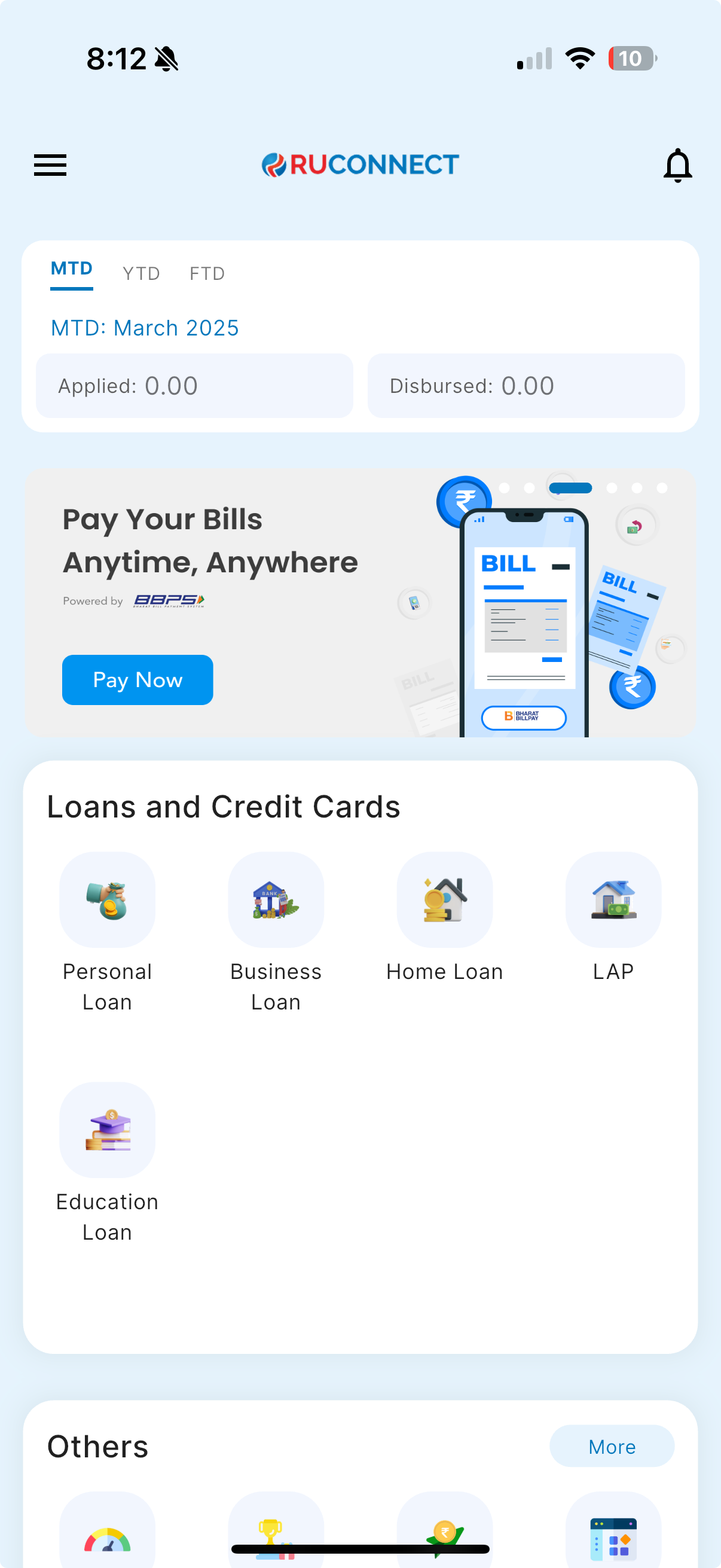
1. After successful login, you will land on the Dashboard.
2. The Dashboard provides:
* **Quick Access Links**: Links to personal loans, home loans, and other products.
* **Status Overview**: Displays details of ongoing or past applications.
 ## Step 3: Navigate to Find Banks section from Hamburger menu
1. Tap to view Hamburger menu on the Dashboard.
2. Tap on the Tools section in the side menu.
3. Tap on the find banks in the tools section.
4. User will be redirected to ruconnect.in page where you will land on finds banks page.
## Step 3: Navigate to Find Banks section from Hamburger menu
1. Tap to view Hamburger menu on the Dashboard.
2. Tap on the Tools section in the side menu.
3. Tap on the find banks in the tools section.
4. User will be redirected to ruconnect.in page where you will land on finds banks page.
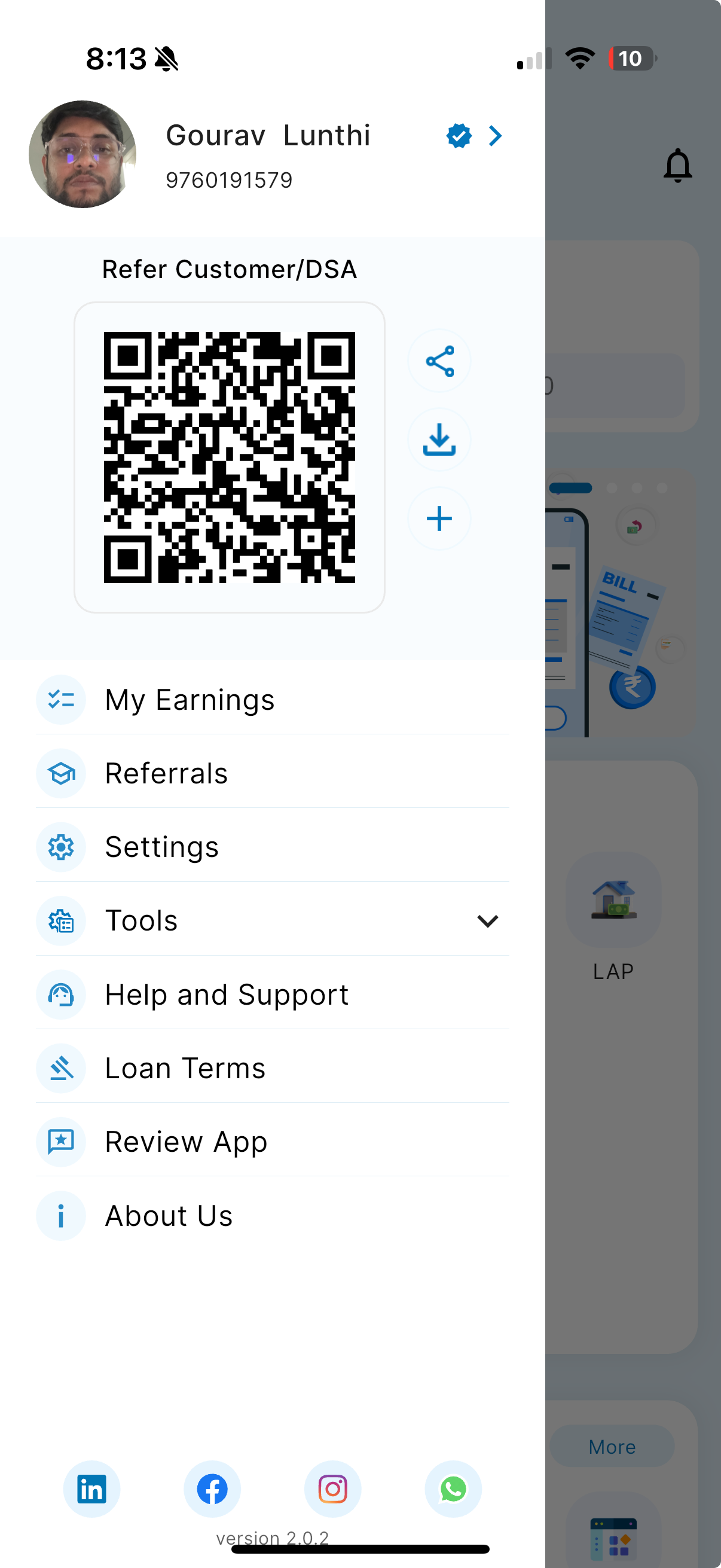
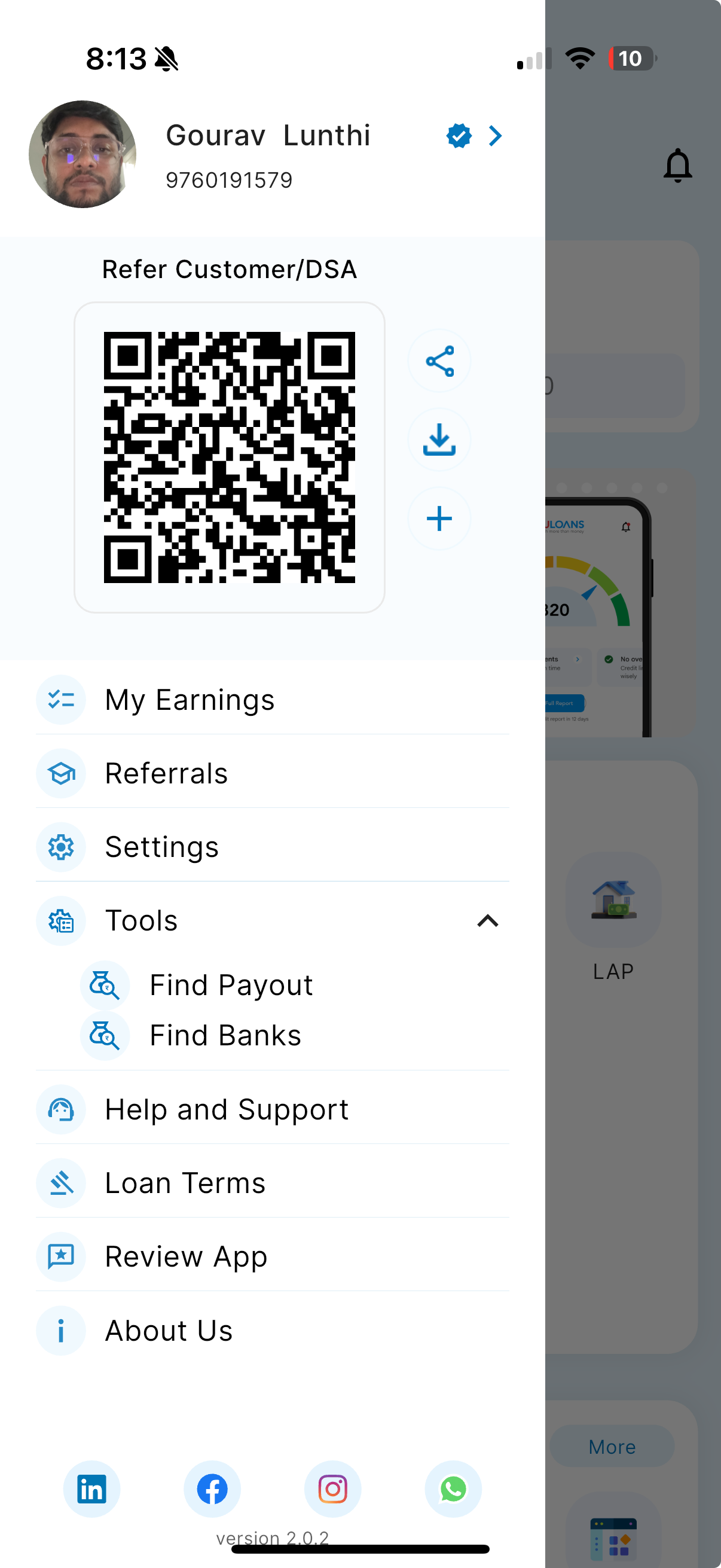 ### Note: The tools section is visible only to the that has the access to this module.
## Step 4: Find Banks details page
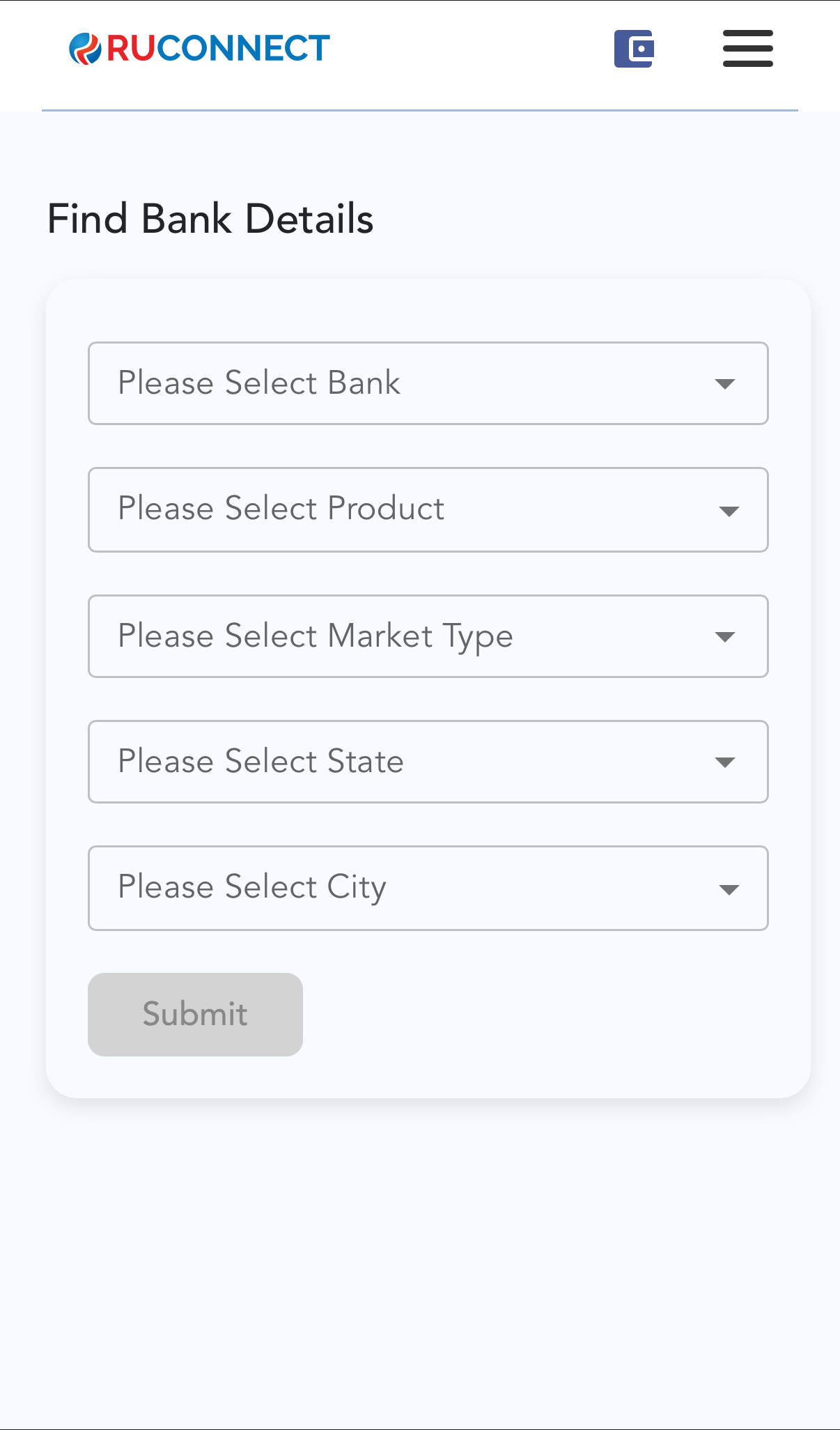
1.Select Bank Dropdown : The user can search and select the bank from this dropdown.
2.Select Product : The user can select the product from the available products of the selected bank.
3.Select Market Type : The user can select the market type from the dropdown.
4.Select State : The user can select the state available for the selected product from the dropdown.
5.Select City : The user can select the city available for the selected product based on the state selected.
6.Submit : Click on submit button after selecting all the mandatory fields.
### Note: The tools section is visible only to the that has the access to this module.
## Step 4: Find Banks details page
1.Select Bank Dropdown : The user can search and select the bank from this dropdown.
2.Select Product : The user can select the product from the available products of the selected bank.
3.Select Market Type : The user can select the market type from the dropdown.
4.Select State : The user can select the state available for the selected product from the dropdown.
5.Select City : The user can select the city available for the selected product based on the state selected.
6.Submit : Click on submit button after selecting all the mandatory fields.
 ## Step 5: Bank Details on basis on selected product of the Bank
Following details sections are visble:
1. Bank/NBFC Name
2. Login Code
3. Product
4. Market and Sub Type
5. City
6. State
7. Last Updated At
## Step 5: Bank Details on basis on selected product of the Bank
Following details sections are visble:
1. Bank/NBFC Name
2. Login Code
3. Product
4. Market and Sub Type
5. City
6. State
7. Last Updated At
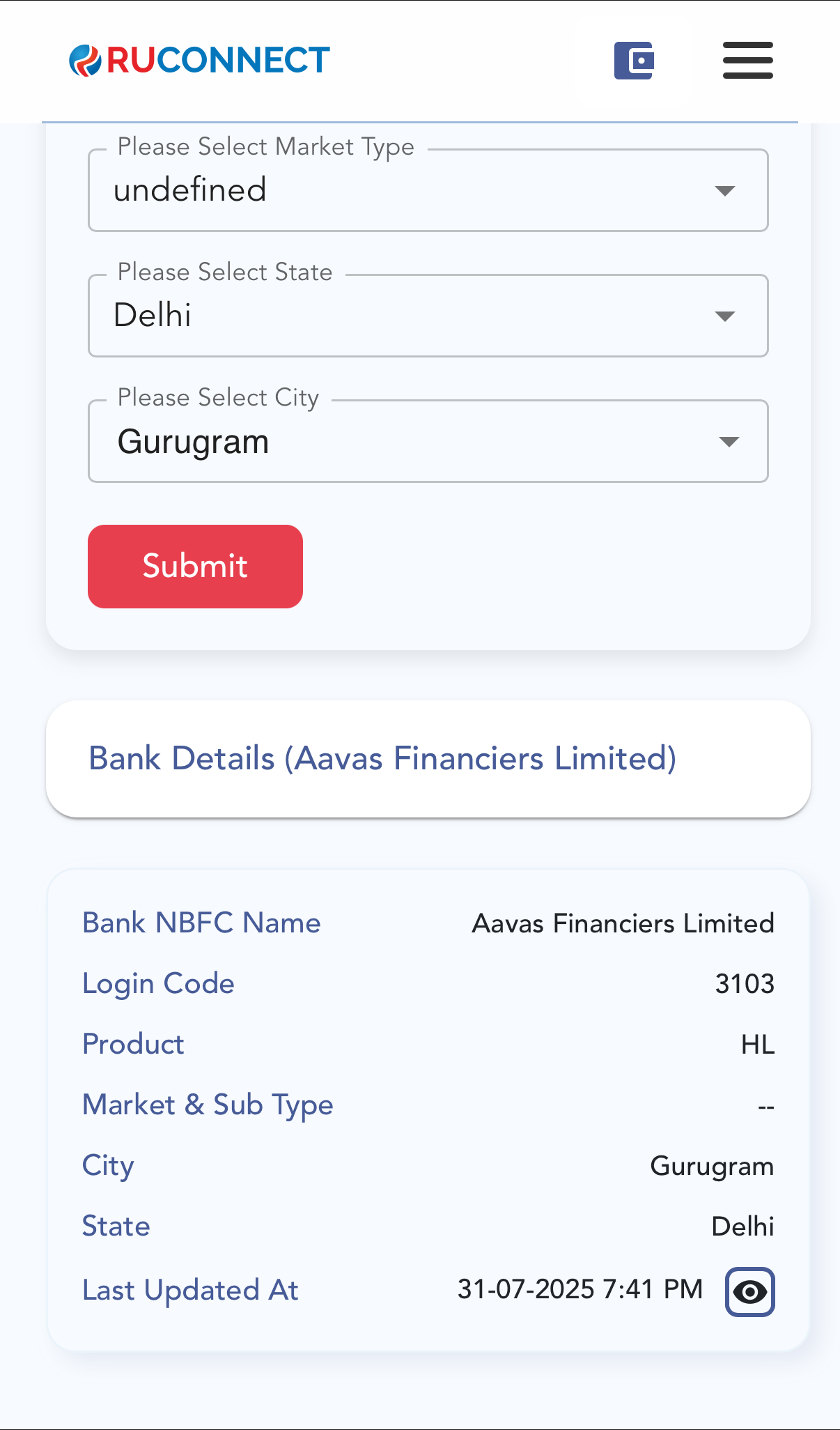 \*\*To view all the other detials of the product tap on the eye button on the bottom left of the card.
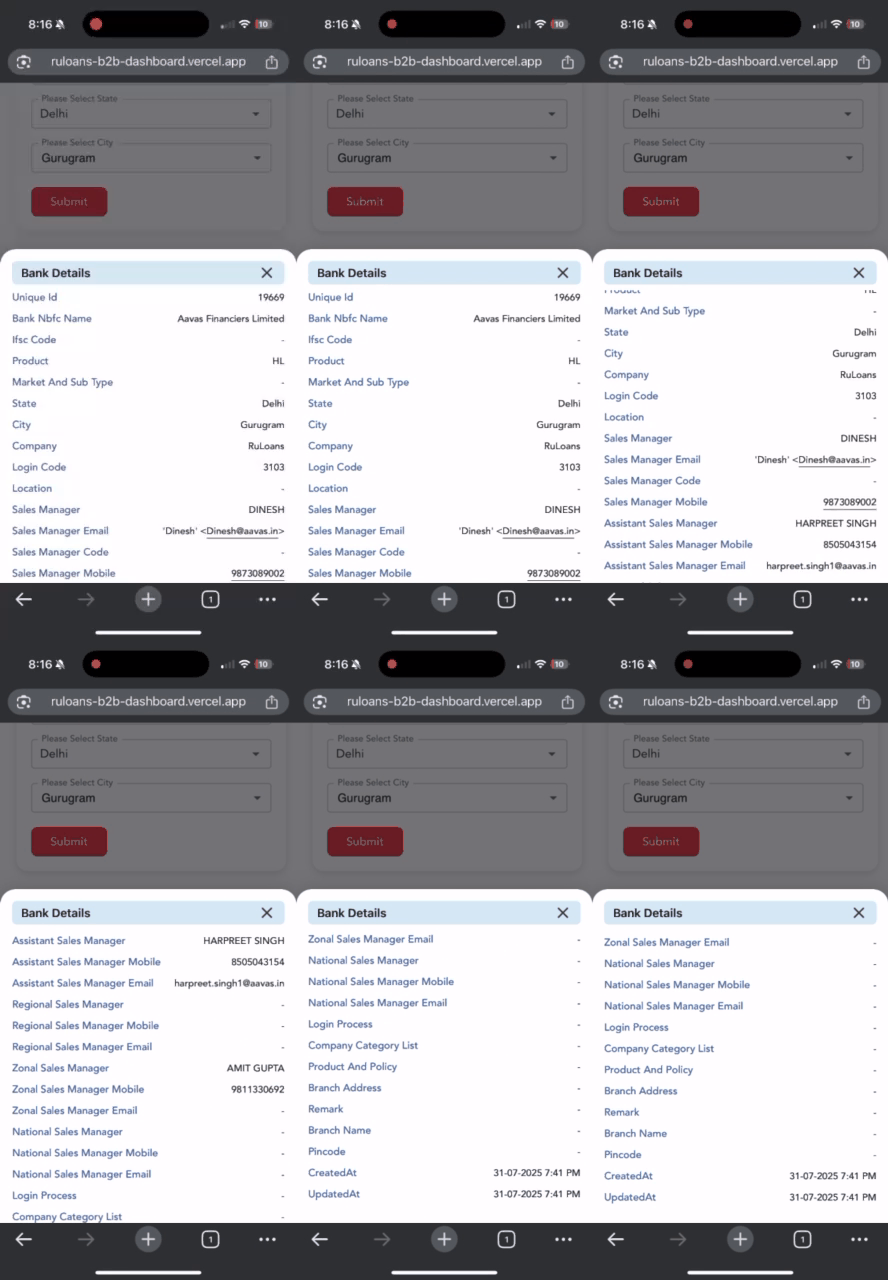
\*\*Note--> The data set as null is not available on the platform.
\*\*To view all the other detials of the product tap on the eye button on the bottom left of the card.

\*\*Note--> The data set as null is not available on the platform.