> ## Documentation Index
> Fetch the complete documentation index at: https://docs.ruloans.com/llms.txt
> Use this file to discover all available pages before exploring further.
# How to apply for Unsecured Business Loan in Piramal(UBL)
> Loan Flow of Assisted Journey on RuConnect for Pirmal Ubl
# Loan Flow of Assisted Journey on RuConnect
## Introduction
This document provides a comprehensive step-by-step guide for DSAs to apply for a loan using the RuConnect platform. It highlights mandatory and optional fields, supported by screenshots, to ensure clarity and completeness.
## Step 1: Access the RuConnect Platform
* **URL:** Open the RuConnect platform at [RuConnect](https://ruconnect.in/).
* **Login**
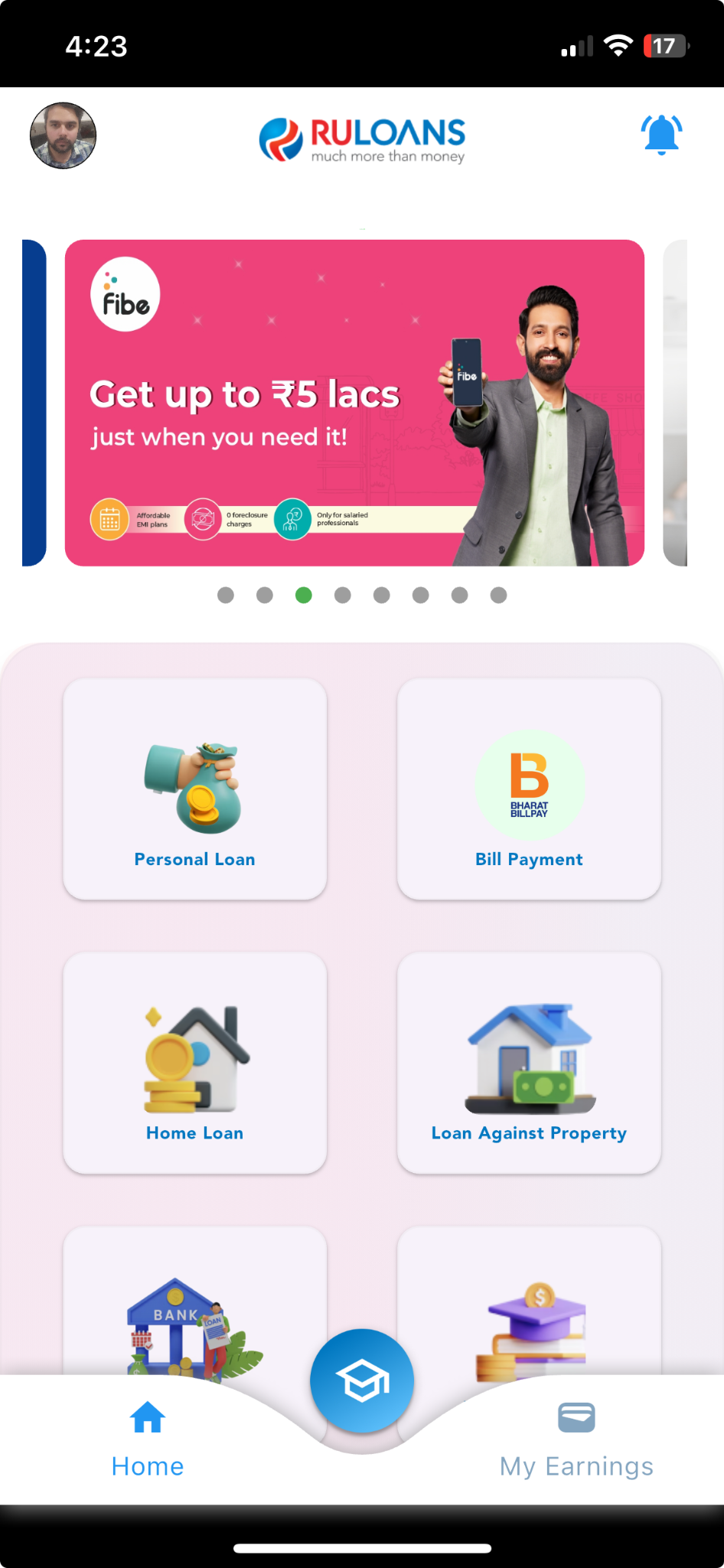
## Step 2: Navigate to the Dashboard
After successful login, you will land on the Dashboard.
* **Quick Access Links:** Links to personal loans, home loans, and other products.
* **Status Overview:** Displays details of ongoing or past applications.
 ## Step 3: Provide Pincode
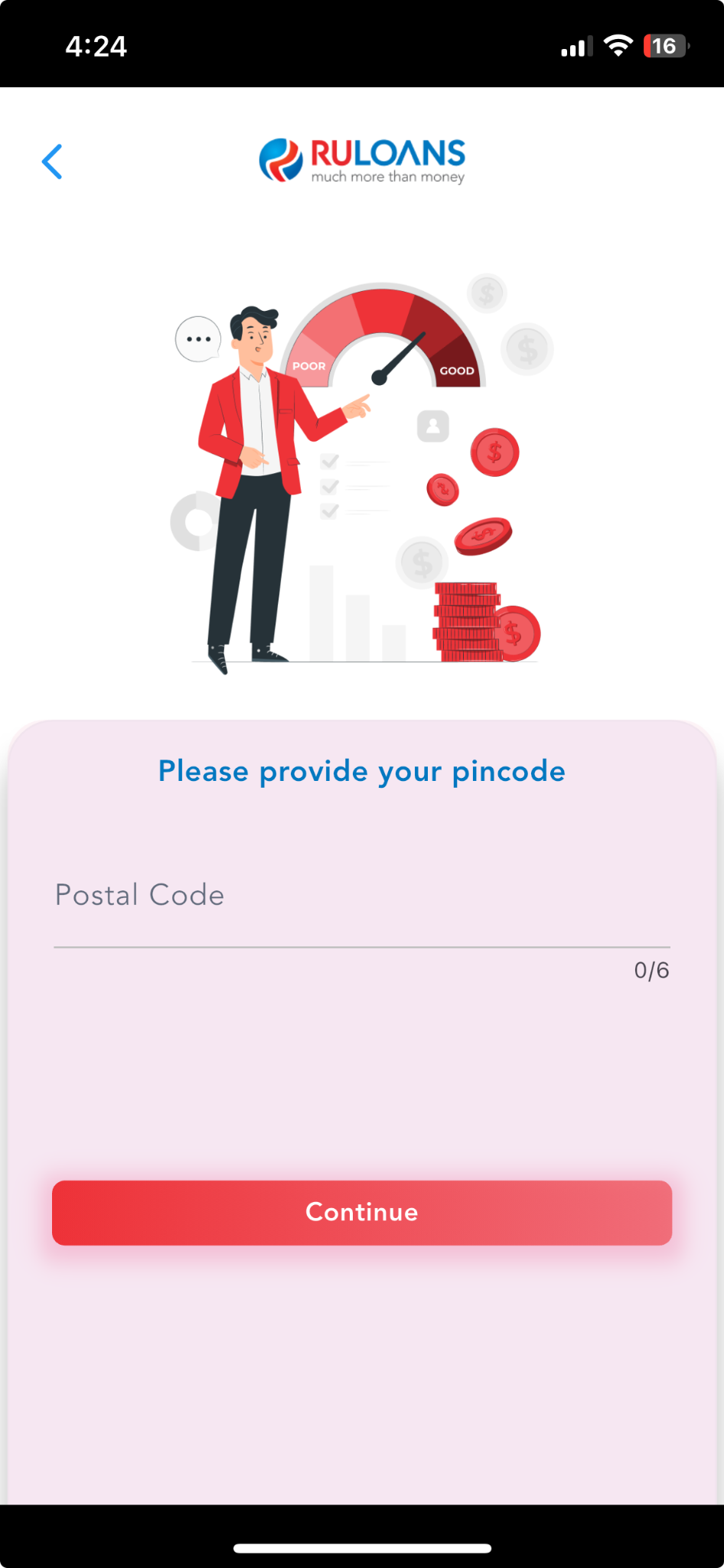
Enter your pincode to determine geographical location and provide relevant services.
## Step 3: Provide Pincode
Enter your pincode to determine geographical location and provide relevant services.
 ## Step 4: Select the Loan Provider
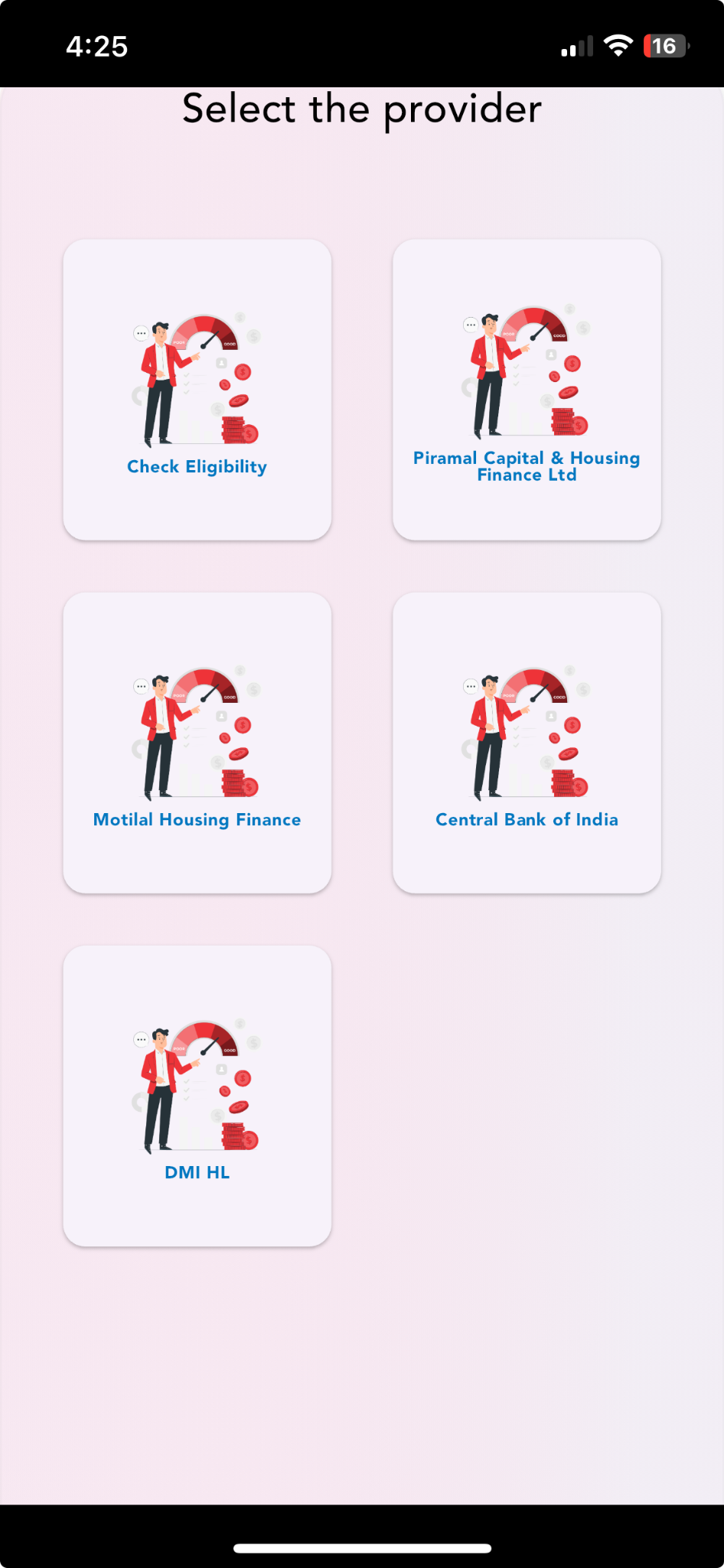
On the "Please Select The Provider" page, a list of available loan providers will be displayed, such as:
* **Tata BL**
* **LENDINGKART**
* **Piramal**
* **Piramal Capital & Housing Finance**
Select the desired loan provider and click "Continue."
## Step 4: Select the Loan Provider
On the "Please Select The Provider" page, a list of available loan providers will be displayed, such as:
* **Tata BL**
* **LENDINGKART**
* **Piramal**
* **Piramal Capital & Housing Finance**
Select the desired loan provider and click "Continue."
 ## Step 5: Enter Customer PAN & Mobile Number
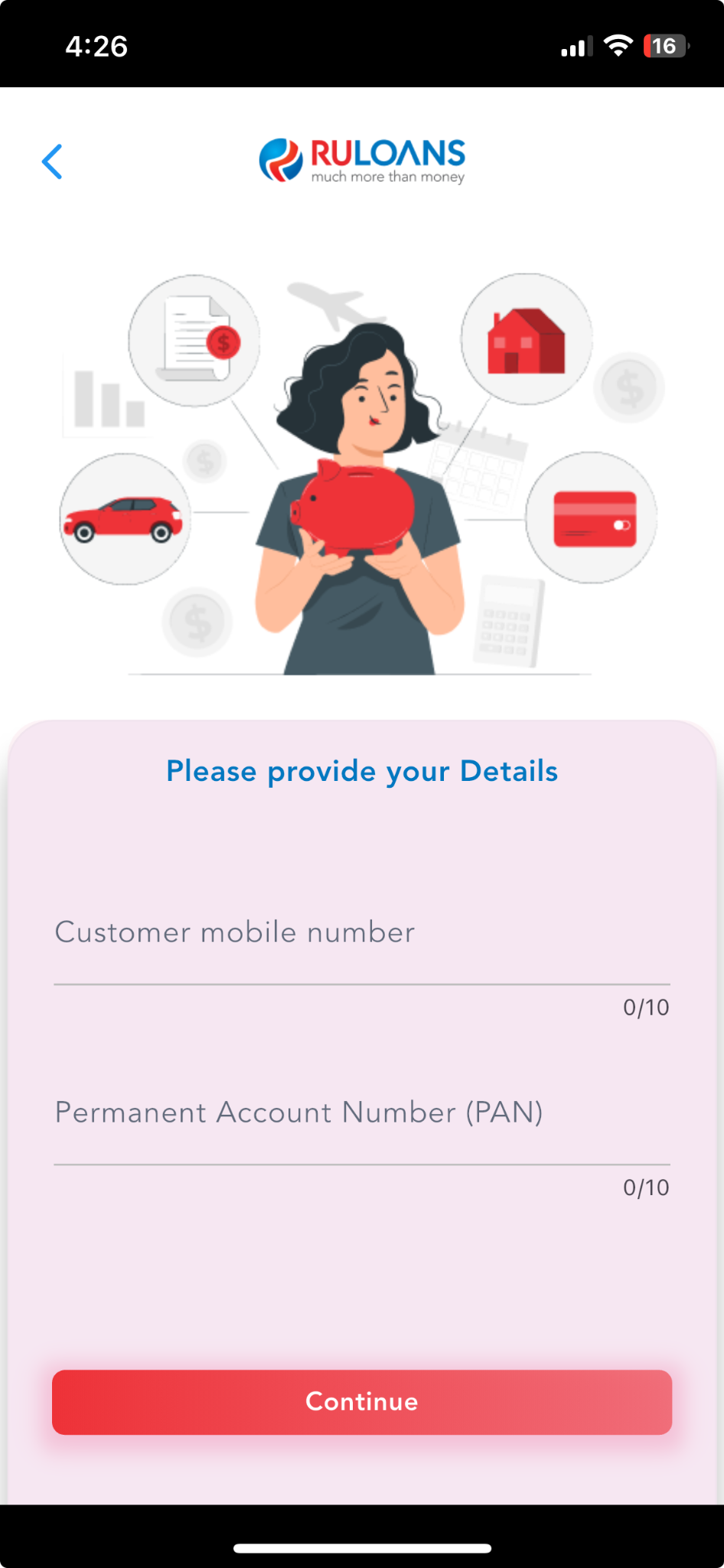
On the "Eligibility Criteria" page, review the eligibility requirements for the loan.
* **FOIR:** 25% to 90%
* **ROI:** 16.99% to 24.99%
* **Salary:** ₹35,000 to ₹10,000,000
* **Age:** 23 to 65 years
* **Loan Amount:** ₹500,000 to ₹3,000,000
* **CIBIL:** 650 to 1000
Provide the customer’s **PAN Number** and **Mobile Number** and click "Continue."
## Step 5: Enter Customer PAN & Mobile Number
On the "Eligibility Criteria" page, review the eligibility requirements for the loan.
* **FOIR:** 25% to 90%
* **ROI:** 16.99% to 24.99%
* **Salary:** ₹35,000 to ₹10,000,000
* **Age:** 23 to 65 years
* **Loan Amount:** ₹500,000 to ₹3,000,000
* **CIBIL:** 650 to 1000
Provide the customer’s **PAN Number** and **Mobile Number** and click "Continue."
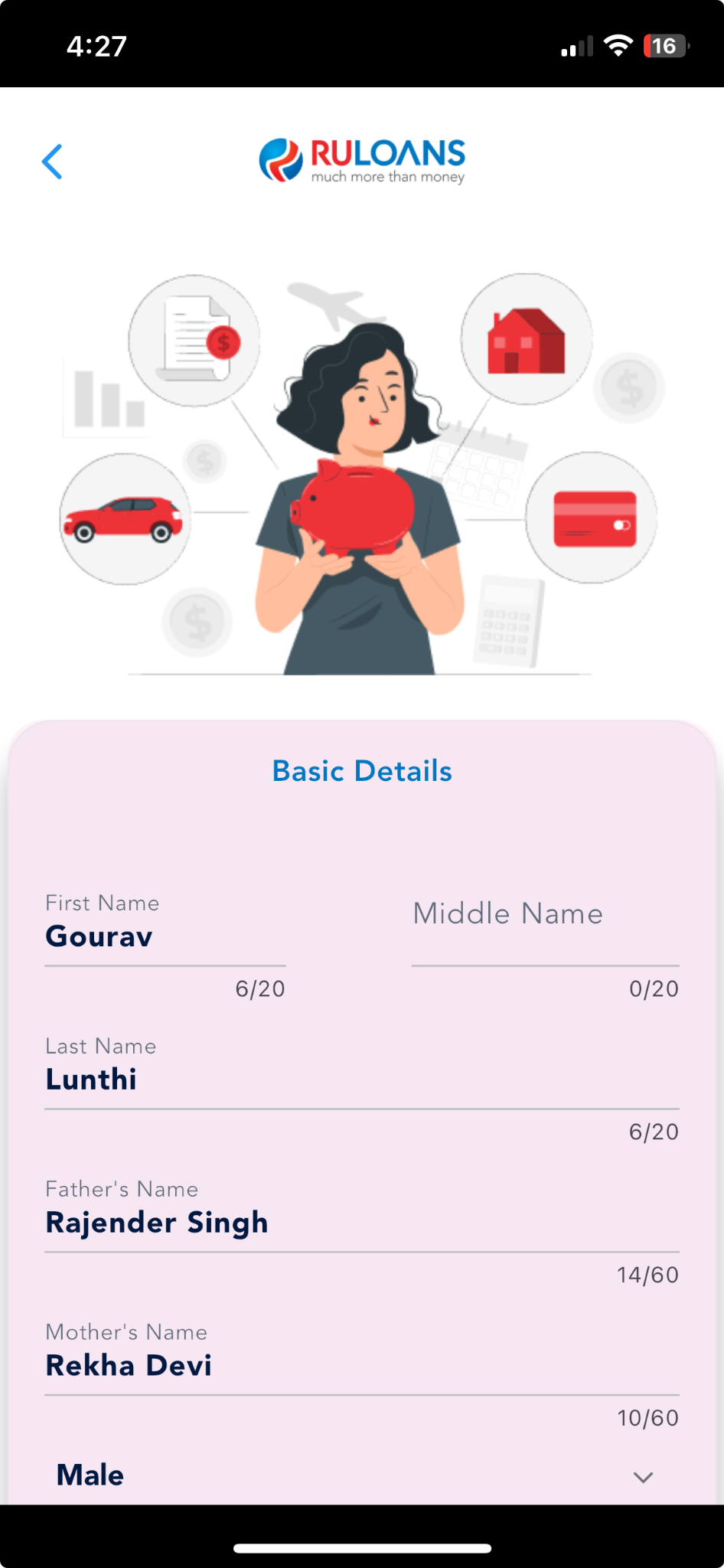
 ## Step 6: Provide Basic Details
Fill out the basic information form:
* **Full Name** (Mandatory)
* **Email Address** (Mandatory)
* **Contact Number** (Pre-filled from login details, editable if needed)
## Step 6: Provide Basic Details
Fill out the basic information form:
* **Full Name** (Mandatory)
* **Email Address** (Mandatory)
* **Contact Number** (Pre-filled from login details, editable if needed)
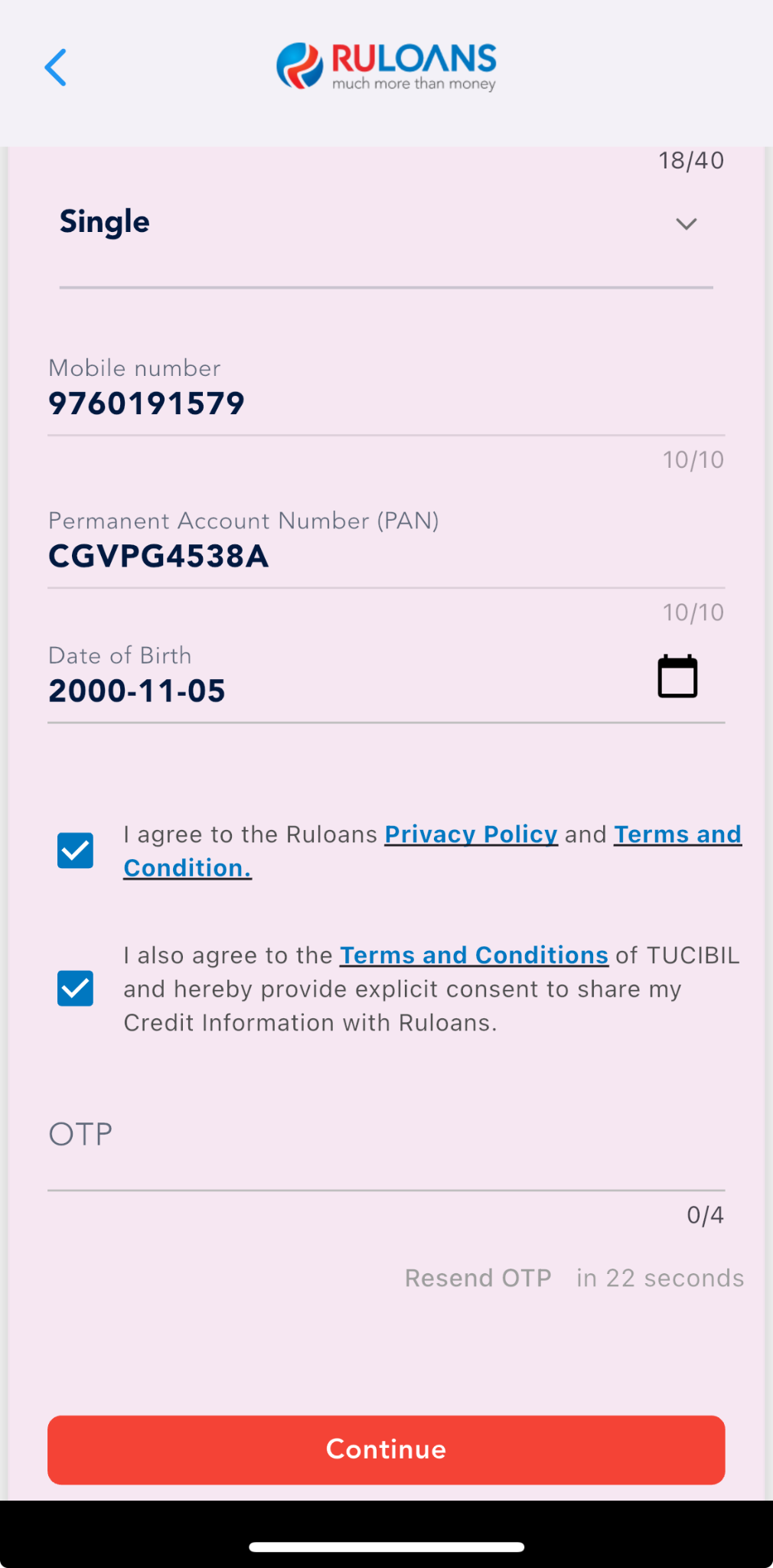
 ## Step 7: OTP Verification
Enter the 4-digit OTP sent to your registered mobile number.
* If you haven’t received the OTP, wait for the resend option.
* Click "Continue."
## Step 7: OTP Verification
Enter the 4-digit OTP sent to your registered mobile number.
* If you haven’t received the OTP, wait for the resend option.
* Click "Continue."
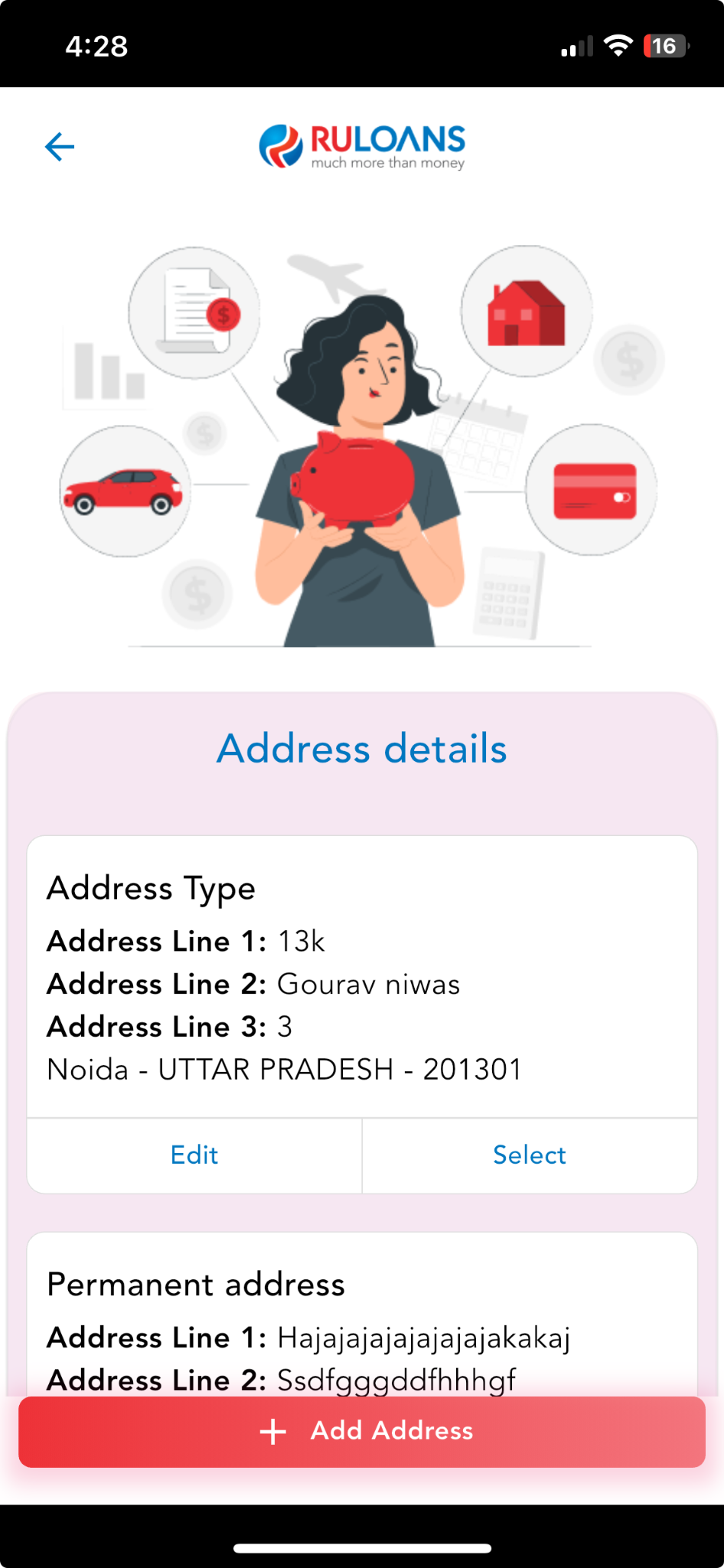
 ## Step 8: Enter Address Details
Provide your residential address:
* **House/Flat Number** (Mandatory)
* **Street/Locality** (Mandatory)
* **City, State, and PIN Code** (Mandatory)
If applicable, select the checkbox to provide an alternate address (Optional).
## Step 8: Enter Address Details
Provide your residential address:
* **House/Flat Number** (Mandatory)
* **Street/Locality** (Mandatory)
* **City, State, and PIN Code** (Mandatory)
If applicable, select the checkbox to provide an alternate address (Optional).
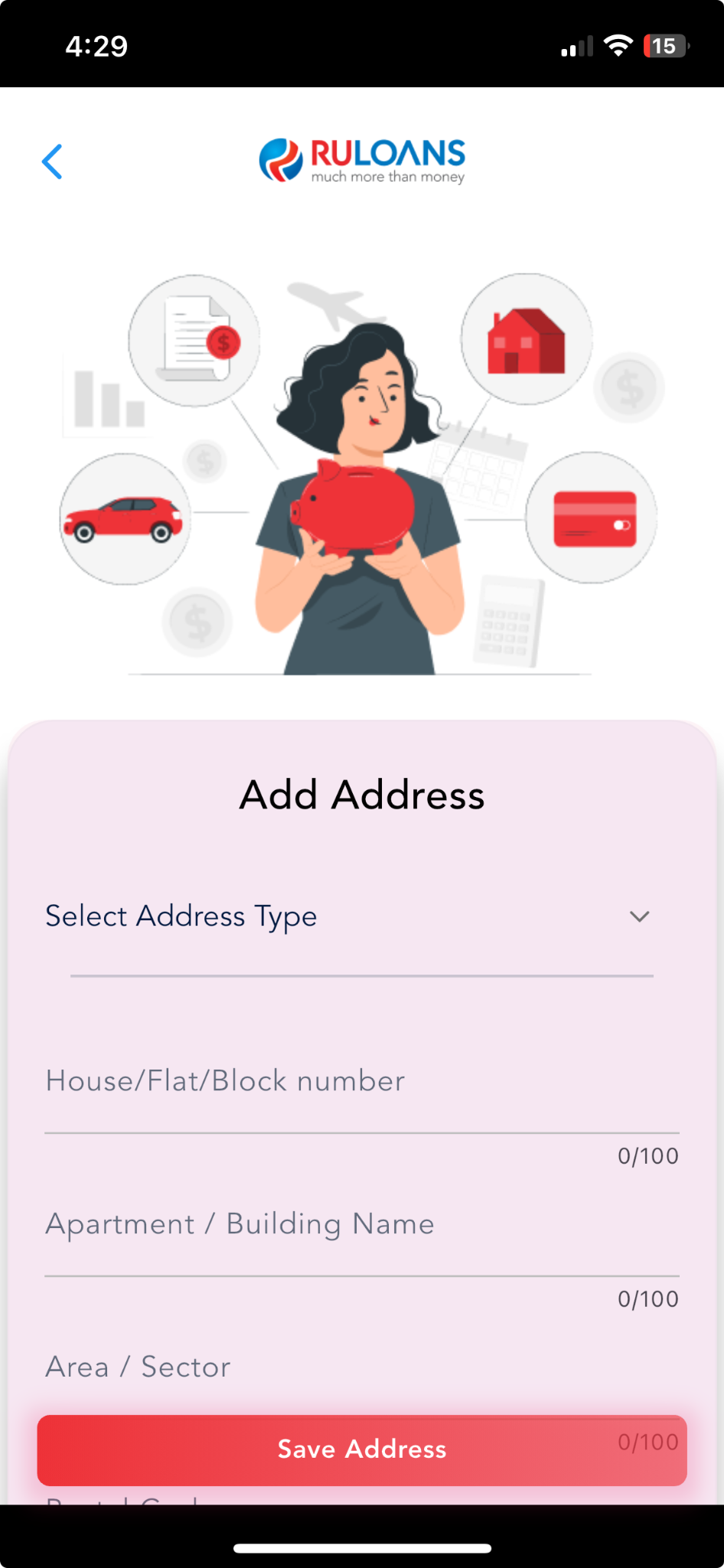
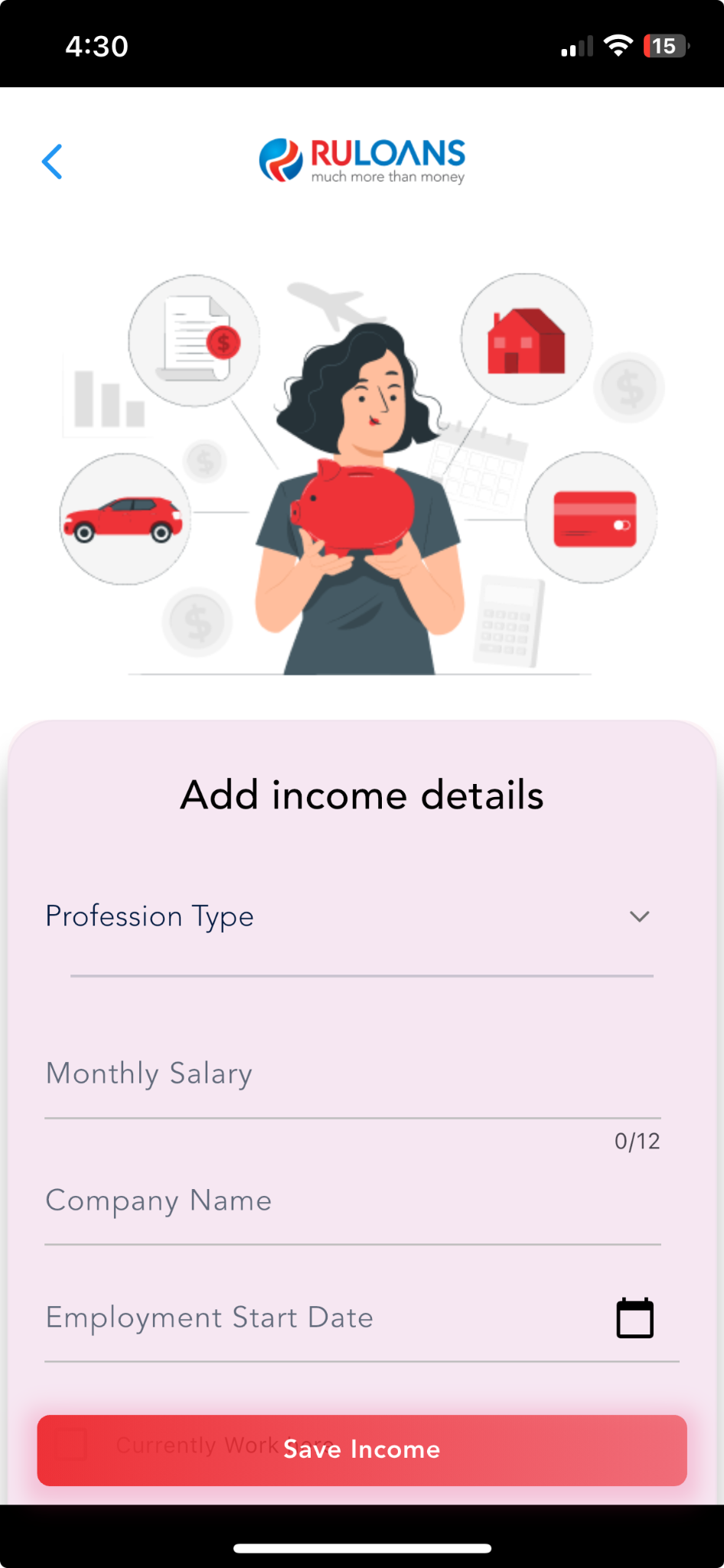
 ## Step 9: Fill Your Income Details
Fill in details about your employment and income:
* **Income Type** (Salaried, Self-employed, etc.)
* **Monthly Income**
* **Company Name & Type**
* **Employment Start and End Dates**
* **Office Address**
## Step 9: Fill Your Income Details
Fill in details about your employment and income:
* **Income Type** (Salaried, Self-employed, etc.)
* **Monthly Income**
* **Company Name & Type**
* **Employment Start and End Dates**
* **Office Address**
 ## Step 10: Verify Income Details
Select your profession and enter monthly income details.
Examples:
* **Salaried:** ₹7,75,000 (Company: Kotlin)
* **Self-employed professional:** ₹7,78,000 (Company: Java SC)
* **Self-employed non-professional:** ₹4,46,000 (Company: Mouqnatu)
Click "Continue."
## Step 10: Verify Income Details
Select your profession and enter monthly income details.
Examples:
* **Salaried:** ₹7,75,000 (Company: Kotlin)
* **Self-employed professional:** ₹7,78,000 (Company: Java SC)
* **Self-employed non-professional:** ₹4,46,000 (Company: Mouqnatu)
Click "Continue."
 ## Step 11: Provide Loan Details
Enter the following details:
* **Loan Amount** (Mandatory)
* **Loan Tenure** (Mandatory, e.g., 2 Years, 3 Years)
* **Business Vintage (in Months)** (Optional)
* **Business Turnover** (Mandatory)
Click "Continue."
## Step 11: Provide Loan Details
Enter the following details:
* **Loan Amount** (Mandatory)
* **Loan Tenure** (Mandatory, e.g., 2 Years, 3 Years)
* **Business Vintage (in Months)** (Optional)
* **Business Turnover** (Mandatory)
Click "Continue."
 ## Step 12: Provide Additional Details
Fill in additional information such as:
* **Religion**
* **Qualification**
* **Address Category**
* **Income Mode**
* **Sales Person**
* **End Use**
* **Business Address Type**
* **Business Email**
Click "Continue."
## Step 12: Provide Additional Details
Fill in additional information such as:
* **Religion**
* **Qualification**
* **Address Category**
* **Income Mode**
* **Sales Person**
* **End Use**
* **Business Address Type**
* **Business Email**
Click "Continue."
 ## Step 13: Application Status
Click "Continue" on the **RULOANS** platform.
You will be redirected to the lender's website to complete the application.
## Step 13: Application Status
Click "Continue" on the **RULOANS** platform.
You will be redirected to the lender's website to complete the application.
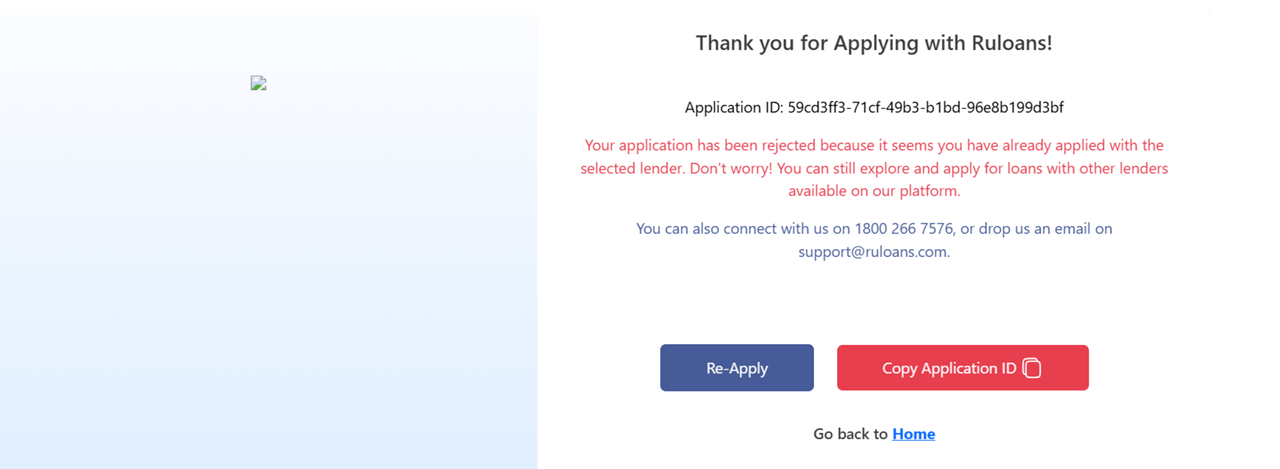
 ### If the Application is Rejected
On the "Application Status" page, you will see:
* **Application ID**
* **Status: Rejected**
* **Next Steps:**
* **Contact Support:** Call 1800 266 7576 or send an email.
* Click **"Go back to Home"** to explore other options.
### If the Application is Rejected
On the "Application Status" page, you will see:
* **Application ID**
* **Status: Rejected**
* **Next Steps:**
* **Contact Support:** Call 1800 266 7576 or send an email.
* Click **"Go back to Home"** to explore other options.
 ***
This guide ensures a smooth loan application journey on RuConnect. Follow each step carefully to complete your application successfully.
***
This guide ensures a smooth loan application journey on RuConnect. Follow each step carefully to complete your application successfully.