> ## Documentation Index
> Fetch the complete documentation index at: https://docs.ruloans.com/llms.txt
> Use this file to discover all available pages before exploring further.
# How to apply for DMI Home Loan(HL)
> Loan Flow of Assisted Journey on RuConnect for DMI HL
## Introduction
This document provides a comprehensive step*by*step guide for DSAs to apply for a loan using the RuConnect platform. It highlights mandatory and optional fields, supported by screenshots, to ensure clarity and completeness.
**Introduction:**
This document provides a comprehensive step-by-step guide for DSAs to apply for a loan using the RuConnect platform. It highlights mandatory and optional fields, supported by screenshots, to ensure clarity and completeness.
## Step 1: Access the RuConnect Platform\*\*
Open the RuConnect App at your Android/IOS device.
## Step 2: Navigate to the Dashboard
1. After successful login, you will land on the **Dashboard**.
2. The Dashboard provides:
* **Quick Access Links**: Links to personal loans, home loans, and other products.
* **Status Overview**: Displays details of ongoing or past applications
 ## Step 3: Enter Your Pincode
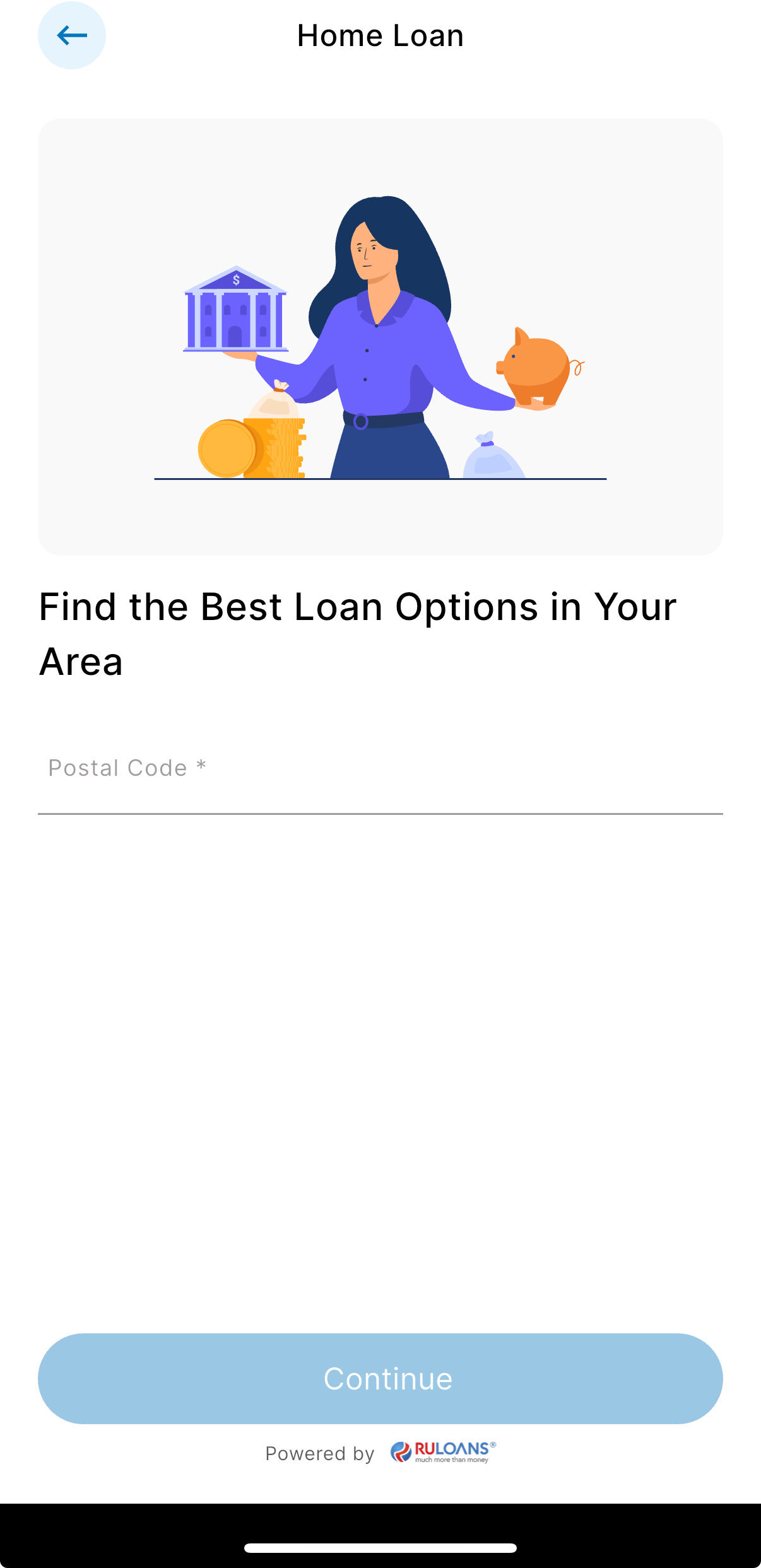
* **Pincode**: Enter the 6-digit postal code of your residence or business address.\
This helps us verify your location and show eligible offers.
* Tap **Continue**.
## Step 3: Enter Your Pincode
* **Pincode**: Enter the 6-digit postal code of your residence or business address.\
This helps us verify your location and show eligible offers.
* Tap **Continue**.
 ## Step 4: Enter Your Date of Birth
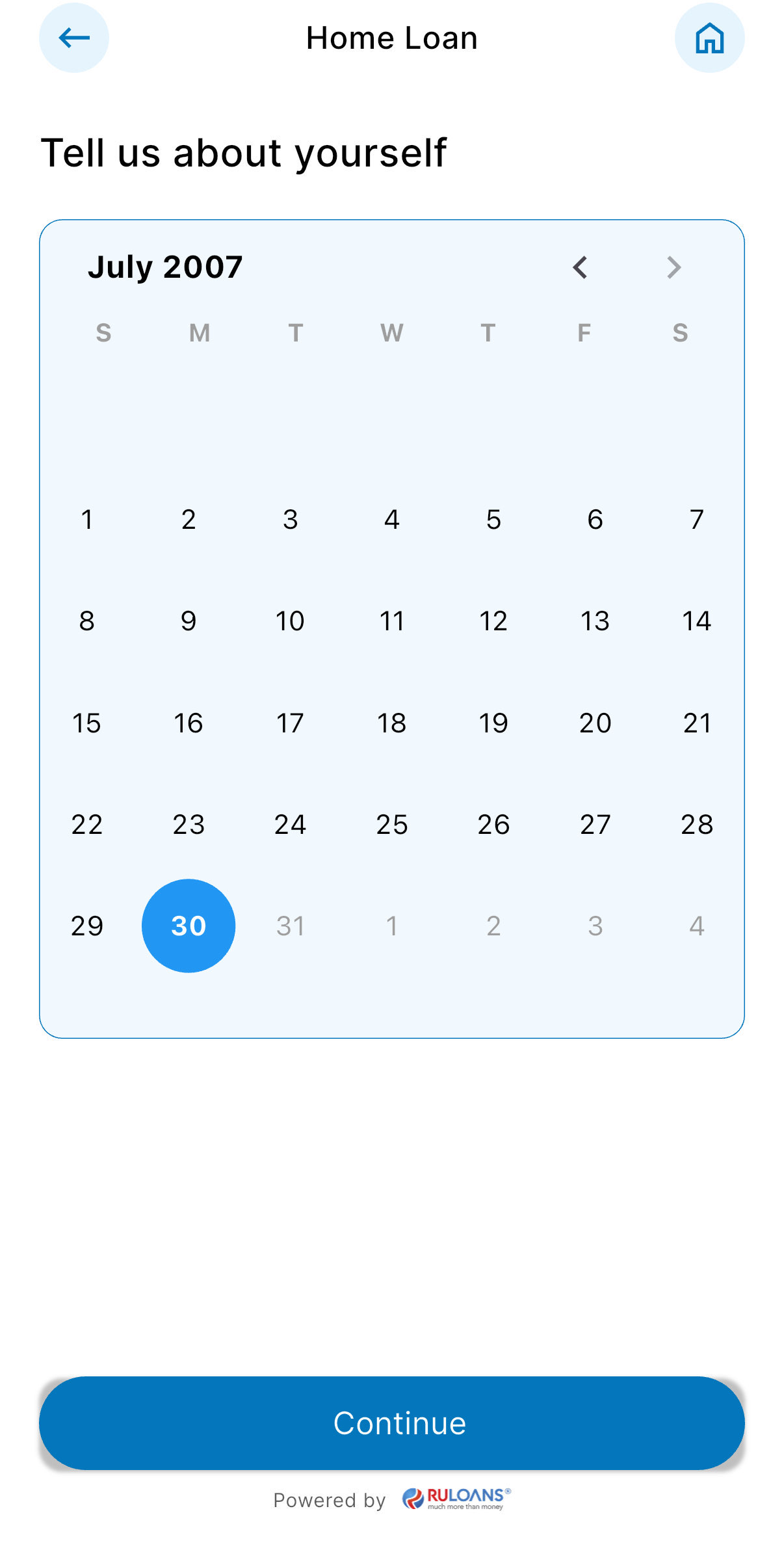
* **Date of Birth**: Select your date of birth using the calendar picker.\
This helps determine your eligibility and age-based offers.
* Tap **Continue**.
## Step 4: Enter Your Date of Birth
* **Date of Birth**: Select your date of birth using the calendar picker.\
This helps determine your eligibility and age-based offers.
* Tap **Continue**.
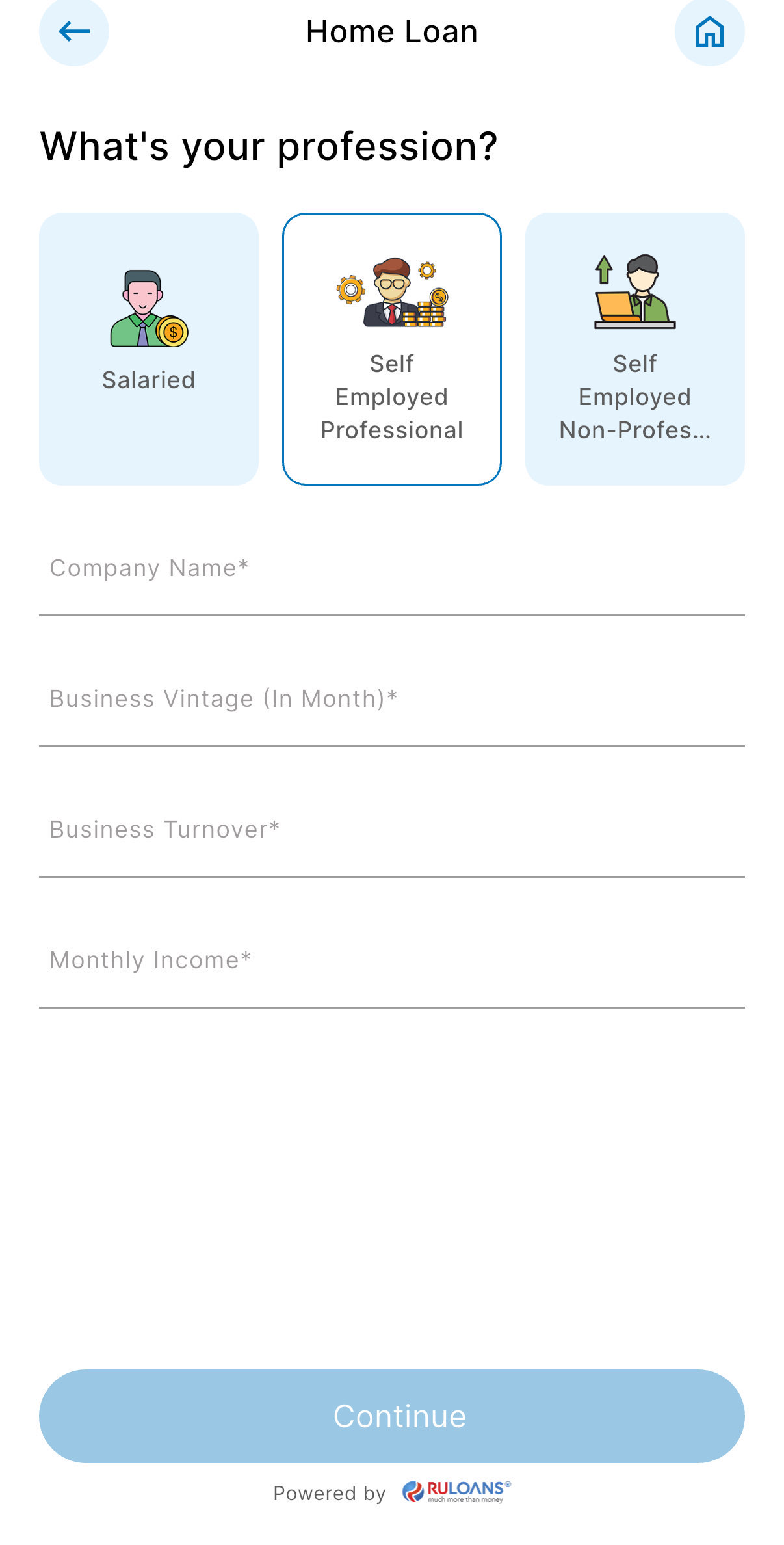
 ## Step 5: Choose Your Profession
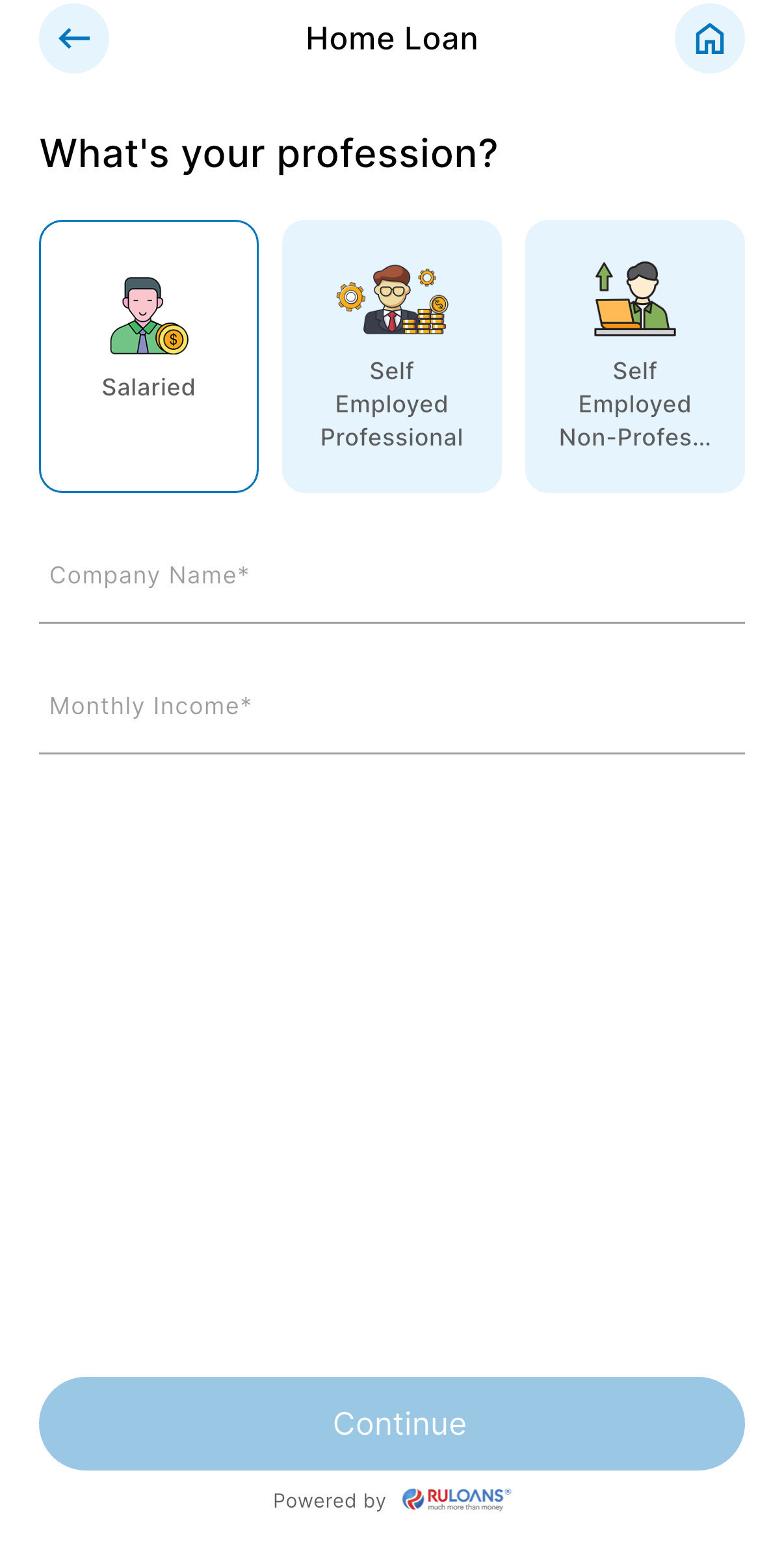
Select the category that best describes your employment type:
* **Salaried** - If you work for a company or organization.
* **Self-Employed** - If you are a freelancer, consultant, or professional.
* **Business Owner** - If you run a business, either registered or informal.
### If **Salaried**:
* **Company Name**: Name of your employer.
* **Monthly Income**: Your average take-home salary each month.
### If **Self-Employed** or **Business Owner**:
* **Business Name / Company Name**: Name of your business or profession.
* **Business Turnover**: Approximate annual income from your business/profession.
* **Business Vintage (in months)**: How long you've been running it.
* **Monthly Income**: Your average net income per month.
* Tap **Continue**.
## Step 5: Choose Your Profession
Select the category that best describes your employment type:
* **Salaried** - If you work for a company or organization.
* **Self-Employed** - If you are a freelancer, consultant, or professional.
* **Business Owner** - If you run a business, either registered or informal.
### If **Salaried**:
* **Company Name**: Name of your employer.
* **Monthly Income**: Your average take-home salary each month.
### If **Self-Employed** or **Business Owner**:
* **Business Name / Company Name**: Name of your business or profession.
* **Business Turnover**: Approximate annual income from your business/profession.
* **Business Vintage (in months)**: How long you've been running it.
* **Monthly Income**: Your average net income per month.
* Tap **Continue**.
 ## Step 6: Select Loan Amount & Duration
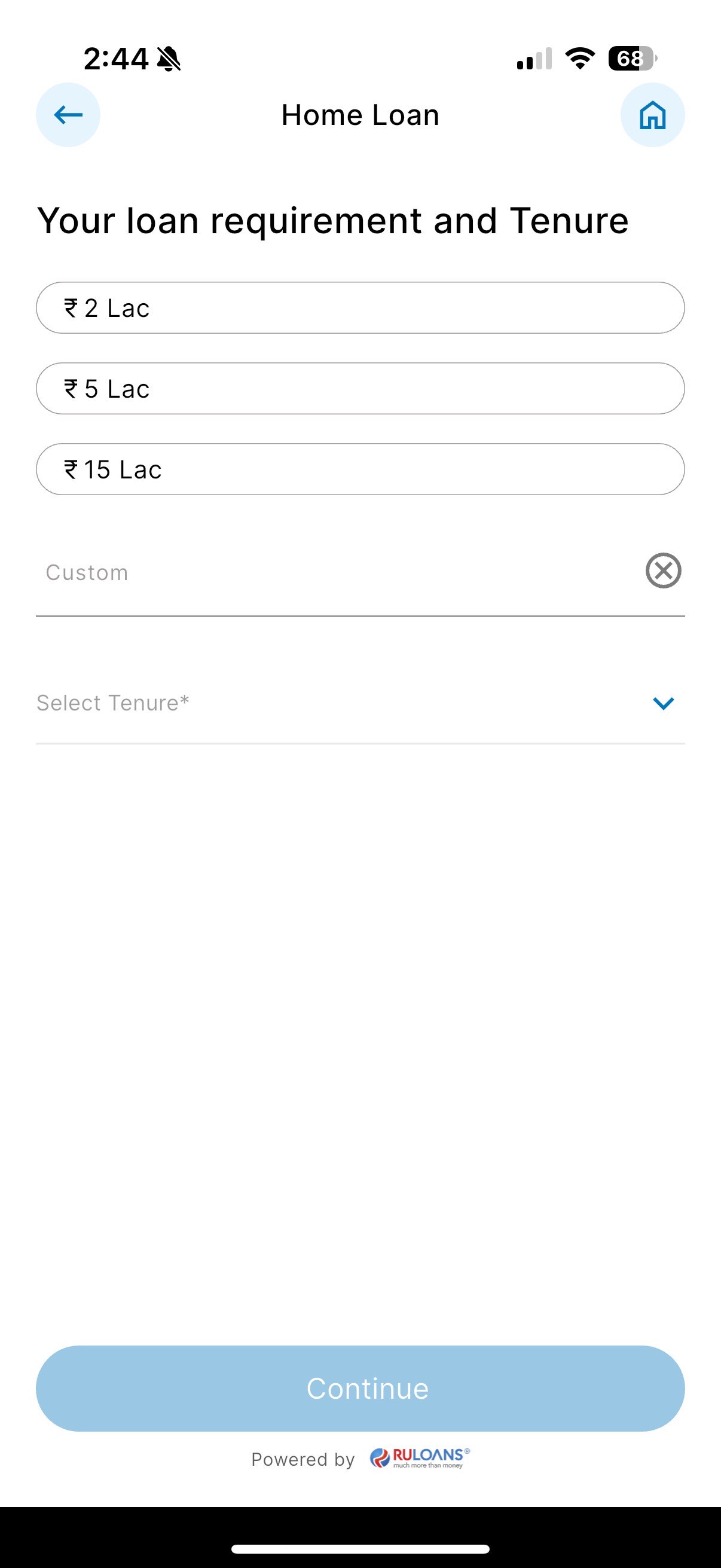
* **Loan Amount**: Choose a preset amount (e.g., ₹ 2L / ₹ 5L / ₹ 15L) or enter a **Custom Amount**.
* **Loan Tenure**: Choose the repayment period (in years).
* Tap **Continue**.
## Step 6: Select Loan Amount & Duration
* **Loan Amount**: Choose a preset amount (e.g., ₹ 2L / ₹ 5L / ₹ 15L) or enter a **Custom Amount**.
* **Loan Tenure**: Choose the repayment period (in years).
* Tap **Continue**.
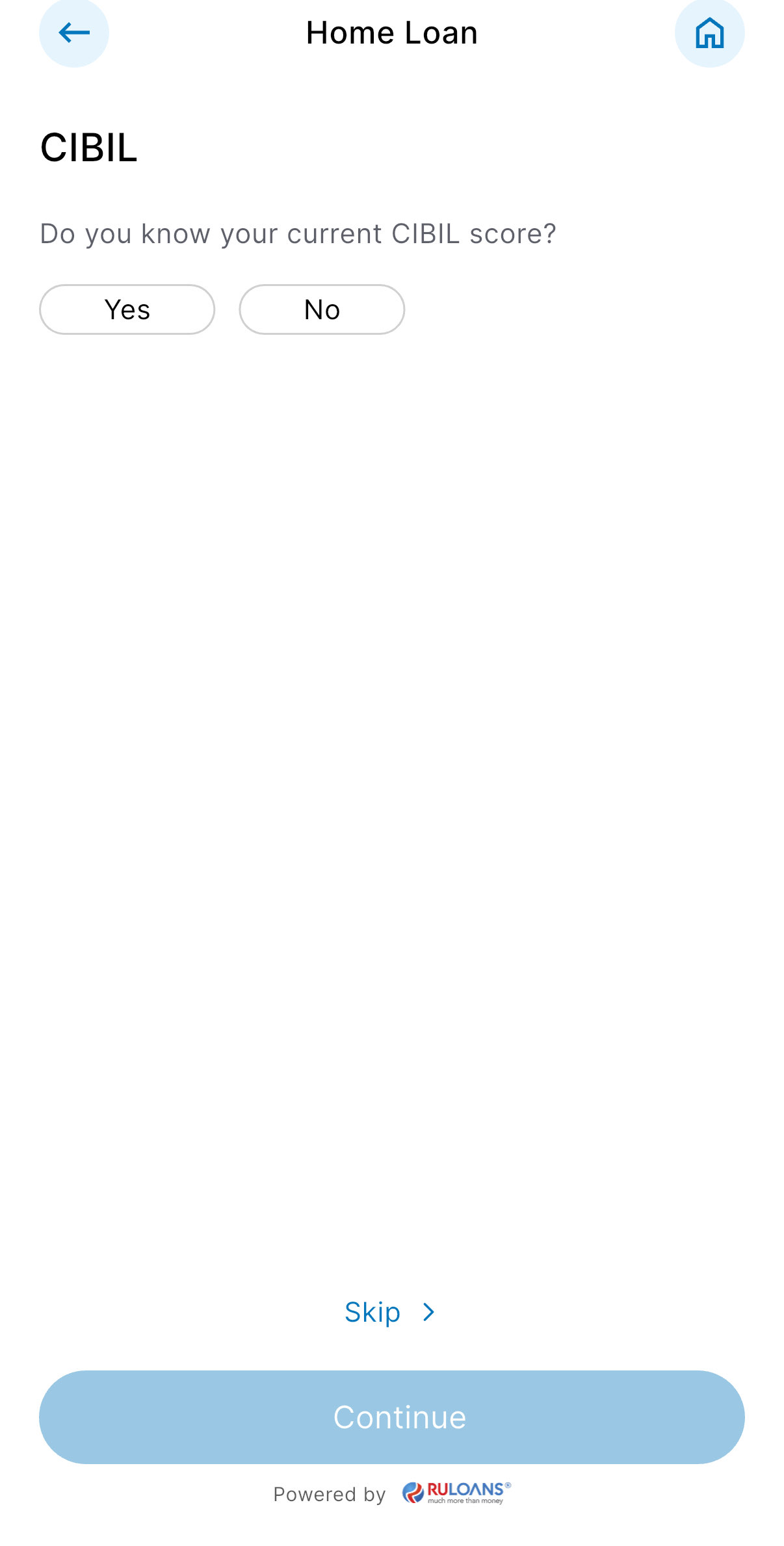 ## Step 7: Know Your CIBIL Score?
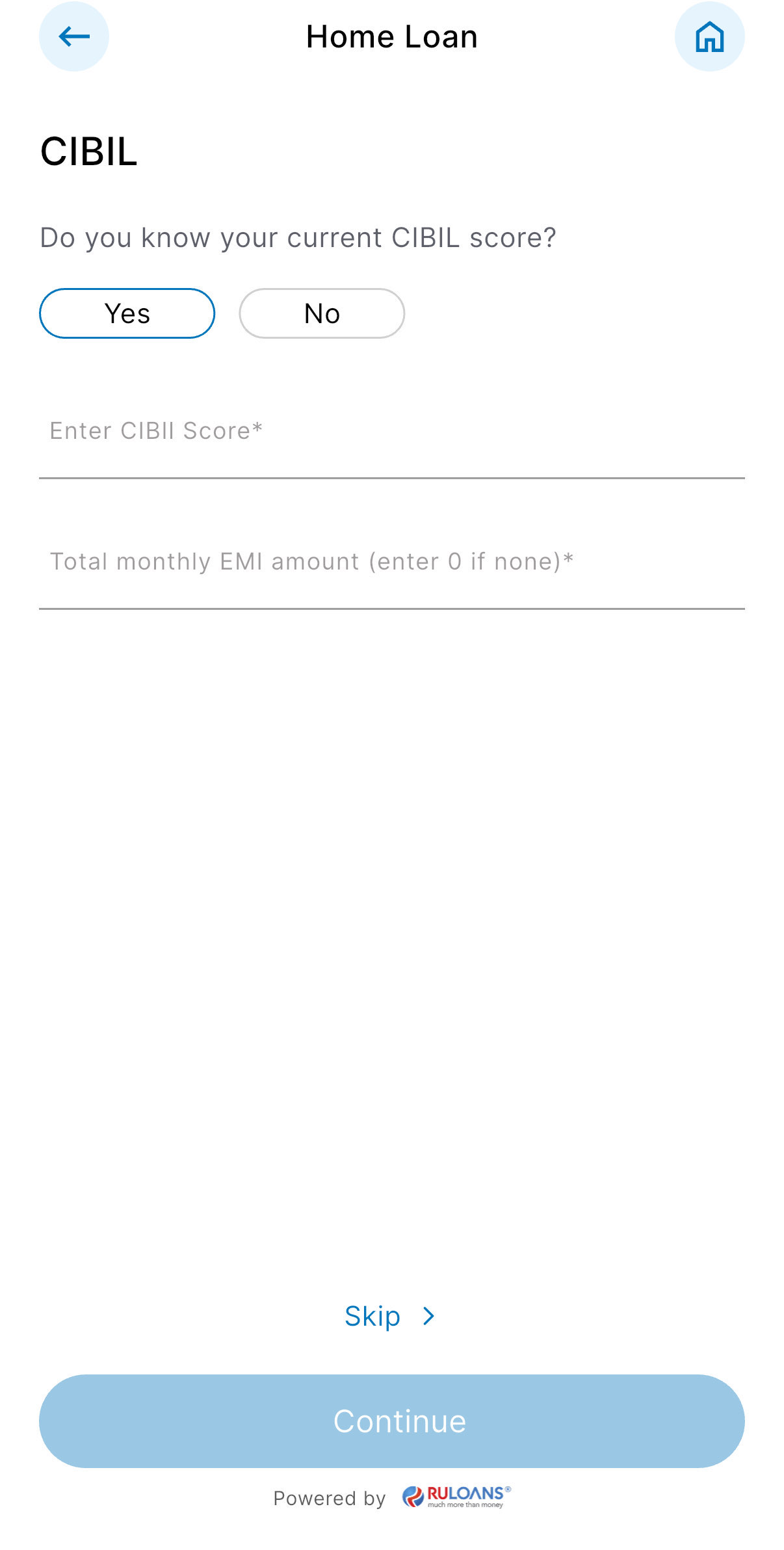
* If you select **Yes**:
* **CIBIL Score**: Enter your 3-digit credit score (e.g., 750).
* **Monthly EMI**: Total of all active loan EMIs you're paying.
* If you select **No**: User will be redirected to Step 8.
* If you Tap **Skip**: User will be redirected to Step 10.
* Tap **Continue**.
## Step 7: Know Your CIBIL Score?
* If you select **Yes**:
* **CIBIL Score**: Enter your 3-digit credit score (e.g., 750).
* **Monthly EMI**: Total of all active loan EMIs you're paying.
* If you select **No**: User will be redirected to Step 8.
* If you Tap **Skip**: User will be redirected to Step 10.
* Tap **Continue**.
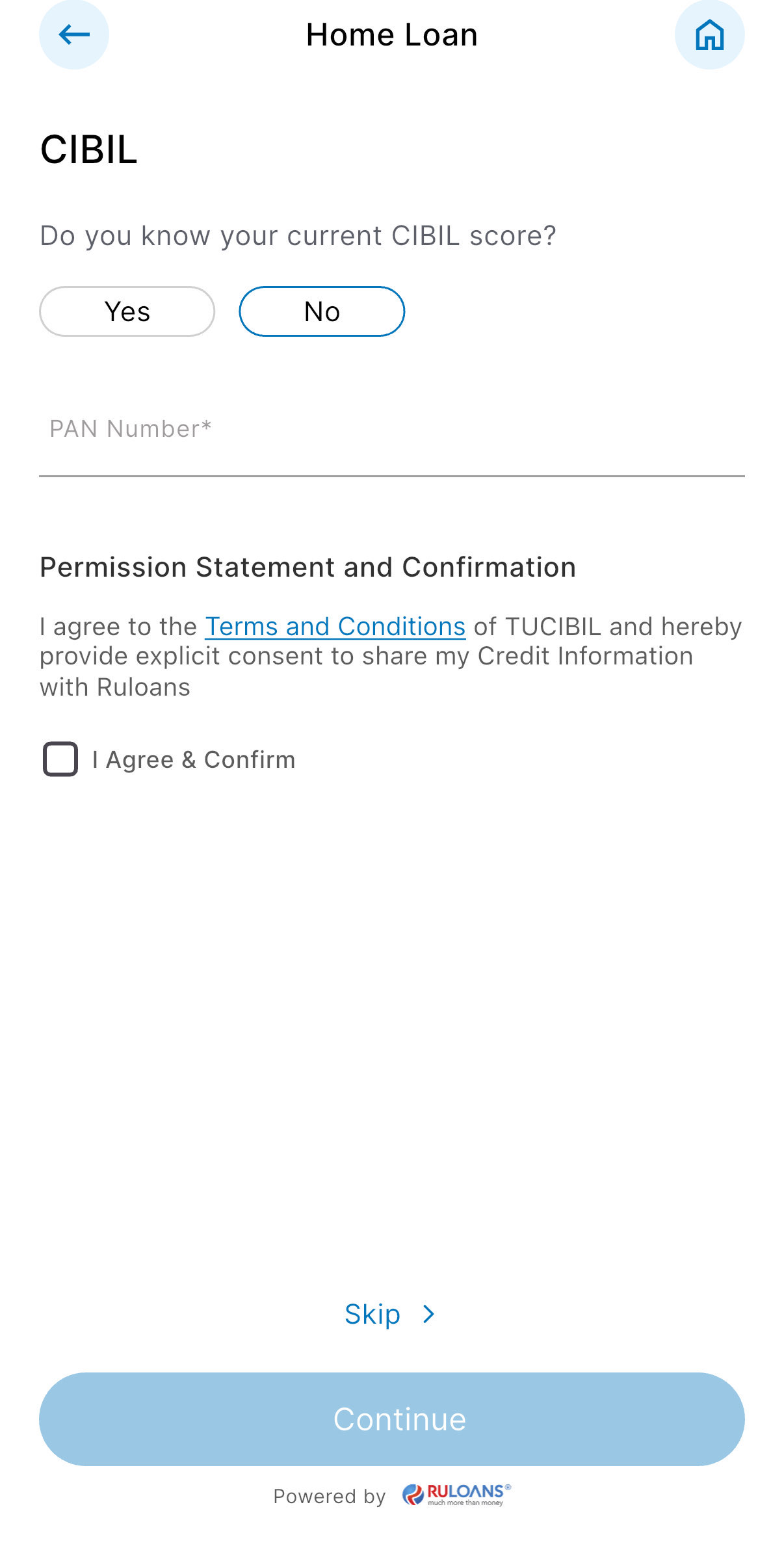
 ## Step 8: Enter PAN Number & Give Consent
* **PAN Number**: Enter your 10-character PAN (e.g., ABCDE1234F).\
Required to verify your credit score and match loan offers.
* Tap **Continue**.
## Step 8: Enter PAN Number & Give Consent
* **PAN Number**: Enter your 10-character PAN (e.g., ABCDE1234F).\
Required to verify your credit score and match loan offers.
* Tap **Continue**.
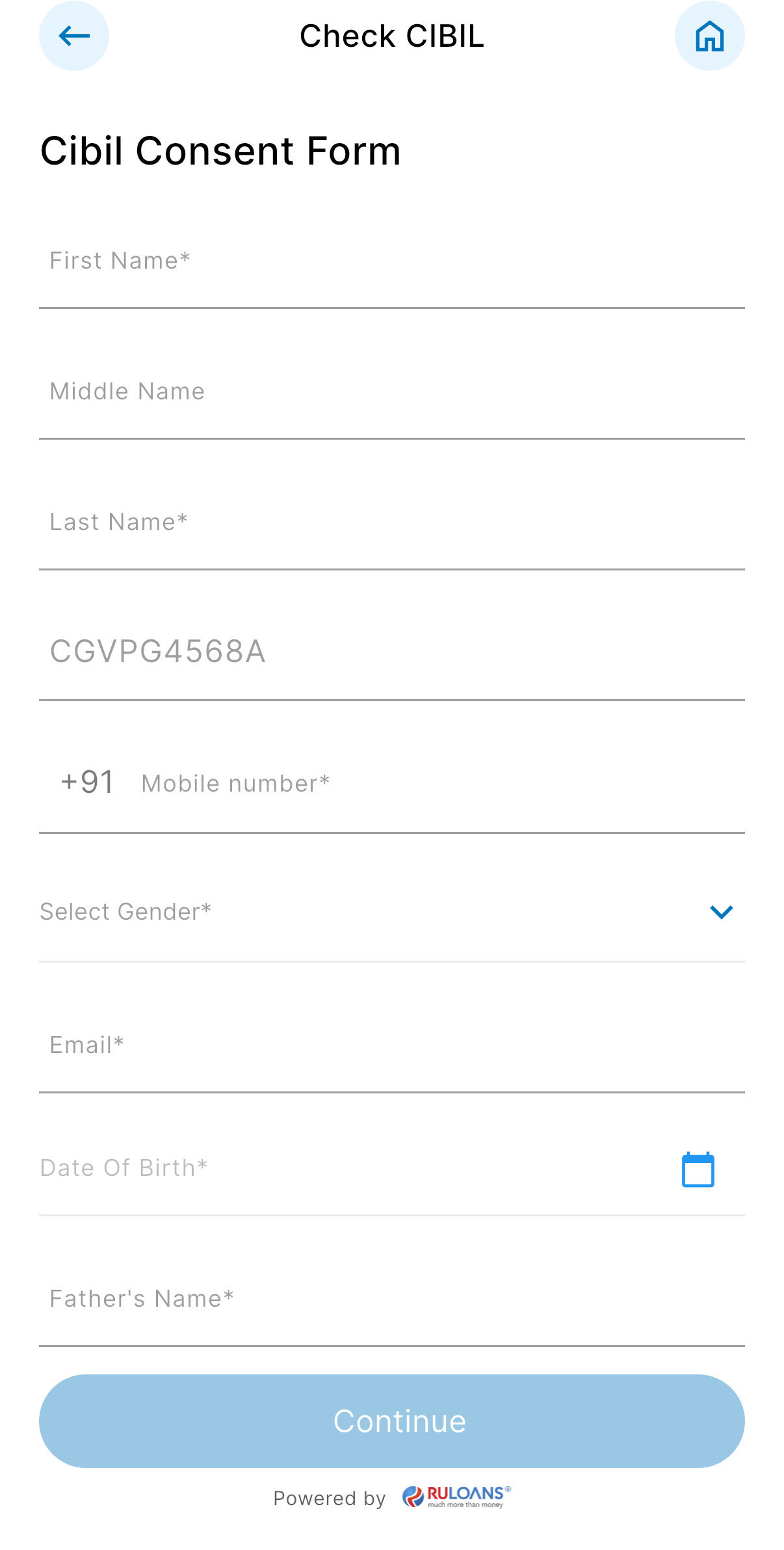
 ## Step 9: Fill Personal & Address Details for CIBIL
**Personal Details**
* **First Name**: Enter your First name.
* **Middle Name**: Enter your Middle name (optional).
* **Last Name**: Enter your Last name.
* **Father's Name**: Enter your Father's full name.
* **Mother's Name**: Enter your Mother's full name.
* **Gender**: Select your gender from the dropdown.
* **Email ID**: Enter your email ID.
* **Mobile Number**: Enter your mobile number.
* **Date of Birth**: Enter your date of birth.
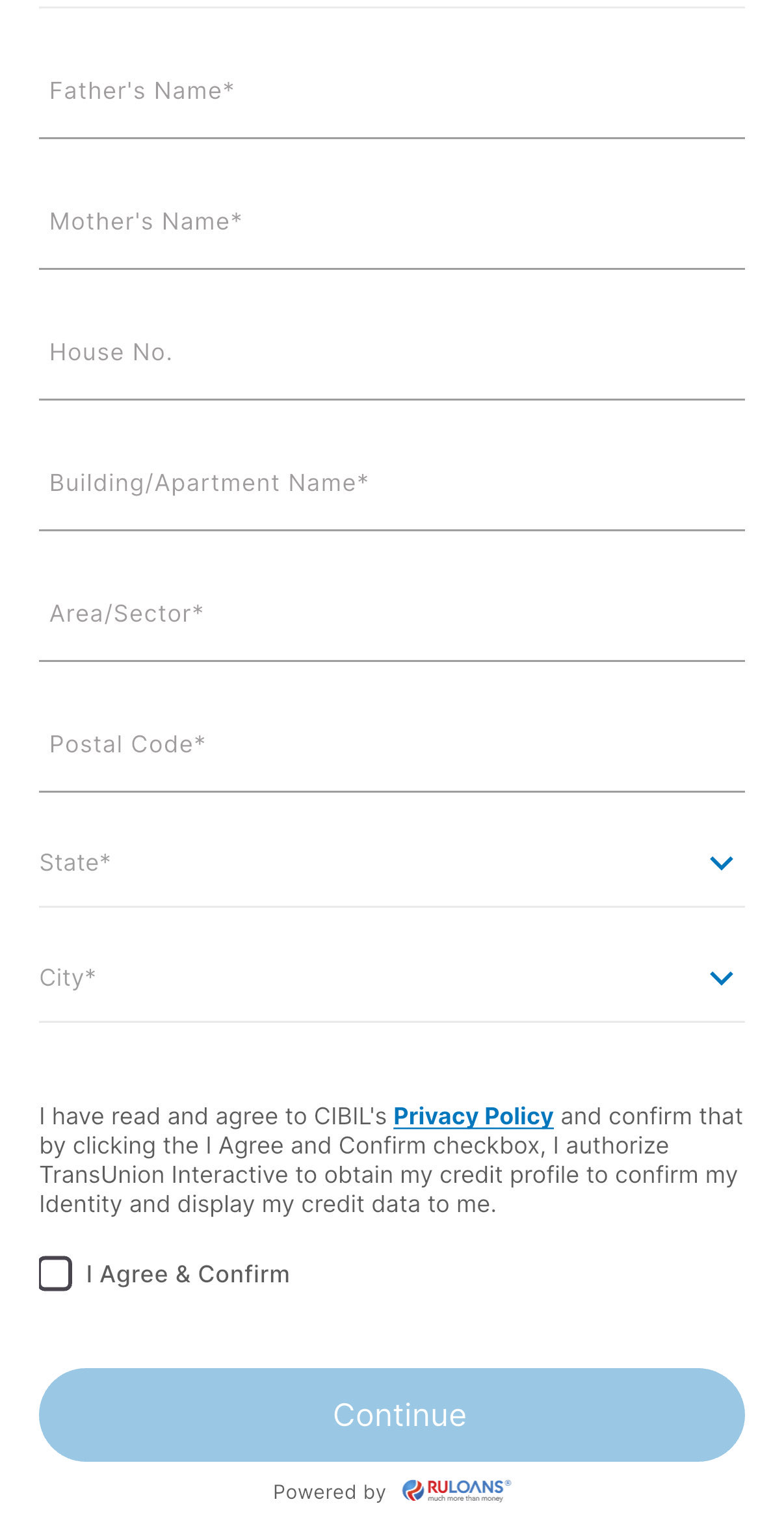
**Address Details**
* **House / Flat / Block Number**: Enter the house/flat/block number of the address.
* **Building / Apartment Name**: Enter the building/apartment name of the address.
* **Area / Sector**: Enter the area/sector of the address.
* **Pincode**: Enter the pincode of the address.
* **City**: Select the city from the dropdown.
* **State**: Select the state from the dropdown.
Tick **I Agree & Confirm** to give consent.\
You may review the Terms & Conditions.\
Tap **Continue**
## Step 9: Fill Personal & Address Details for CIBIL
**Personal Details**
* **First Name**: Enter your First name.
* **Middle Name**: Enter your Middle name (optional).
* **Last Name**: Enter your Last name.
* **Father's Name**: Enter your Father's full name.
* **Mother's Name**: Enter your Mother's full name.
* **Gender**: Select your gender from the dropdown.
* **Email ID**: Enter your email ID.
* **Mobile Number**: Enter your mobile number.
* **Date of Birth**: Enter your date of birth.
**Address Details**
* **House / Flat / Block Number**: Enter the house/flat/block number of the address.
* **Building / Apartment Name**: Enter the building/apartment name of the address.
* **Area / Sector**: Enter the area/sector of the address.
* **Pincode**: Enter the pincode of the address.
* **City**: Select the city from the dropdown.
* **State**: Select the state from the dropdown.
Tick **I Agree & Confirm** to give consent.\
You may review the Terms & Conditions.\
Tap **Continue**
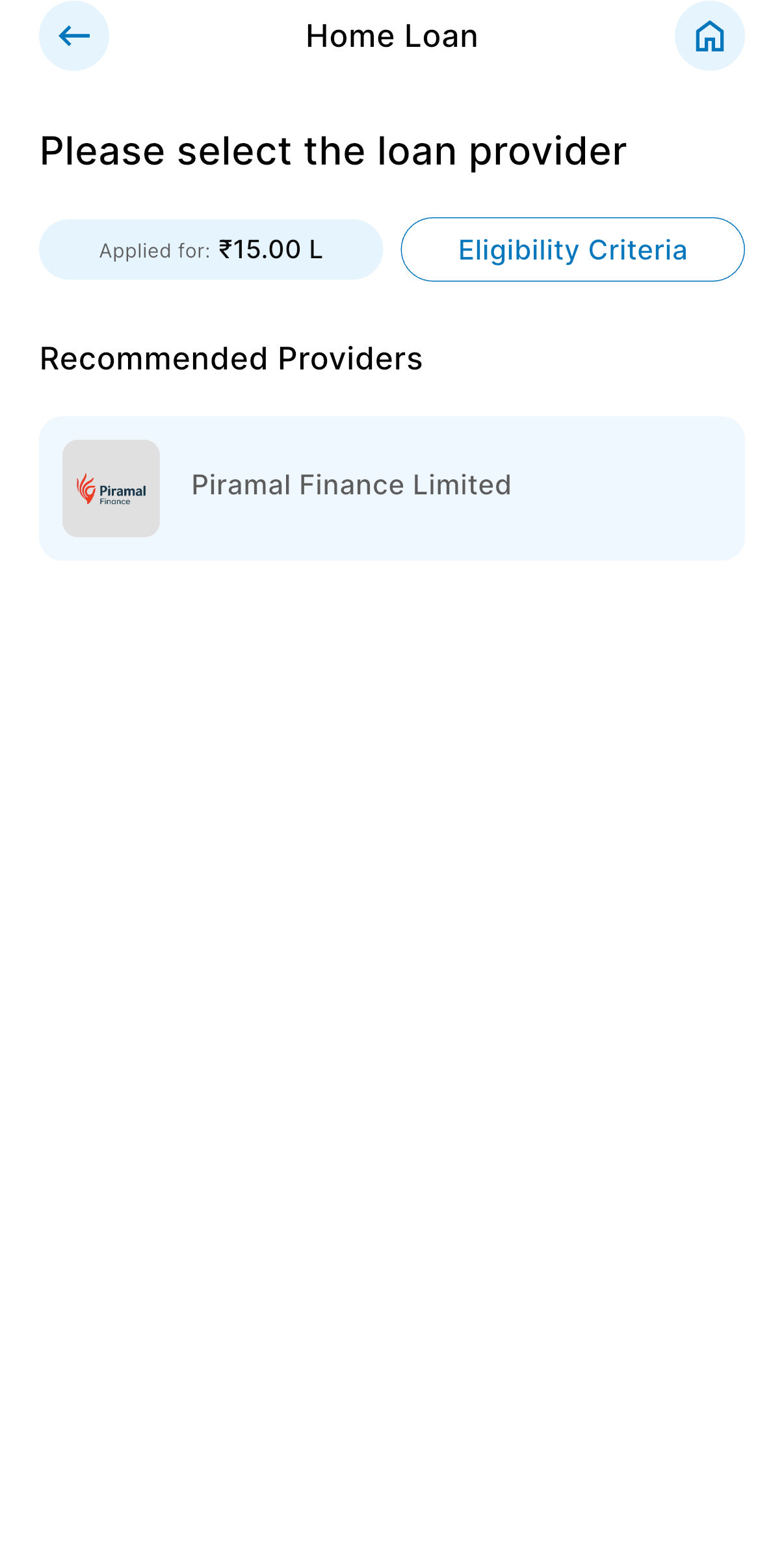
 ## Step 10: Get Your Recommended Offers
* Based on your details, view loan offers from lenders like:
* **Motilal Finance**, **DMI Finance**, **Piramal Finance**, and more.
## Step 10: Get Your Recommended Offers
* Based on your details, view loan offers from lenders like:
* **Motilal Finance**, **DMI Finance**, **Piramal Finance**, and more.
 ## Step 11: Customer PAN & Mobile Number Entry
This screen collects the customer's **mobile number and PAN (Permanent Account Number)** for identity verification and loan processing.
## Step 11: Customer PAN & Mobile Number Entry
This screen collects the customer's **mobile number and PAN (Permanent Account Number)** for identity verification and loan processing.
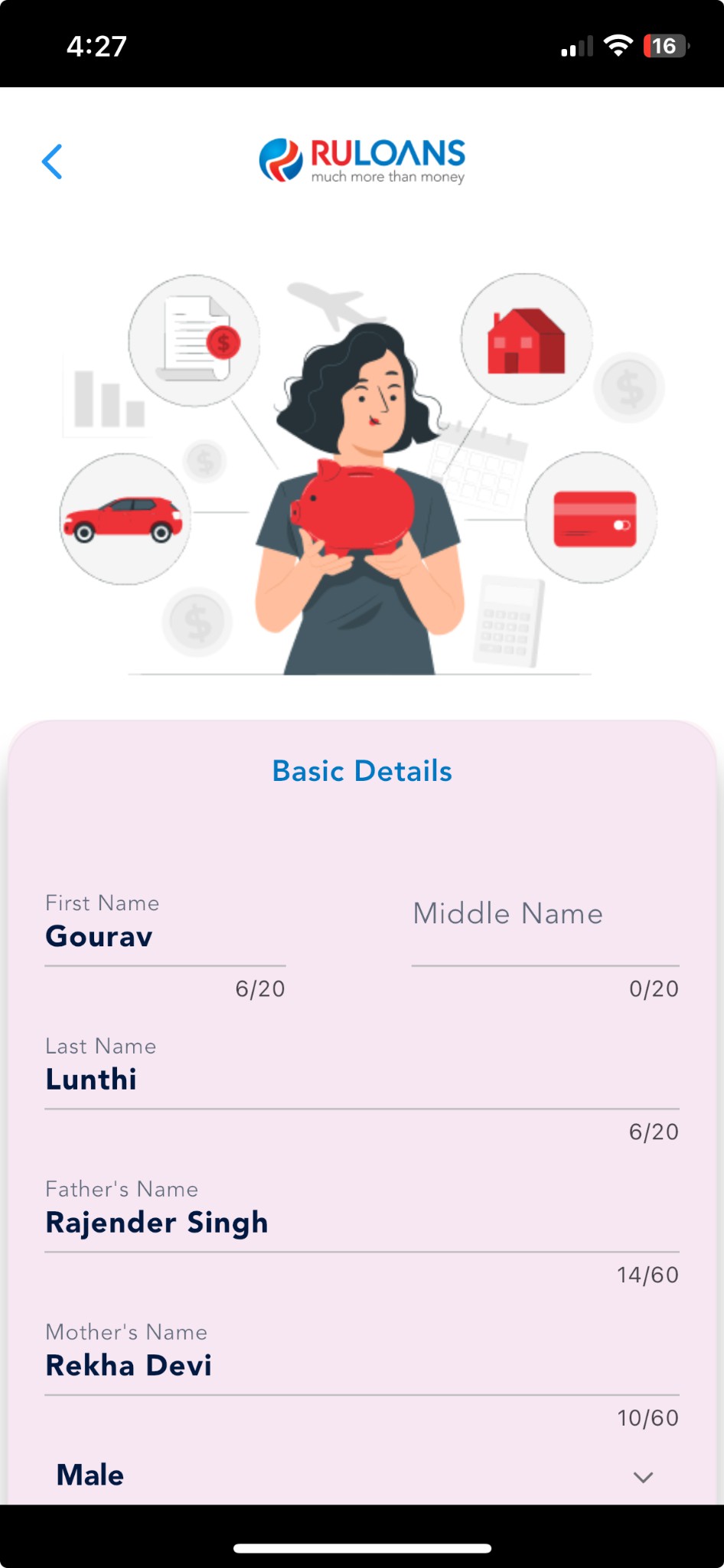 ## Step 12: Provide Basic Details
### **Mandatory Fields:**
* Full Name
* PAN Number
* Gender
* Email
* Date of Birth
* Marital Status
* Father’s Name
* Mother’s Name
### **Consent:**
* Select checkboxes for Privacy Policy and Credit Information consent.
Click **Continue** to proceed.
## Step 12: Provide Basic Details
### **Mandatory Fields:**
* Full Name
* PAN Number
* Gender
* Email
* Date of Birth
* Marital Status
* Father’s Name
* Mother’s Name
### **Consent:**
* Select checkboxes for Privacy Policy and Credit Information consent.
Click **Continue** to proceed.
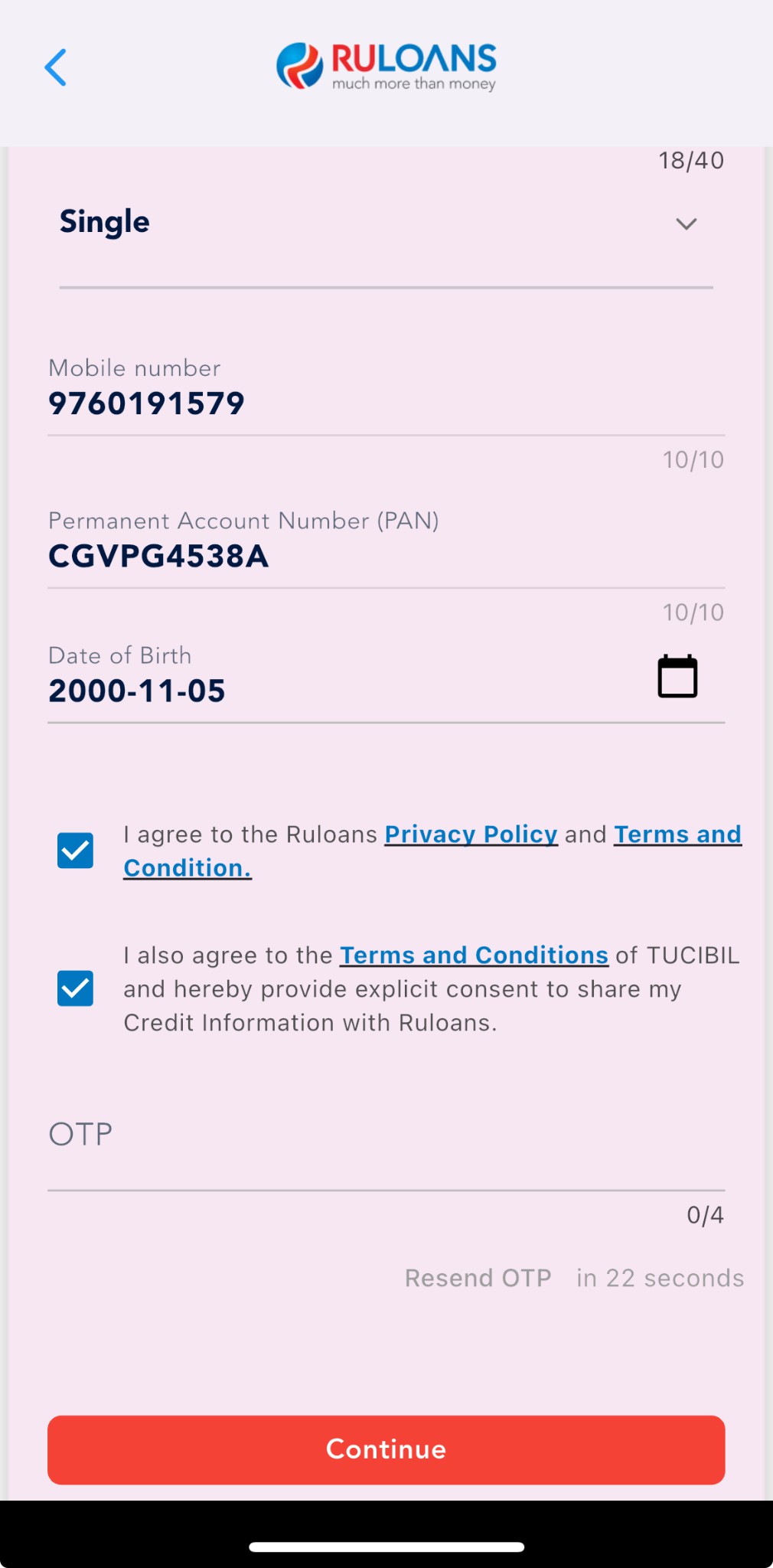 ## Step 13: OTP Verification
Enter the **One\*Time Password (OTP)** sent to the registered mobile number for verification.
## Step 13: OTP Verification
Enter the **One\*Time Password (OTP)** sent to the registered mobile number for verification.
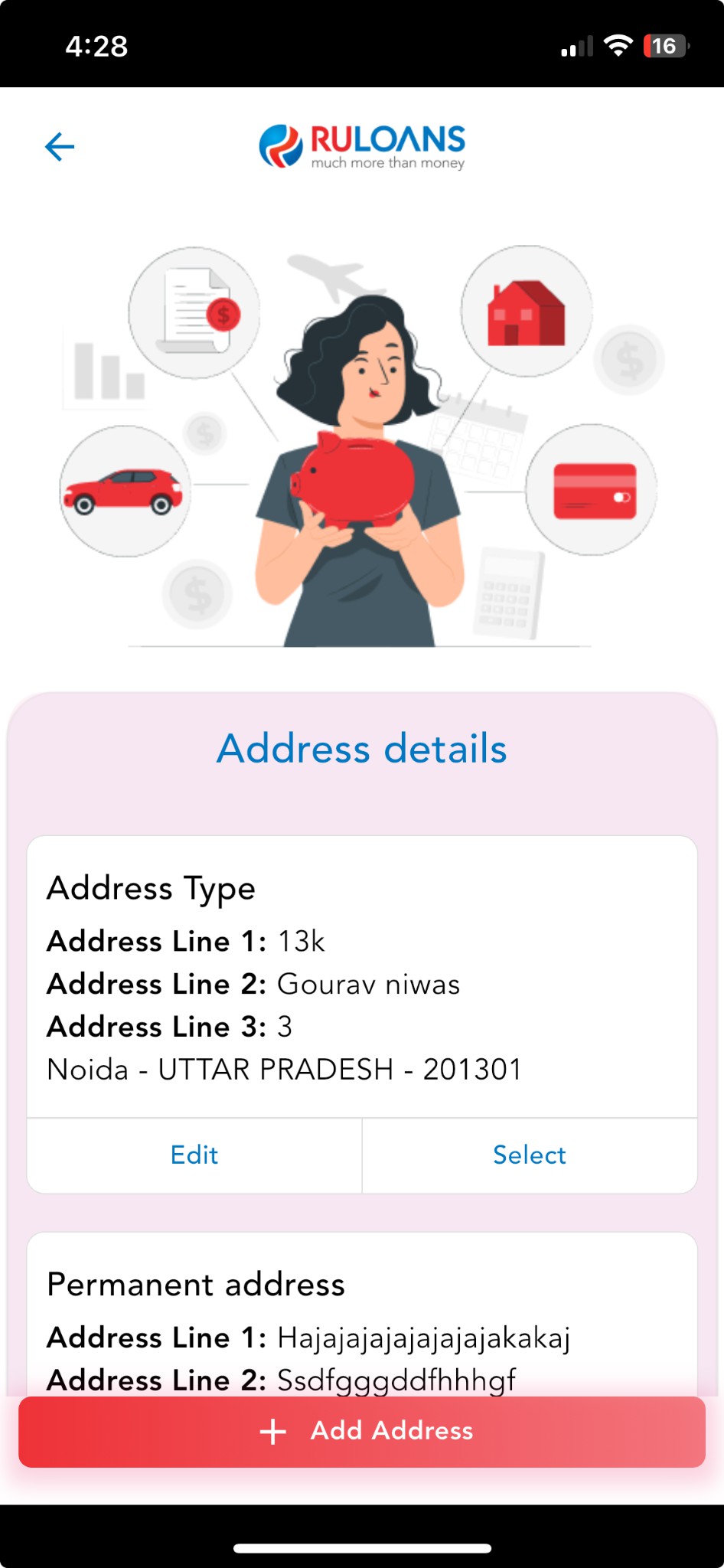 ## **Step 14: Enter Address Details**
1. Provide your residential address:
* **Address Type** (Mandatory)
* **Address Line 1** (Mandatory)
* **Address Line 2** (Mandatory)
* **Area/Sector** (Mandatory)
* **Postal Code** (Mandatory)
* **City & State** (Auto fetched)
1. If applicable, enter the address already saved (Optional).
## **Step 15: Fill Your Income Details**
* **Purpose**: The form collects details about the applicant's income and employment information to assess their financial stability.
* **Fields to Fill**:
* **Income Type**: Choose between options like salaried, self-employed, etc.
* **Monthly Income**: Enter the monthly income in numeric value.
* **Company**: Specify the name of the employer.
* **Company Type**: Choose the type of company (e.g., private, government, etc.).
* **Employment Start and End Dates**: Input the tenure of employment.
* Option to mark "Currently Work Here" for ongoing employment.
* **Office Address**: Enter the detailed office address (Line 1, Line 2, Line 3, Postal Code).
* **State and City**: Select the state and city from dropdown menus.
* **Action Button**: **Continue** - Once all fields are filled, the user proceeds to the next step.
## **Step 16: Verify Income Details**
1. **Select the appropriate profession** that matches your employment status.
2. **Click on the Continue button** to proceed to the next step.
## Step 17: Provide Loan Details
### **Fields to Fill:**
* **Loan Amount:** Enter the desired amount.
* **Loan Tenure:** Choose the duration (e.g., 2 Years, 3 Years).
## **Step 14: Enter Address Details**
1. Provide your residential address:
* **Address Type** (Mandatory)
* **Address Line 1** (Mandatory)
* **Address Line 2** (Mandatory)
* **Area/Sector** (Mandatory)
* **Postal Code** (Mandatory)
* **City & State** (Auto fetched)
1. If applicable, enter the address already saved (Optional).
## **Step 15: Fill Your Income Details**
* **Purpose**: The form collects details about the applicant's income and employment information to assess their financial stability.
* **Fields to Fill**:
* **Income Type**: Choose between options like salaried, self-employed, etc.
* **Monthly Income**: Enter the monthly income in numeric value.
* **Company**: Specify the name of the employer.
* **Company Type**: Choose the type of company (e.g., private, government, etc.).
* **Employment Start and End Dates**: Input the tenure of employment.
* Option to mark "Currently Work Here" for ongoing employment.
* **Office Address**: Enter the detailed office address (Line 1, Line 2, Line 3, Postal Code).
* **State and City**: Select the state and city from dropdown menus.
* **Action Button**: **Continue** - Once all fields are filled, the user proceeds to the next step.
## **Step 16: Verify Income Details**
1. **Select the appropriate profession** that matches your employment status.
2. **Click on the Continue button** to proceed to the next step.
## Step 17: Provide Loan Details
### **Fields to Fill:**
* **Loan Amount:** Enter the desired amount.
* **Loan Tenure:** Choose the duration (e.g., 2 Years, 3 Years).
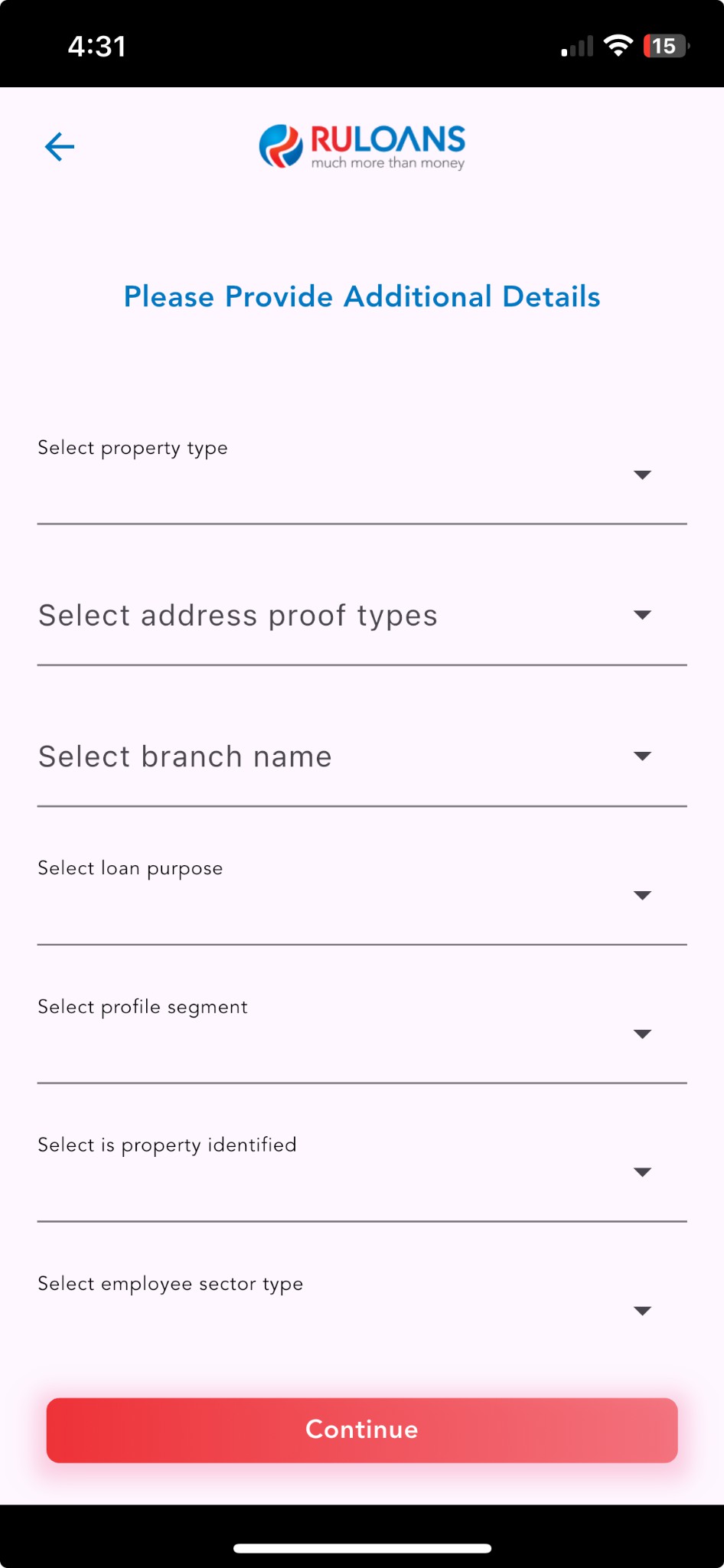 ## Step 18: Additional Details Submission
### **Key Requirements:**
* **Aadhaar Number**
* **Property Identified?**
* **Property Type**
* **Employment Sector**
* **Property Value**
* **Net Income**
* **Deductions**
* **Expected Retirement Age**
## Step 18: Additional Details Submission
### **Key Requirements:**
* **Aadhaar Number**
* **Property Identified?**
* **Property Type**
* **Employment Sector**
* **Property Value**
* **Net Income**
* **Deductions**
* **Expected Retirement Age**
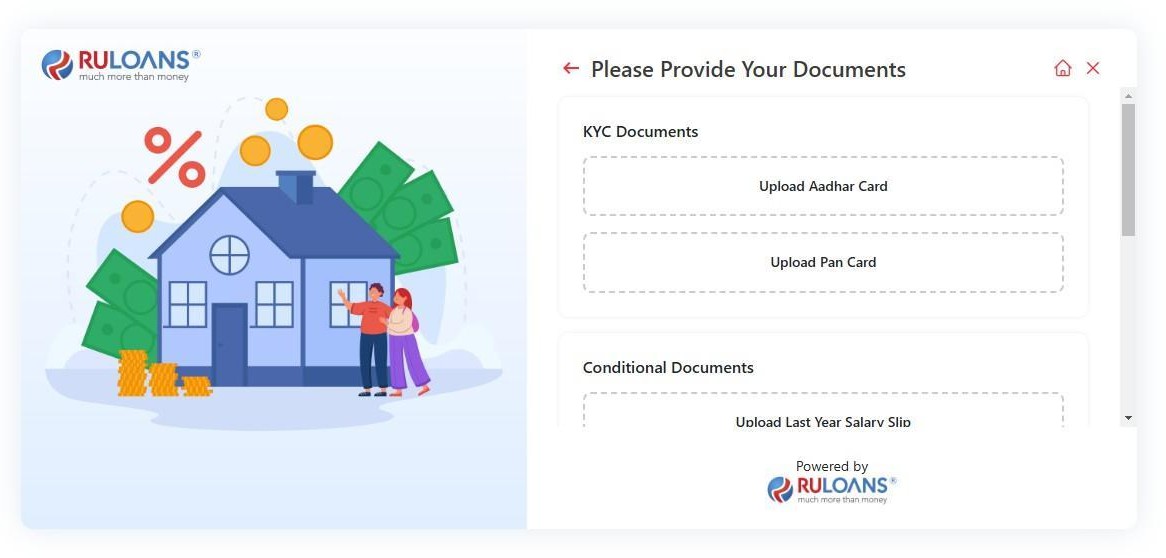 ## Step 19: Document Upload for KYC
### **KYC Documents:**
* Aadhaar Card
* PAN Card
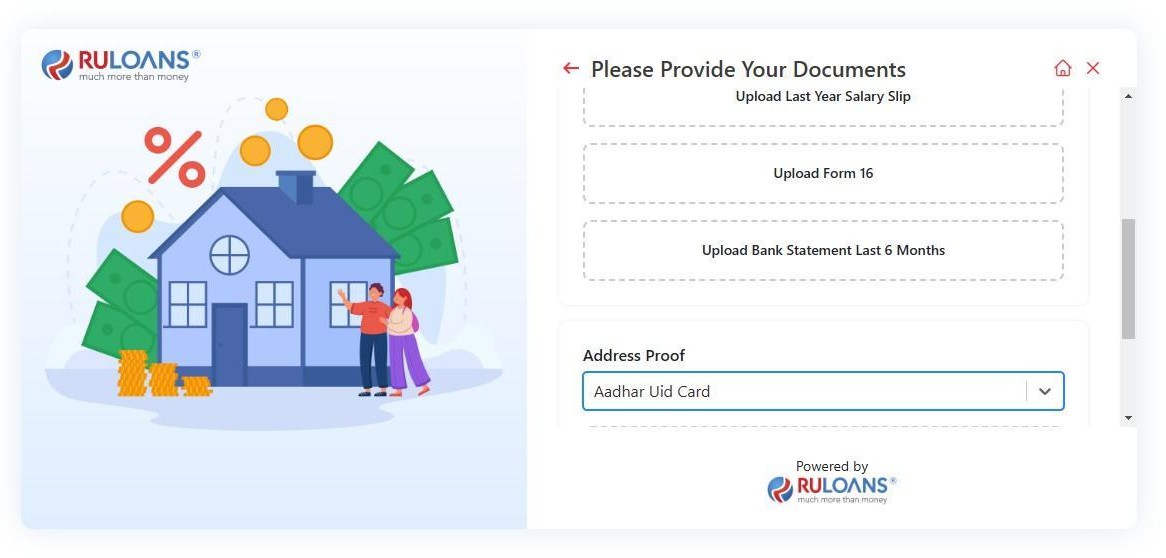
### **Conditional Documents:**
* Last Year Salary Slip (if applicable)
* Form 16
* Bank Statement (Last 6 Months)
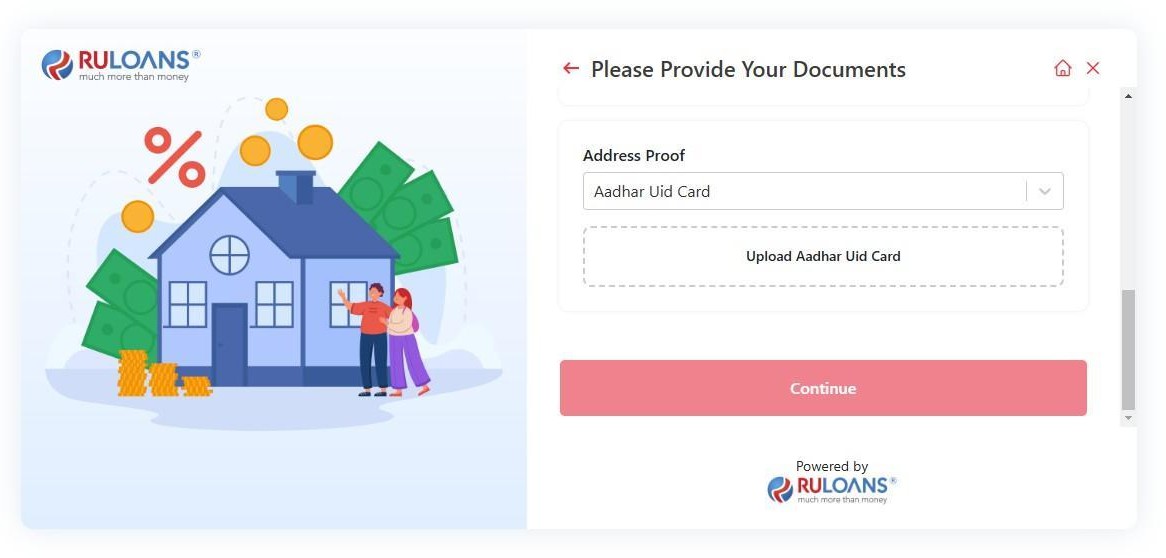
* Address Proof
## Step 19: Document Upload for KYC
### **KYC Documents:**
* Aadhaar Card
* PAN Card
### **Conditional Documents:**
* Last Year Salary Slip (if applicable)
* Form 16
* Bank Statement (Last 6 Months)
* Address Proof
 ## Step 20: Application Submission Confirmation
### **Key Information Displayed:**
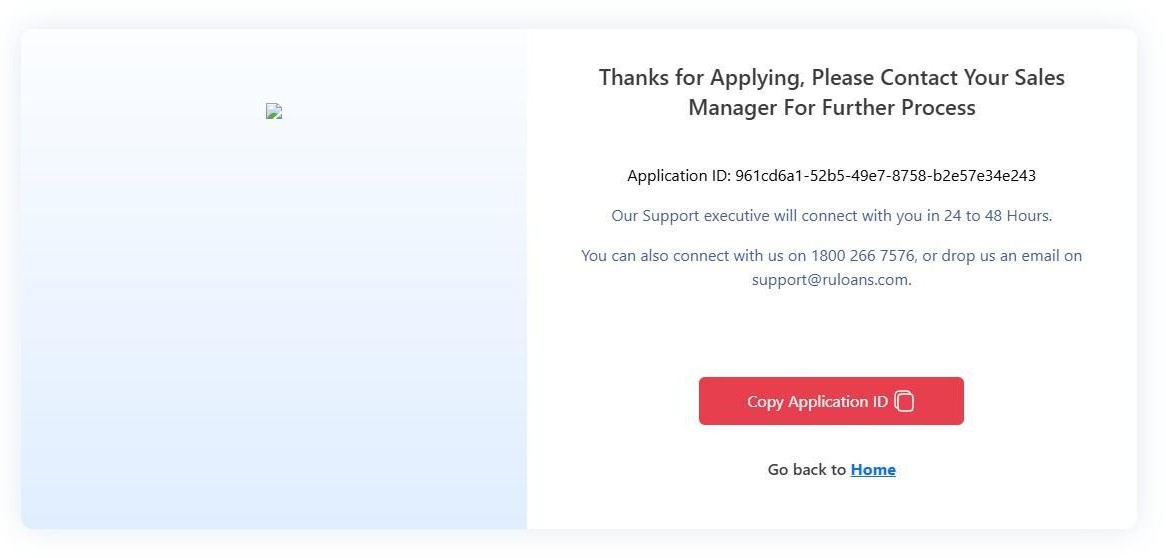
* **Application ID:** Unique identifier for tracking.
* **Support Information:** Contact within 24 to 48 hours.
* **Customer Service:**
* **Phone:** 1800 266 7576
* **Email:** [support@ruloans.com](mailto:support@ruloans.com)
## Step 20: Application Submission Confirmation
### **Key Information Displayed:**
* **Application ID:** Unique identifier for tracking.
* **Support Information:** Contact within 24 to 48 hours.
* **Customer Service:**
* **Phone:** 1800 266 7576
* **Email:** [support@ruloans.com](mailto:support@ruloans.com)