> ## Documentation Index
> Fetch the complete documentation index at: https://docs.ruloans.com/llms.txt
> Use this file to discover all available pages before exploring further.
# How to Send Ledger Report on RuConnect App
> User Guide for DSAs to Send/Manage Individual Ledger Reports on the RuConnect Mobile Application
Overview
This feature helps DSAs retrieve reports for a specific month or for all-time transaction history with just a few taps.
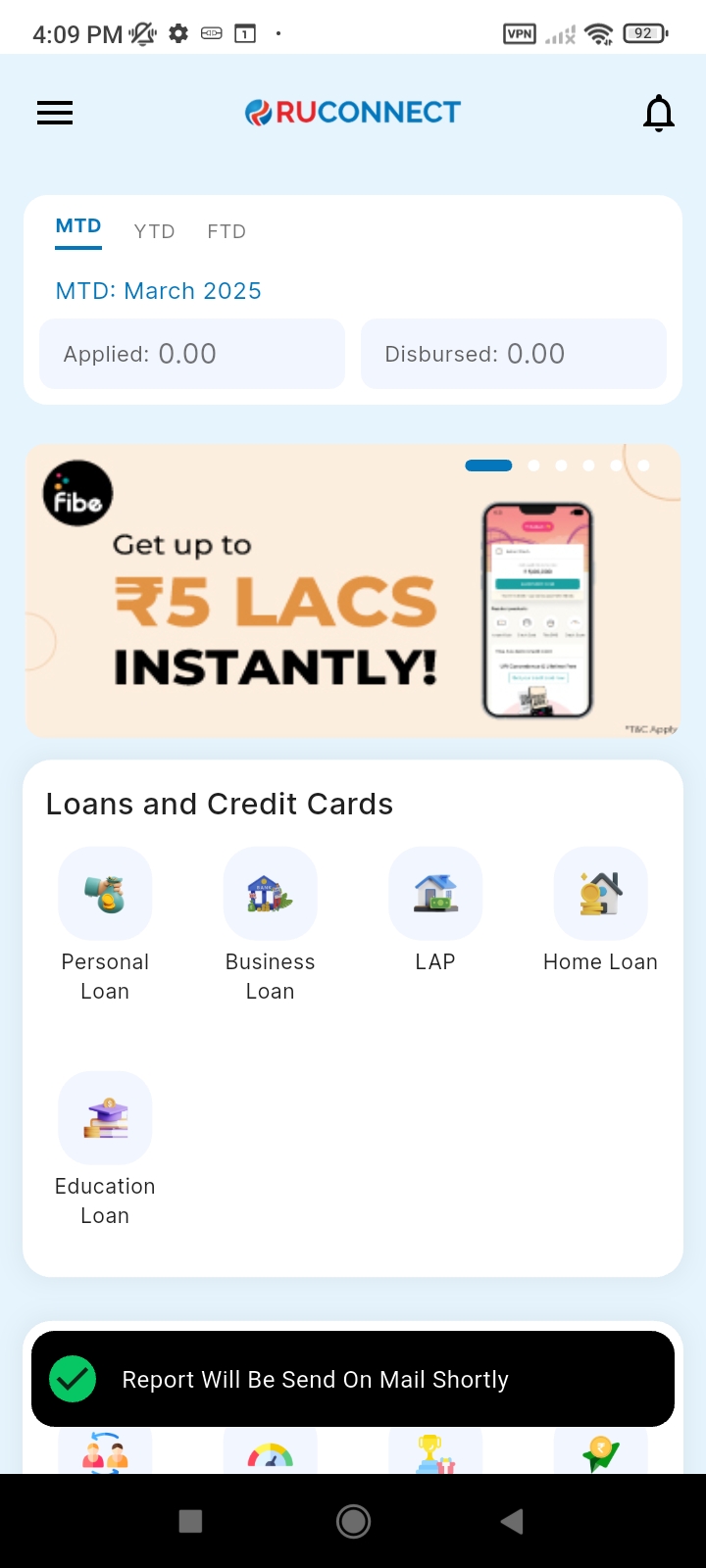
Once generated, the system automatically emails the report to the DSA’s registered email address and to any additional CC recipients entered by the user.
### **Step 1: Login to the RuConnect Mobile App**
* Open the RuConnect Mobile App on your smartphone.
* Enter your registered mobile number and tap on Get OTP.
* Enter the received OTP and tap Verify.
* After successful login, the system redirects you to the Home Screen, where all modules are accessible.
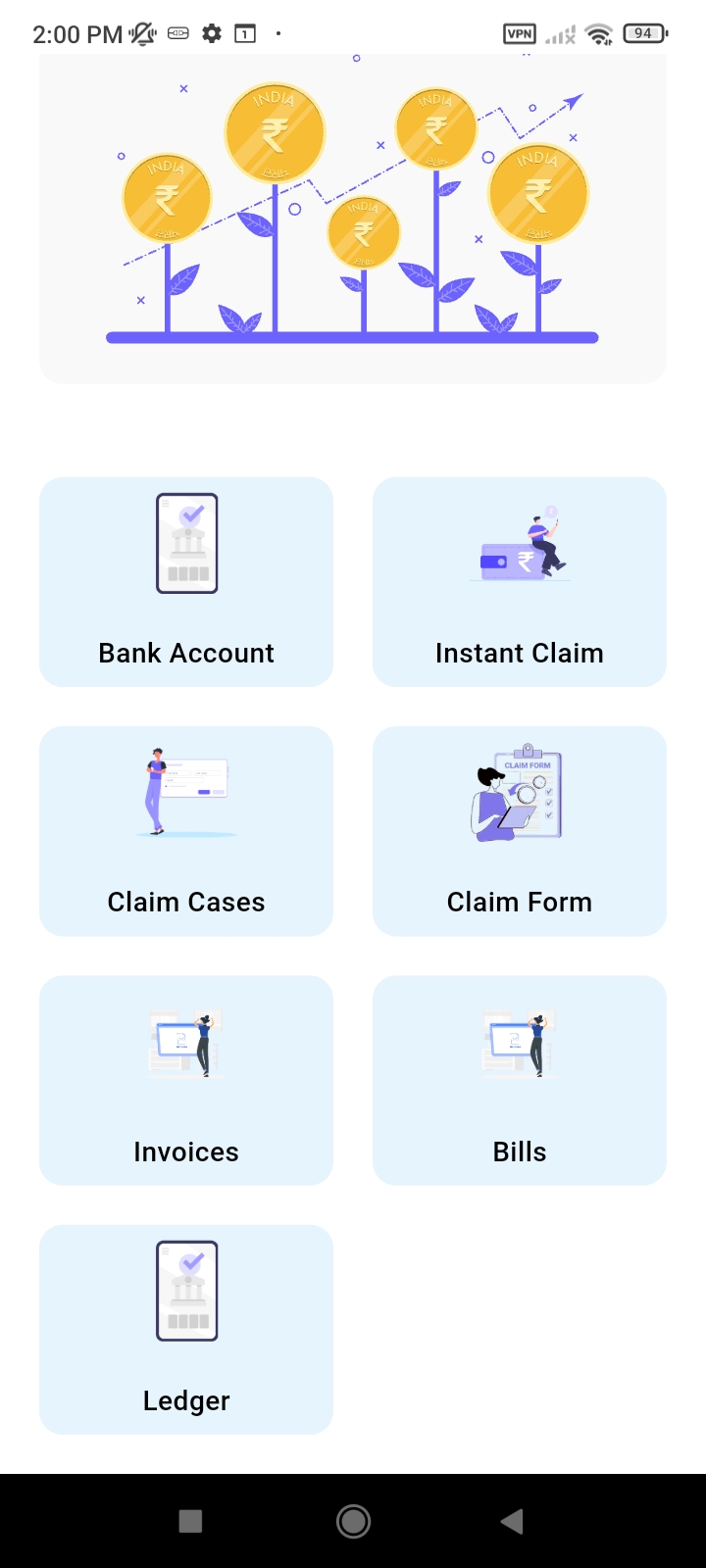
 ### **Step 2: Navigate to the Ledger Report Section**
* From the Hamburger Menu icon at the top-left corner, open the side menu.
* Tap on Earnings → Ledger Report to access the Ledger Report screen.
### **Step 2: Navigate to the Ledger Report Section**
* From the Hamburger Menu icon at the top-left corner, open the side menu.
* Tap on Earnings → Ledger Report to access the Ledger Report screen.
 ### **Step 3: Ledger Report Screen**
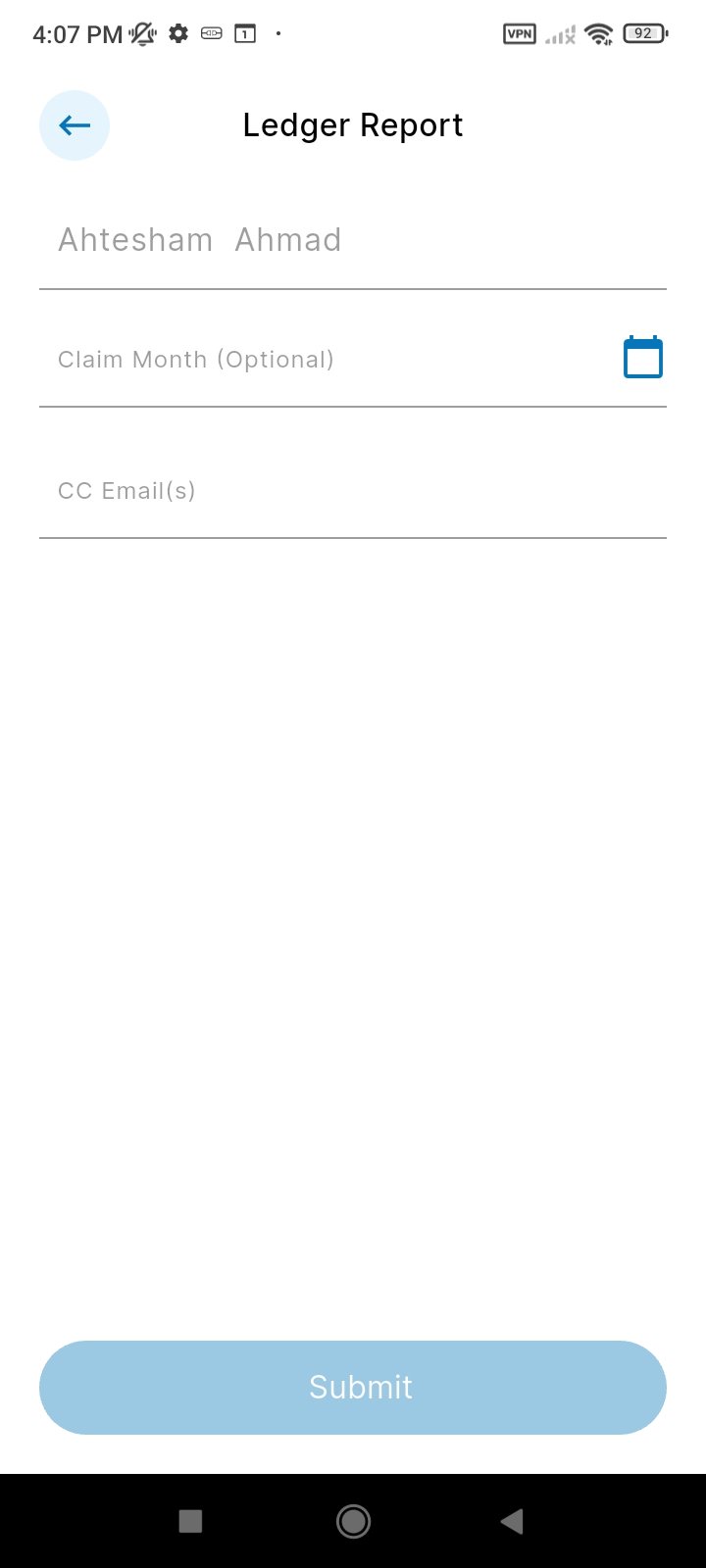 Once you open the Ledger Report screen, the following fields and CTAs are displayed:
* **DSA Name and Email** – Prefilled with the logged-in DSA’s details (non-editable).
* **Claim Month/Year (Optional)** – Select a specific month and year if required; leave blank for all-time data.
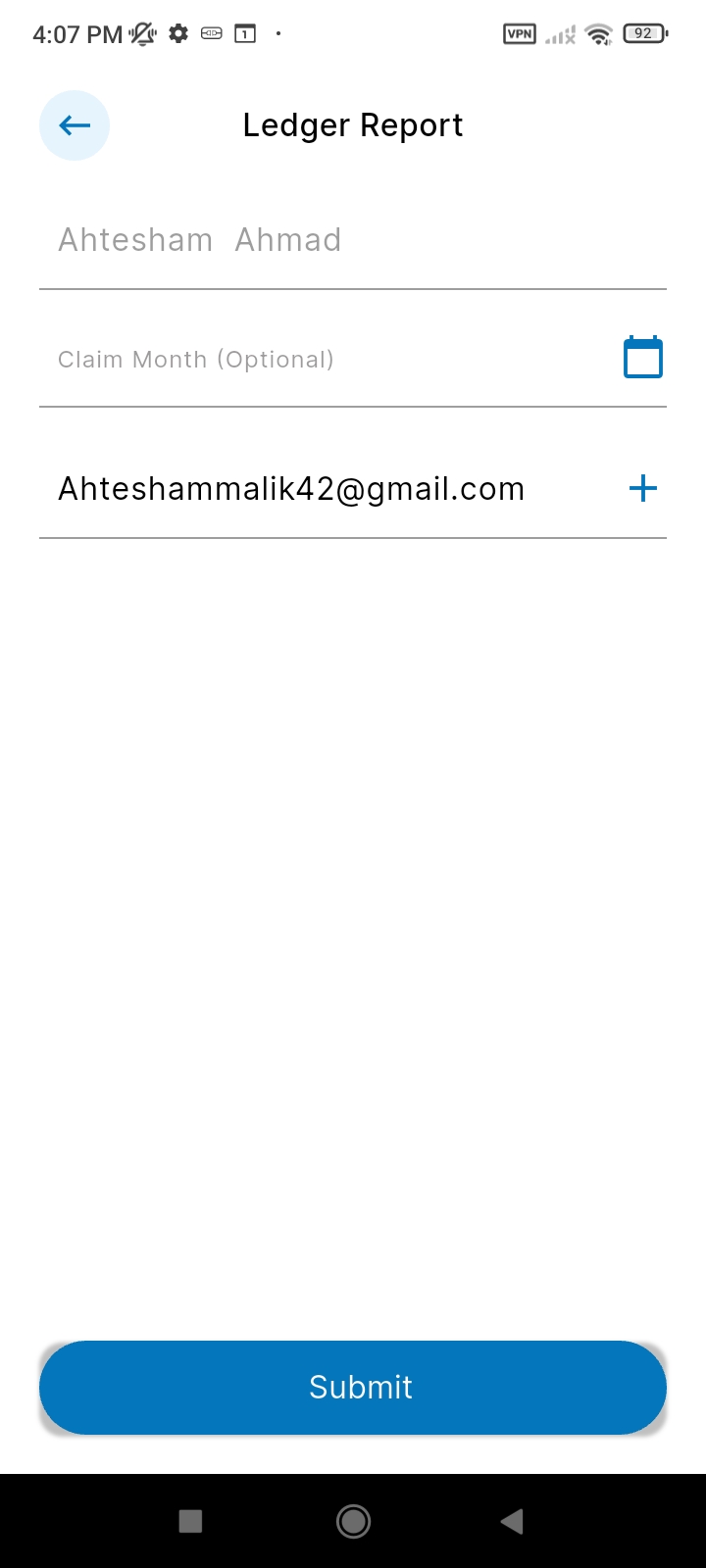
* **CC Email(s)(Optional)** – Enter one or more CC email addresses. Tap ‘+’ to add multiple recipients.
* **Submit Button** – Email is sent to all the entered email addresses.
Once you open the Ledger Report screen, the following fields and CTAs are displayed:
* **DSA Name and Email** – Prefilled with the logged-in DSA’s details (non-editable).
* **Claim Month/Year (Optional)** – Select a specific month and year if required; leave blank for all-time data.
* **CC Email(s)(Optional)** – Enter one or more CC email addresses. Tap ‘+’ to add multiple recipients.
* **Submit Button** – Email is sent to all the entered email addresses.
 ### **Step 4: Confirmation Toast Message**
 Prepared By:
Ahtesham Ahmad
Prepared By:
Ahtesham Ahmad