> ## Documentation Index
> Fetch the complete documentation index at: https://docs.ruloans.com/llms.txt
> Use this file to discover all available pages before exploring further.
# How to Set Up Referral Partner Details & Payouts for a new referred DSA on RuConnect
> Assisted flow for How to Set Up Referral Partner Details & Payouts for a new referred DSA on RuConnect Platform
## Introduction
This document provides a comprehensive step-by-step guide for DSAs on How to Set Up Referral Partner Details & Payouts for a new referred DSA on RuConnect platform. It highlights mandatory and optional fields, supported by screenshots, to ensure clarity and completeness.
## Step 1: Access the RuConnect Platform
1. **Download the Ruconnect application on your device and open application.**
2. **Login**
## Step 2: Navigate to the Dashboard
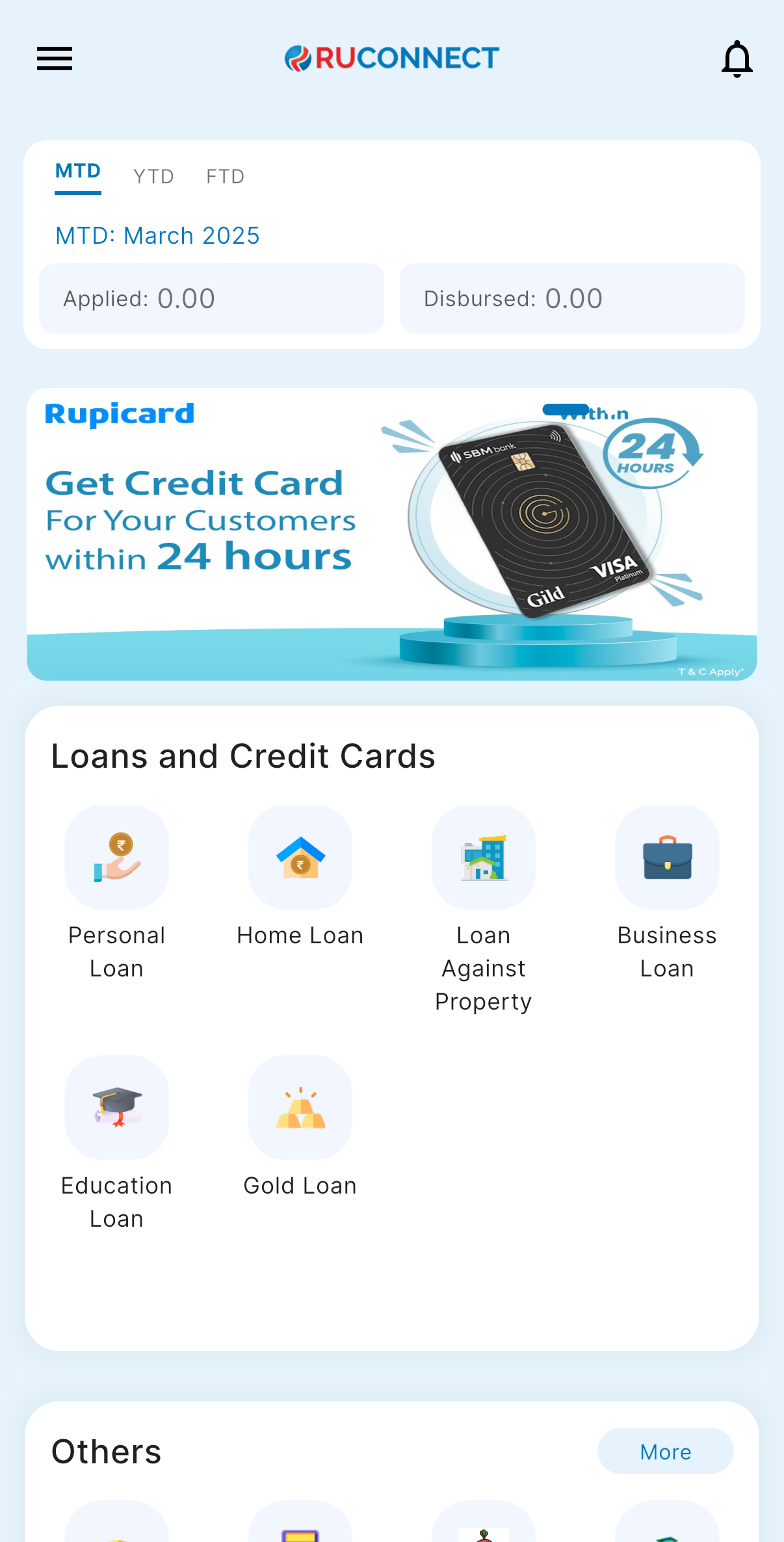
1. After successful login, you will land on the Dashboard.
2. The Dashboard provides:
* **Quick Access Links**: Links to personal loans, home loans, and other products.
* **Status Overview**: Displays details of ongoing or past applications.
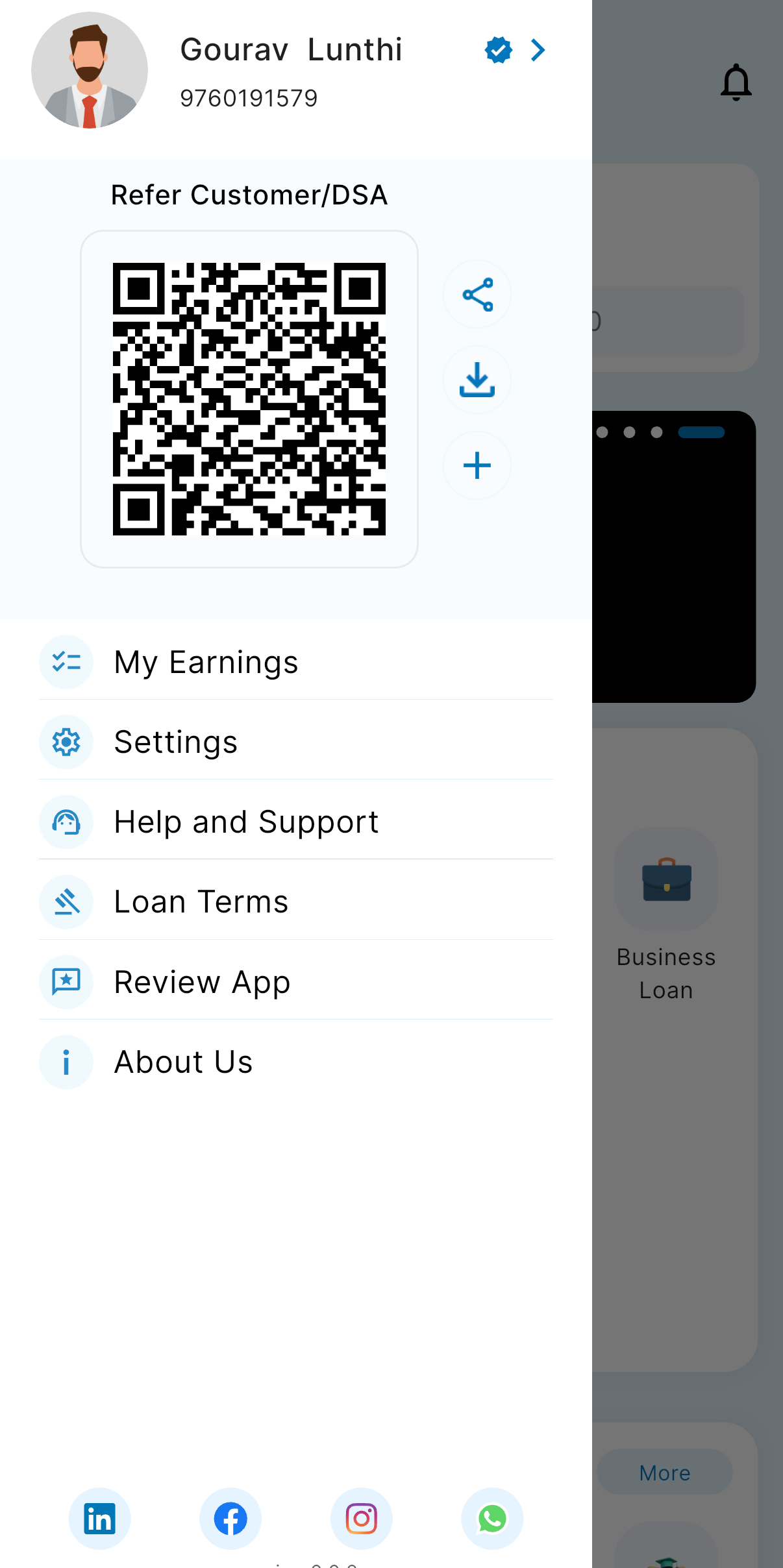 ## Step 3: Navigate to Hamburger Menu and Click on Plus button
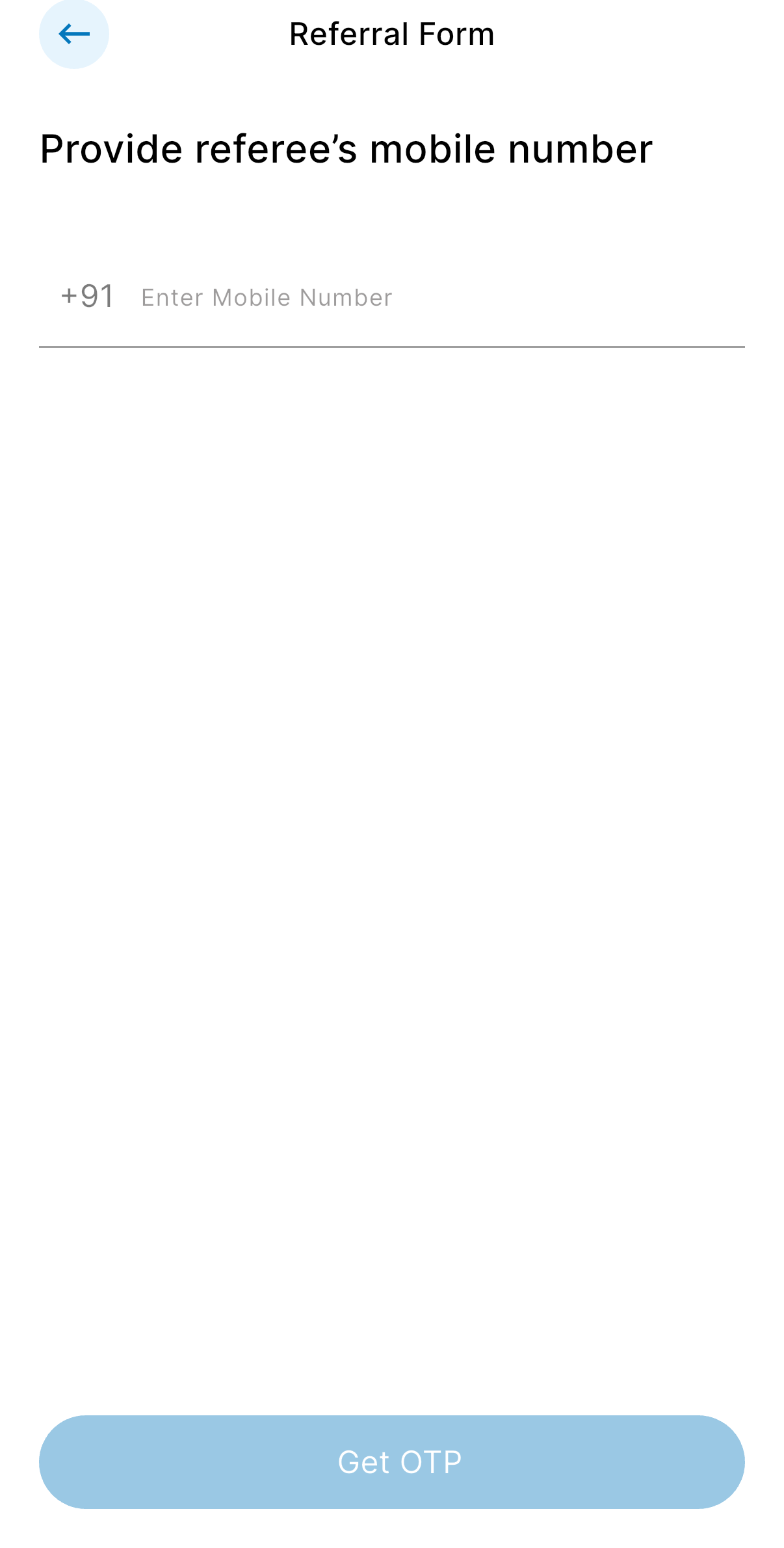
1. User is referred to the Mobile number page.
2. User should provide the referee's mobile number in the mobile number field.
3. Click on Contiune button.
## Step 3: Navigate to Hamburger Menu and Click on Plus button
1. User is referred to the Mobile number page.
2. User should provide the referee's mobile number in the mobile number field.
3. Click on Contiune button.
 ## Step 4: Navigate to OTP page
1. User is redirected to OTP page.
2. Enter the correct OTP recieved on the number.
3. Click on continue button.
## Step 4: Navigate to OTP page
1. User is redirected to OTP page.
2. Enter the correct OTP recieved on the number.
3. Click on continue button.
 ## Step 5: Naviagte to referee's details page
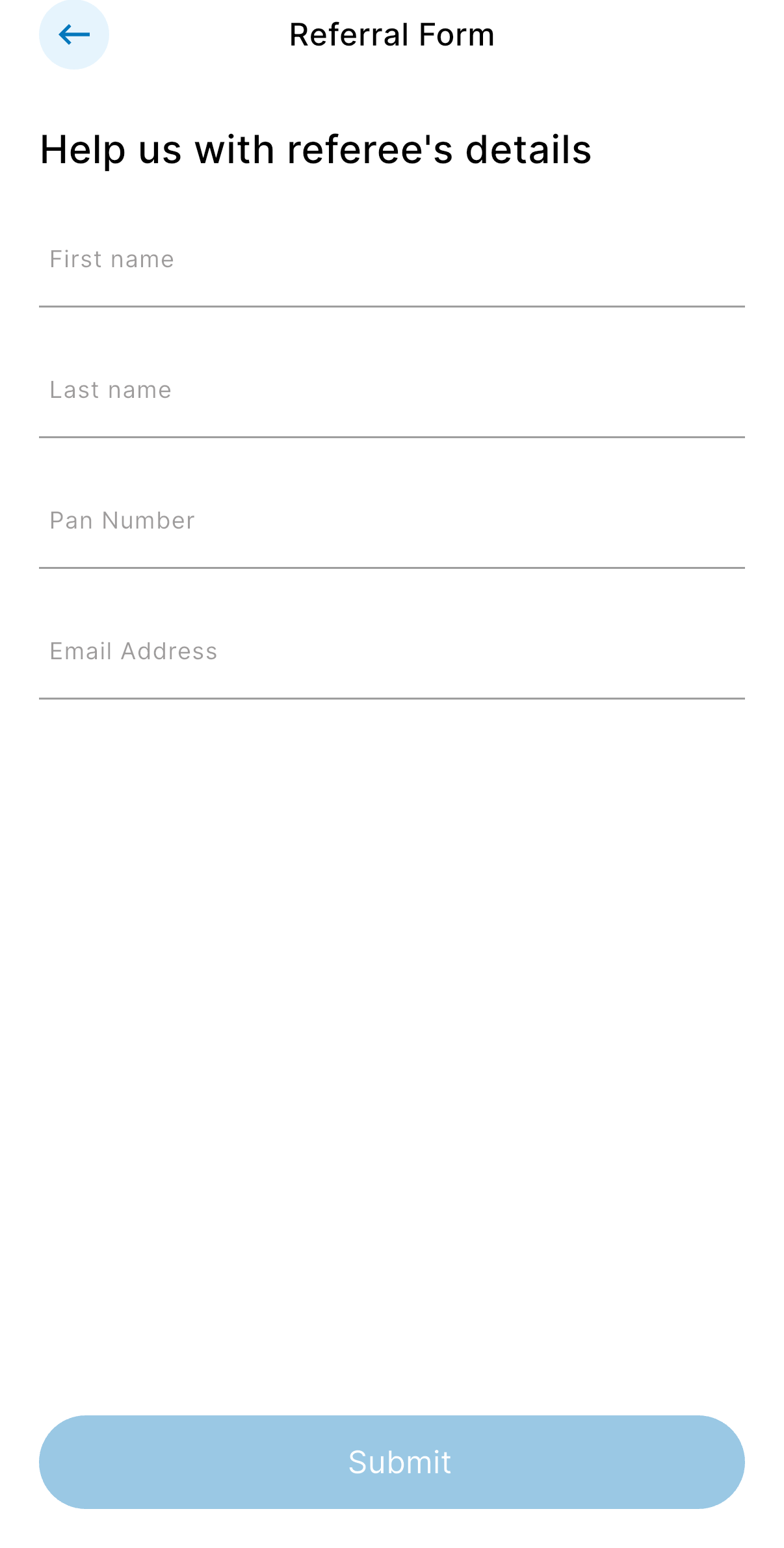
1. User is redirected to referee's detials page.
2. Enter the details:
a. First Name
b. Last Name
c. PAN number
d. Email
3. Click on continue button.
## Step 5: Naviagte to referee's details page
1. User is redirected to referee's detials page.
2. Enter the details:
a. First Name
b. Last Name
c. PAN number
d. Email
3. Click on continue button.
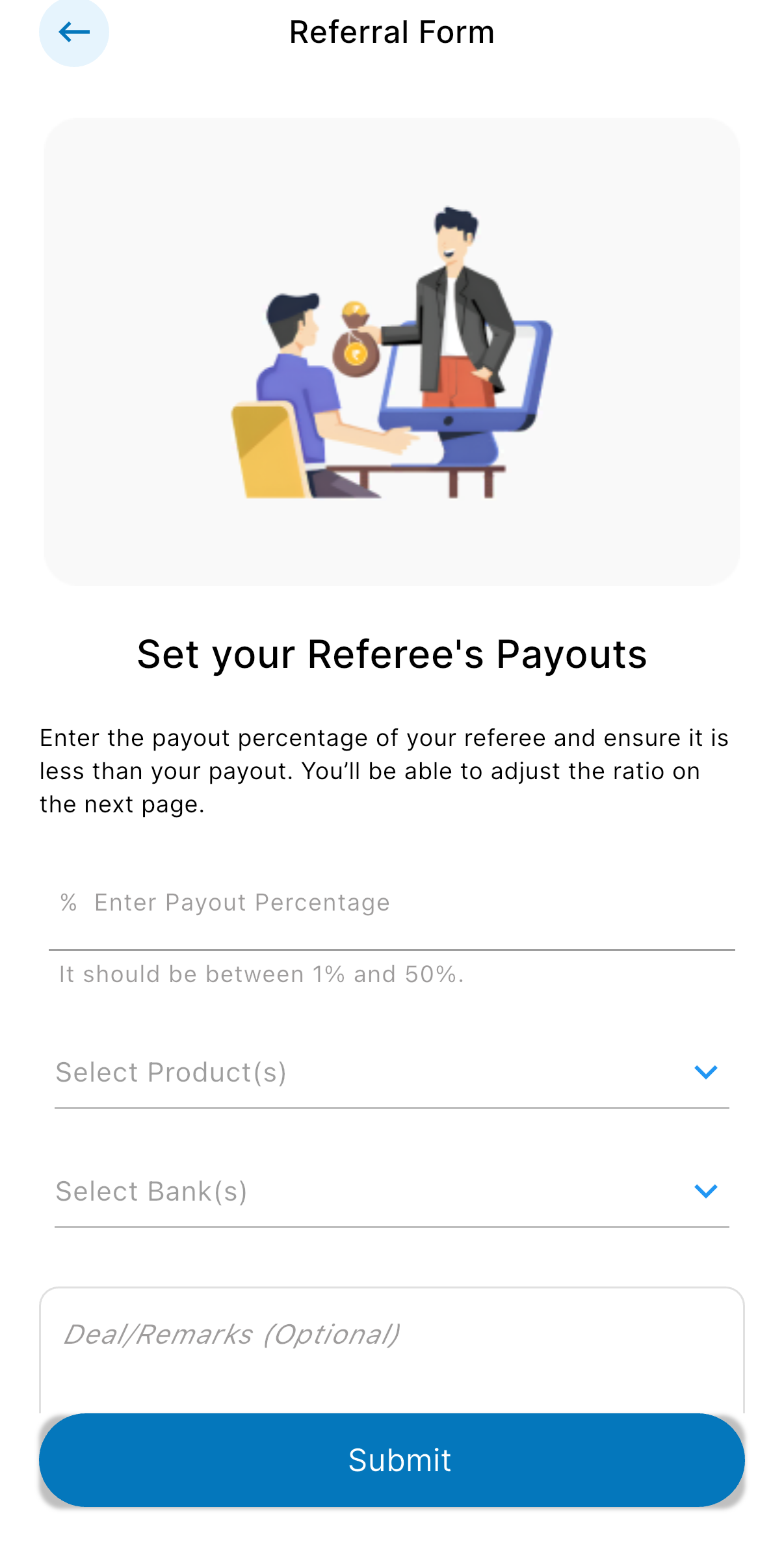
 ## Step 6: Navigate to set referee's payout page
1. User is redirected to set referee's payput page.
2. Enter and select following details:
a. Enter payout percentage
b. Select the products
c. Select the banks on basis of the products selected
d. User can give deal remarks and can leave it empty too.
3. Click on View or download payout.
## Step 6: Navigate to set referee's payout page
1. User is redirected to set referee's payput page.
2. Enter and select following details:
a. Enter payout percentage
b. Select the products
c. Select the banks on basis of the products selected
d. User can give deal remarks and can leave it empty too.
3. Click on View or download payout.
 ## Step 7: Navigate to Download payout page
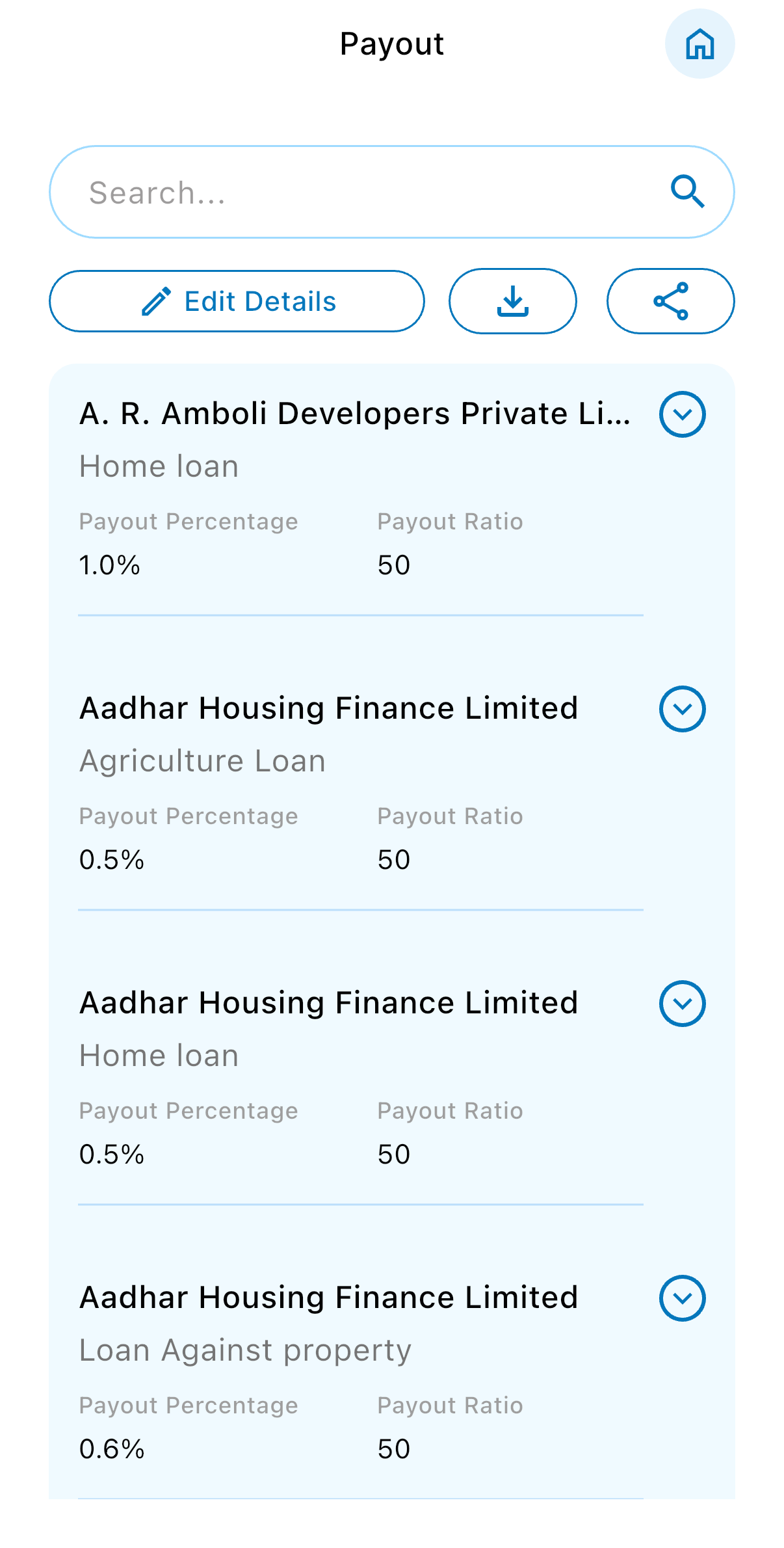
User is redirected to download payout page
The table is visible on the page which has 5 columns:
a. Bank Name
b. Main Product
c. Payout percentage
d. Payout Ratio
## Step 7: Navigate to Download payout page
User is redirected to download payout page
The table is visible on the page which has 5 columns:
a. Bank Name
b. Main Product
c. Payout percentage
d. Payout Ratio
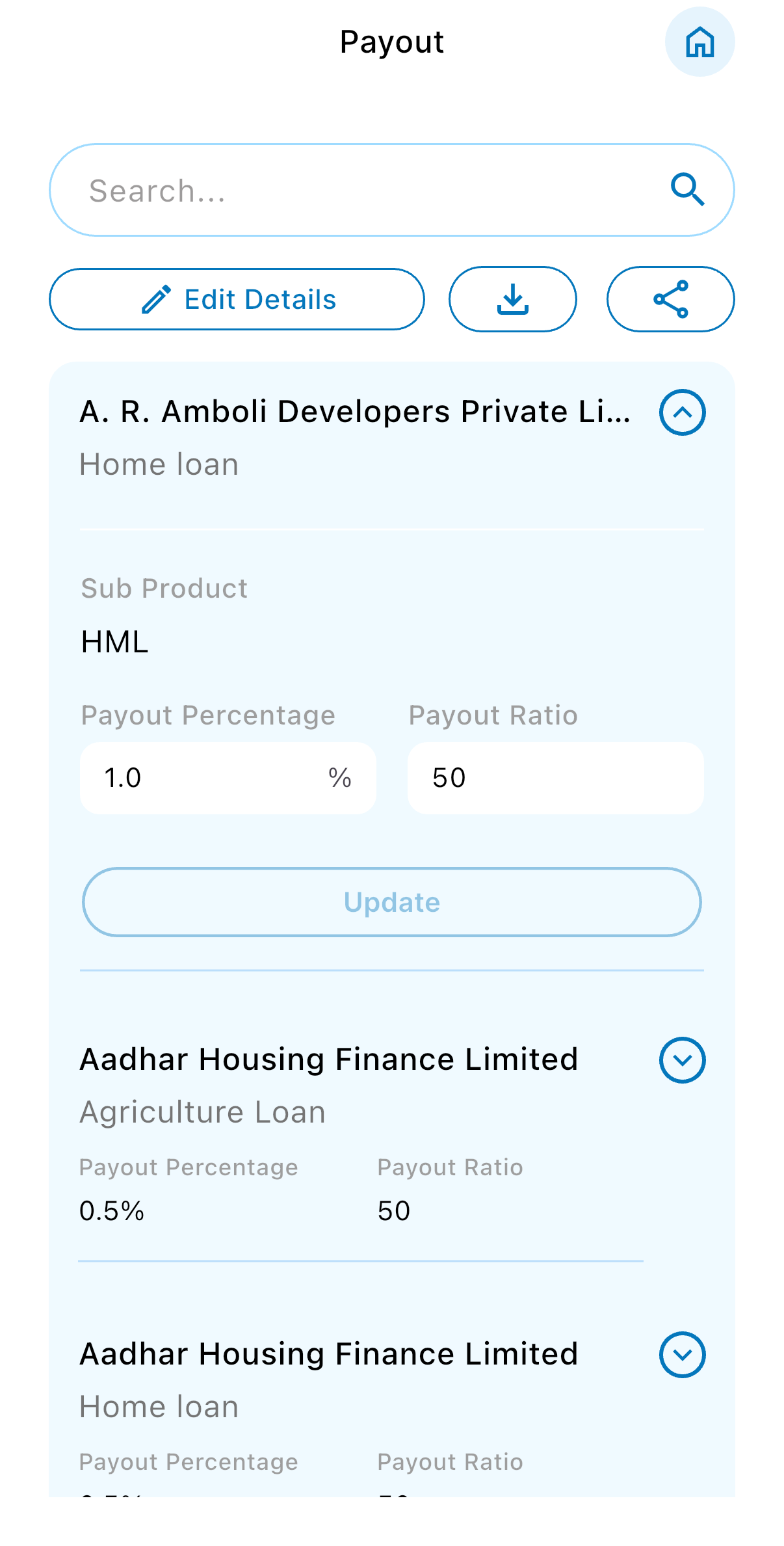 User can edit paticular payout and edit it also.
\*\*Note: Additionally there are 3 buttons available on the top of the screen below search field.
1. Edit Details Button: On click on this button user is redirected again back to Set referee's payout page.
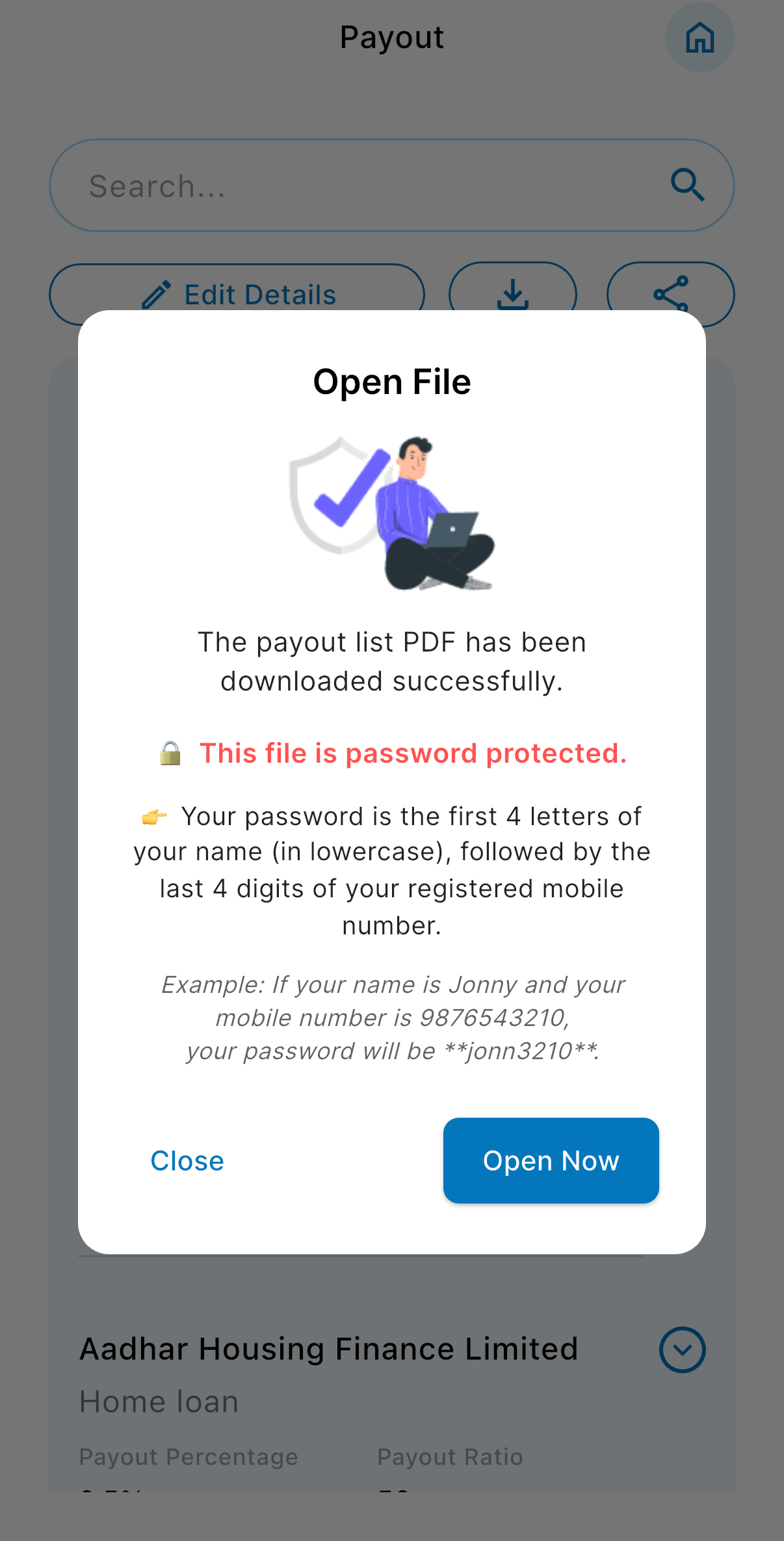
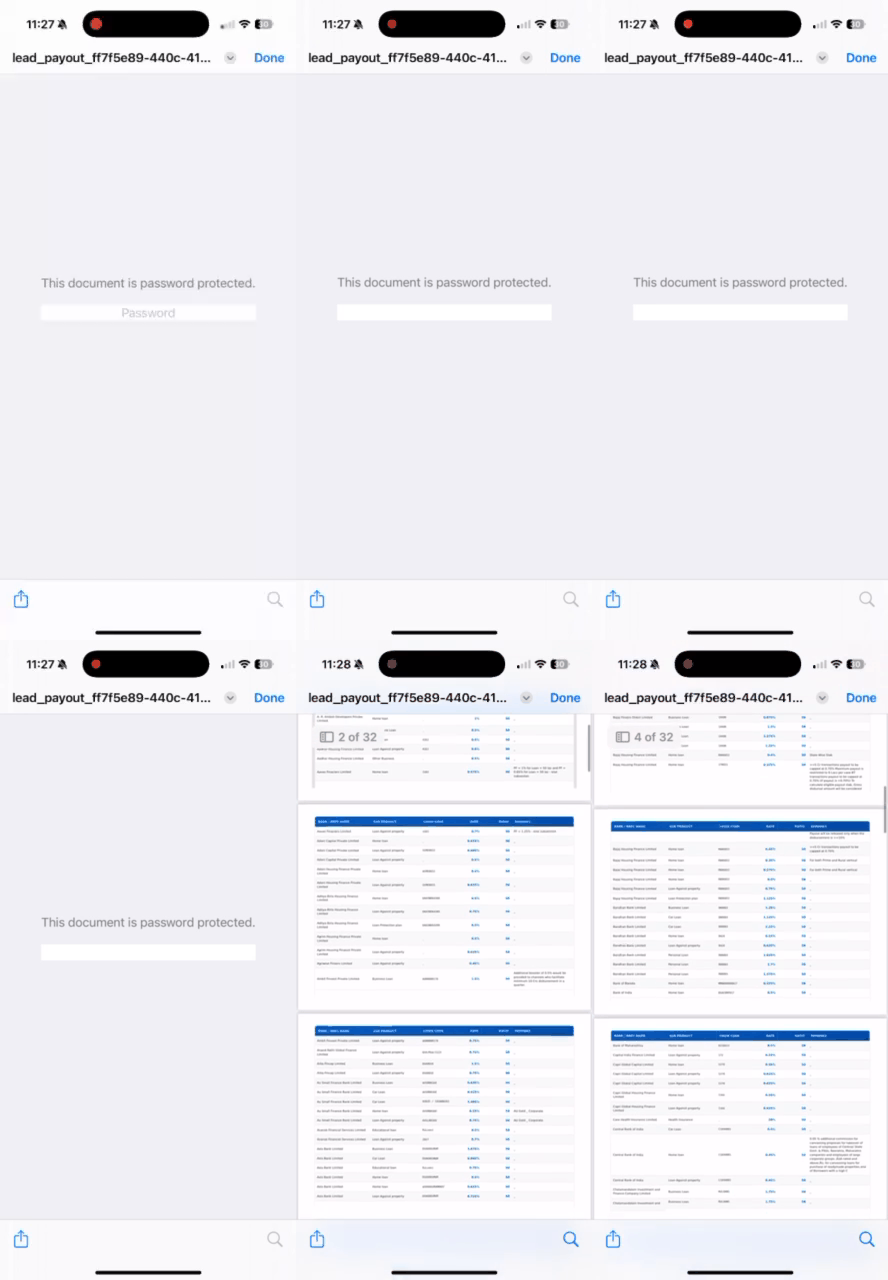
2. Download Button: On click on this button user will get the payout downloaded in pdf format.
\*\*Note:The pdf file will be password protected and the sample password is shown on the screen.
User can edit paticular payout and edit it also.
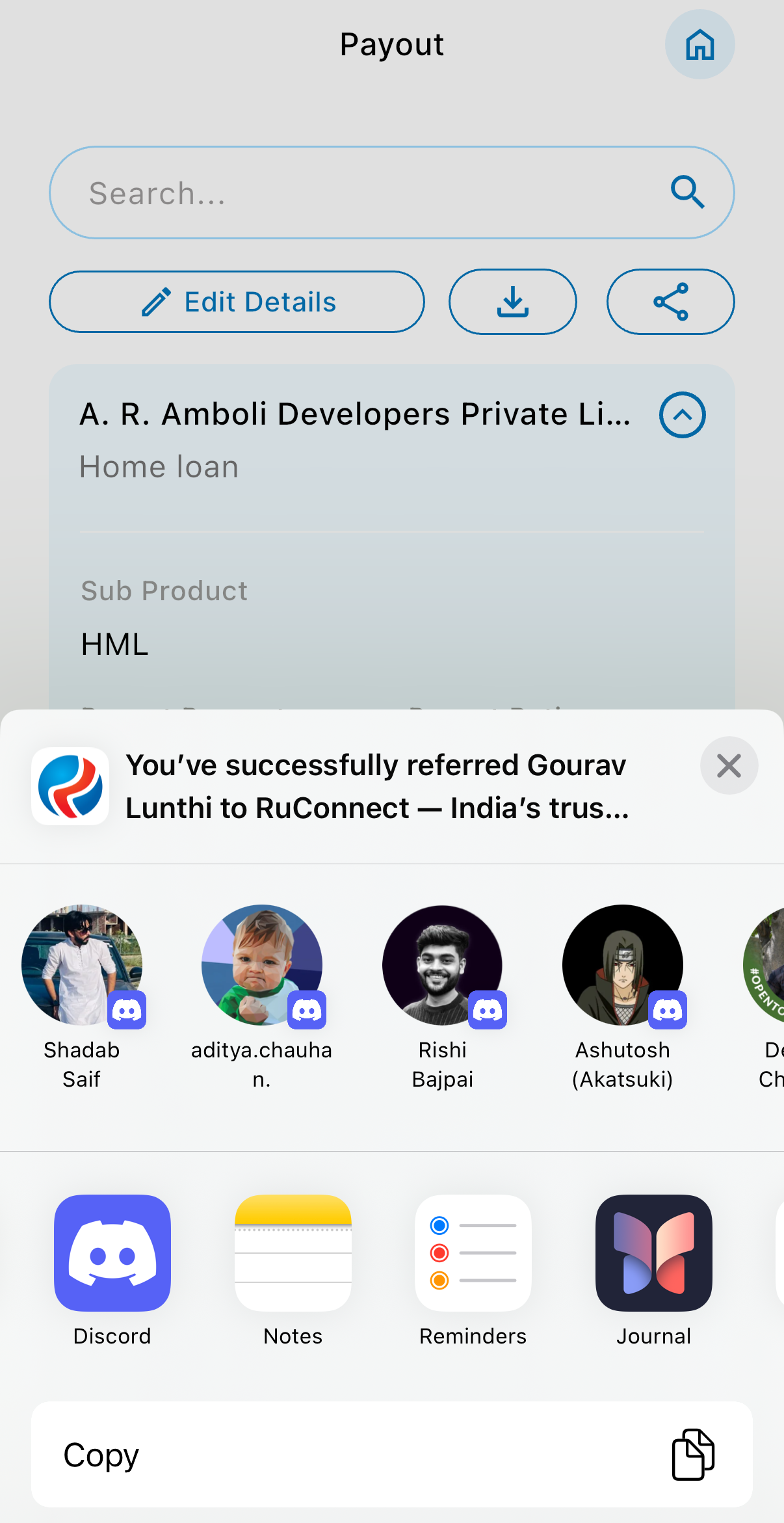
\*\*Note: Additionally there are 3 buttons available on the top of the screen below search field.
1. Edit Details Button: On click on this button user is redirected again back to Set referee's payout page.
2. Download Button: On click on this button user will get the payout downloaded in pdf format.
\*\*Note:The pdf file will be password protected and the sample password is shown on the screen.
3. Share Button: On click on this button user should be able to share to different platforms or people.

3. Share Button: On click on this button user should be able to share to different platforms or people.
 4. Home Button: User is successfully redirected to Dashboard.