> ## Documentation Index
> Fetch the complete documentation index at: https://docs.ruloans.com/llms.txt
> Use this file to discover all available pages before exploring further.
# How to find bank details on RuConnect Webapp
> Journey flow to find bank details on RuConnect Platform RuConnect Webapp
**Introduction:**
This document provides a comprehensive step-by-step guide for DSAs to find banks details on the RuConnect platform. It highlights mandatory and optional fields, supported by screenshots, to ensure clarity and completeness.
***
## Step 1: Access the RuConnect Platform
1. **URL**: Open the RuConnect platform at [https://ruconnect.in/](https://ruconnect.in/).
2. **Login**
***
## Step 2: Navigate to the Dashboard
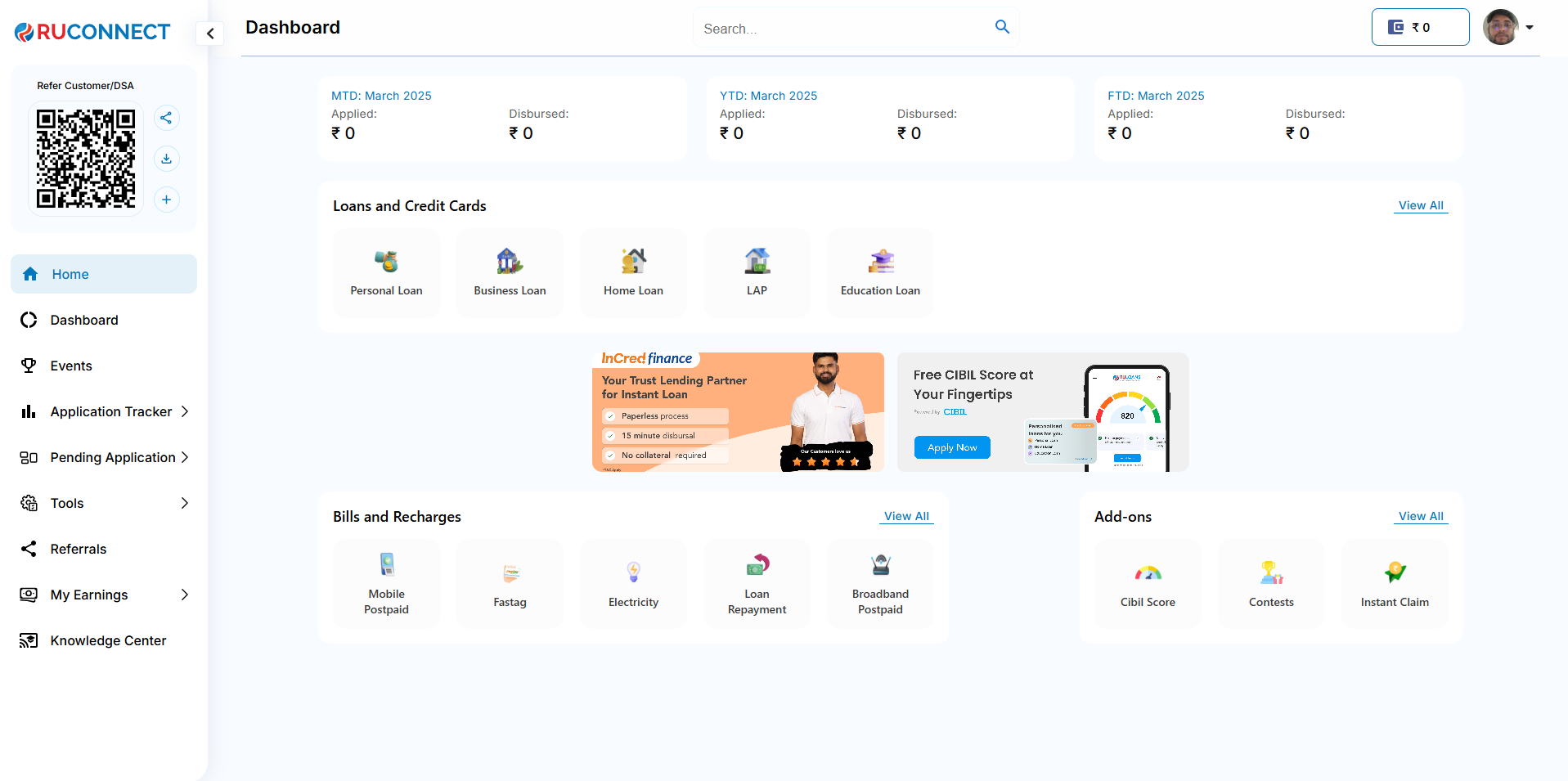
1. After successful login, you will land on the Dashboard.
2. The Dashboard provides:
* **Quick Access Links**: Links to personal loans, home loans, and other products.
* **Status Overview**: Displays details of ongoing or past applications.
 ***
## Step 3: Navigate to Find Banks section from side menu
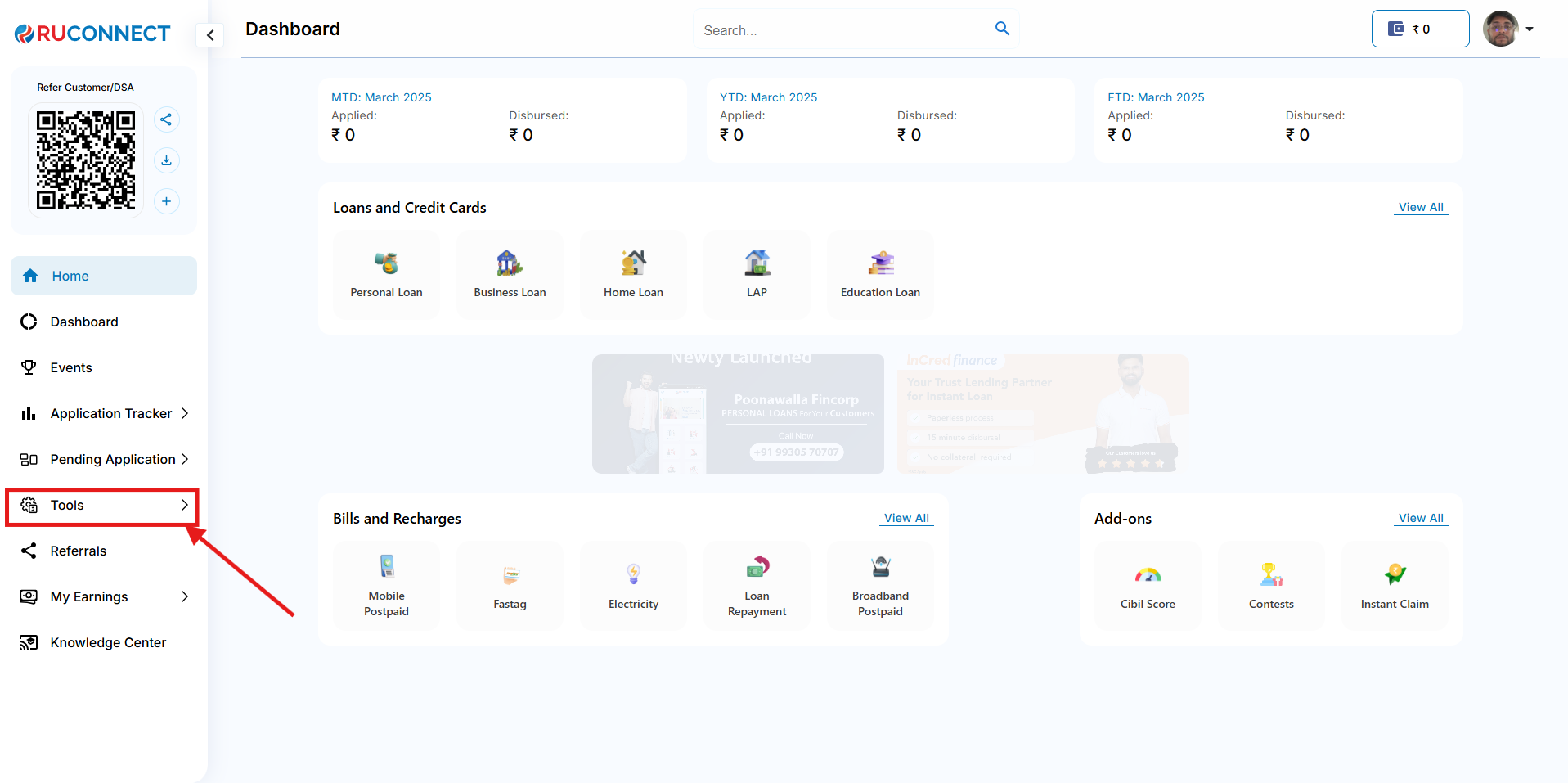
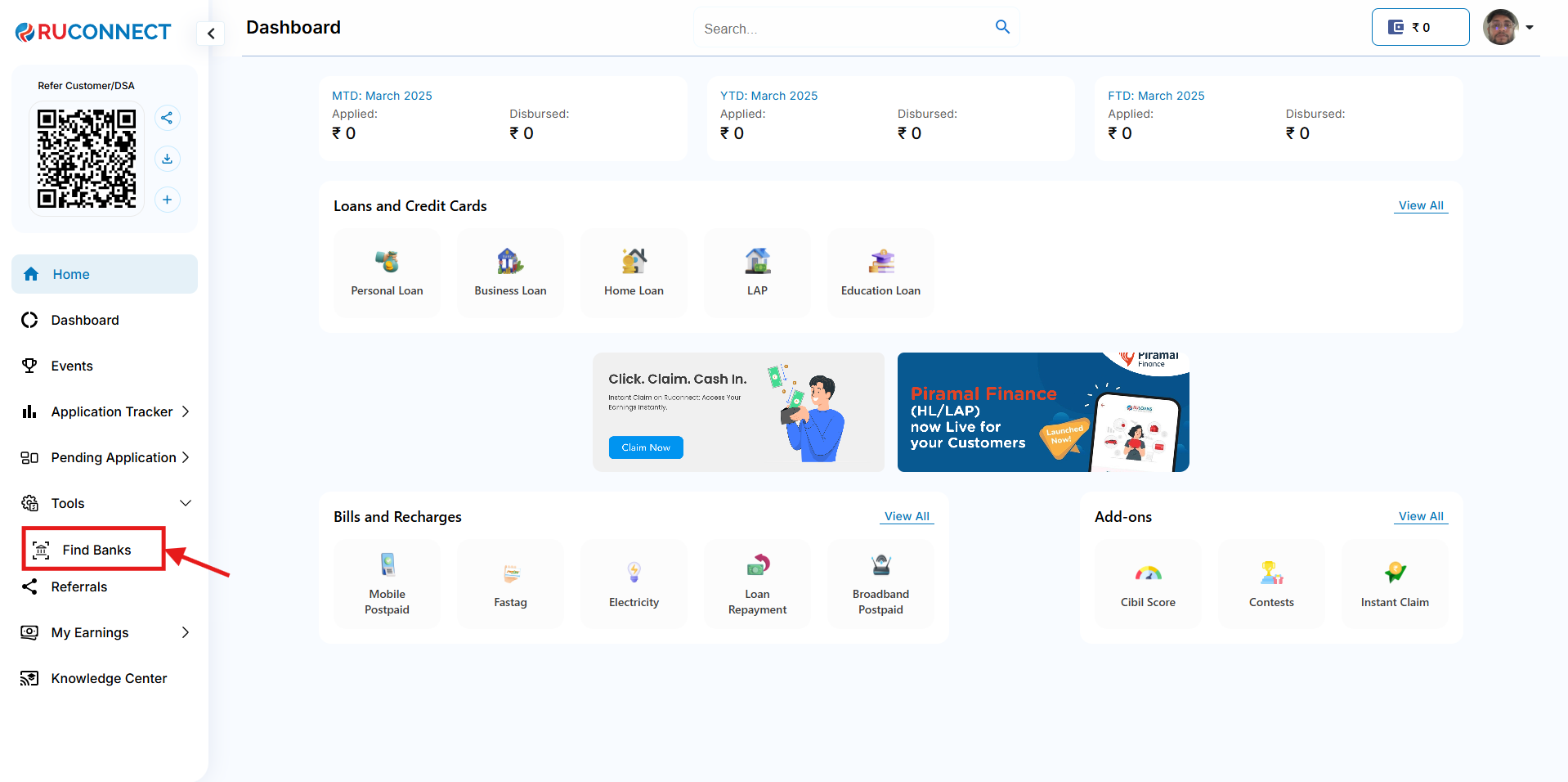
1. Scroll to side menu on the Dashboard.
2. Click on the Tools section in the side menu.
3. Click on the find banks in the tools section.
***
## Step 3: Navigate to Find Banks section from side menu
1. Scroll to side menu on the Dashboard.
2. Click on the Tools section in the side menu.
3. Click on the find banks in the tools section.
 ### Note: The tools section is visible only to the that has the access to this module.
## Step 4: Find Banks details page
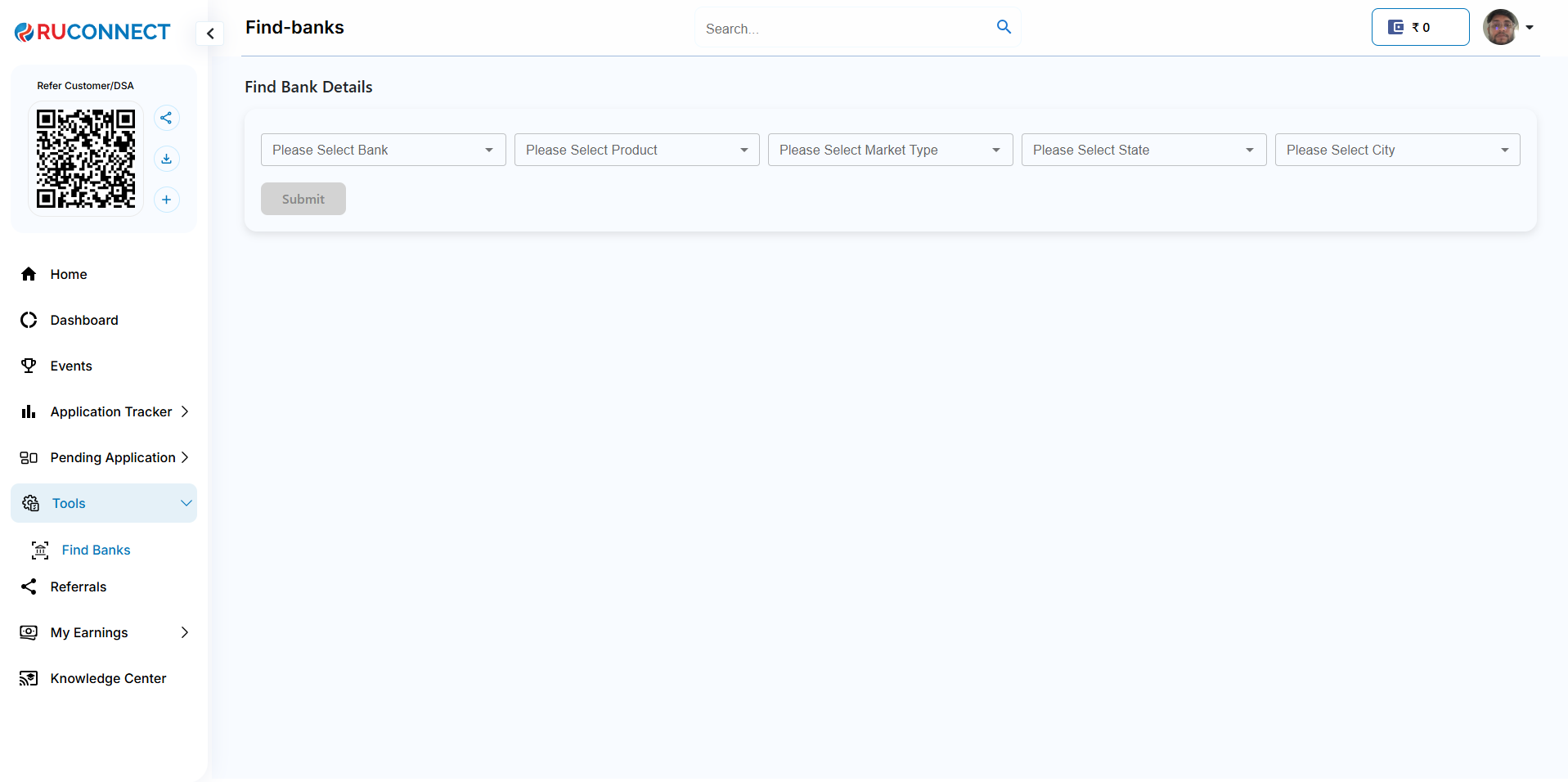
1.Select Bank Dropdown : The user can search and select the bank from this dropdown.
2.Select Product : The user can select the product from the available products of the selected bank.
3.Select Market Type : The user can select the market type from the dropdown.
4.Select State : The user can select the state available for the selected product from the dropdown.
5.Select City : The user can select the city available for the selected product based on the state selected.
6.Submit : Click on submit button after selecting all the mandatory fields.
### Note: The tools section is visible only to the that has the access to this module.
## Step 4: Find Banks details page
1.Select Bank Dropdown : The user can search and select the bank from this dropdown.
2.Select Product : The user can select the product from the available products of the selected bank.
3.Select Market Type : The user can select the market type from the dropdown.
4.Select State : The user can select the state available for the selected product from the dropdown.
5.Select City : The user can select the city available for the selected product based on the state selected.
6.Submit : Click on submit button after selecting all the mandatory fields.
 ## Step 5: Bank Details on basis on selected product of the Bank
Following details sections are visble:
1. Bank and Branch Details:
a.Bank Name
b.IFSC code
c.Branch
d.Product
e.company
2. Address Details:
a.Postal code
b.City
c.State
d.Address
e.Location
3.Contact Details:\
This section has five different manager details->
a.Sales manager
b.Assistant sales manager
c.Regional sales manager
d.Zonal sales manager
e.National sales manager
All the sections have Following details->
a.Full Name
b.Email
c.Code
d.Mobile Number
## Step 5: Bank Details on basis on selected product of the Bank
Following details sections are visble:
1. Bank and Branch Details:
a.Bank Name
b.IFSC code
c.Branch
d.Product
e.company
2. Address Details:
a.Postal code
b.City
c.State
d.Address
e.Location
3.Contact Details:\
This section has five different manager details->
a.Sales manager
b.Assistant sales manager
c.Regional sales manager
d.Zonal sales manager
e.National sales manager
All the sections have Following details->
a.Full Name
b.Email
c.Code
d.Mobile Number
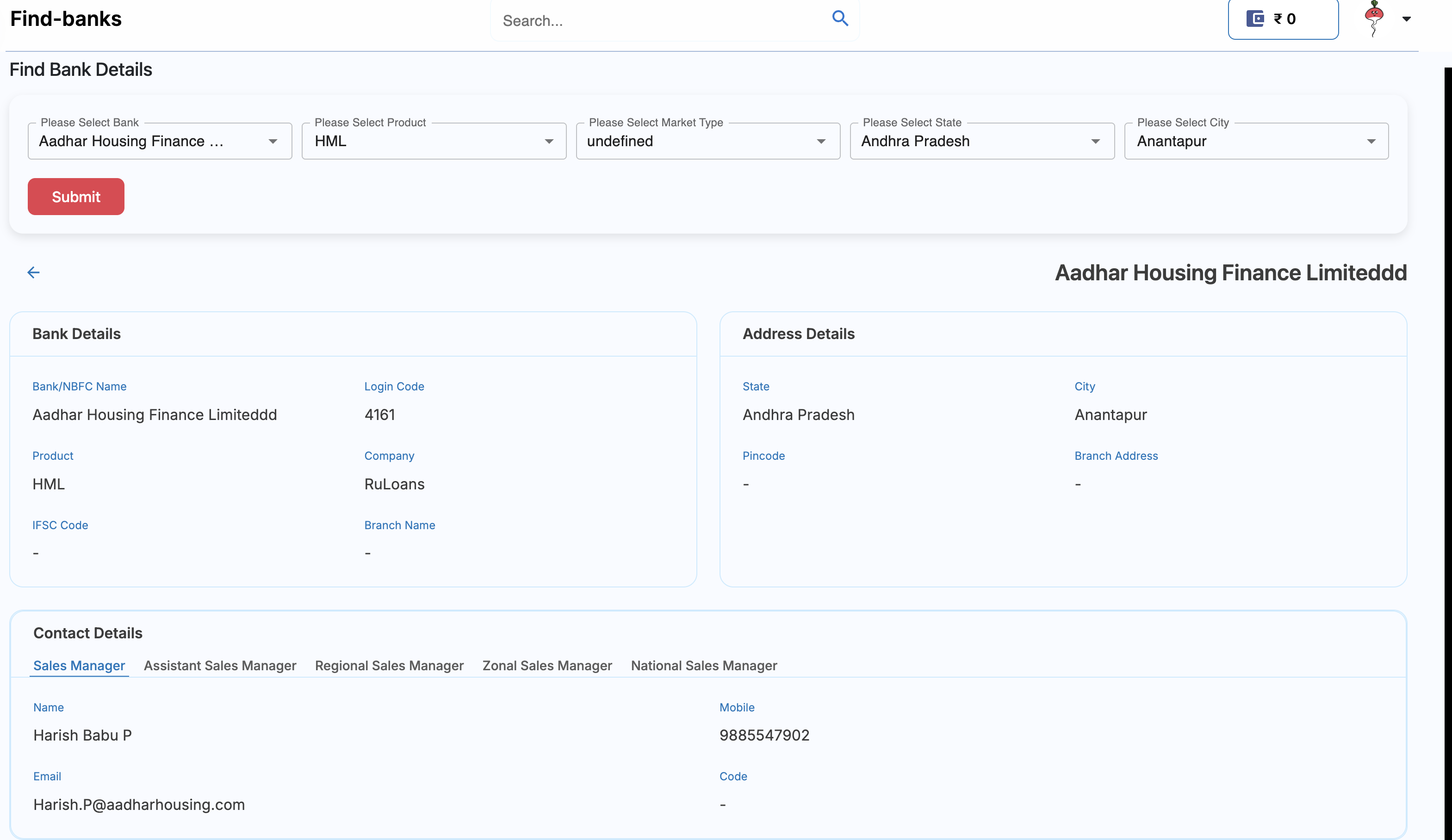 \*\*Note--> The data set as null is not available on the platform.