> ## Documentation Index
> Fetch the complete documentation index at: https://docs.ruloans.com/llms.txt
> Use this file to discover all available pages before exploring further.
# How to apply for Aditya Birla Finance Limited Loan Against Property in RuConnect Webapp
> Flow of Assisted Journey of ABFL LAP on RuConnect
**Introduction:**
This document provides a comprehensive step-by-step guide for DSAs to apply for a loan using the RuConnect platform. It highlights mandatory and optional fields, supported by screenshots, to ensure clarity and completeness.
## Step 1: Access the RuConnect Platform\*\*
Open the RuConnect platform at [https://ruconnect.in/](https://ruconnect.in/)
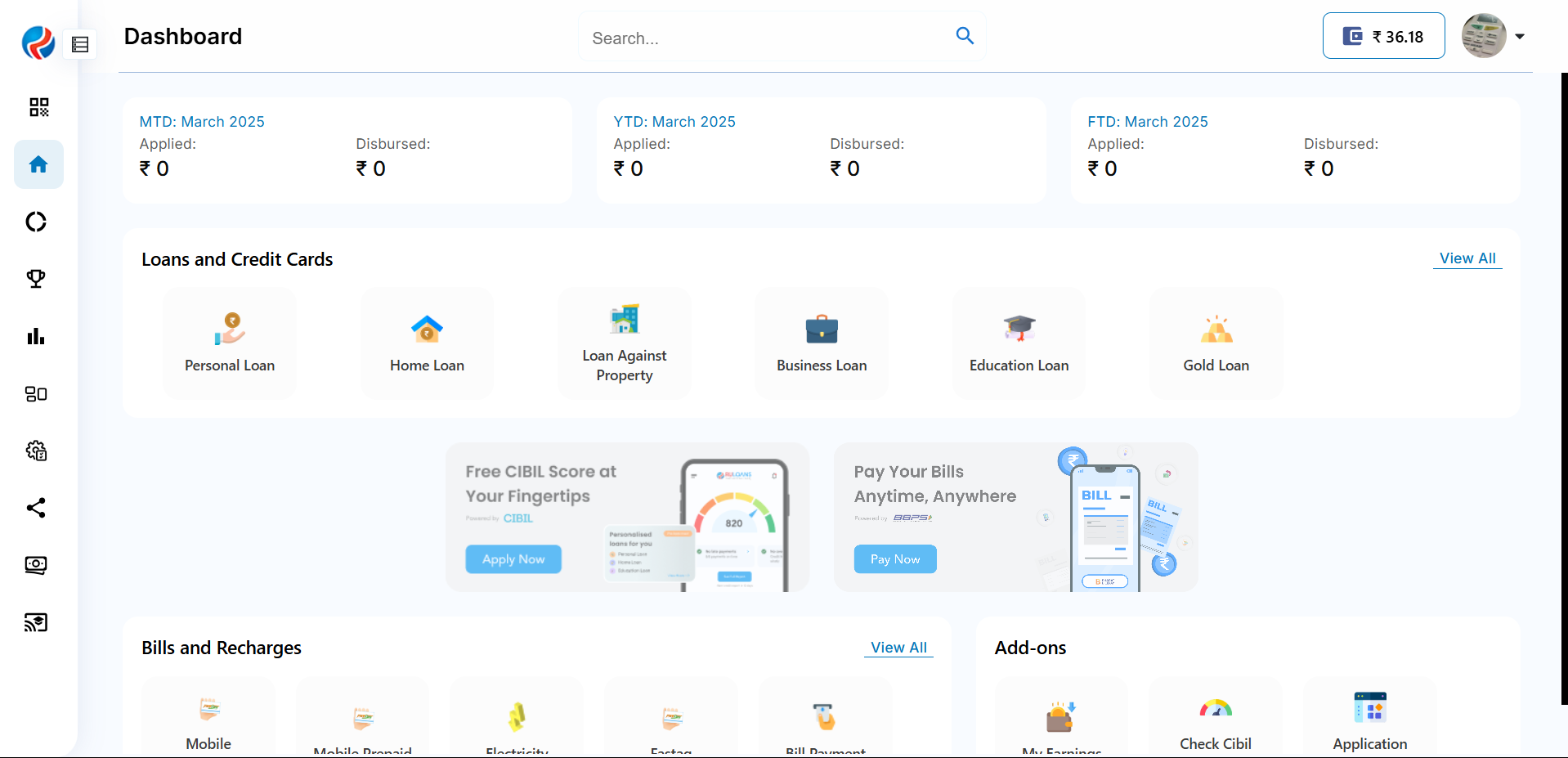
## Step 2: Navigate to the Dashboard
1. After successful login, you will land on the **Dashboard**.
2. The Dashboard provides:
* **Quick Access Links**: Links to personal loans, home loans, and other products.
* **Status Overview**: Displays details of ongoing or past applications
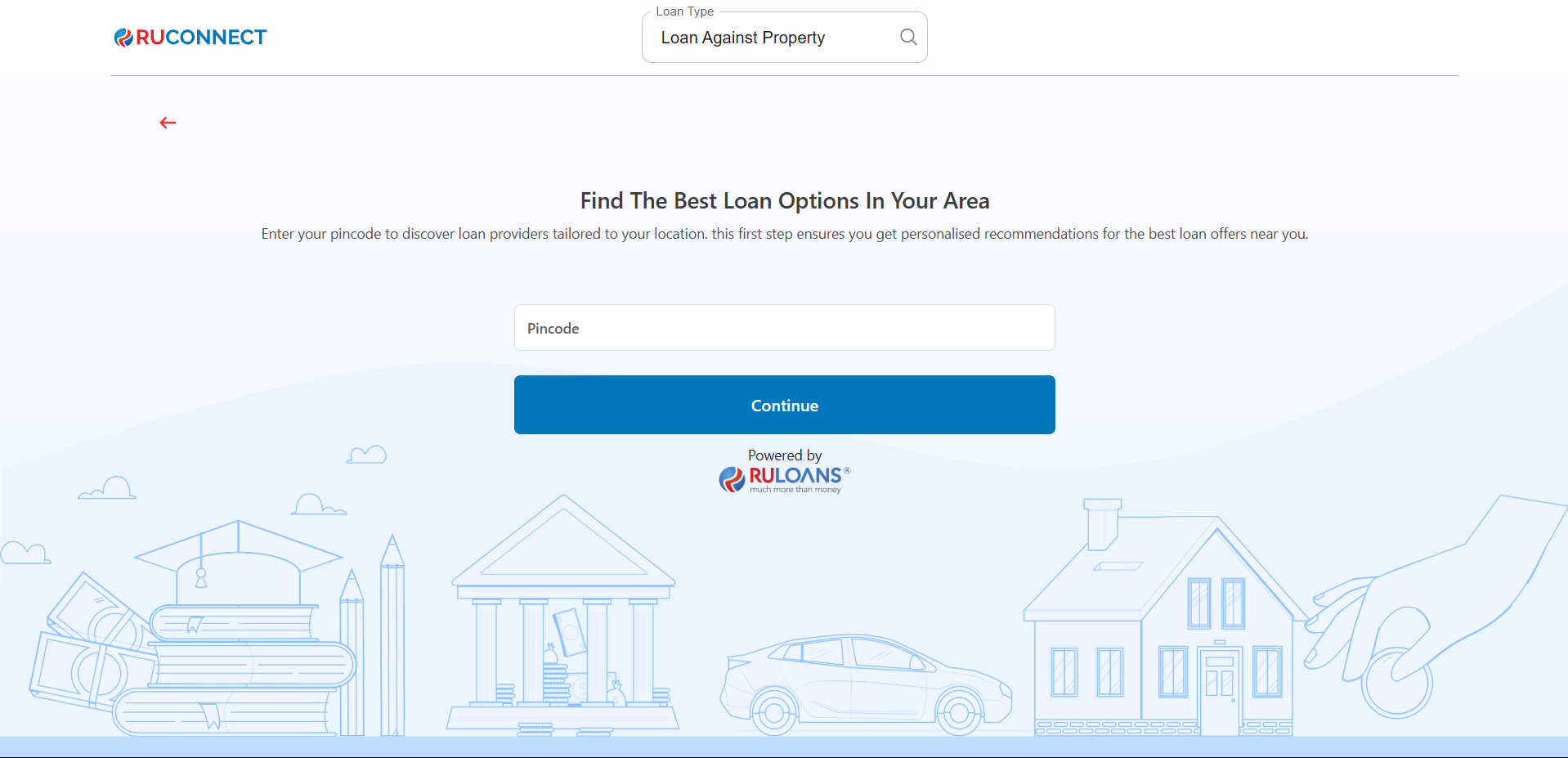
 ## Step 3: Enter Your Pincode
* **Pincode**: Enter the 6-digit postal code of your residence or business address.\
This helps us verify your location and show eligible offers.
* Tap **Continue**.
## Step 3: Enter Your Pincode
* **Pincode**: Enter the 6-digit postal code of your residence or business address.\
This helps us verify your location and show eligible offers.
* Tap **Continue**.
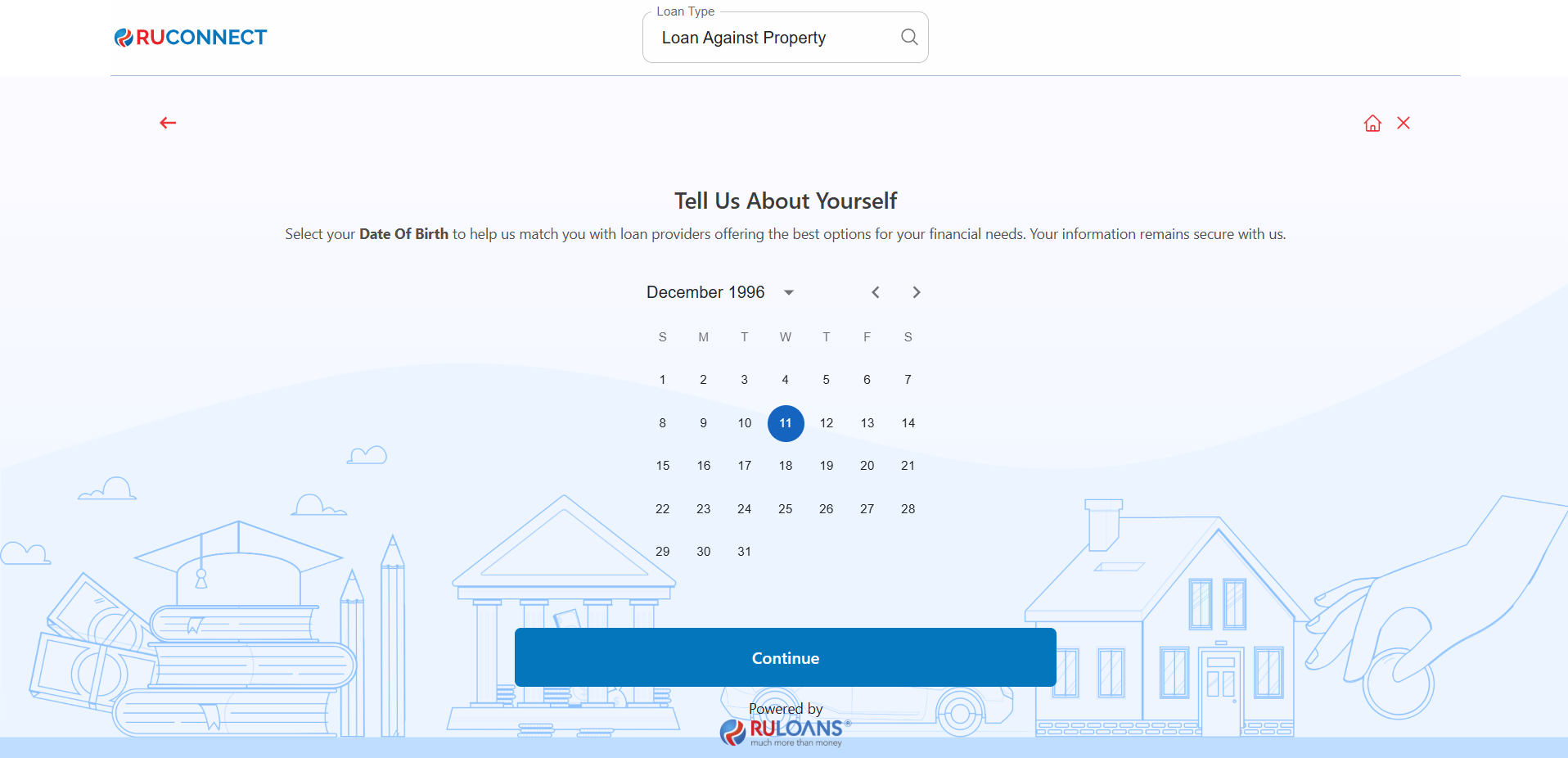
 ## Step 4: Enter Your Date of Birth
* **Date of Birth**: Select your date of birth using the calendar picker.\
This helps determine your eligibility and age-based offers.
* Tap **Continue**.
## Step 4: Enter Your Date of Birth
* **Date of Birth**: Select your date of birth using the calendar picker.\
This helps determine your eligibility and age-based offers.
* Tap **Continue**.
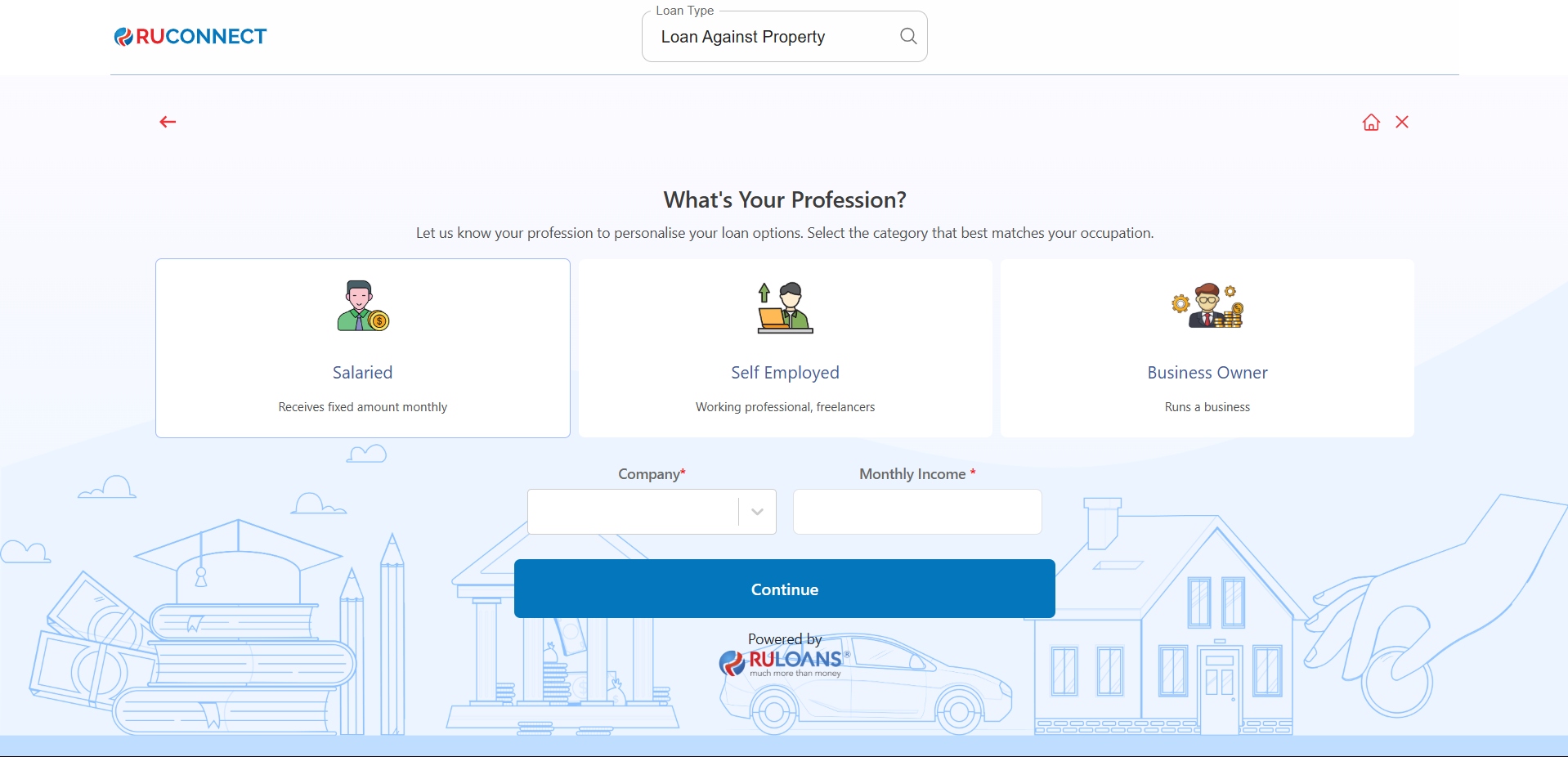
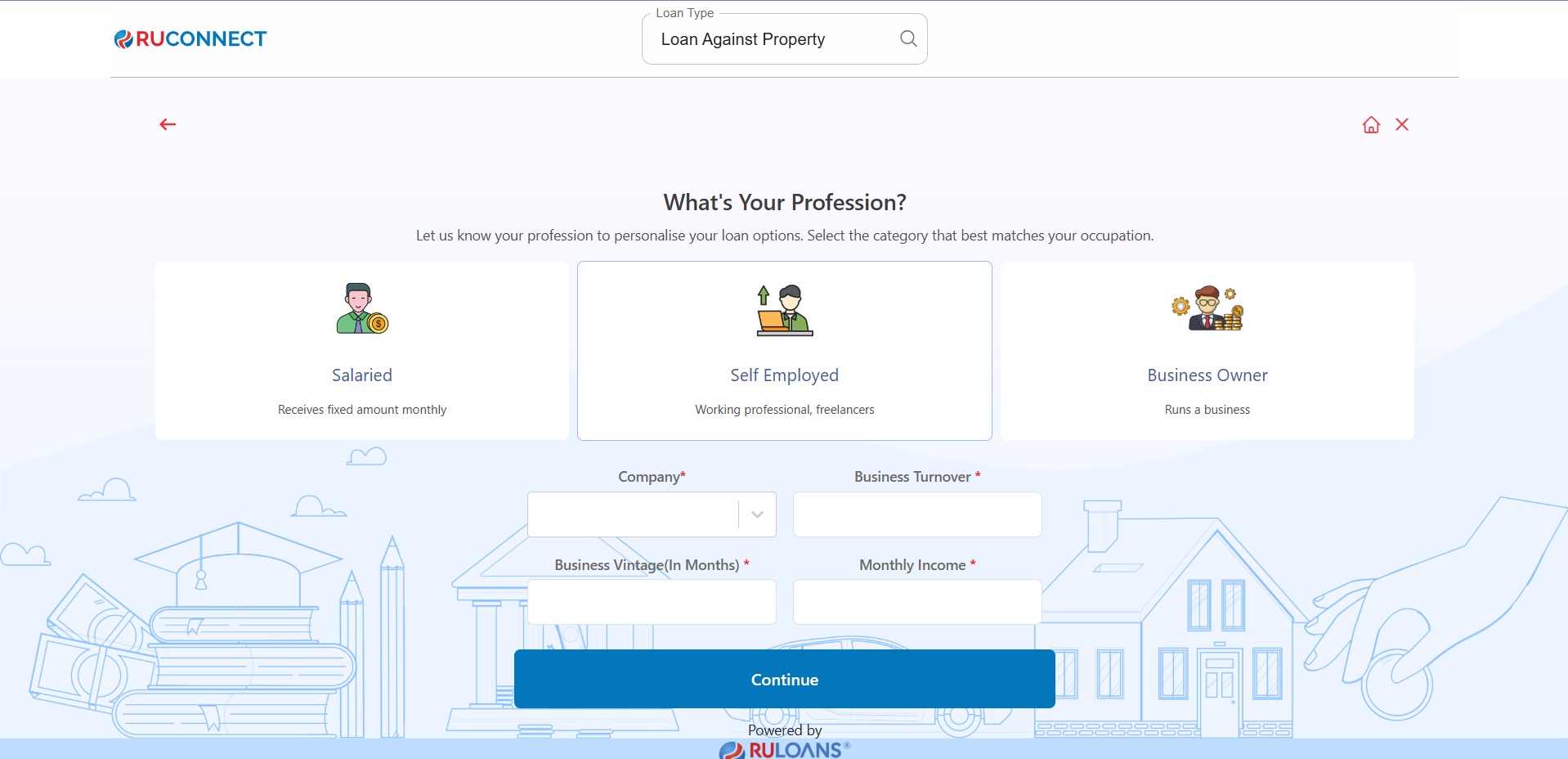
 ## Step 5: Choose Your Profession
Select the category that best describes your employment type:
* **Salaried** - If you work for a company or organization.
* **Self-Employed** - If you are a freelancer, consultant, or professional.
* **Business Owner** - If you run a business, either registered or informal.
### If **Salaried**:
* **Company Name**: Name of your employer.
* **Monthly Income**: Your average take-home salary each month.
### If **Self-Employed** or **Business Owner**:
* **Business Name / Company Name**: Name of your business or profession.
* **Business Turnover**: Approximate annual income from your business/profession.
* **Business Vintage (in months)**: How long you've been running it.
* **Monthly Income**: Your average net income per month.
* Tap **Continue**.
## Step 5: Choose Your Profession
Select the category that best describes your employment type:
* **Salaried** - If you work for a company or organization.
* **Self-Employed** - If you are a freelancer, consultant, or professional.
* **Business Owner** - If you run a business, either registered or informal.
### If **Salaried**:
* **Company Name**: Name of your employer.
* **Monthly Income**: Your average take-home salary each month.
### If **Self-Employed** or **Business Owner**:
* **Business Name / Company Name**: Name of your business or profession.
* **Business Turnover**: Approximate annual income from your business/profession.
* **Business Vintage (in months)**: How long you've been running it.
* **Monthly Income**: Your average net income per month.
* Tap **Continue**.
 ## Step 6: Select Loan Amount & Duration
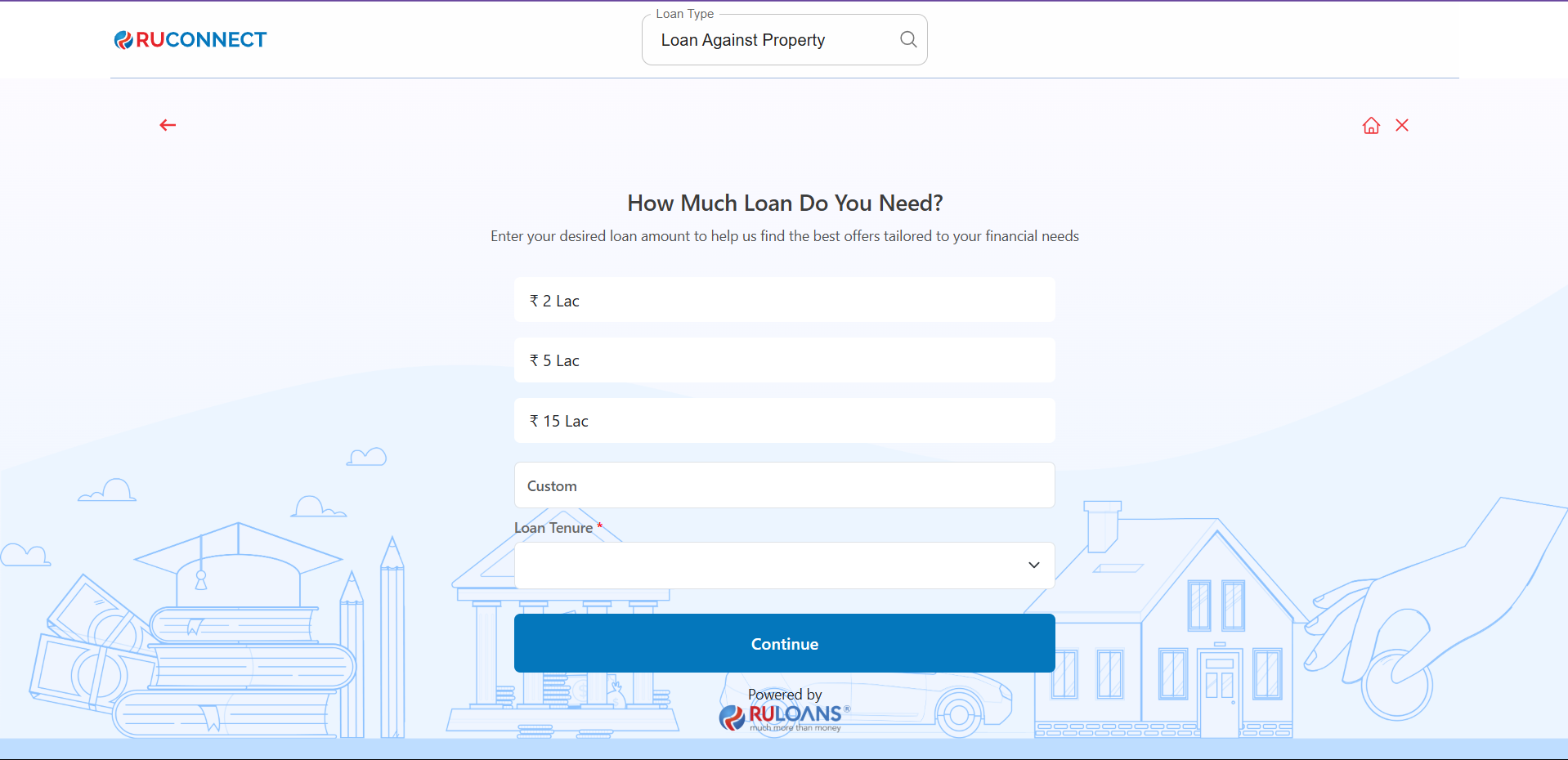
* **Loan Amount**: Choose a preset amount (e.g., ₹ 2L / ₹ 5L / ₹ 15L) or enter a **Custom Amount**.
* **Loan Tenure**: Choose the repayment period (in years).
* Tap **Continue**.
## Step 6: Select Loan Amount & Duration
* **Loan Amount**: Choose a preset amount (e.g., ₹ 2L / ₹ 5L / ₹ 15L) or enter a **Custom Amount**.
* **Loan Tenure**: Choose the repayment period (in years).
* Tap **Continue**.
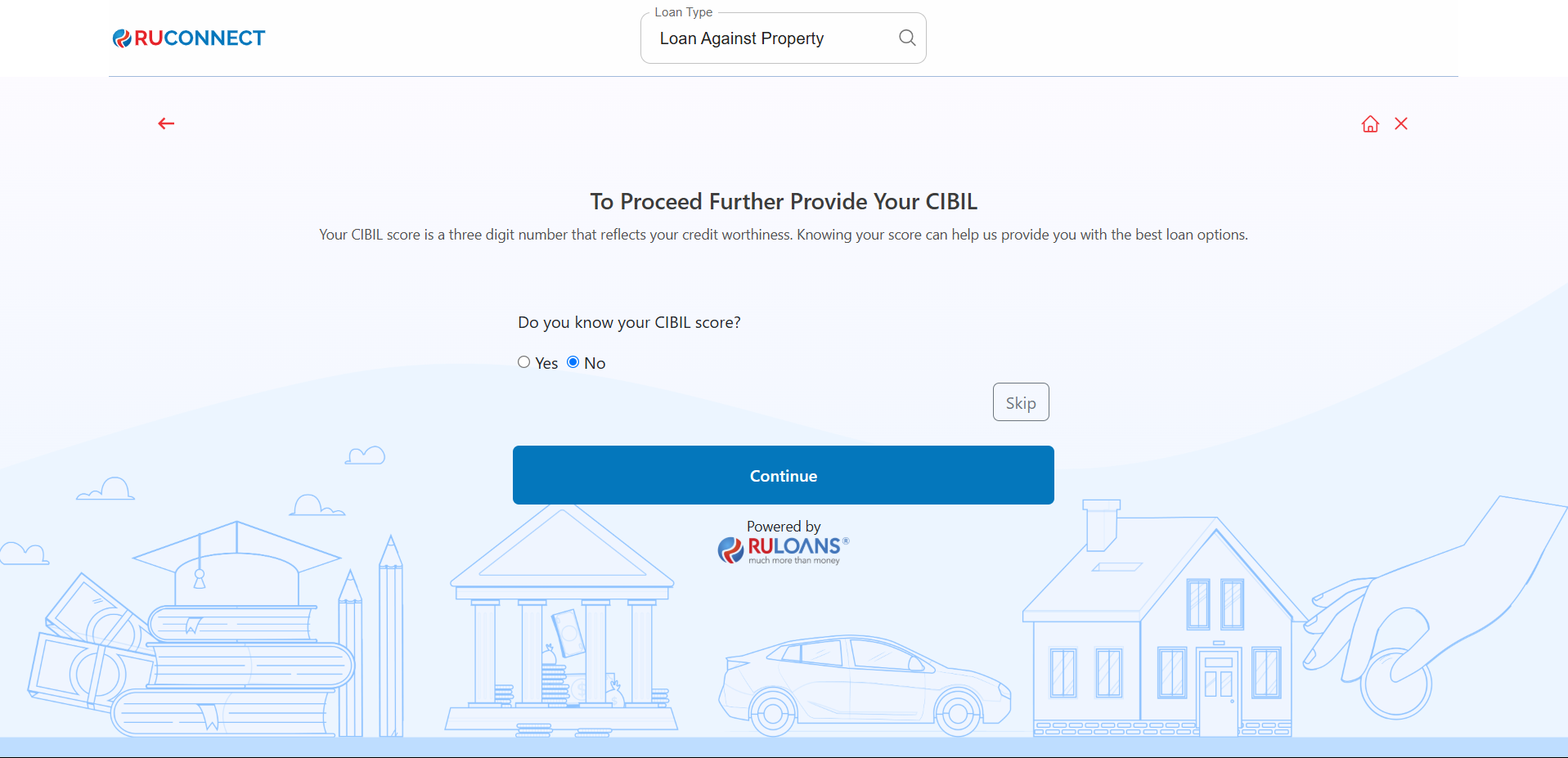
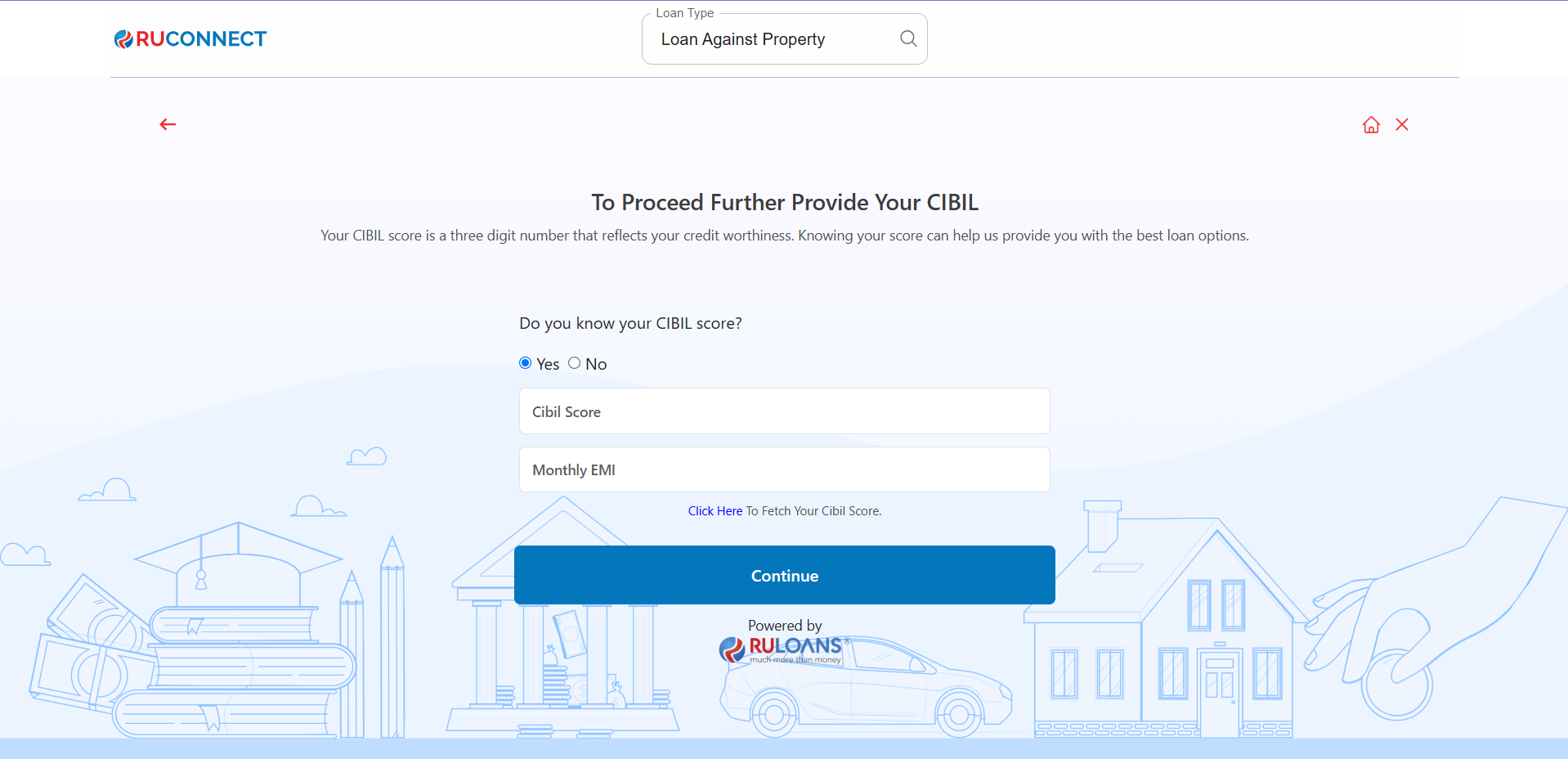
 ## Step 7: Know Your CIBIL Score?
* If you select **Yes**:
* **CIBIL Score**: Enter your 3-digit credit score (e.g., 750).
* **Monthly EMI**: Total of all active loan EMIs you're paying.
* If you select **No**: User will be redirected to Step 8.
* If you Tap **Skip**: User will be redirected to Step 10.
* Tap **Continue**.
## Step 7: Know Your CIBIL Score?
* If you select **Yes**:
* **CIBIL Score**: Enter your 3-digit credit score (e.g., 750).
* **Monthly EMI**: Total of all active loan EMIs you're paying.
* If you select **No**: User will be redirected to Step 8.
* If you Tap **Skip**: User will be redirected to Step 10.
* Tap **Continue**.
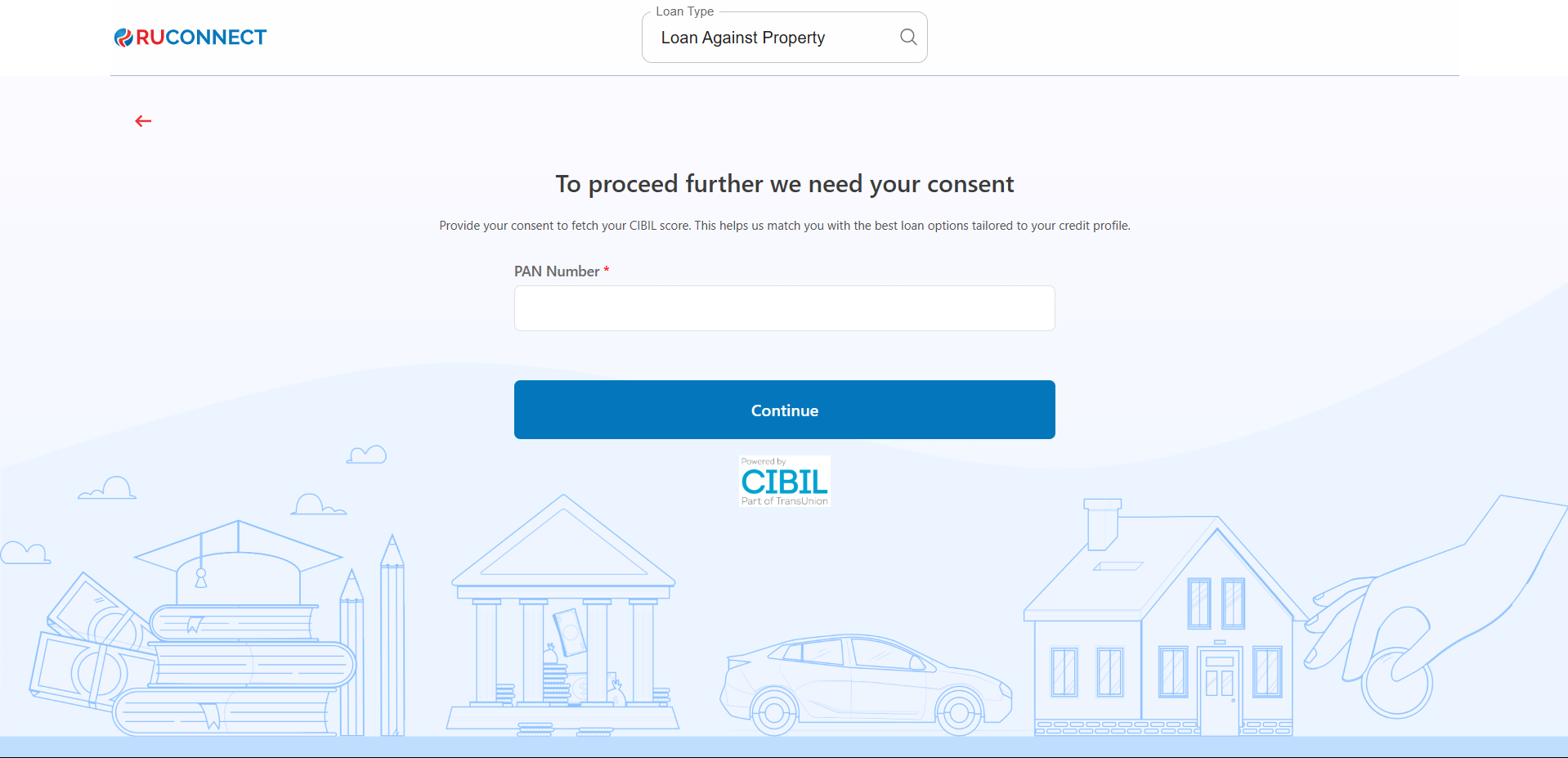
 ## Step 8: Enter PAN Number & Give Consent
* **PAN Number**: Enter your 10-character PAN (e.g., ABCDE1234F).\
Required to verify your credit score and match loan offers.
* Tap **Continue**.
## Step 8: Enter PAN Number & Give Consent
* **PAN Number**: Enter your 10-character PAN (e.g., ABCDE1234F).\
Required to verify your credit score and match loan offers.
* Tap **Continue**.
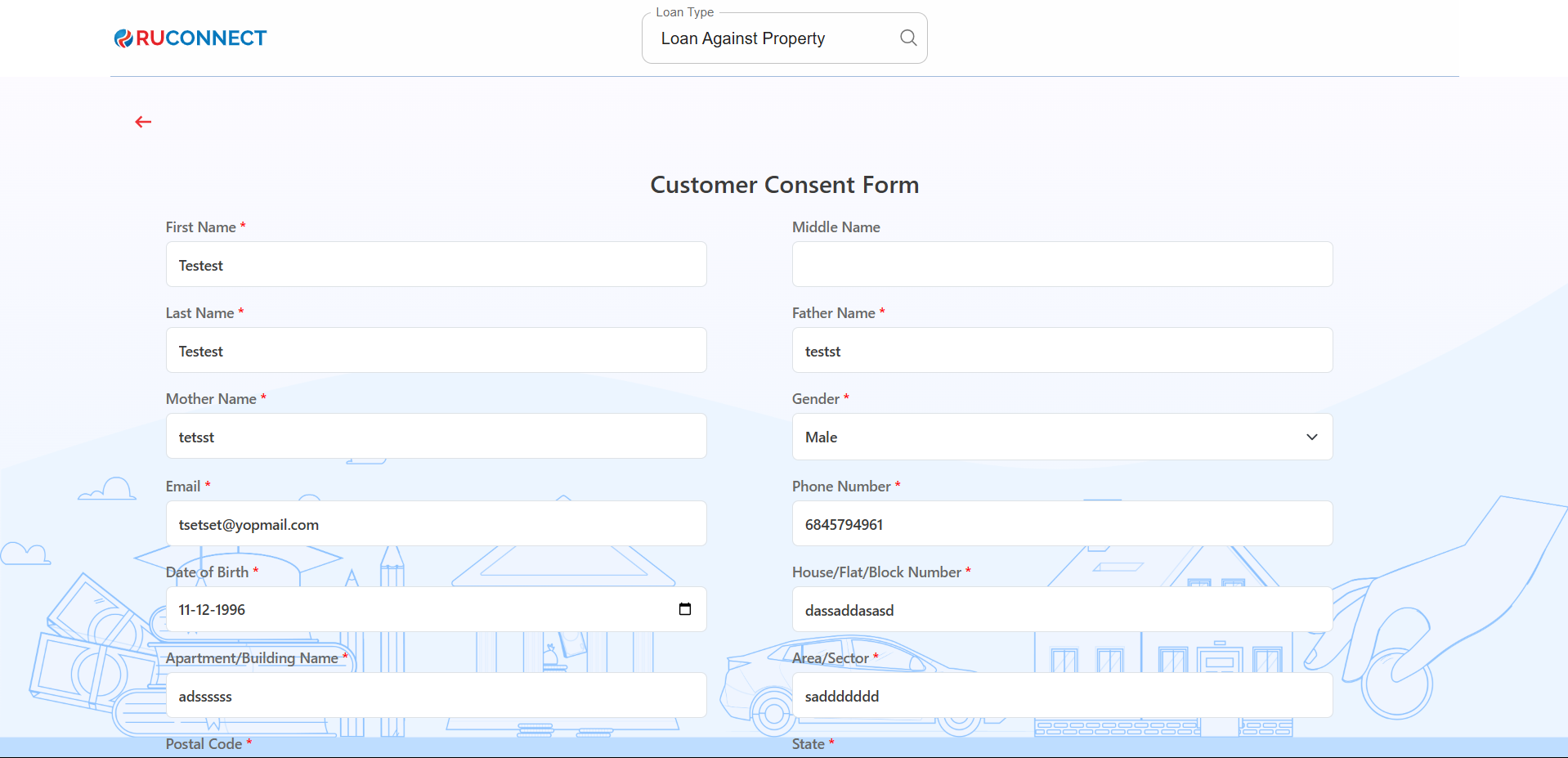
 ## Step 9: Fill Personal & Address Details for CIBIL
**Personal Details**
* **First Name**: Enter your First name.
* **Middle Name**: Enter your Middle name (optional).
* **Last Name**: Enter your Last name.
* **Father's Name**: Enter your Father's full name.
* **Mother's Name**: Enter your Mother's full name.
* **Gender**: Select your gender from the dropdown.
* **Email ID**: Enter your email ID.
* **Mobile Number**: Enter your mobile number.
* **Date of Birth**: Enter your date of birth.
**Address Details**
* **House / Flat / Block Number**: Enter the house/flat/block number of the address.
* **Building / Apartment Name**: Enter the building/apartment name of the address.
* **Area / Sector**: Enter the area/sector of the address.
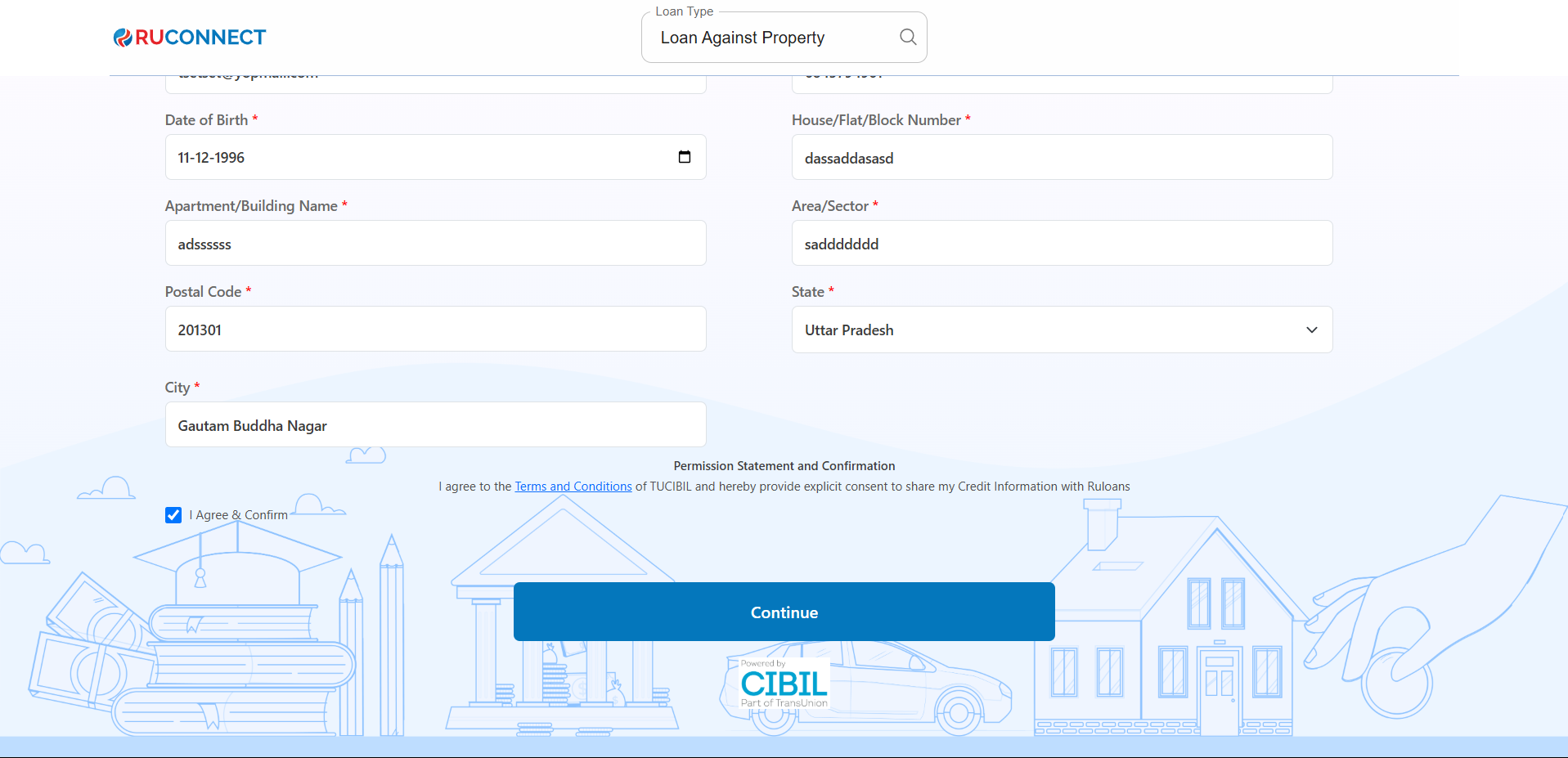
* **Pincode**: Enter the pincode of the address.
* **City**: Select the city from the dropdown.
* **State**: Select the state from the dropdown.
Tick **I Agree & Confirm** to give consent.\
You may review the Terms & Conditions.\
Tap **Continue**
## Step 9: Fill Personal & Address Details for CIBIL
**Personal Details**
* **First Name**: Enter your First name.
* **Middle Name**: Enter your Middle name (optional).
* **Last Name**: Enter your Last name.
* **Father's Name**: Enter your Father's full name.
* **Mother's Name**: Enter your Mother's full name.
* **Gender**: Select your gender from the dropdown.
* **Email ID**: Enter your email ID.
* **Mobile Number**: Enter your mobile number.
* **Date of Birth**: Enter your date of birth.
**Address Details**
* **House / Flat / Block Number**: Enter the house/flat/block number of the address.
* **Building / Apartment Name**: Enter the building/apartment name of the address.
* **Area / Sector**: Enter the area/sector of the address.
* **Pincode**: Enter the pincode of the address.
* **City**: Select the city from the dropdown.
* **State**: Select the state from the dropdown.
Tick **I Agree & Confirm** to give consent.\
You may review the Terms & Conditions.\
Tap **Continue**
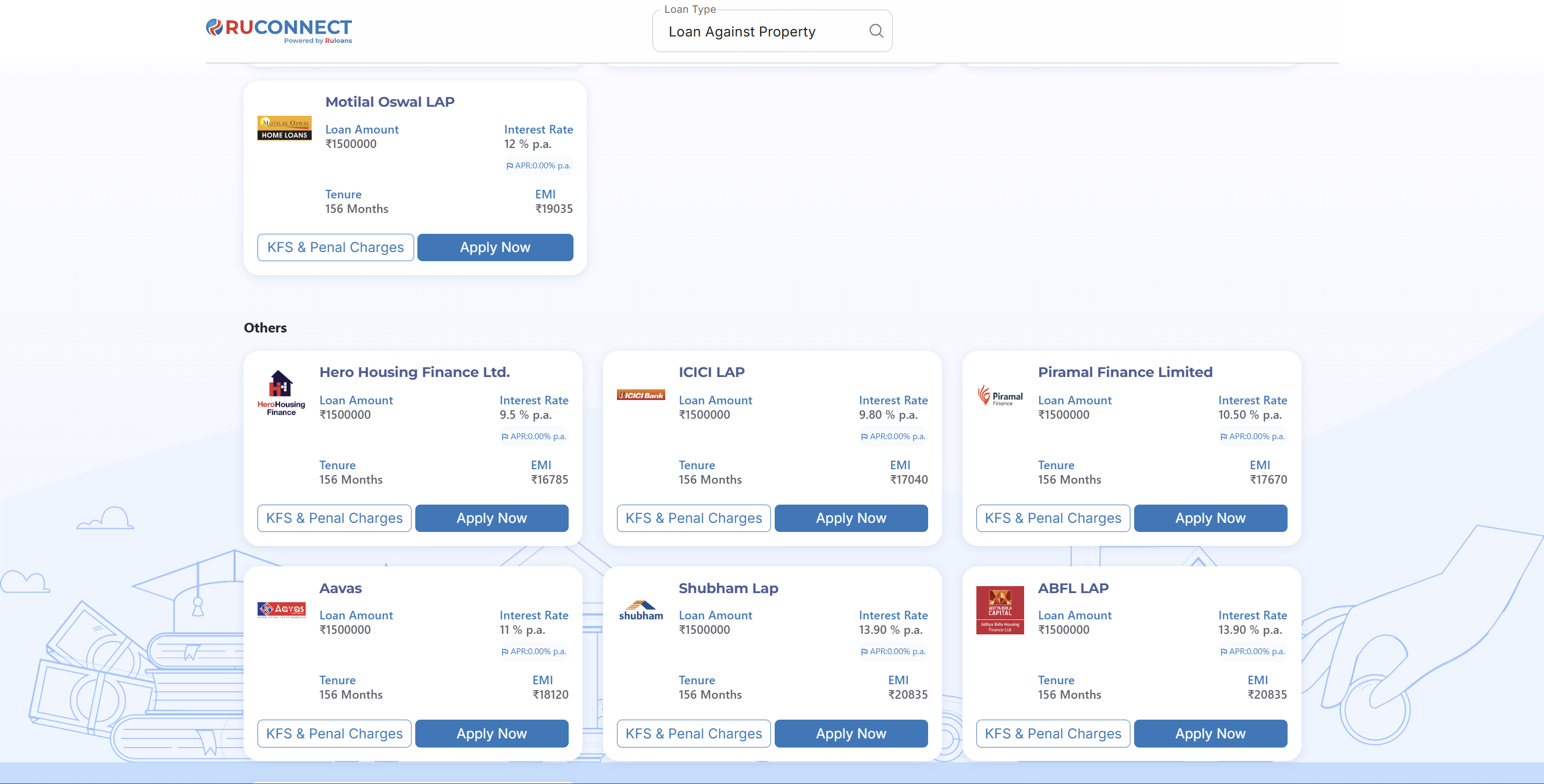
 ## Step 10: Get Your Recommended Offers
* Based on your details, view loan offers from lenders like:
* **ABFL**, **Sunadaram**, **Piramal Finance**, **DMI**, and more.
## Step 10: Get Your Recommended Offers
* Based on your details, view loan offers from lenders like:
* **ABFL**, **Sunadaram**, **Piramal Finance**, **DMI**, and more.
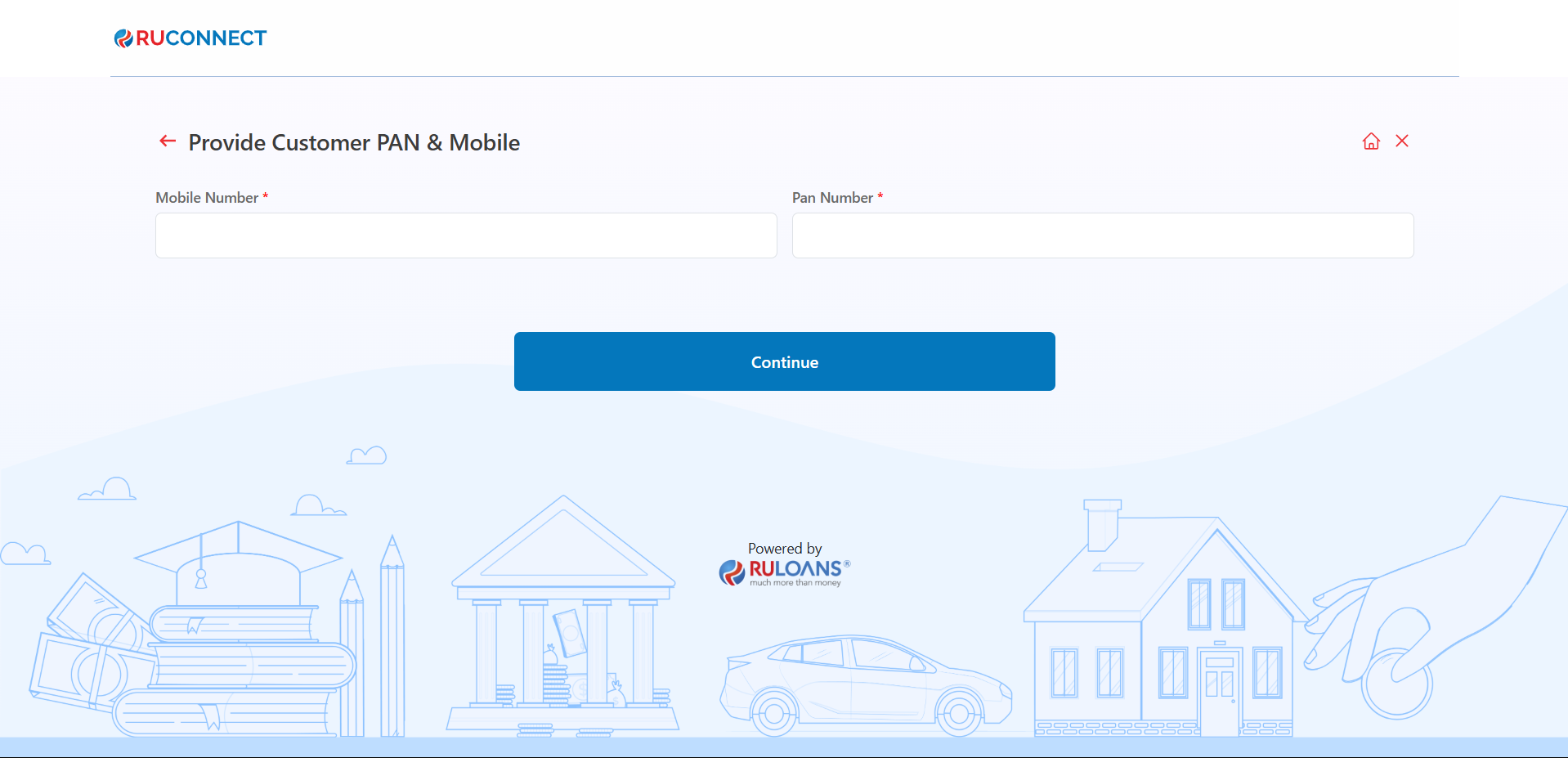
 ## **Step 11: Customer PAN & Mobile Number Entry**
This screen is used to collect the customer's mobile number and PAN (Permanent Account Number), which are essential for identity verification and loan processing.
## **Step 11: Customer PAN & Mobile Number Entry**
This screen is used to collect the customer's mobile number and PAN (Permanent Account Number), which are essential for identity verification and loan processing.
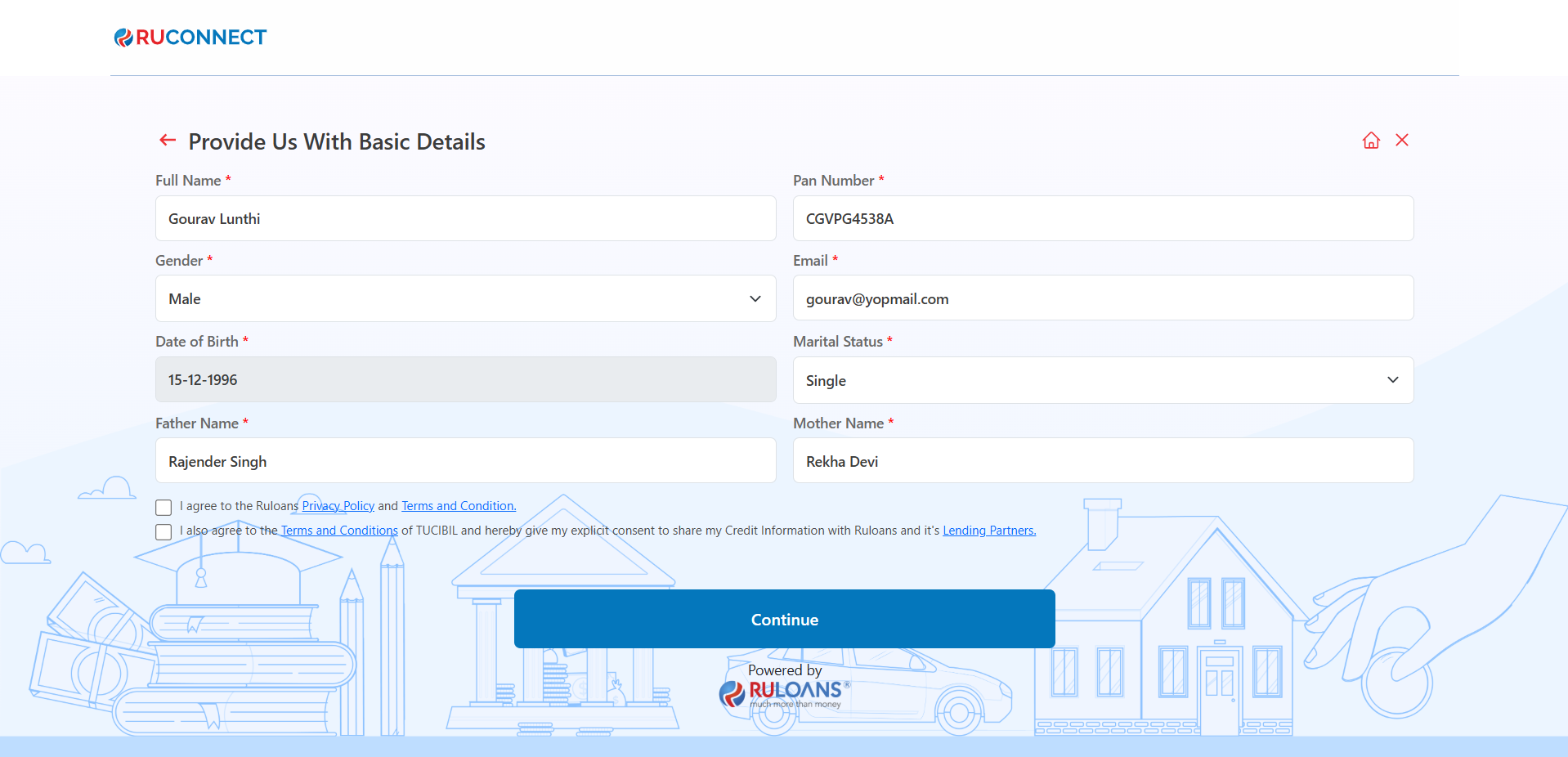
 ## **Step 12: Provide Basic Details**
1. Mandatory Fields:
* Full Name, PAN Number, Gender, Email, Date of Birth, Marital Status, Father's Name, and Mother's Name.
2. Consent:
* Select checkboxes for Privacy Policy and Credit Information consent.
3. Action:
* Click Continue to proceed.
## **Step 12: Provide Basic Details**
1. Mandatory Fields:
* Full Name, PAN Number, Gender, Email, Date of Birth, Marital Status, Father's Name, and Mother's Name.
2. Consent:
* Select checkboxes for Privacy Policy and Credit Information consent.
3. Action:
* Click Continue to proceed.
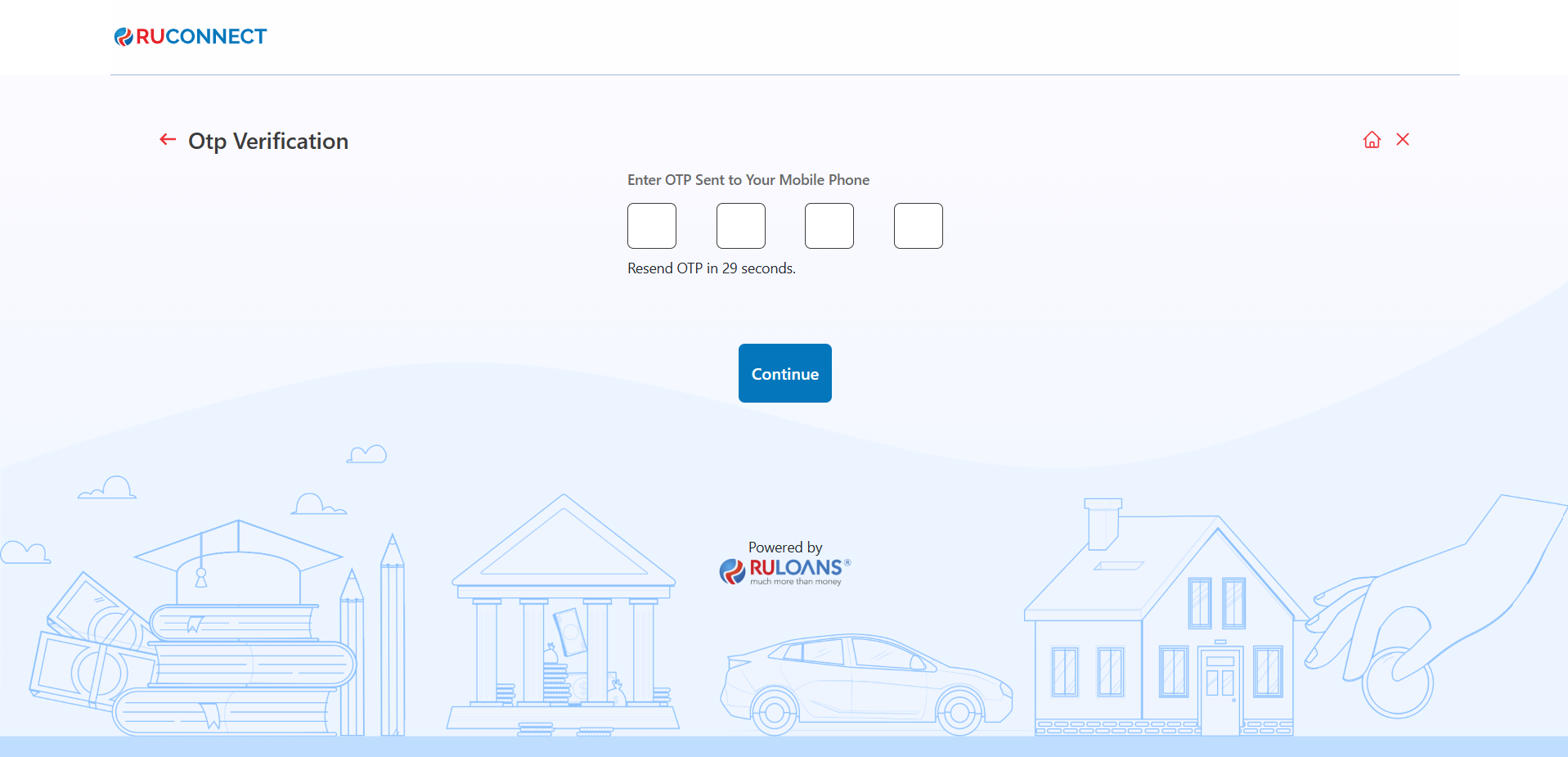
 ## **Step 13: OTP Verification**
Enter the One-Time Password (OTP) sent to the registered mobile number for verification.
## **Step 13: OTP Verification**
Enter the One-Time Password (OTP) sent to the registered mobile number for verification.
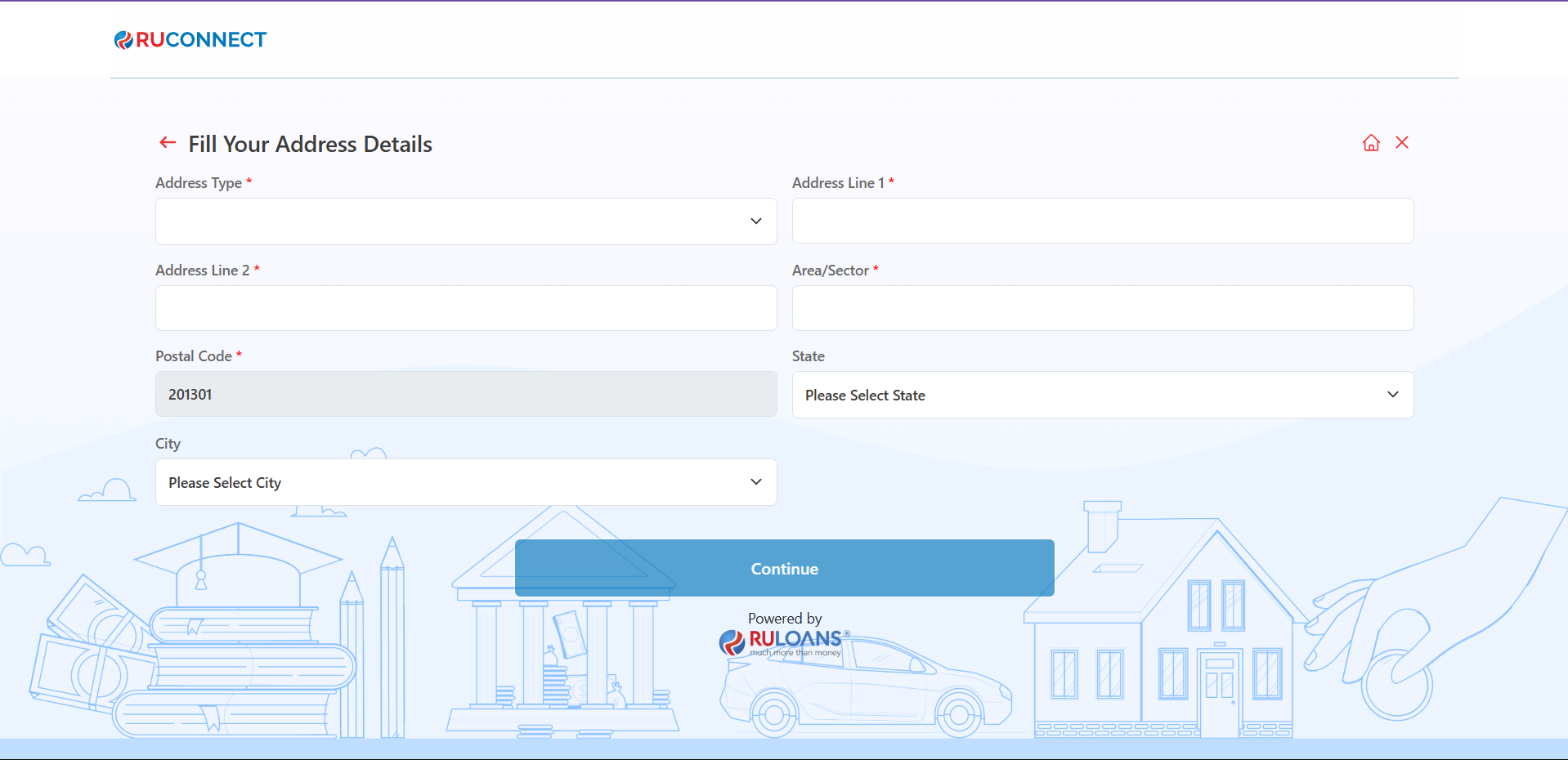
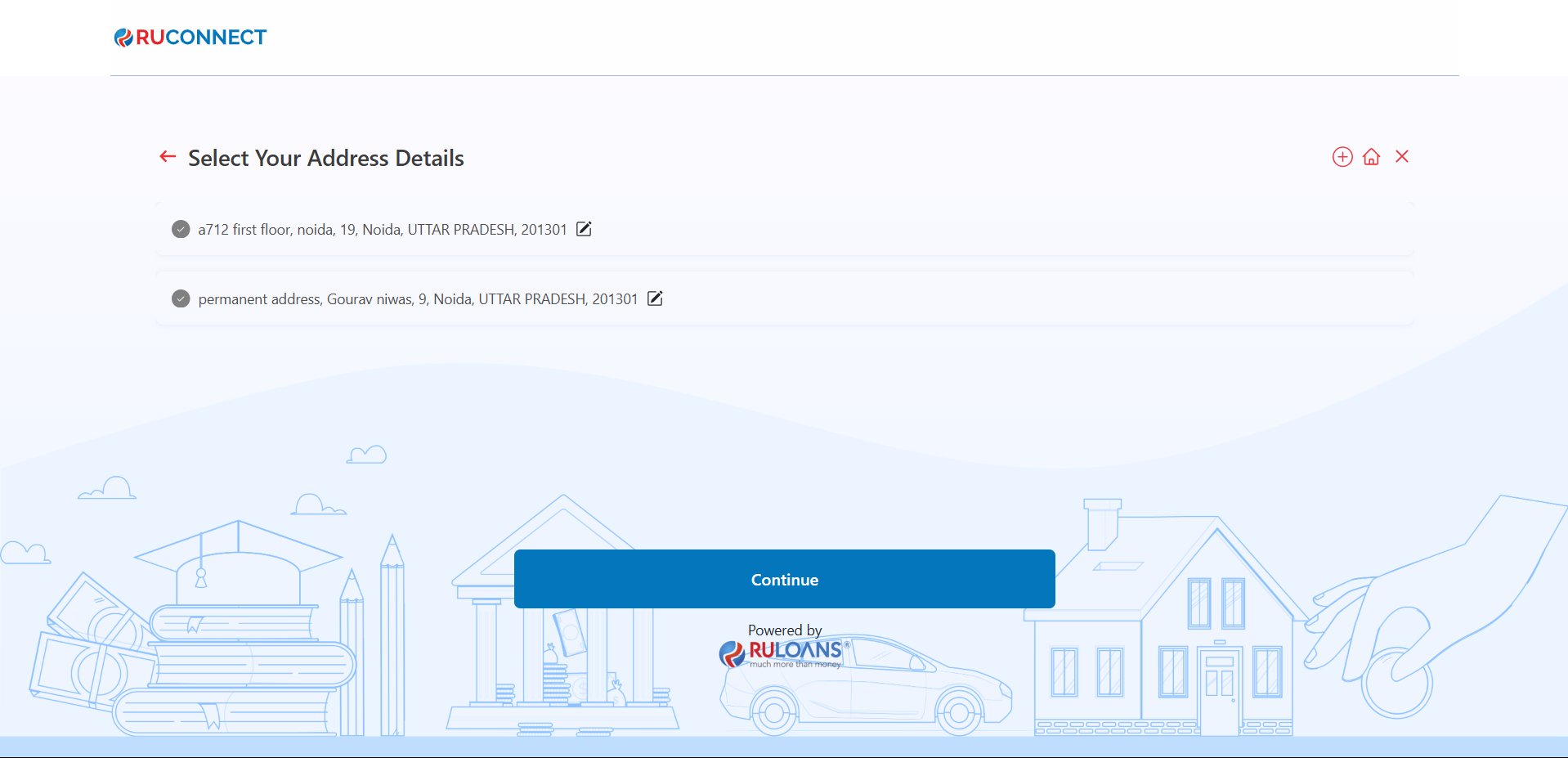
 ## **Step 14: Enter Address Details**
1. Provide your residential address:
* **Address Type** (Mandatory)
* **Address Line 1** (Mandatory)
* **Address Line 2** (Mandatory)
* **Area/Sector** (Mandatory)
* **Postal Code** (Mandatory)
* **City & State** (Auto fetched)
## **Step 14: Enter Address Details**
1. Provide your residential address:
* **Address Type** (Mandatory)
* **Address Line 1** (Mandatory)
* **Address Line 2** (Mandatory)
* **Area/Sector** (Mandatory)
* **Postal Code** (Mandatory)
* **City & State** (Auto fetched)
 1. If applicable, enter the address already saved (Optional).
 ## **Step 14: Fill Your Income Details**
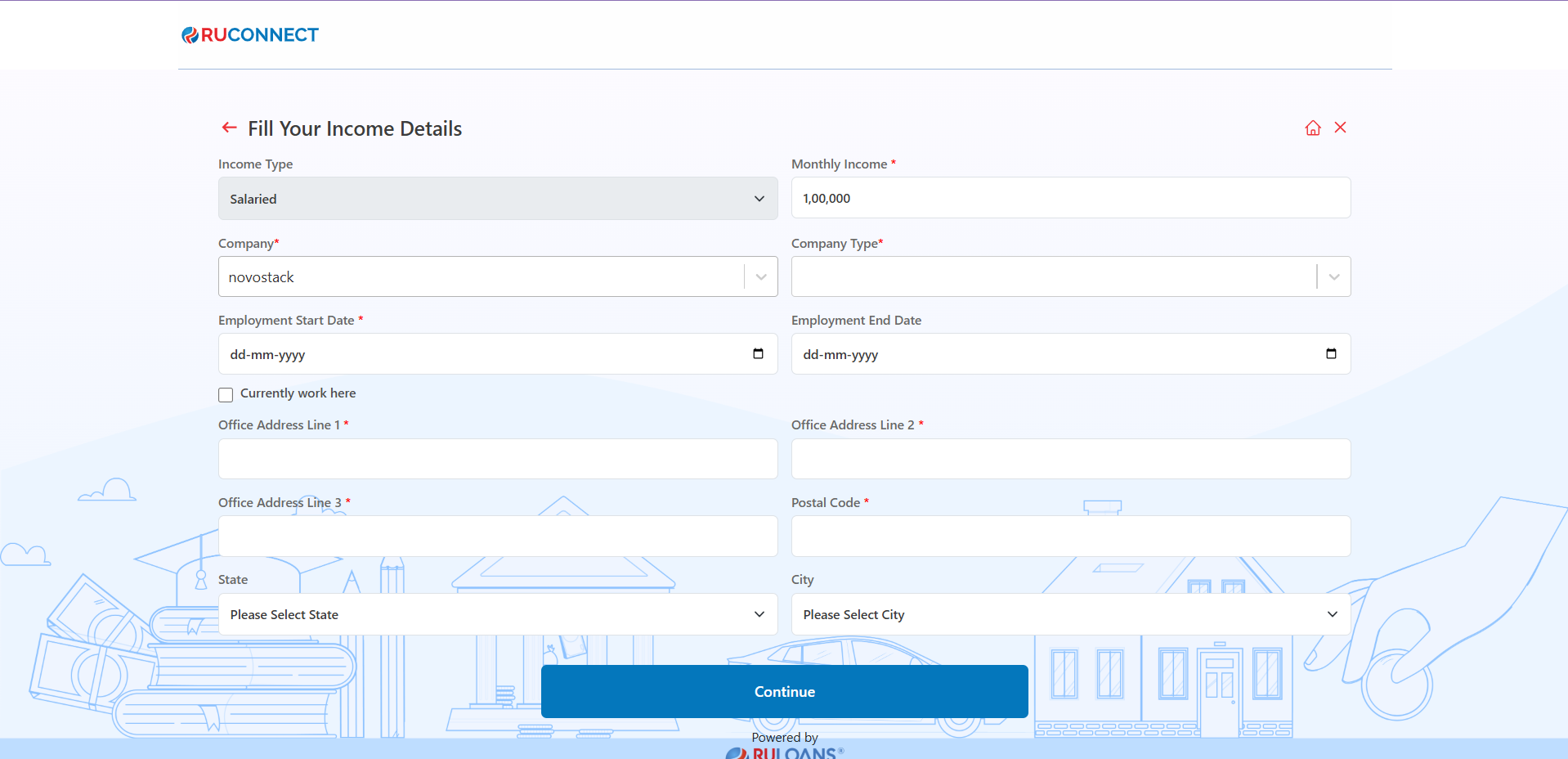
* **Purpose**: The form collects details about the applicant's income and employment information to assess their financial stability.
* **Fields to Fill**:
* **Income Type**: Choose between options like salaried, self-employed, etc.
* **Monthly Income**: Enter the monthly income in numeric value.
* **Company**: Specify the name of the employer.
* **Company Type**: Choose the type of company (e.g., private, government, etc.).
* **Employment Start and End Dates**: Input the tenure of employment.
* Option to mark "Currently Work Here" for ongoing employment.
* **Office Address**: Enter the detailed office address (Line 1, Line 2, Line 3, Postal Code).
* **State and City**: Select the state and city from dropdown menus.
* **Action Button**: **Continue** - Once all fields are filled, the user proceeds to the next step.
## **Step 14: Fill Your Income Details**
* **Purpose**: The form collects details about the applicant's income and employment information to assess their financial stability.
* **Fields to Fill**:
* **Income Type**: Choose between options like salaried, self-employed, etc.
* **Monthly Income**: Enter the monthly income in numeric value.
* **Company**: Specify the name of the employer.
* **Company Type**: Choose the type of company (e.g., private, government, etc.).
* **Employment Start and End Dates**: Input the tenure of employment.
* Option to mark "Currently Work Here" for ongoing employment.
* **Office Address**: Enter the detailed office address (Line 1, Line 2, Line 3, Postal Code).
* **State and City**: Select the state and city from dropdown menus.
* **Action Button**: **Continue** - Once all fields are filled, the user proceeds to the next step.
 ## **Step 15: Verify Income Details**
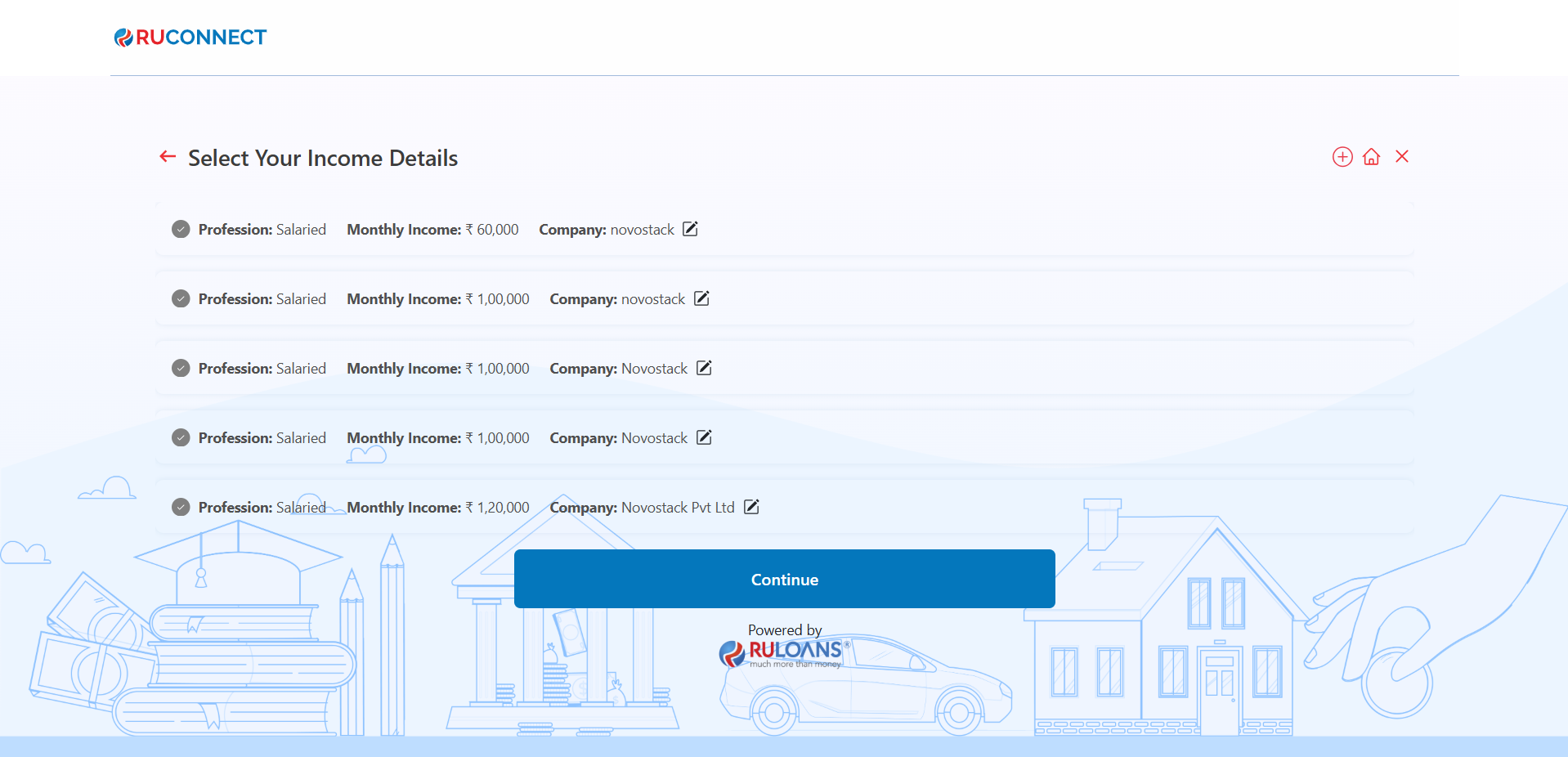
1. **Select the appropriate profession** that matches your employment status.
2. **Click on the Continue button** to proceed to the next step.
## **Step 15: Verify Income Details**
1. **Select the appropriate profession** that matches your employment status.
2. **Click on the Continue button** to proceed to the next step.
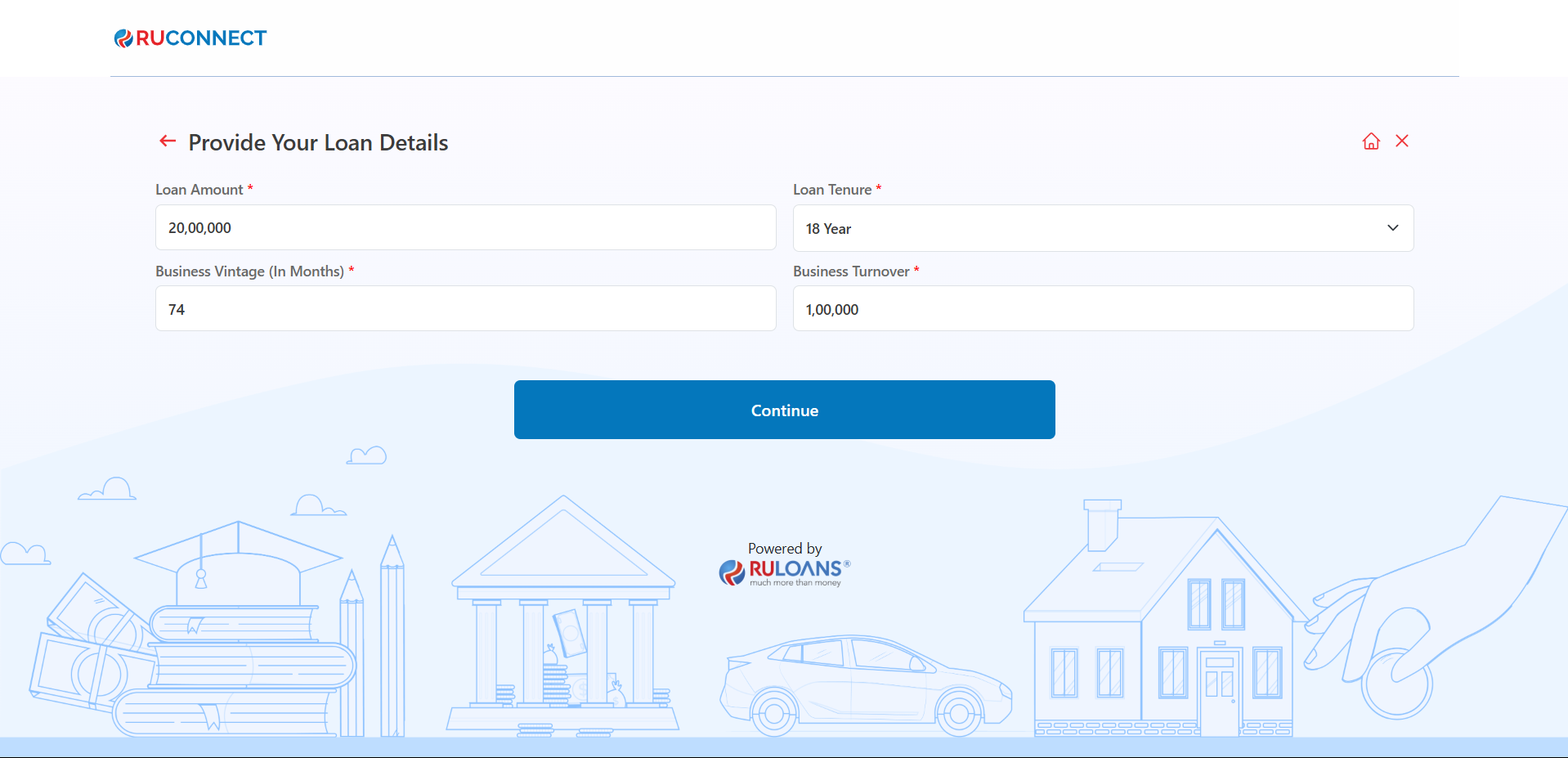
 ## **Step 16: Provide Loan Details**
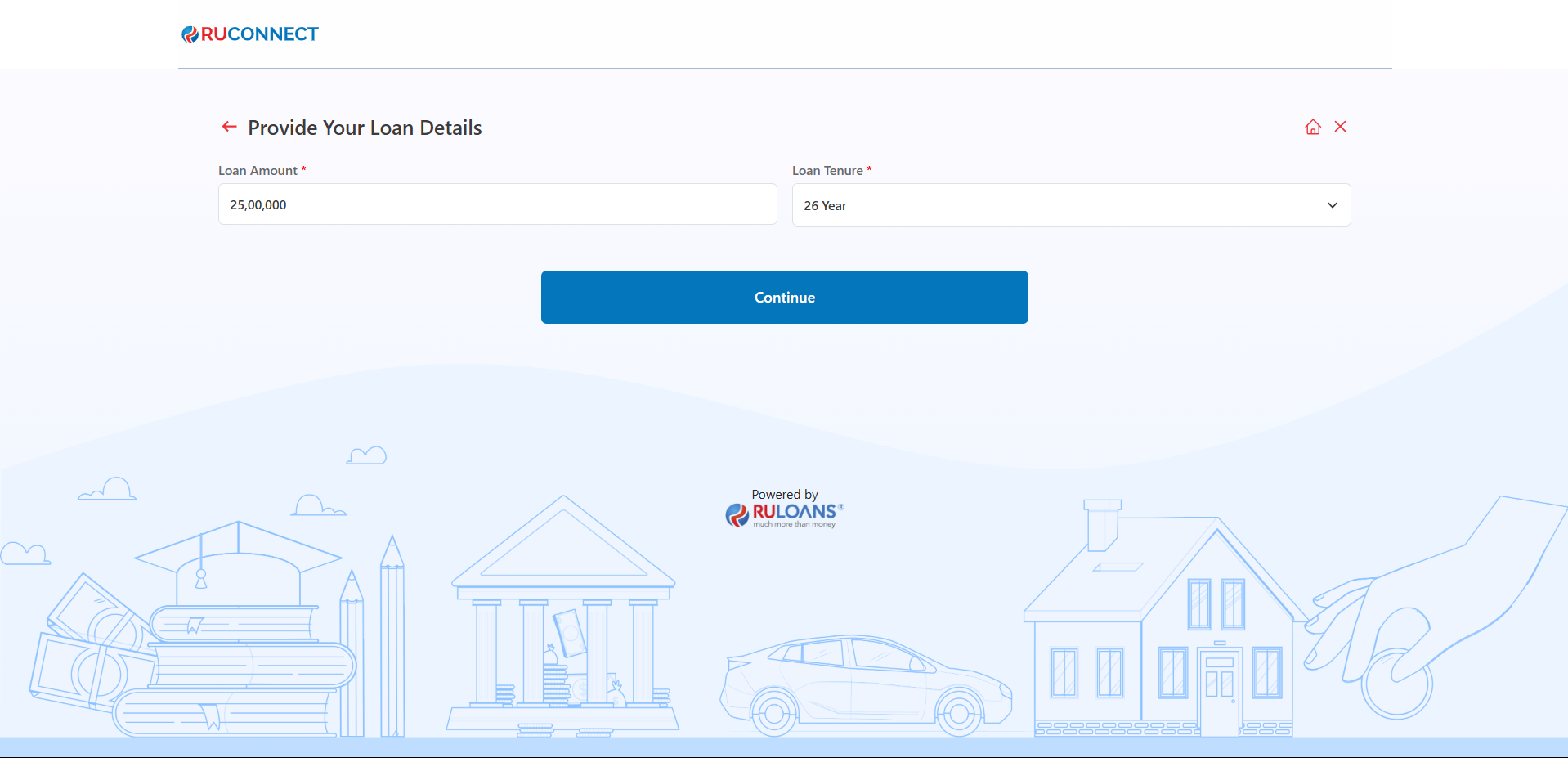
1. **Loan Amount**:
* Enter the desired loan amount in the input field (Mandatory).
2. **Loan Tenure**:
* Choose the loan tenure from the dropdown menu (e.g., 2 Years, 3 Years) (Mandatory).
3. **Business Vintage (in Months)**:
* Provide the duration of your business operation in months (Optional, if applicable).
4. **Business Turnover**:
* Specify your business's annual turnover (Mandatory).
5. After completing the fields, click on the **Continue** button to proceed to the next step.
6. **For Salaried Users**
## **Step 16: Provide Loan Details**
1. **Loan Amount**:
* Enter the desired loan amount in the input field (Mandatory).
2. **Loan Tenure**:
* Choose the loan tenure from the dropdown menu (e.g., 2 Years, 3 Years) (Mandatory).
3. **Business Vintage (in Months)**:
* Provide the duration of your business operation in months (Optional, if applicable).
4. **Business Turnover**:
* Specify your business's annual turnover (Mandatory).
5. After completing the fields, click on the **Continue** button to proceed to the next step.
6. **For Salaried Users**
 ***NOTE: The Fields Business Vintage and Business Turnover is only applicable for Self Employed Customers***
2. **For Self Employed Professional Users**
3. **For Self Employed Non Professional Users**
***NOTE: The Fields Business Vintage and Business Turnover is only applicable for Self Employed Customers***
2. **For Self Employed Professional Users**
3. **For Self Employed Non Professional Users**
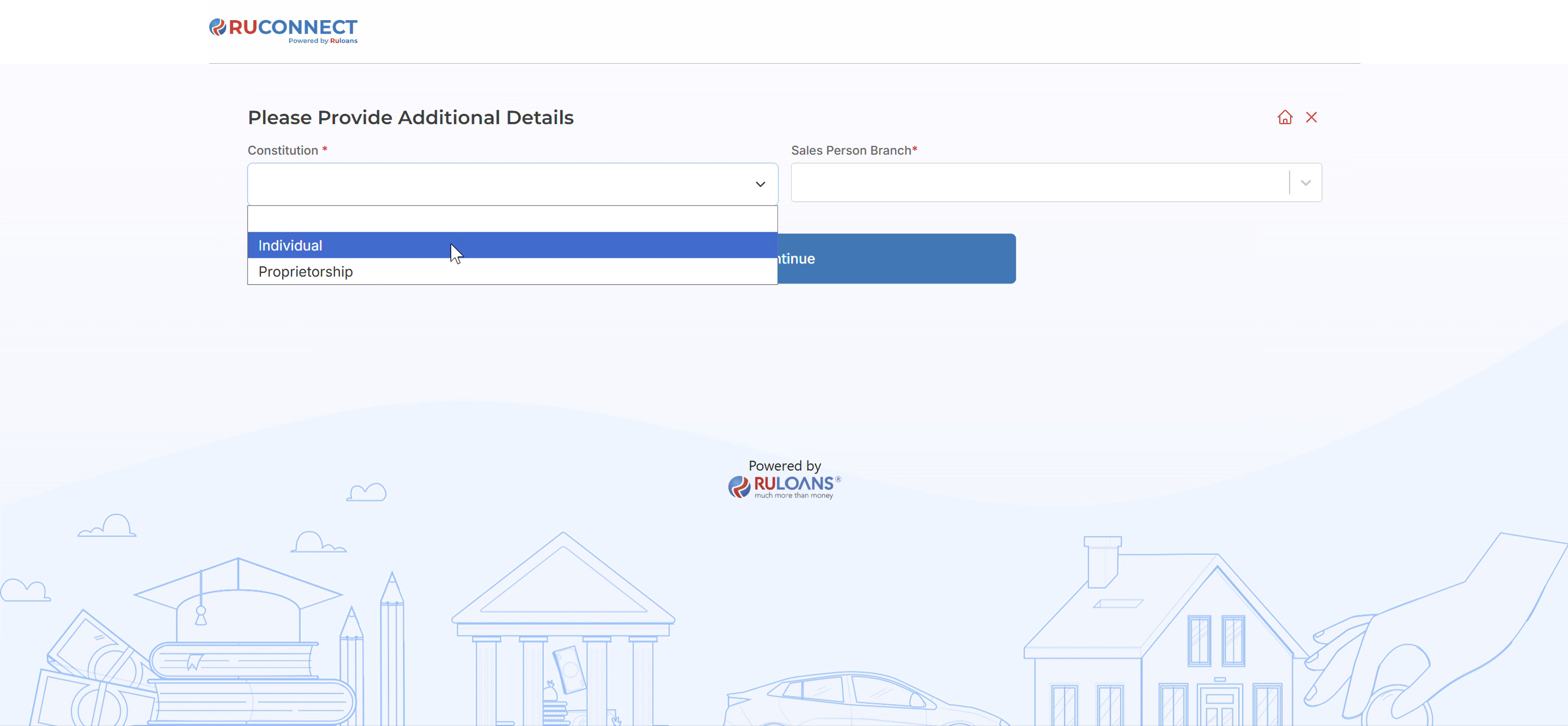
 ## **Step 17: Provide Additional Details**
1. **Select Constitution**:
* Select the constition from the drop-down menu (e.g., Individual, Proprietorship) (Mandatory).
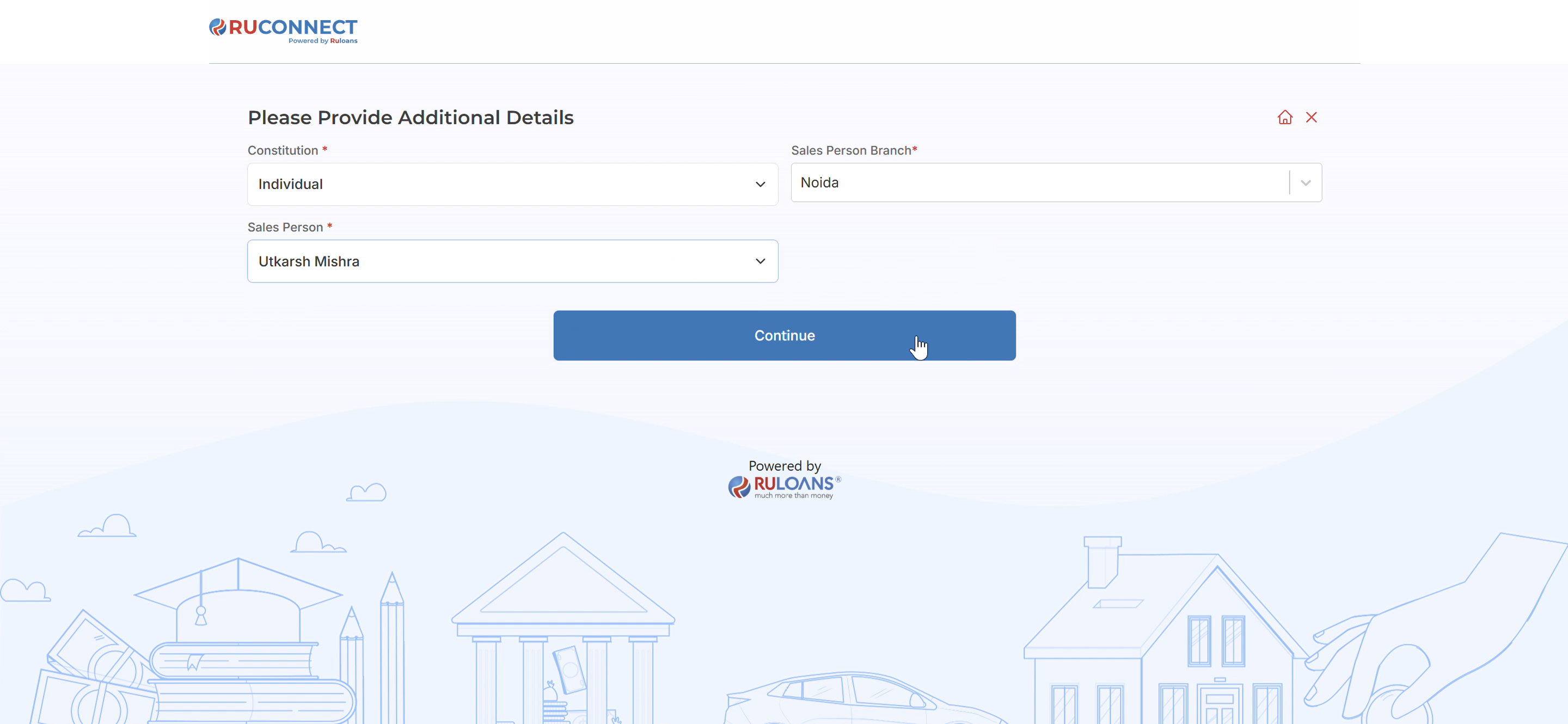
2. **Select Sales Person Branch**:
* Select the sales person branch from the drop-down menu (Mandatory).
3. **Select Sales Person**:
* Select the respective sales person from the drop-down menu according to the branch selected by the dsa (Mandatory).
4. After completing the fields, click on the **Continue** button to proceed to the next step.
## **Step 17: Provide Additional Details**
1. **Select Constitution**:
* Select the constition from the drop-down menu (e.g., Individual, Proprietorship) (Mandatory).
2. **Select Sales Person Branch**:
* Select the sales person branch from the drop-down menu (Mandatory).
3. **Select Sales Person**:
* Select the respective sales person from the drop-down menu according to the branch selected by the dsa (Mandatory).
4. After completing the fields, click on the **Continue** button to proceed to the next step.
 ## **Step 18: Application Submission Confirmation**
**Description:**
This step displays a confirmation message after the loan application is successfully submitted.
**Key Information Displayed:**
1. **External Lead ID:** A unique identifier (e.g., ABCLMLAP-091222) is generated for tracking the application status.
2. **Support Information:** The user is informed that a support executive will contact them within 24 to 48 hours.
3. **Contact Details:** Provides the customer service number 1800 266 7576 and support email [support@ruloans.com](mailto:support@ruloans.com) for any assistance.
4. **Copy External Lead ID:** A button is provided to easily copy the External Lead ID for future reference.
5. **Navigation:** A "Home" button is available to return to the main page.
6. **Details:** A "View" button is available to view further application details.
## **Step 18: Application Submission Confirmation**
**Description:**
This step displays a confirmation message after the loan application is successfully submitted.
**Key Information Displayed:**
1. **External Lead ID:** A unique identifier (e.g., ABCLMLAP-091222) is generated for tracking the application status.
2. **Support Information:** The user is informed that a support executive will contact them within 24 to 48 hours.
3. **Contact Details:** Provides the customer service number 1800 266 7576 and support email [support@ruloans.com](mailto:support@ruloans.com) for any assistance.
4. **Copy External Lead ID:** A button is provided to easily copy the External Lead ID for future reference.
5. **Navigation:** A "Home" button is available to return to the main page.
6. **Details:** A "View" button is available to view further application details.