> ## Documentation Index
> Fetch the complete documentation index at: https://docs.ruloans.com/llms.txt
> Use this file to discover all available pages before exploring further.
# How to apply for Tata Personal Loan
> Loan Flow of Assisted Journey on RuConnect for Tata PL
**Introduction:**
This document provides a comprehensive step-by-step guide for DSAs to apply for a loan using the RuConnect platform. It highlights mandatory and optional fields, supported by screenshots, to ensure clarity and completeness.
## Step 1: Access the RuConnect Platform\*\*
Open the RuConnect platform at [https://ruconnect.in/](https://ruconnect.in/)
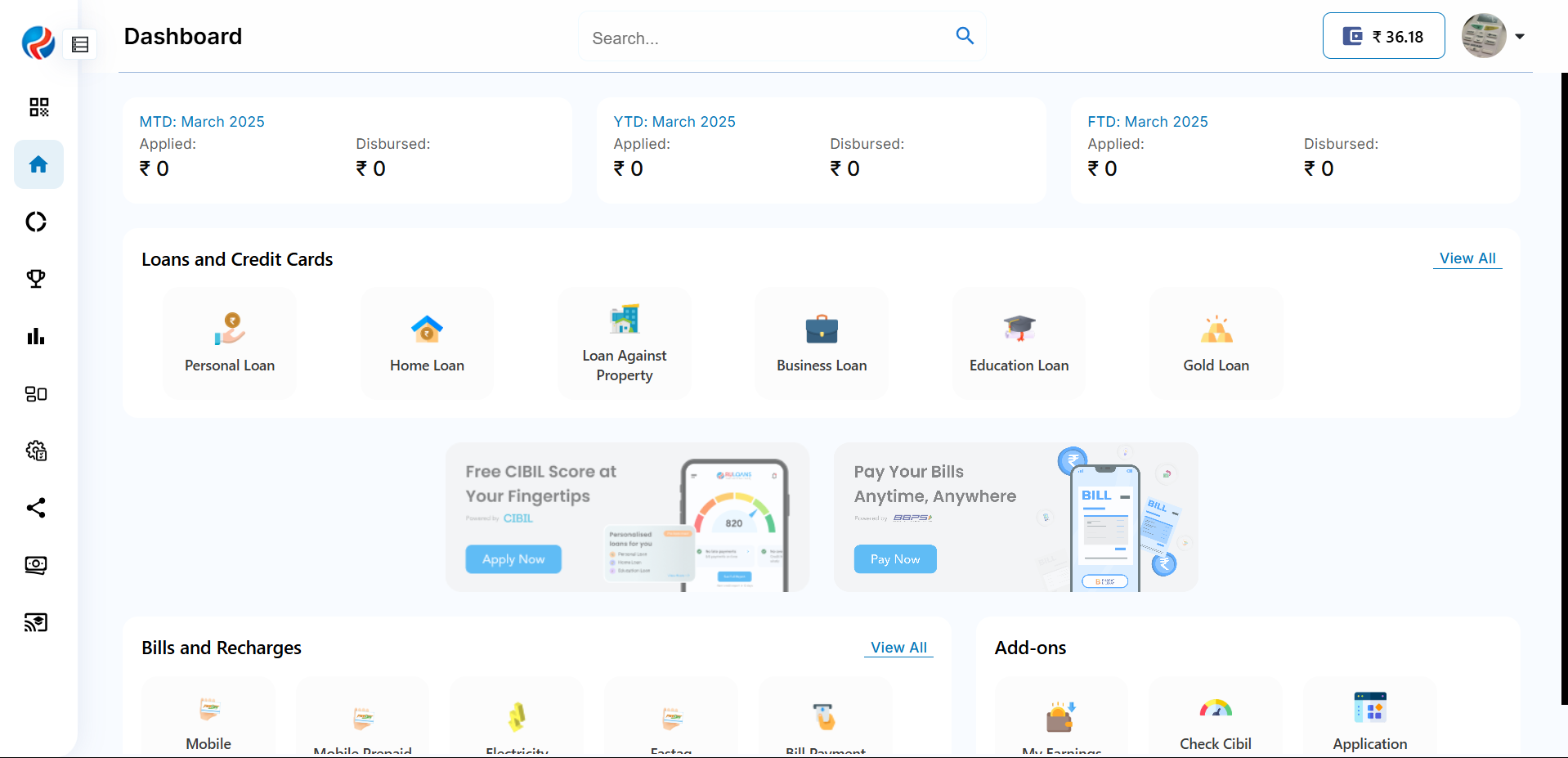
## Step 2: Navigate to the Dashboard
1. After successful login, you will land on the **Dashboard**.
2. The Dashboard provides:
* **Quick Access Links**: Links to personal loans, home loans, and other products.
* **Status Overview**: Displays details of ongoing or past applications
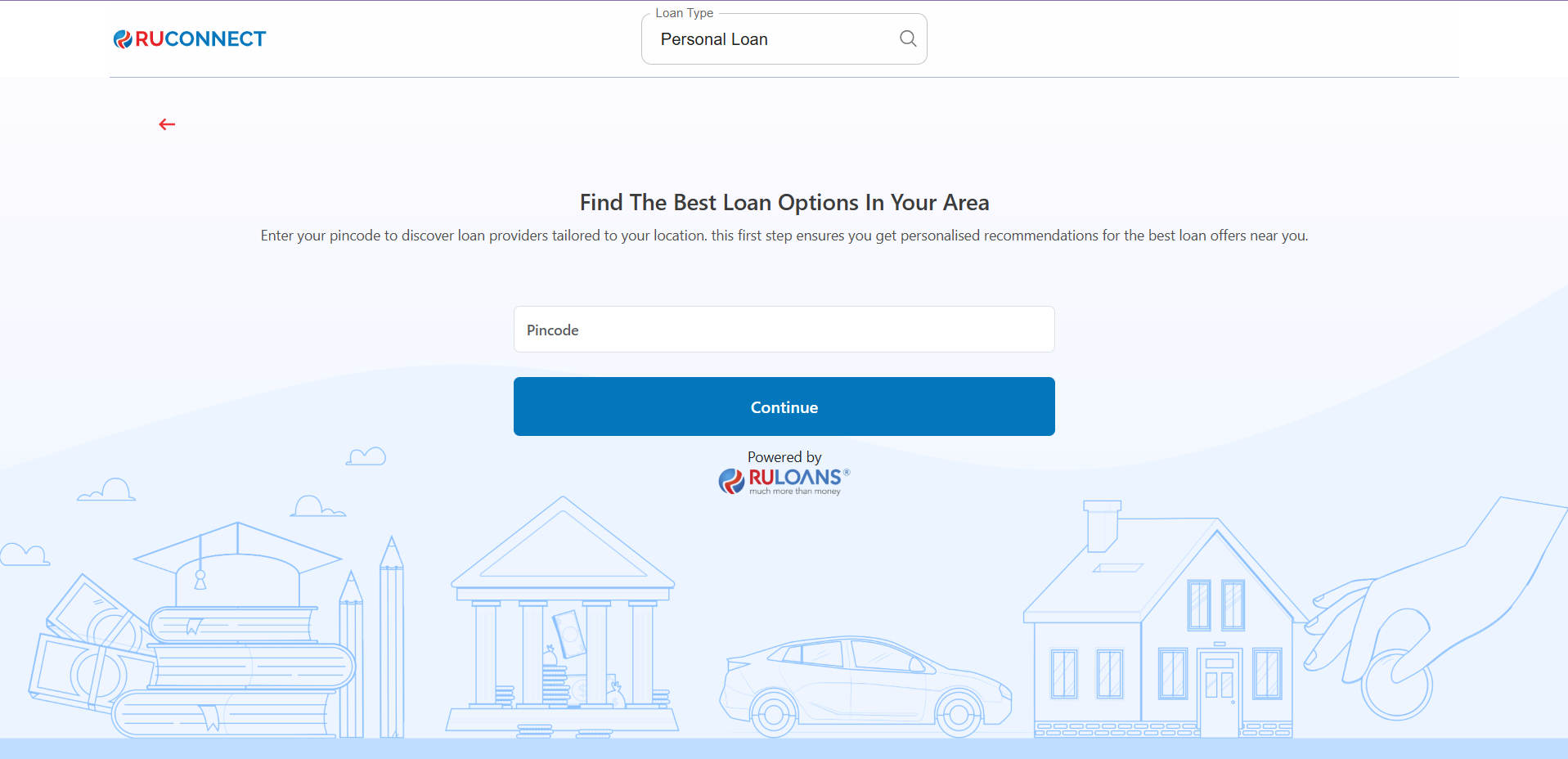
 ## Step 3: Enter Your Pincode
* **Pincode**: Enter the 6-digit postal code of your residence or business address.\
This helps us verify your location and show eligible offers.
* Tap **Continue**.
## Step 3: Enter Your Pincode
* **Pincode**: Enter the 6-digit postal code of your residence or business address.\
This helps us verify your location and show eligible offers.
* Tap **Continue**.
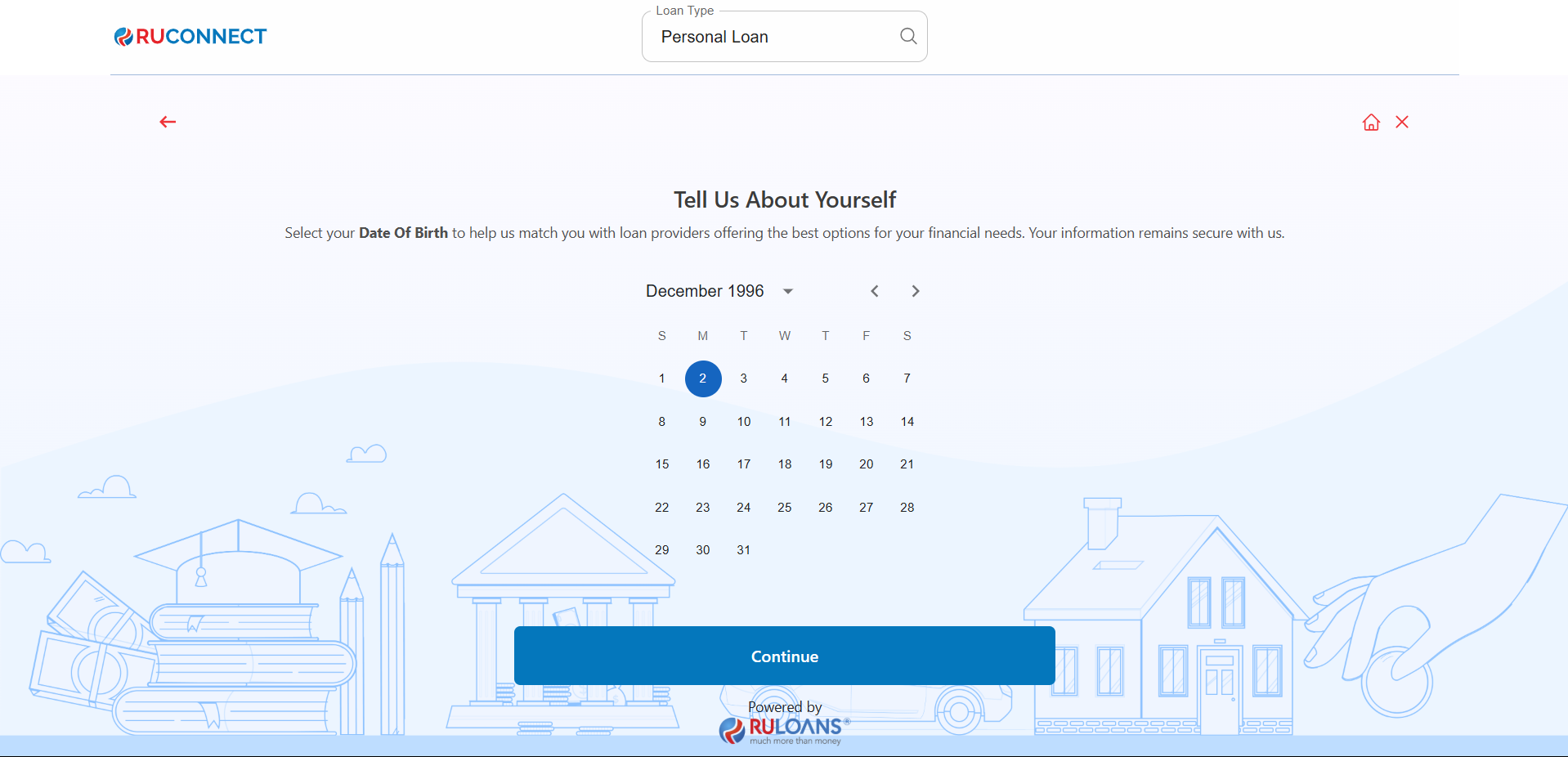
 ## Step 4: Enter Your Date of Birth
* **Date of Birth**: Select your date of birth using the calendar picker.\
This helps determine your eligibility and age-based offers.
* Tap **Continue**.
## Step 4: Enter Your Date of Birth
* **Date of Birth**: Select your date of birth using the calendar picker.\
This helps determine your eligibility and age-based offers.
* Tap **Continue**.
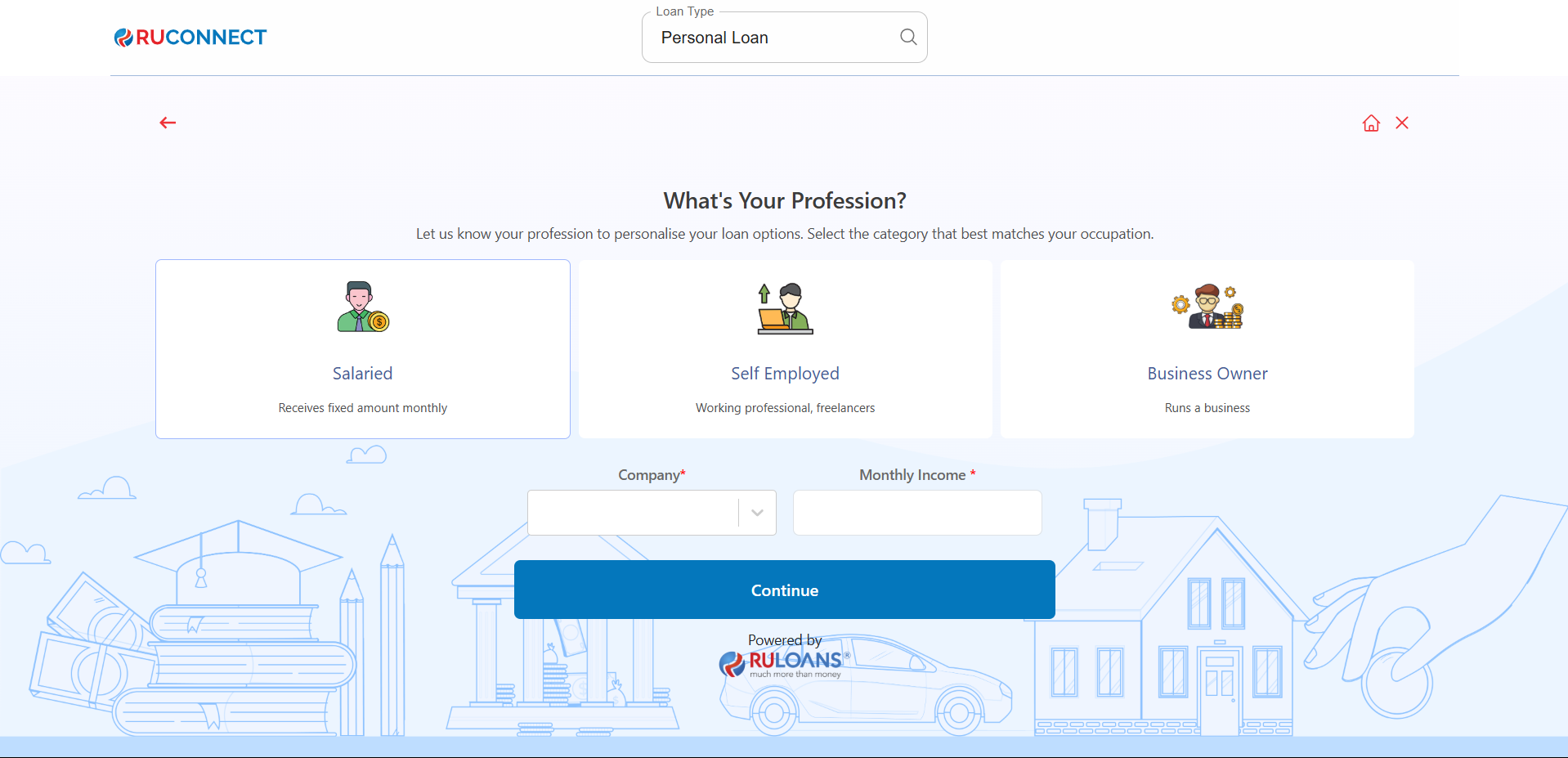
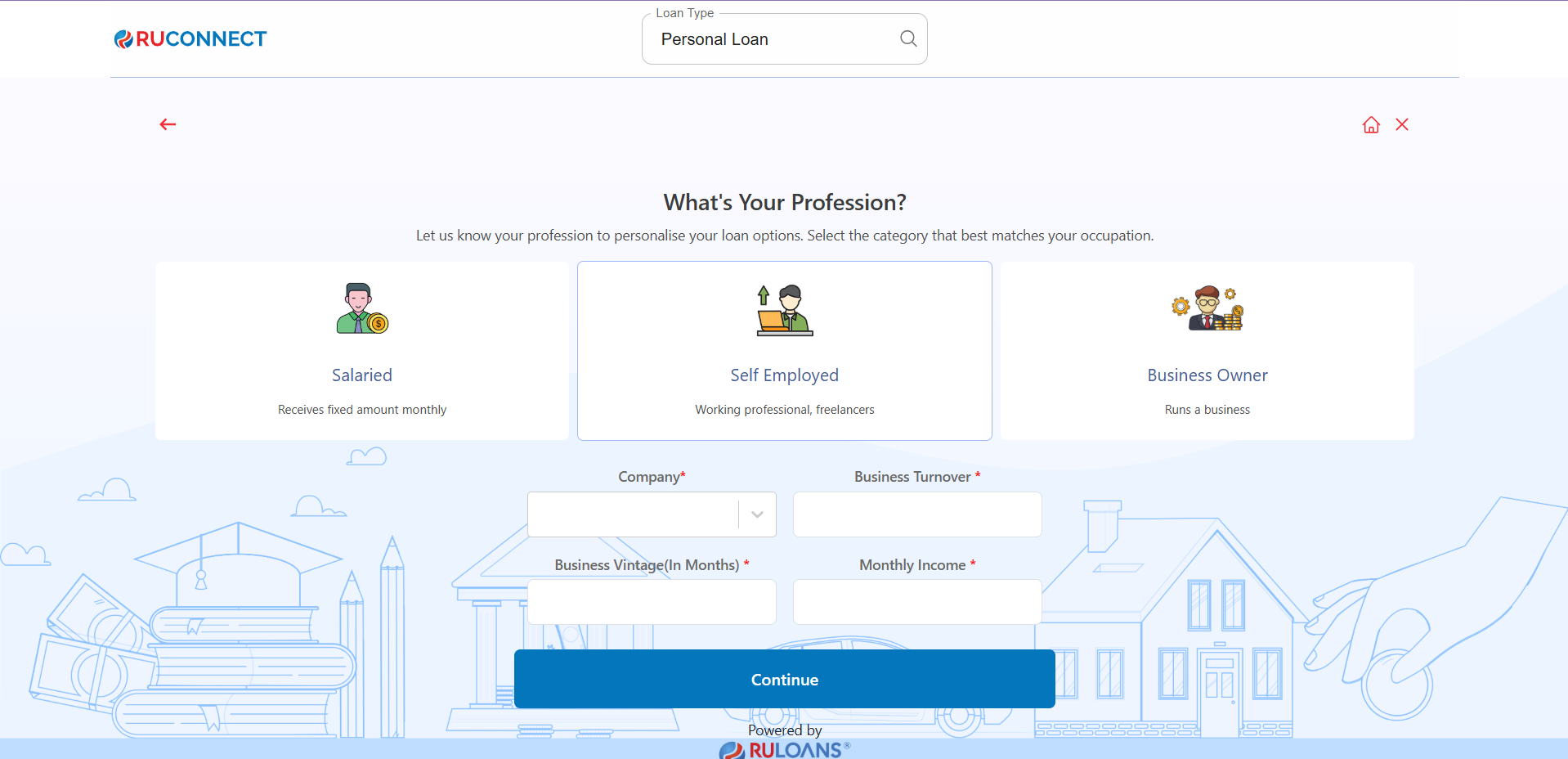
 ## Step 5: Choose Your Profession
Select the category that best describes your employment type:
* **Salaried** - If you work for a company or organization.
* **Self-Employed** - If you are a freelancer, consultant, or professional.
* **Business Owner** - If you run a business, either registered or informal.
### If **Salaried**:
* **Company Name**: Name of your employer.
* **Monthly Income**: Your average take-home salary each month.
### If **Self-Employed** or **Business Owner**:
* **Business Name / Company Name**: Name of your business or profession.
* **Business Turnover**: Approximate annual income from your business/profession.
* **Business Vintage (in months)**: How long you've been running it.
* **Monthly Income**: Your average net income per month.
* Tap **Continue**.
## Step 5: Choose Your Profession
Select the category that best describes your employment type:
* **Salaried** - If you work for a company or organization.
* **Self-Employed** - If you are a freelancer, consultant, or professional.
* **Business Owner** - If you run a business, either registered or informal.
### If **Salaried**:
* **Company Name**: Name of your employer.
* **Monthly Income**: Your average take-home salary each month.
### If **Self-Employed** or **Business Owner**:
* **Business Name / Company Name**: Name of your business or profession.
* **Business Turnover**: Approximate annual income from your business/profession.
* **Business Vintage (in months)**: How long you've been running it.
* **Monthly Income**: Your average net income per month.
* Tap **Continue**.
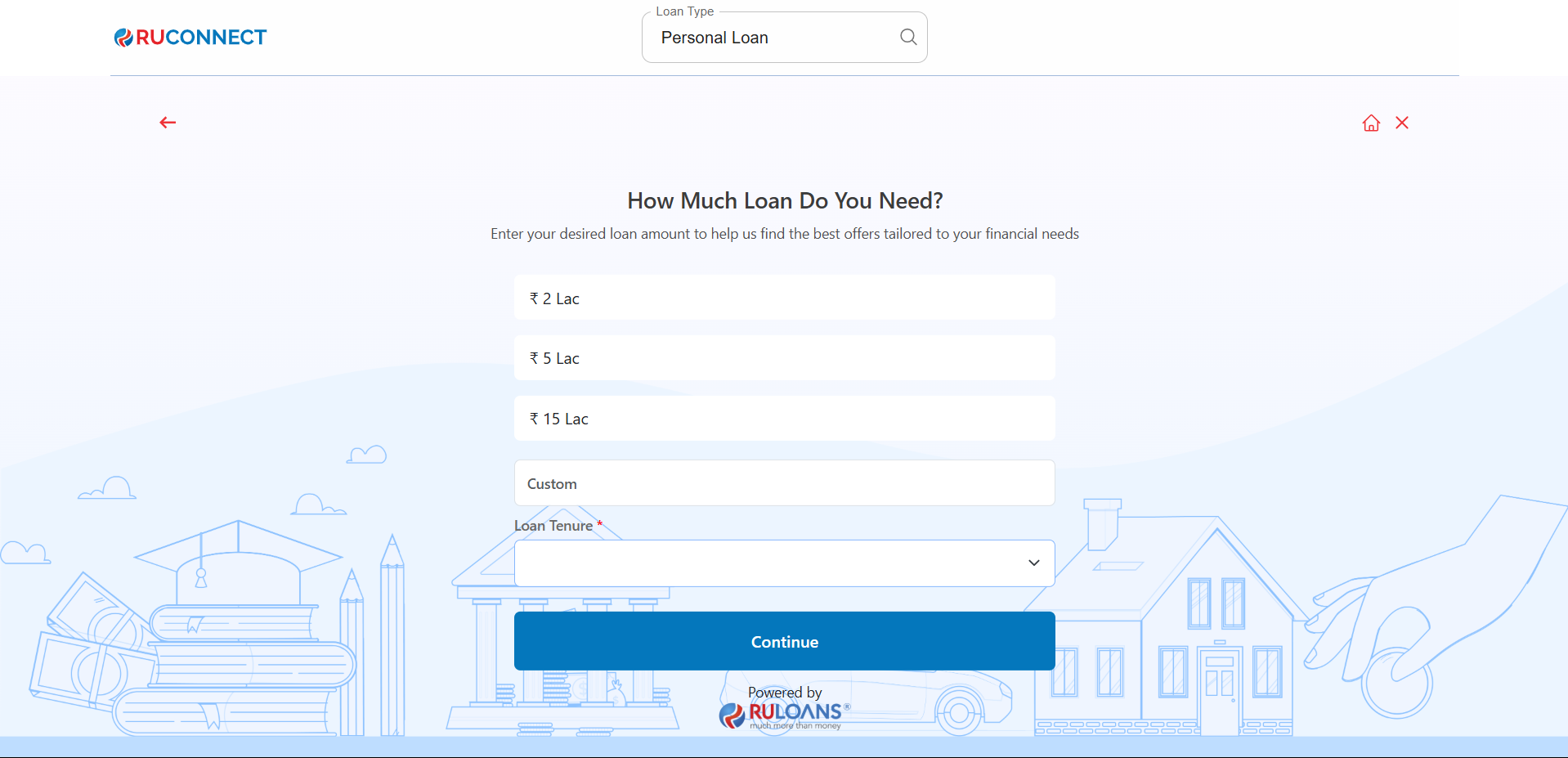
 ## Step 6: Select Loan Amount & Duration
* **Loan Amount**: Choose a preset amount (e.g., ₹ 2L / ₹ 5L / ₹ 15L) or enter a **Custom Amount**.
* **Loan Tenure**: Choose the repayment period (in years).
* Tap **Continue**.
## Step 6: Select Loan Amount & Duration
* **Loan Amount**: Choose a preset amount (e.g., ₹ 2L / ₹ 5L / ₹ 15L) or enter a **Custom Amount**.
* **Loan Tenure**: Choose the repayment period (in years).
* Tap **Continue**.
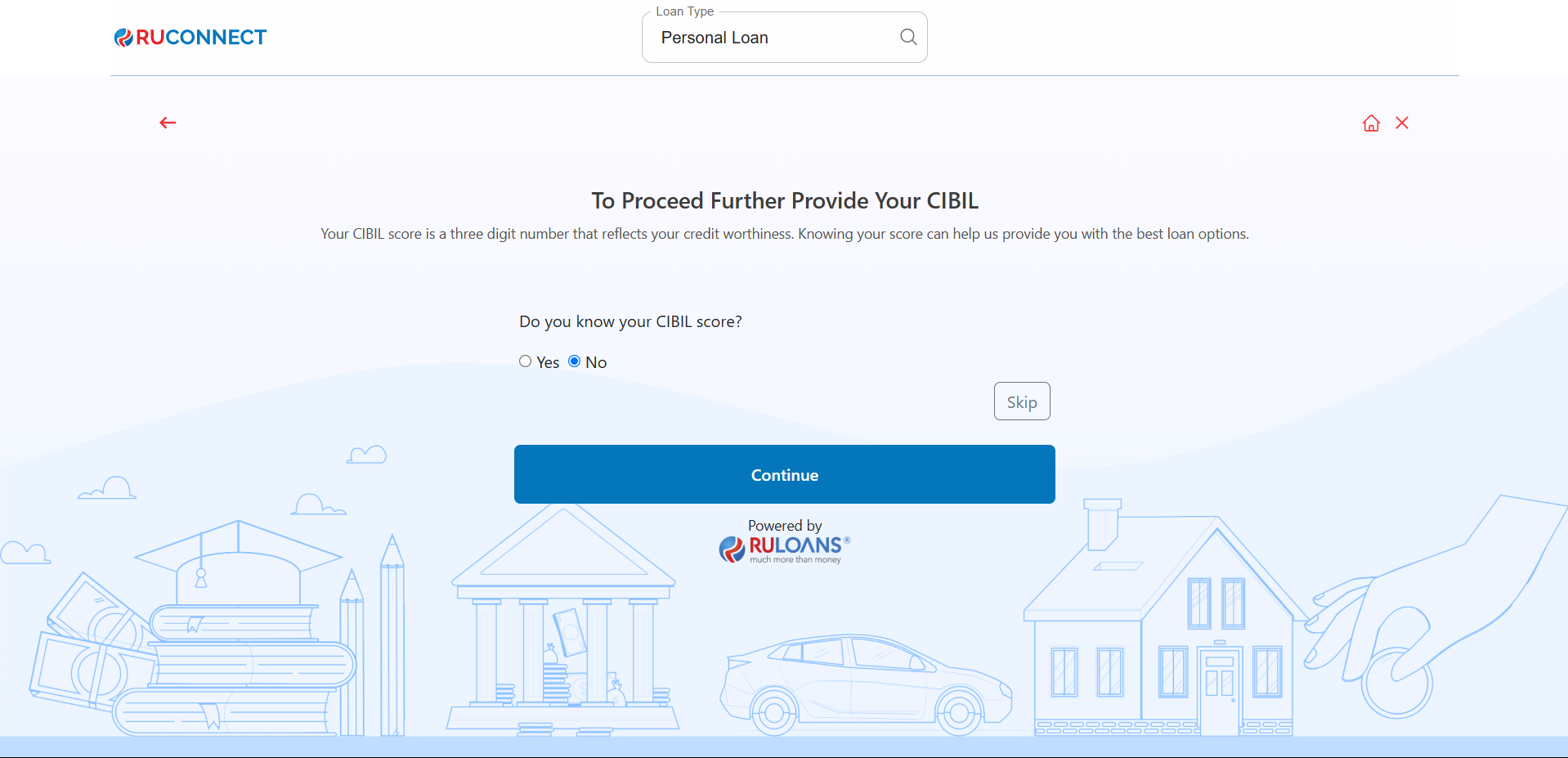
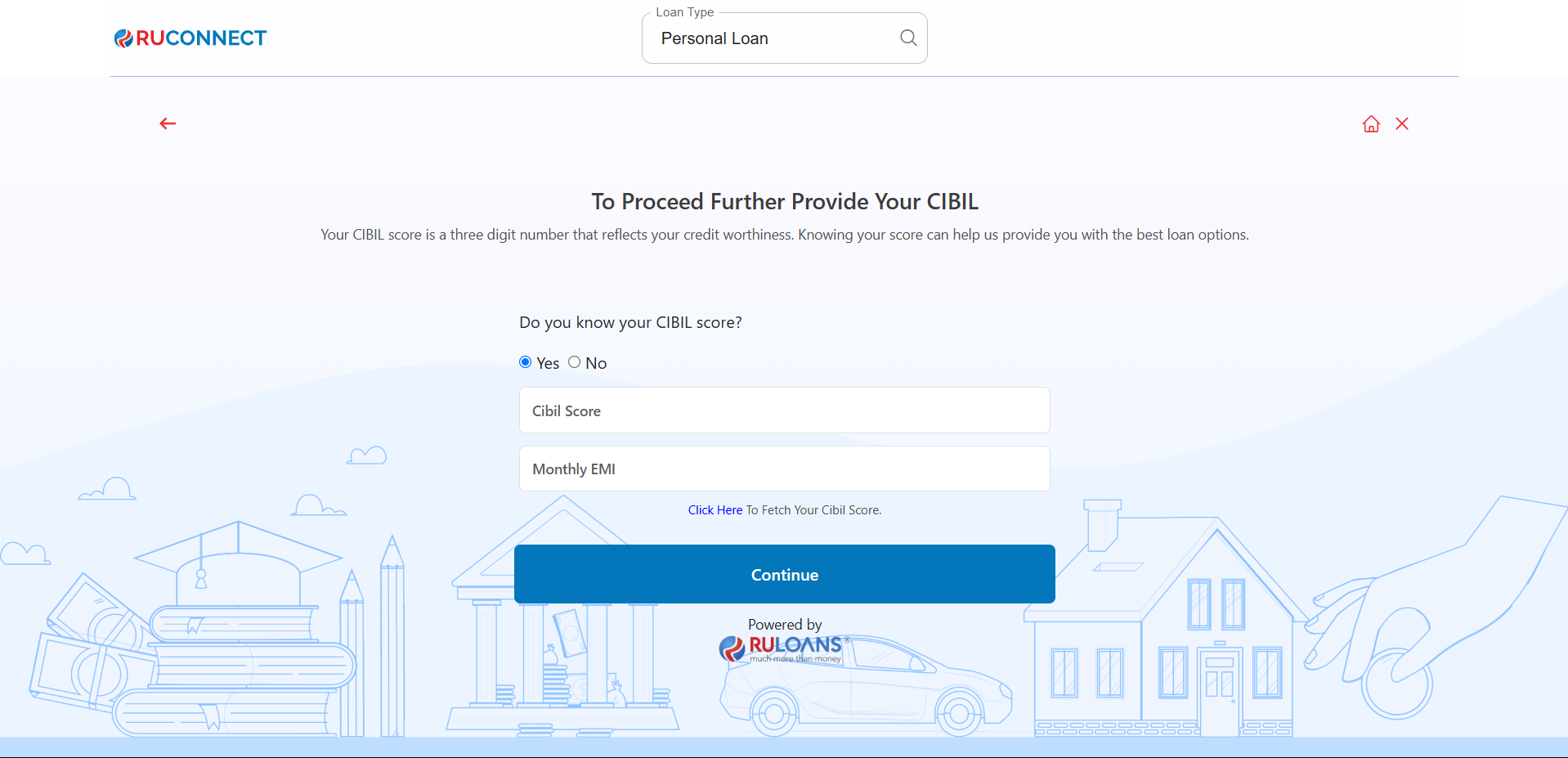
 ## Step 7: Know Your CIBIL Score?
* If you select **Yes**:
* **CIBIL Score**: Enter your 3-digit credit score (e.g., 750).
* **Monthly EMI**: Total of all active loan EMIs you're paying.
* If you select **No**: User will be redirected to Step 8.
* If you Tap **Skip**: User will be redirected to Step 10.
* Tap **Continue**.
## Step 7: Know Your CIBIL Score?
* If you select **Yes**:
* **CIBIL Score**: Enter your 3-digit credit score (e.g., 750).
* **Monthly EMI**: Total of all active loan EMIs you're paying.
* If you select **No**: User will be redirected to Step 8.
* If you Tap **Skip**: User will be redirected to Step 10.
* Tap **Continue**.
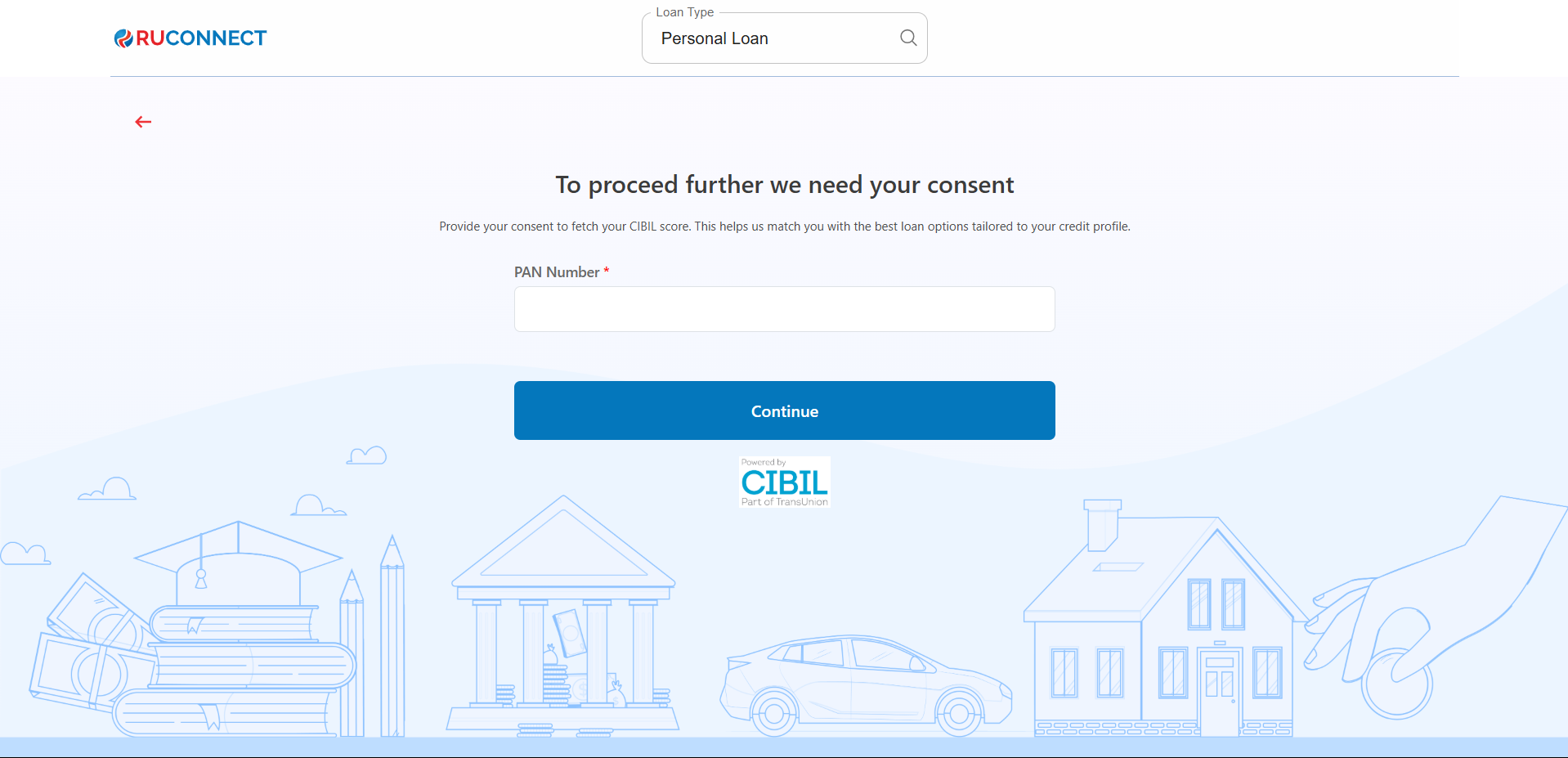
 ## Step 8: Enter PAN Number & Give Consent
* **PAN Number**: Enter your 10-character PAN (e.g., ABCDE1234F).\
Required to verify your credit score and match loan offers.
* Tap **Continue**.
## Step 8: Enter PAN Number & Give Consent
* **PAN Number**: Enter your 10-character PAN (e.g., ABCDE1234F).\
Required to verify your credit score and match loan offers.
* Tap **Continue**.
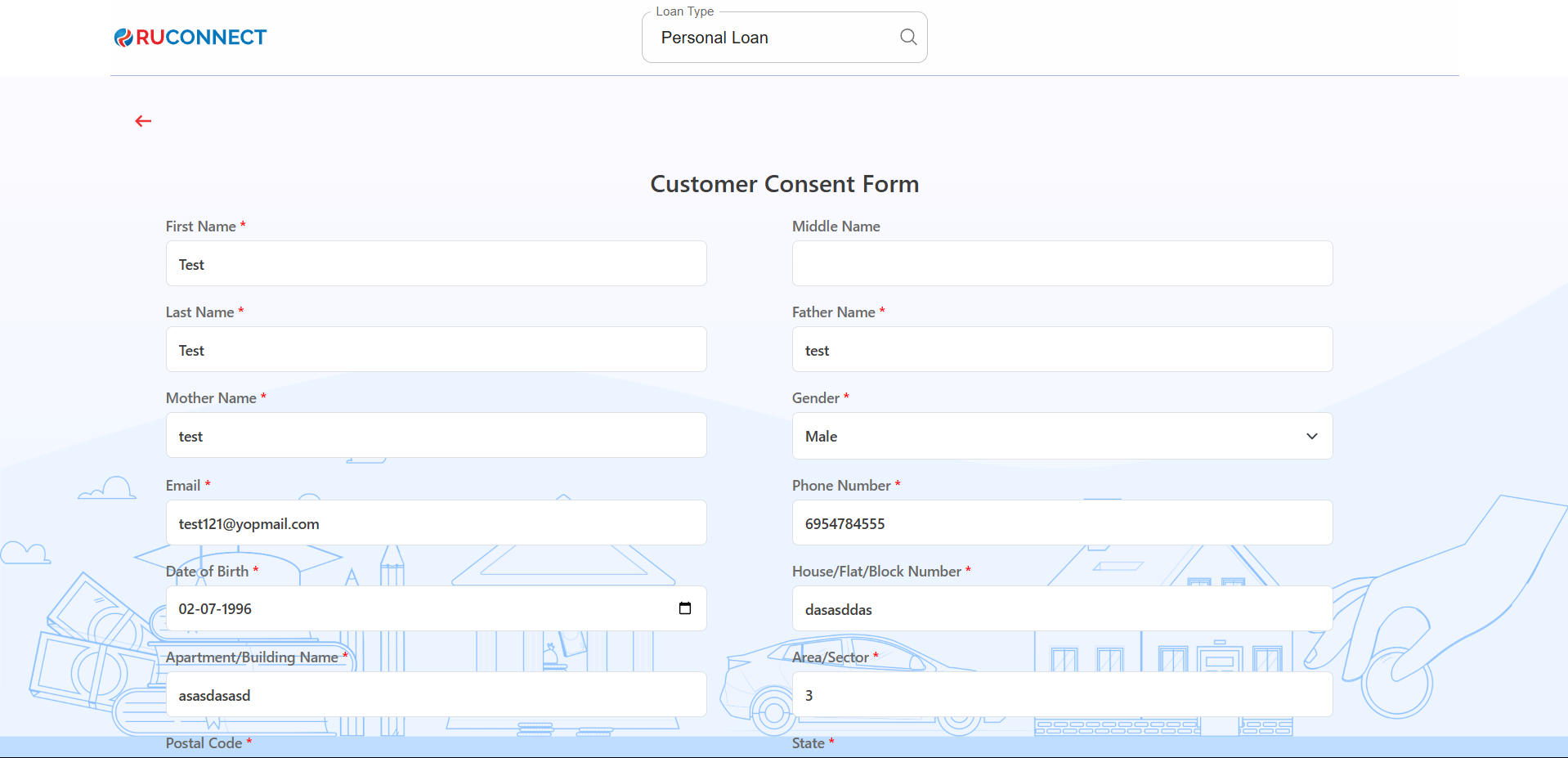
 ## Step 9: Fill Personal & Address Details for CIBIL
**Personal Details**
* **First Name**: Enter your First name.
* **Middle Name**: Enter your Middle name (optional).
* **Last Name**: Enter your Last name.
* **Father's Name**: Enter your Father's full name.
* **Mother's Name**: Enter your Mother's full name.
* **Gender**: Select your gender from the dropdown.
* **Email ID**: Enter your email ID.
* **Mobile Number**: Enter your mobile number.
* **Date of Birth**: Enter your date of birth.
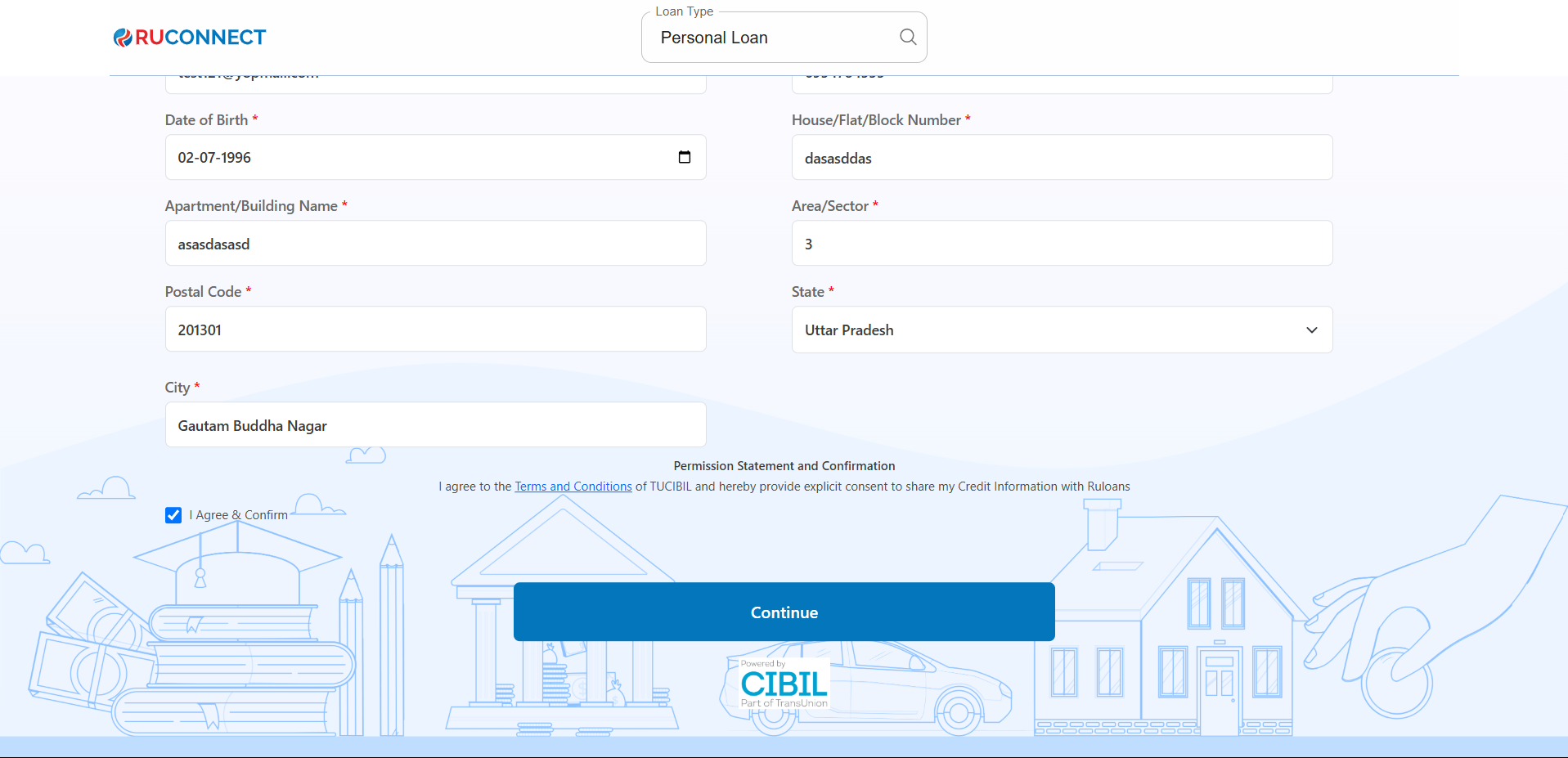
**Address Details**
* **House / Flat / Block Number**: Enter the house/flat/block number of the address.
* **Building / Apartment Name**: Enter the building/apartment name of the address.
* **Area / Sector**: Enter the area/sector of the address.
* **Pincode**: Enter the pincode of the address.
* **City**: Select the city from the dropdown.
* **State**: Select the state from the dropdown.
Tick **I Agree & Confirm** to give consent.\
You may review the Terms & Conditions.\
Tap **Continue**
## Step 9: Fill Personal & Address Details for CIBIL
**Personal Details**
* **First Name**: Enter your First name.
* **Middle Name**: Enter your Middle name (optional).
* **Last Name**: Enter your Last name.
* **Father's Name**: Enter your Father's full name.
* **Mother's Name**: Enter your Mother's full name.
* **Gender**: Select your gender from the dropdown.
* **Email ID**: Enter your email ID.
* **Mobile Number**: Enter your mobile number.
* **Date of Birth**: Enter your date of birth.
**Address Details**
* **House / Flat / Block Number**: Enter the house/flat/block number of the address.
* **Building / Apartment Name**: Enter the building/apartment name of the address.
* **Area / Sector**: Enter the area/sector of the address.
* **Pincode**: Enter the pincode of the address.
* **City**: Select the city from the dropdown.
* **State**: Select the state from the dropdown.
Tick **I Agree & Confirm** to give consent.\
You may review the Terms & Conditions.\
Tap **Continue**
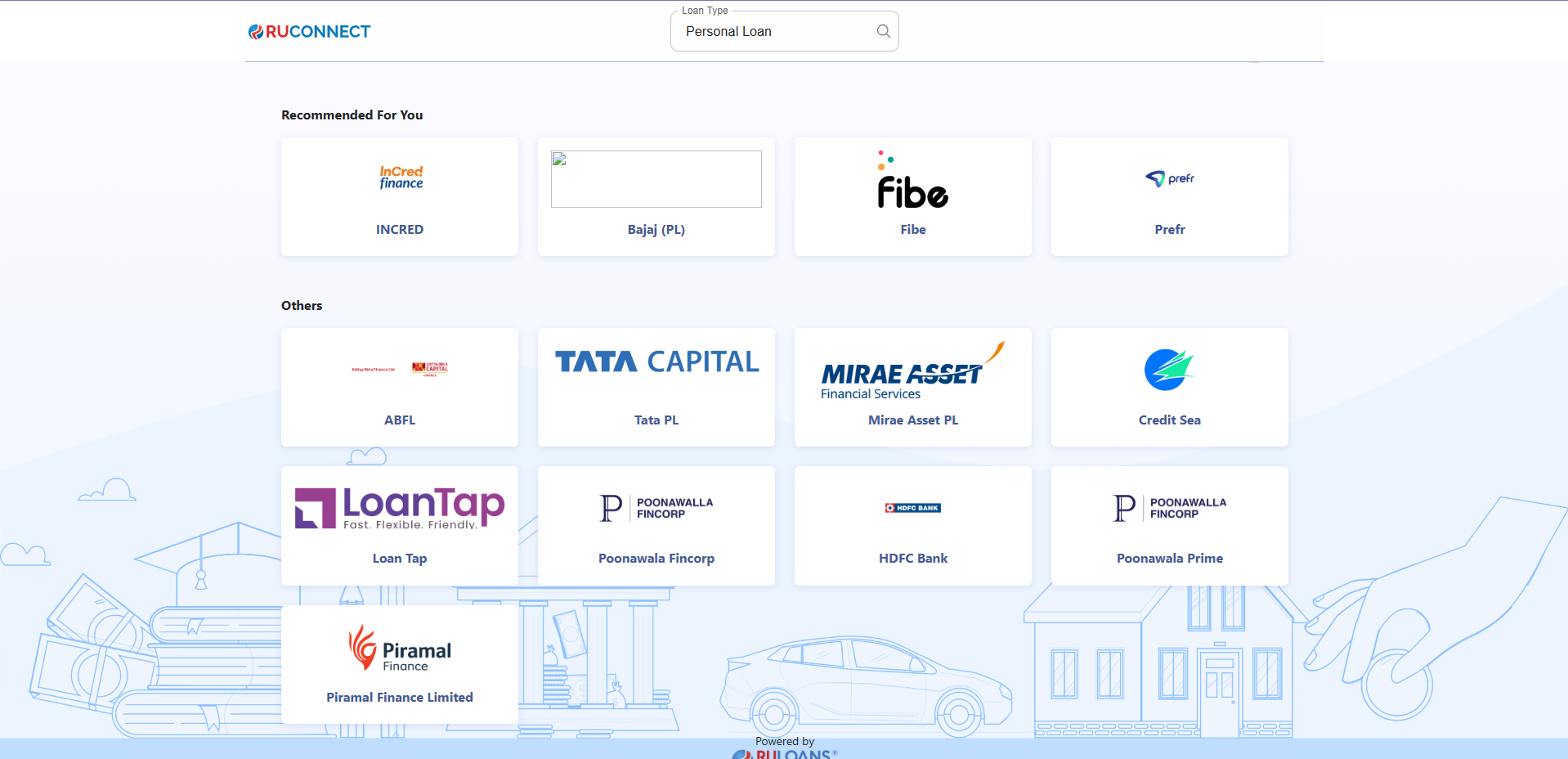
 ## Step 10: Get Your Recommended Offers
* Based on your details, view loan offers from lenders like:
* **Fibe**, **InCred**, **Piramal Finance**, **ABFL**, and more.
## Step 10: Get Your Recommended Offers
* Based on your details, view loan offers from lenders like:
* **Fibe**, **InCred**, **Piramal Finance**, **ABFL**, and more.
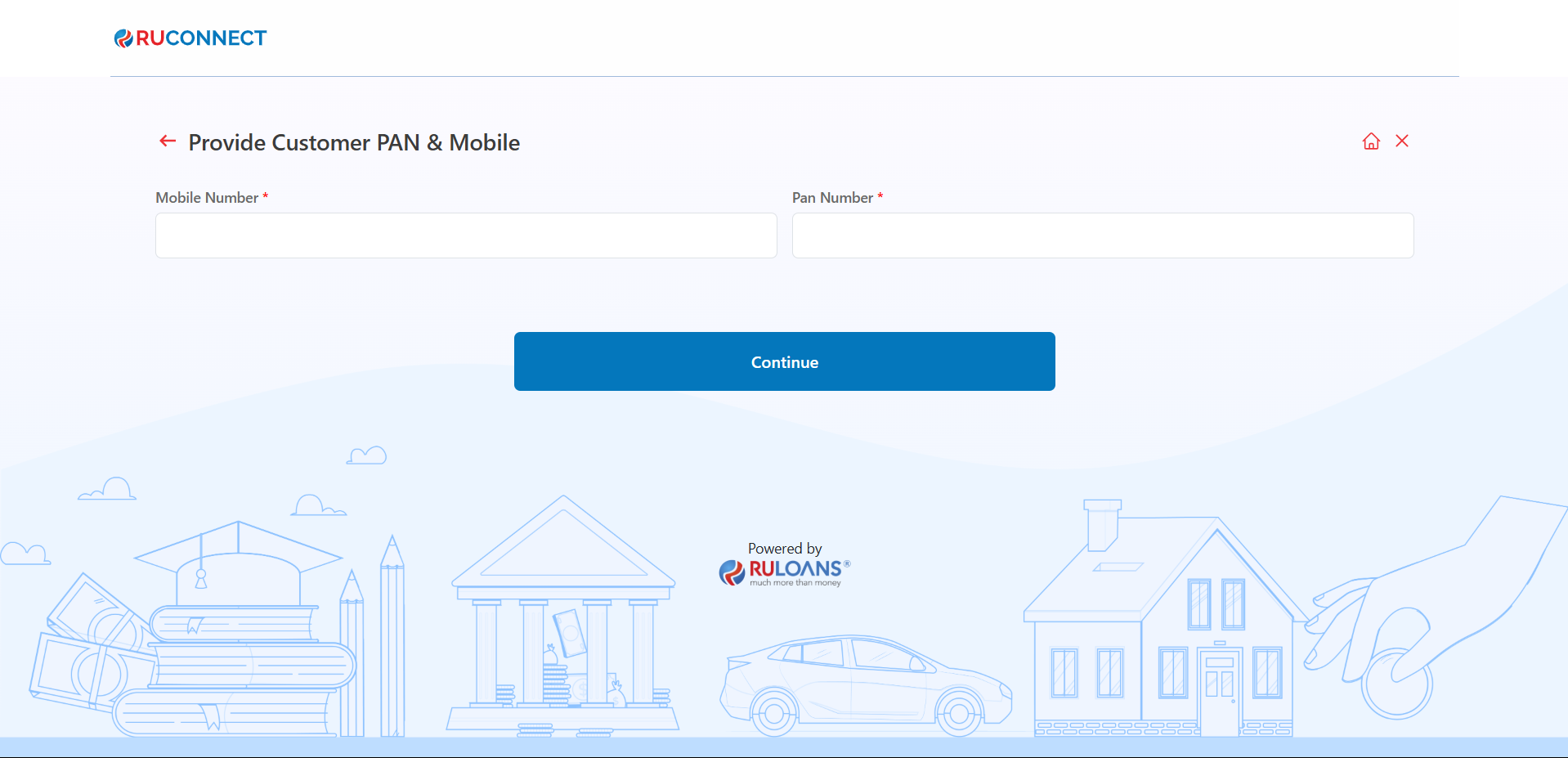
 ## **Step 11: Customer PAN & Mobile Number Entry**
This screen is used to collect the customer's mobile number and PAN (Permanent Account Number), which are essential for identity verification and loan processing.
## **Step 11: Customer PAN & Mobile Number Entry**
This screen is used to collect the customer's mobile number and PAN (Permanent Account Number), which are essential for identity verification and loan processing.
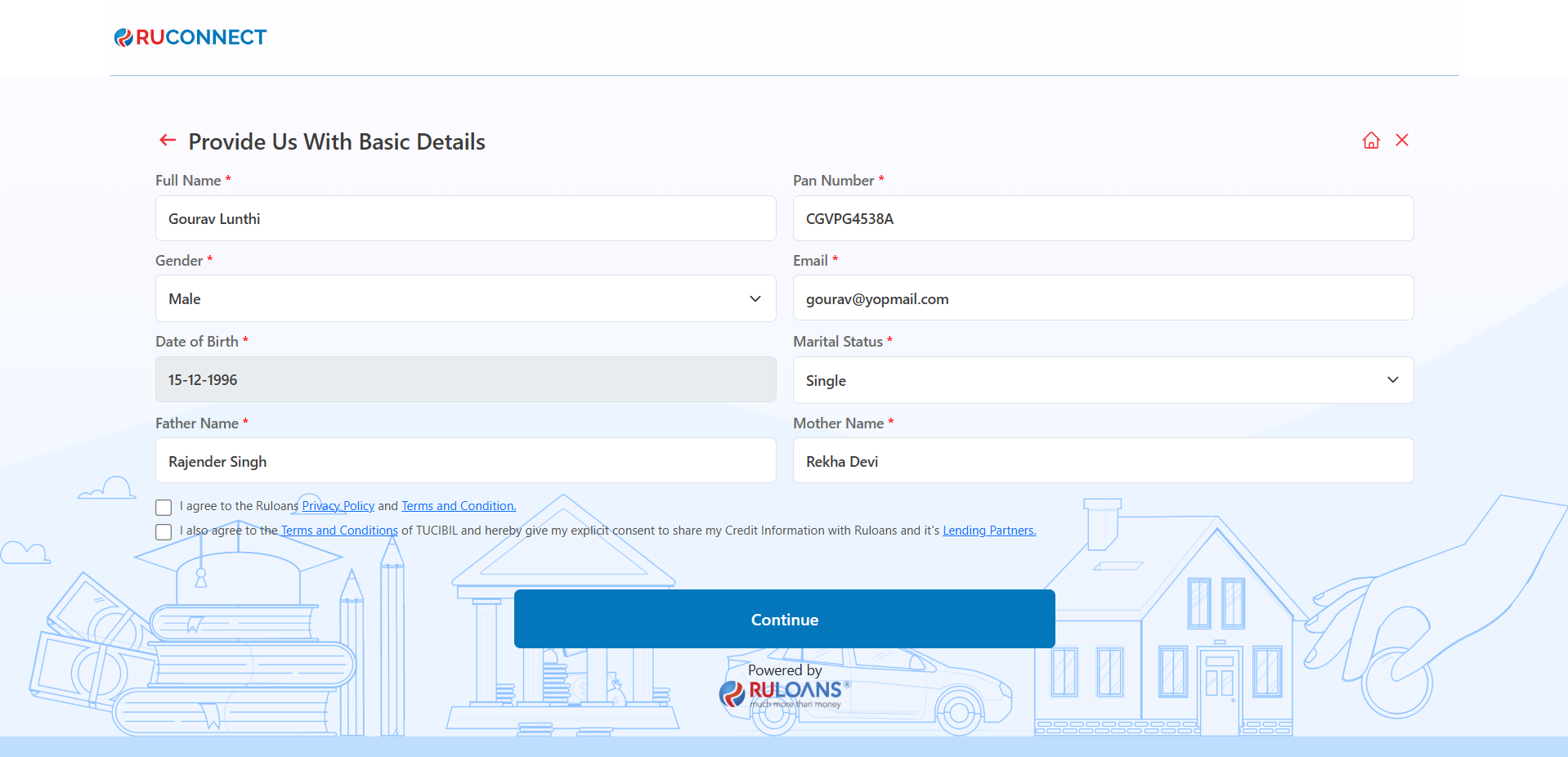
 ## **Step 12: Provide Basic Details**
1. Mandatory Fields:
* Full Name, PAN Number, Gender, Email, Date of Birth, Marital Status, Father's Name, and Mother's Name.
2. Consent:
* Select checkboxes for Privacy Policy and Credit Information consent.
3. Action:
* Click Continue to proceed.
## **Step 12: Provide Basic Details**
1. Mandatory Fields:
* Full Name, PAN Number, Gender, Email, Date of Birth, Marital Status, Father's Name, and Mother's Name.
2. Consent:
* Select checkboxes for Privacy Policy and Credit Information consent.
3. Action:
* Click Continue to proceed.
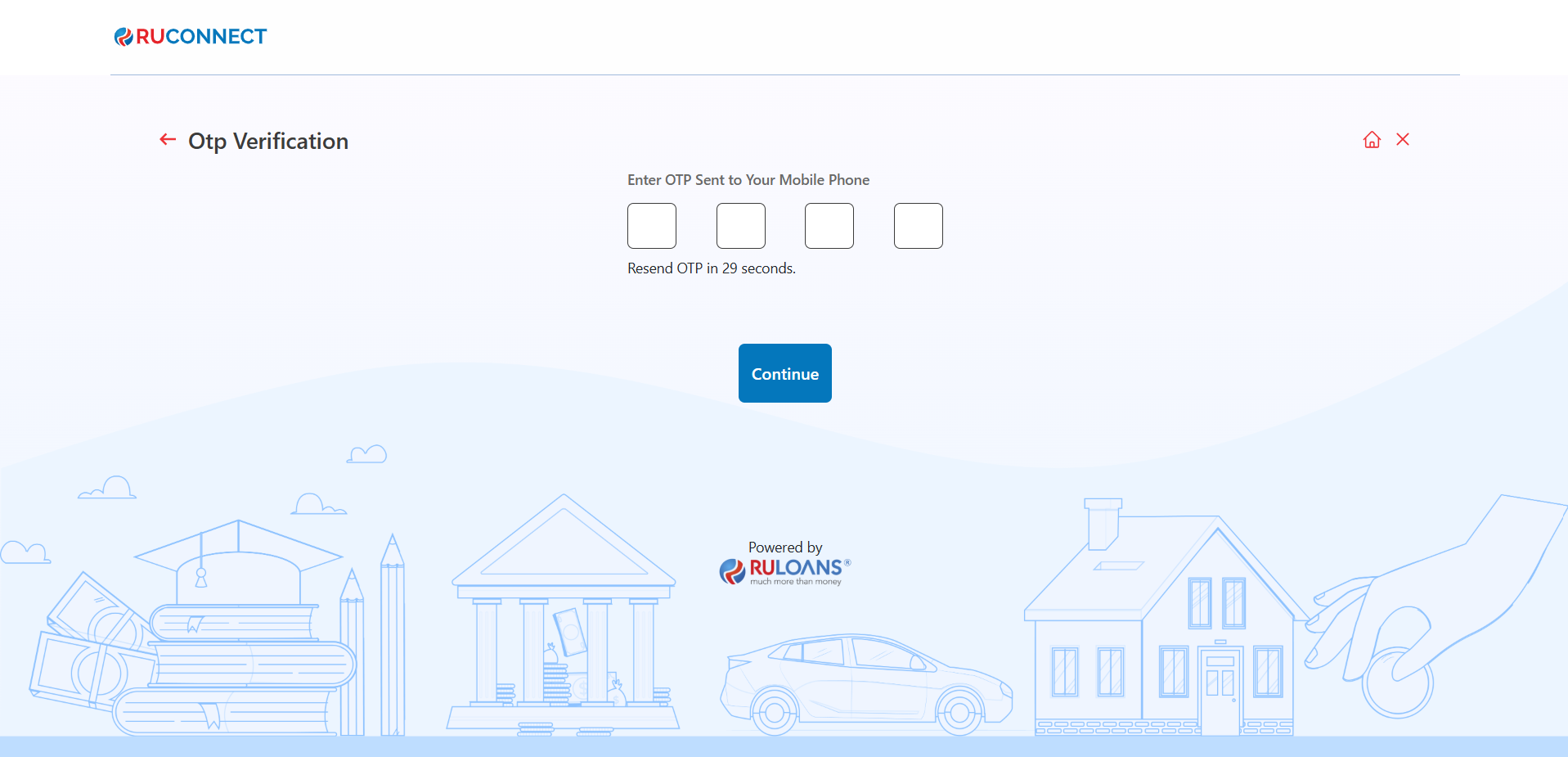
 ## **Step 13: OTP Verification**
Enter the One-Time Password (OTP) sent to the registered mobile number for verification.
## **Step 13: OTP Verification**
Enter the One-Time Password (OTP) sent to the registered mobile number for verification.
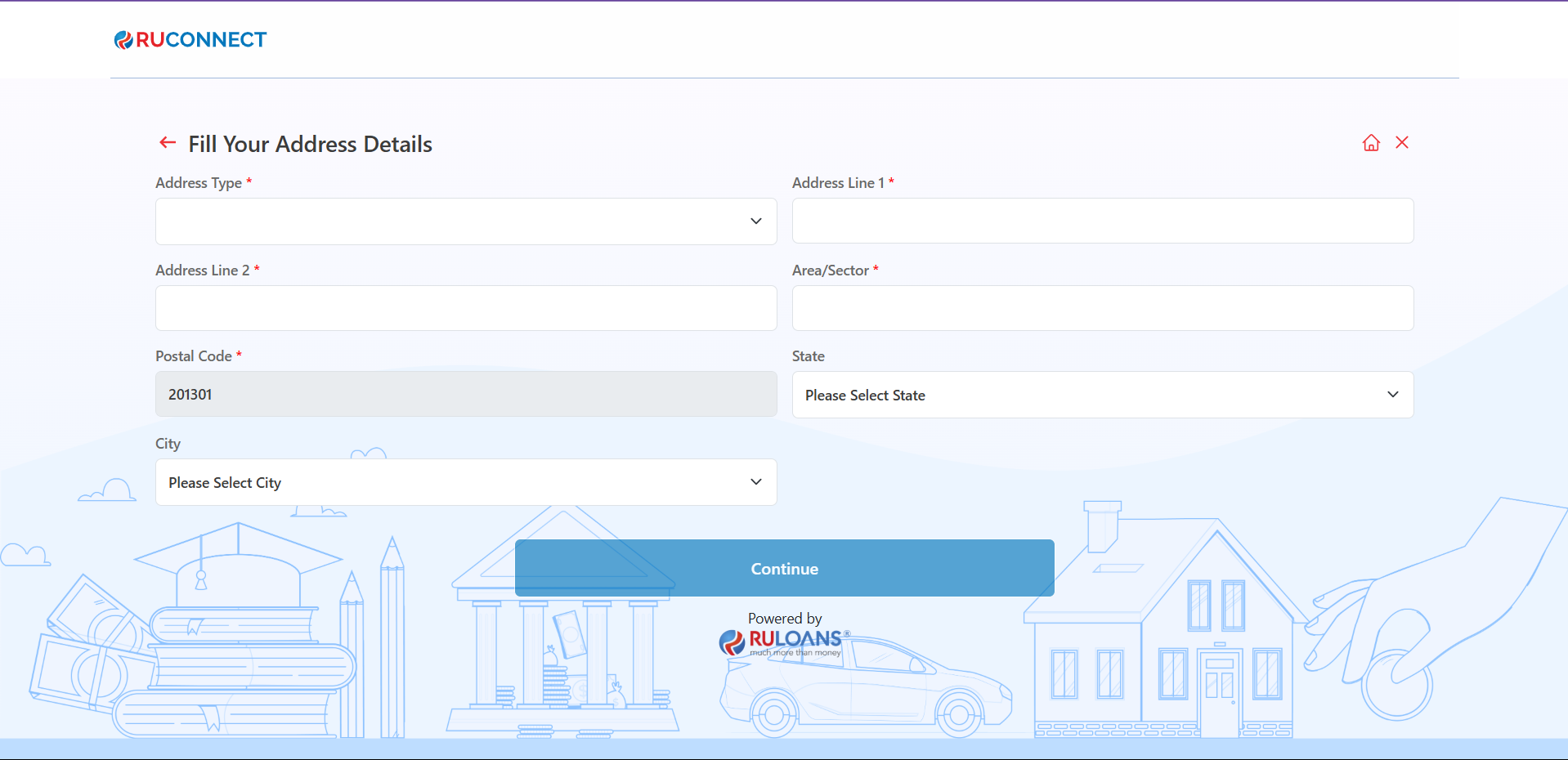
 ## **Step 14: Enter Address Details**
1. Provide your residential address:
* **Address Type** (Mandatory)
* **Address Line 1** (Mandatory)
* **Address Line 2** (Mandatory)
* **Area/Sector** (Mandatory)
* **Postal Code** (Mandatory)
* **City & State** (Auto fetched)
## **Step 14: Enter Address Details**
1. Provide your residential address:
* **Address Type** (Mandatory)
* **Address Line 1** (Mandatory)
* **Address Line 2** (Mandatory)
* **Area/Sector** (Mandatory)
* **Postal Code** (Mandatory)
* **City & State** (Auto fetched)
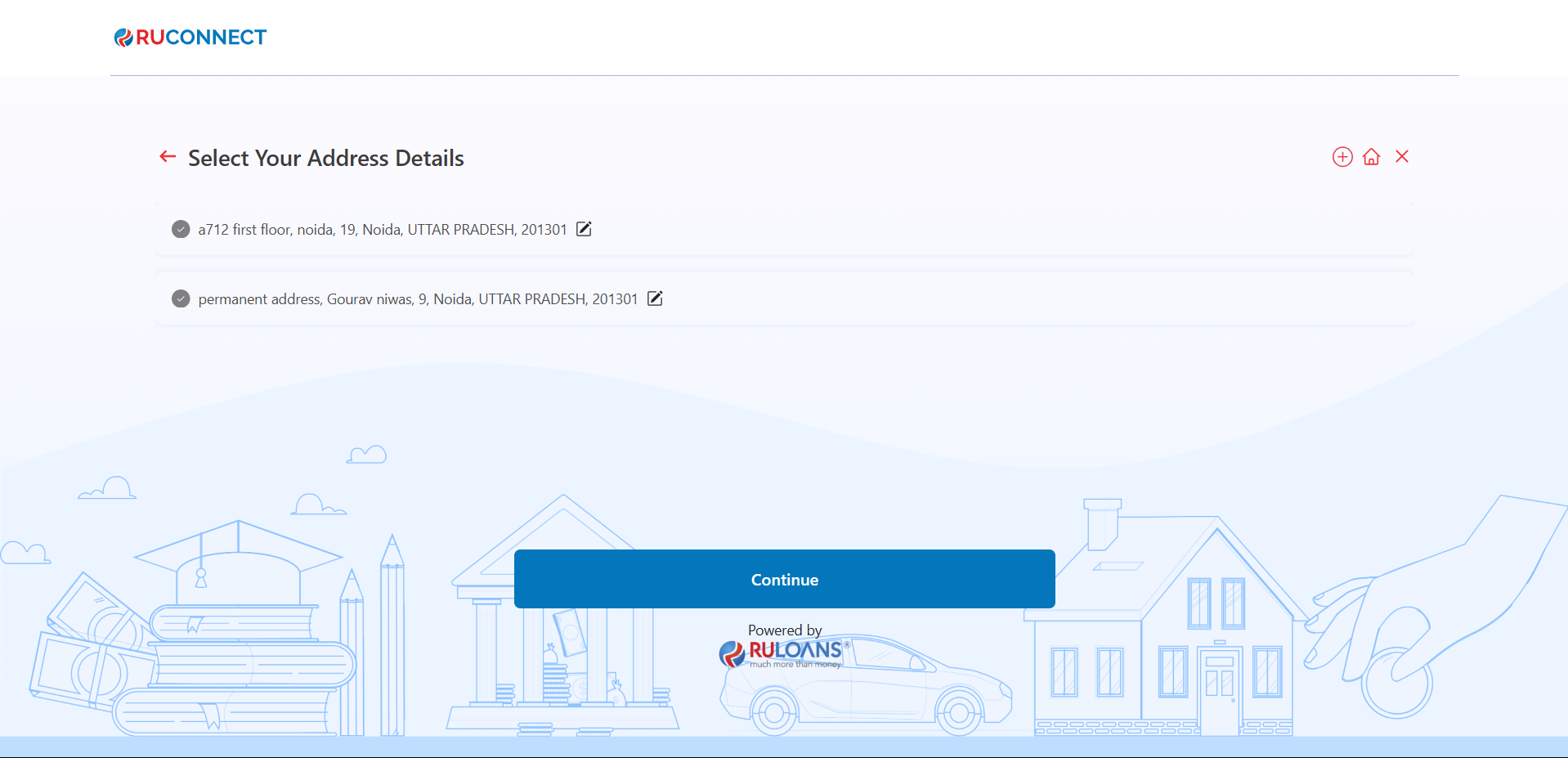
 1. If applicable, enter the address already saved (Optional).
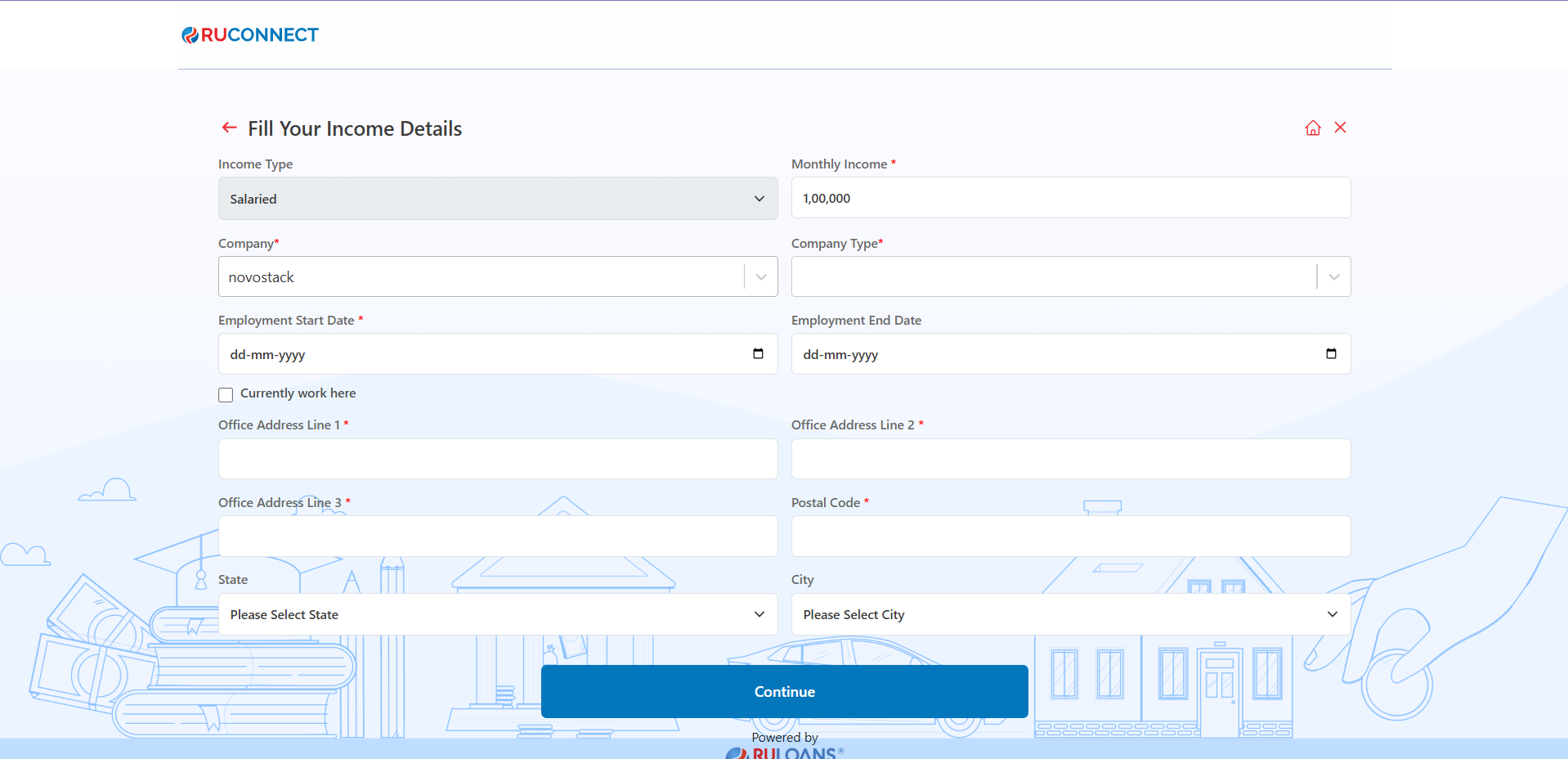
 ## **Step 15: Fill Your Income Details**
* **Purpose**: The form collects details about the applicant's income and employment information to assess their financial stability.
* **Fields to Fill**:
* **Income Type**: Choose between options like salaried, self-employed, etc.
* **Monthly Income**: Enter the monthly income in numeric value.
* **Company**: Specify the name of the employer.
* **Company Type**: Choose the type of company (e.g., private, government, etc.).
* **Employment Start and End Dates**: Input the tenure of employment.
* Option to mark "Currently Work Here" for ongoing employment.
* **Office Address**: Enter the detailed office address (Line 1, Line 2, Line 3, Postal Code).
* **State and City**: Select the state and city from dropdown menus.
* **Action Button**: **Continue** - Once all fields are filled, the user proceeds to the next step.
## **Step 15: Fill Your Income Details**
* **Purpose**: The form collects details about the applicant's income and employment information to assess their financial stability.
* **Fields to Fill**:
* **Income Type**: Choose between options like salaried, self-employed, etc.
* **Monthly Income**: Enter the monthly income in numeric value.
* **Company**: Specify the name of the employer.
* **Company Type**: Choose the type of company (e.g., private, government, etc.).
* **Employment Start and End Dates**: Input the tenure of employment.
* Option to mark "Currently Work Here" for ongoing employment.
* **Office Address**: Enter the detailed office address (Line 1, Line 2, Line 3, Postal Code).
* **State and City**: Select the state and city from dropdown menus.
* **Action Button**: **Continue** - Once all fields are filled, the user proceeds to the next step.
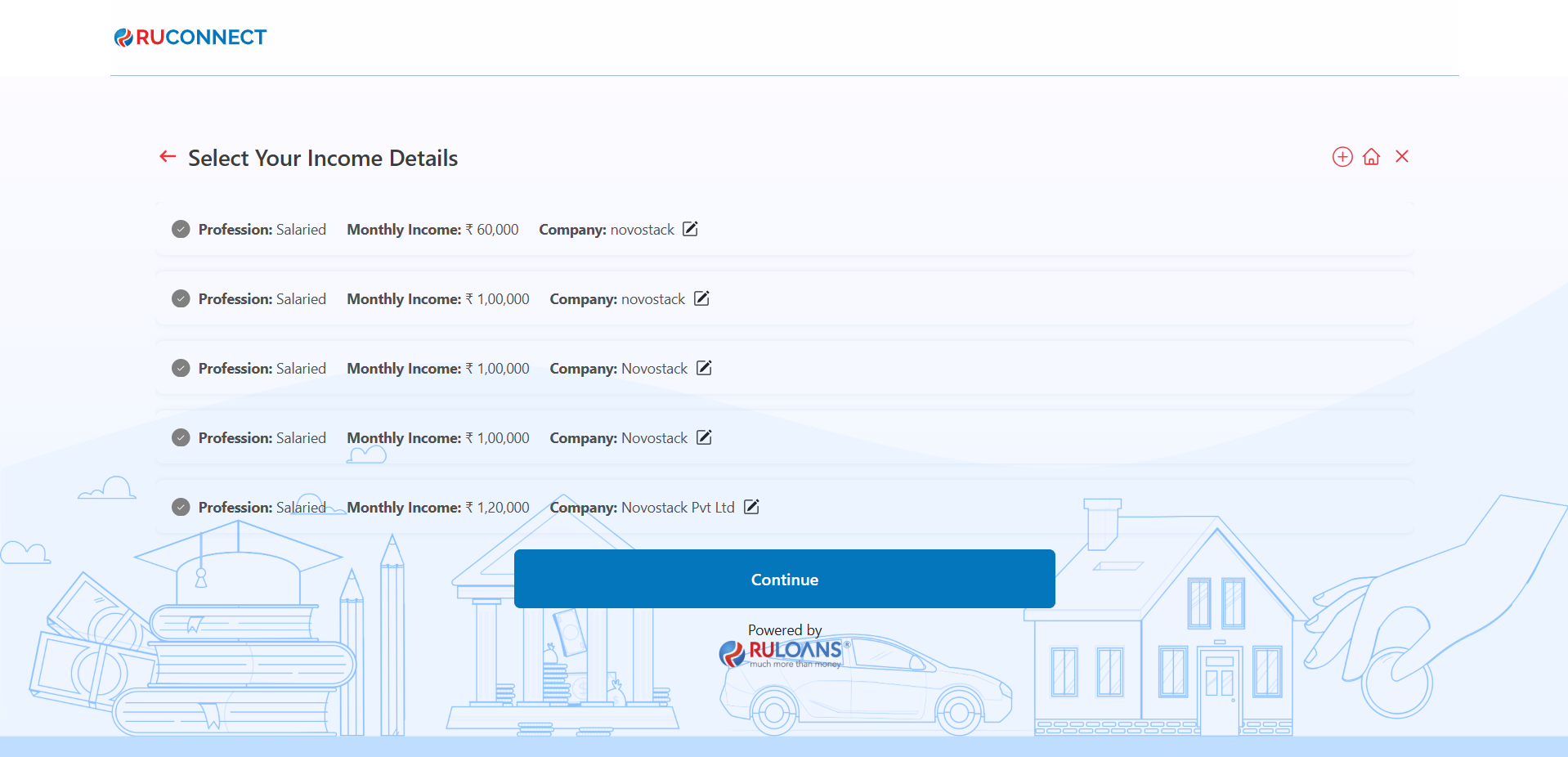
 ## **Step 16: Verify Income Details**
1. Select **Income Details** as part of the income verification process:
* **Monthly Income**: Enter your gross income (Mandatory).
* **Income Source**: Choose from the dropdown menu (e.g., Salaried, Self-employed) (Mandatory).
* **Employer Details**: Enter your organization's name (Mandatory).
## **Step 16: Verify Income Details**
1. Select **Income Details** as part of the income verification process:
* **Monthly Income**: Enter your gross income (Mandatory).
* **Income Source**: Choose from the dropdown menu (e.g., Salaried, Self-employed) (Mandatory).
* **Employer Details**: Enter your organization's name (Mandatory).
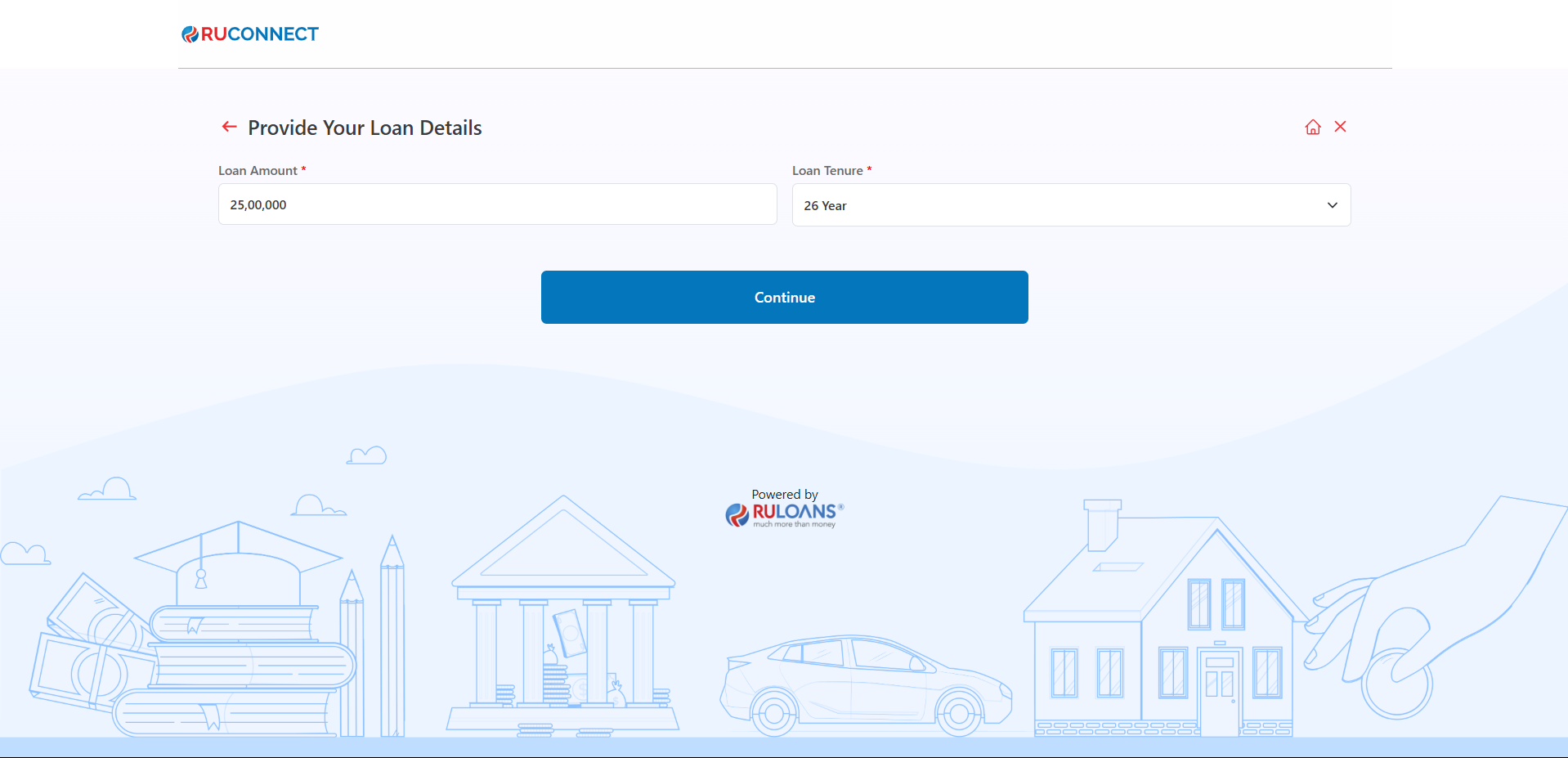
 ## **Step 17: Provide Loan Details**
1. **Loan Amount**:
* Enter the desired loan amount in the input field (Mandatory).
2. **Loan Tenure**:
* Choose the loan tenure from the dropdown menu (e.g., 2 Years, 3 Years) (Mandatory).
3. **Business Vintage (in Months)**:
* Provide the duration of your business operation in months (Optional, if applicable).
4. **Business Turnover**:
* Specify your business's annual turnover (Mandatory).
5. After completing the fields, click on the **Continue** button to proceed to the next step.
## **Step 17: Provide Loan Details**
1. **Loan Amount**:
* Enter the desired loan amount in the input field (Mandatory).
2. **Loan Tenure**:
* Choose the loan tenure from the dropdown menu (e.g., 2 Years, 3 Years) (Mandatory).
3. **Business Vintage (in Months)**:
* Provide the duration of your business operation in months (Optional, if applicable).
4. **Business Turnover**:
* Specify your business's annual turnover (Mandatory).
5. After completing the fields, click on the **Continue** button to proceed to the next step.
 **NOTE: The Fields Business Vintage and Business Turnover is only applicable for Self Employed Customers\_**
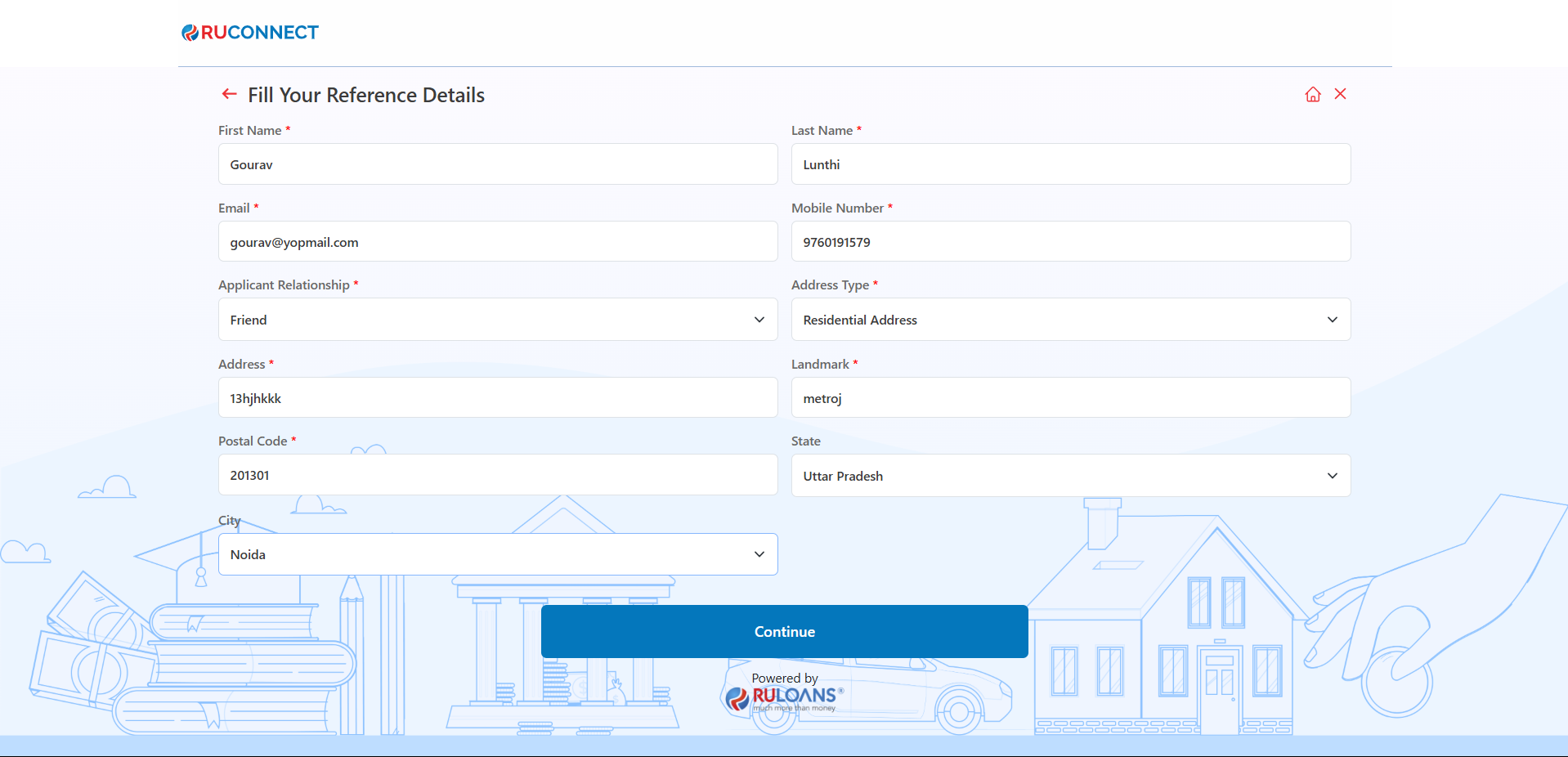
## **Step 18: Reference Details**
This step involves the borrower providing reference details required for processing their personal loan application. The interface, as seen in the image, displays various fields capturing essential information related to the Reference's details.
**Key Requirements:**
1. Provide your reference details:
* **First Name** (Mandatory)
* **Last Name** (Mandatory)
* **Email** (Mandatory)
* **Mobile Number** (Mandatory)
* **Address Type** (Mandatory)
* **Address Line 1** (Mandatory)
* **Address Line 2** (Mandatory)
* **Postal Code** (Mandatory)
* **City & State** (Auto fetched)
**NOTE: The Fields Business Vintage and Business Turnover is only applicable for Self Employed Customers\_**
## **Step 18: Reference Details**
This step involves the borrower providing reference details required for processing their personal loan application. The interface, as seen in the image, displays various fields capturing essential information related to the Reference's details.
**Key Requirements:**
1. Provide your reference details:
* **First Name** (Mandatory)
* **Last Name** (Mandatory)
* **Email** (Mandatory)
* **Mobile Number** (Mandatory)
* **Address Type** (Mandatory)
* **Address Line 1** (Mandatory)
* **Address Line 2** (Mandatory)
* **Postal Code** (Mandatory)
* **City & State** (Auto fetched)
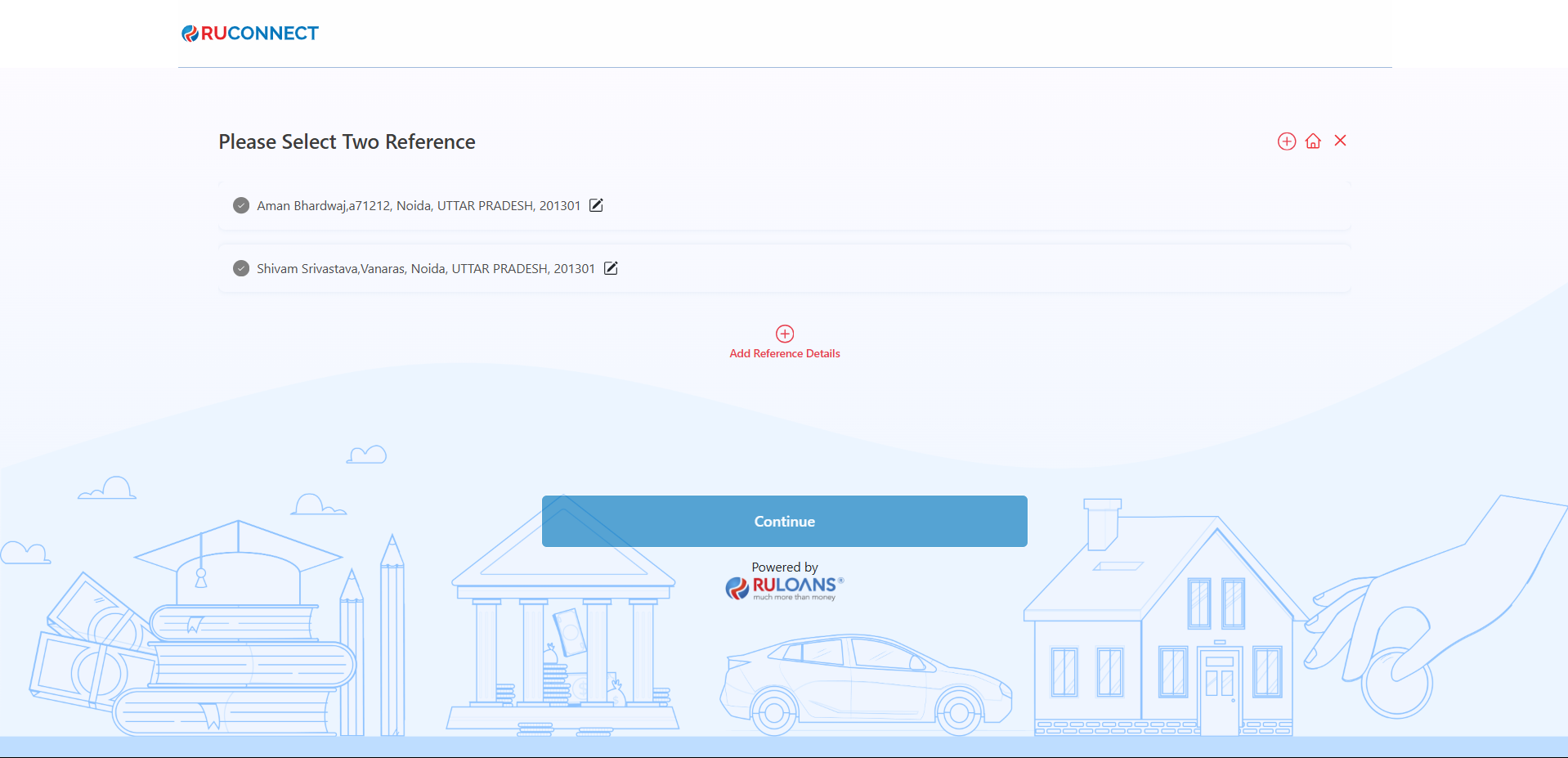 1. If applicable, Select two already saved references (Optional).
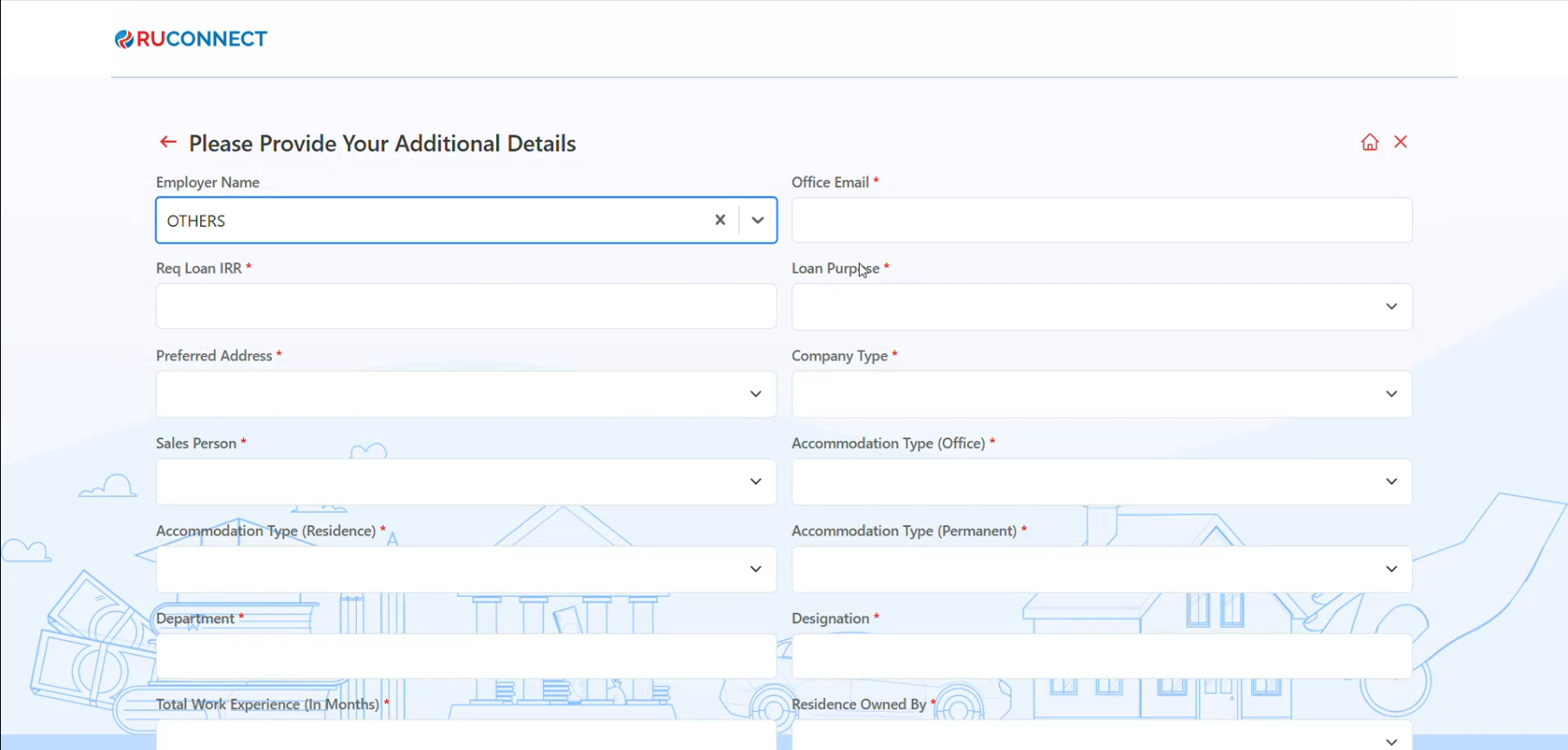
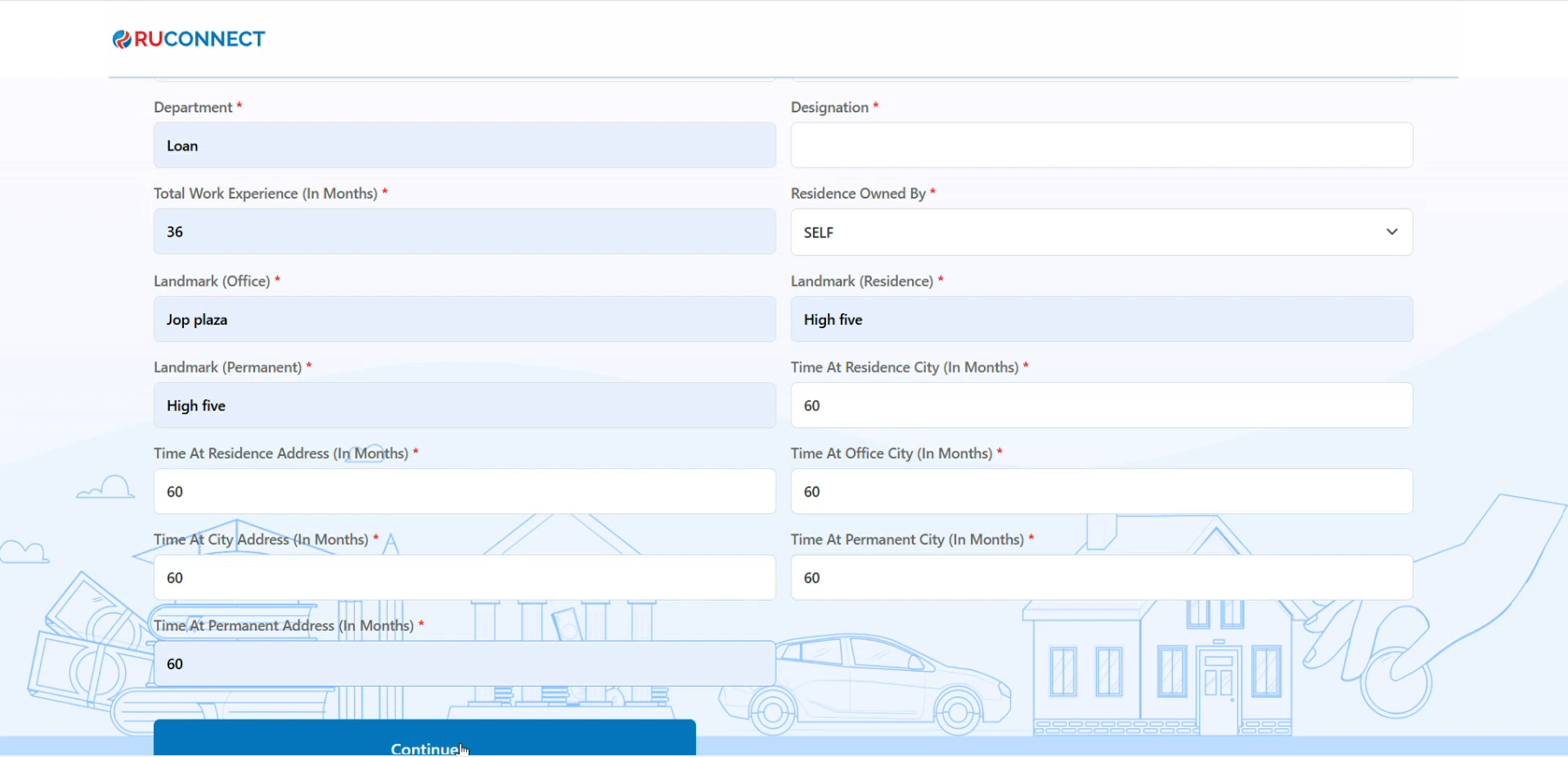
 ## **Step 19: Additional Details:**
This step involves the borrower providing additional details required for processing their personal loan application.
1. Employer Name : The applicant selects employer name by entering the name and selects from the drop-down.
2. Office Email : The applicant needs to enter their office email.
3. Req Loan IRR : The applicant needs to enter the required loan IRR.
4. Loan Purpose : The applicant needs to enter the loan purpose by clicking on place holder and selects from the drop-down.
5. Preferred Address : The applicant needs to enter their preferred address.
6. Company Type : The applicant needs to select the company type from the drop-down list.
7. Sales Person : The applicant needs to select the sales person from the drop-down list.
8. Accomodation Type (Office) : The applicant needs to select the accomodation type from the drop-down list.
9. Accomodation Type (Residence) : The applicant needs to select the accomodation type from the drop-down list.
10. Accomodation Type (Permanenet) : The applicant needs to select the accomodation type from the drop-down list.
11. Department : The applicant needs to enter their respective department name.
12. Designation : The applicant needs to enter their respective designation.
13. Total Work Experience In (Months) : The applicant needs to enter the total work experience.
14. Residence Owned By : The applicant needs to select the residence owned by from the drop-down list.
15. Landmark (Office) : The applicant needs to enter their office landmark.
16. Landmark (Residence) : The applicant needs to enter their residence landmark.
17. Landmark (Permanent) : The applicnat needs to enter their permanent landmark.
18. Time At Residence City In (Months) : The applicant needs to enter their residing time period in city.
19. Time At Residence Address In (Months) : The applicant needs to enter their residing time period in the address.
20. Time At Office City In (Months) : The applicant needs to enter their residing time period in their office.
21. Time At City Address In (Months) : The applicant needs to enter their residing time period in city address.
22. Time At Permanent City In (Months) : The applicant needs to enter their residing time period in permanent city.
23. Time At Permanent Address In (Months) : The applicant needs to enter their residing time period of their permanent address.
After fill all the additional detail click on "Continue" CTA.
## **Step 19: Additional Details:**
This step involves the borrower providing additional details required for processing their personal loan application.
1. Employer Name : The applicant selects employer name by entering the name and selects from the drop-down.
2. Office Email : The applicant needs to enter their office email.
3. Req Loan IRR : The applicant needs to enter the required loan IRR.
4. Loan Purpose : The applicant needs to enter the loan purpose by clicking on place holder and selects from the drop-down.
5. Preferred Address : The applicant needs to enter their preferred address.
6. Company Type : The applicant needs to select the company type from the drop-down list.
7. Sales Person : The applicant needs to select the sales person from the drop-down list.
8. Accomodation Type (Office) : The applicant needs to select the accomodation type from the drop-down list.
9. Accomodation Type (Residence) : The applicant needs to select the accomodation type from the drop-down list.
10. Accomodation Type (Permanenet) : The applicant needs to select the accomodation type from the drop-down list.
11. Department : The applicant needs to enter their respective department name.
12. Designation : The applicant needs to enter their respective designation.
13. Total Work Experience In (Months) : The applicant needs to enter the total work experience.
14. Residence Owned By : The applicant needs to select the residence owned by from the drop-down list.
15. Landmark (Office) : The applicant needs to enter their office landmark.
16. Landmark (Residence) : The applicant needs to enter their residence landmark.
17. Landmark (Permanent) : The applicnat needs to enter their permanent landmark.
18. Time At Residence City In (Months) : The applicant needs to enter their residing time period in city.
19. Time At Residence Address In (Months) : The applicant needs to enter their residing time period in the address.
20. Time At Office City In (Months) : The applicant needs to enter their residing time period in their office.
21. Time At City Address In (Months) : The applicant needs to enter their residing time period in city address.
22. Time At Permanent City In (Months) : The applicant needs to enter their residing time period in permanent city.
23. Time At Permanent Address In (Months) : The applicant needs to enter their residing time period of their permanent address.
After fill all the additional detail click on "Continue" CTA.
 ## **Step 20: Provide Consent OTP**
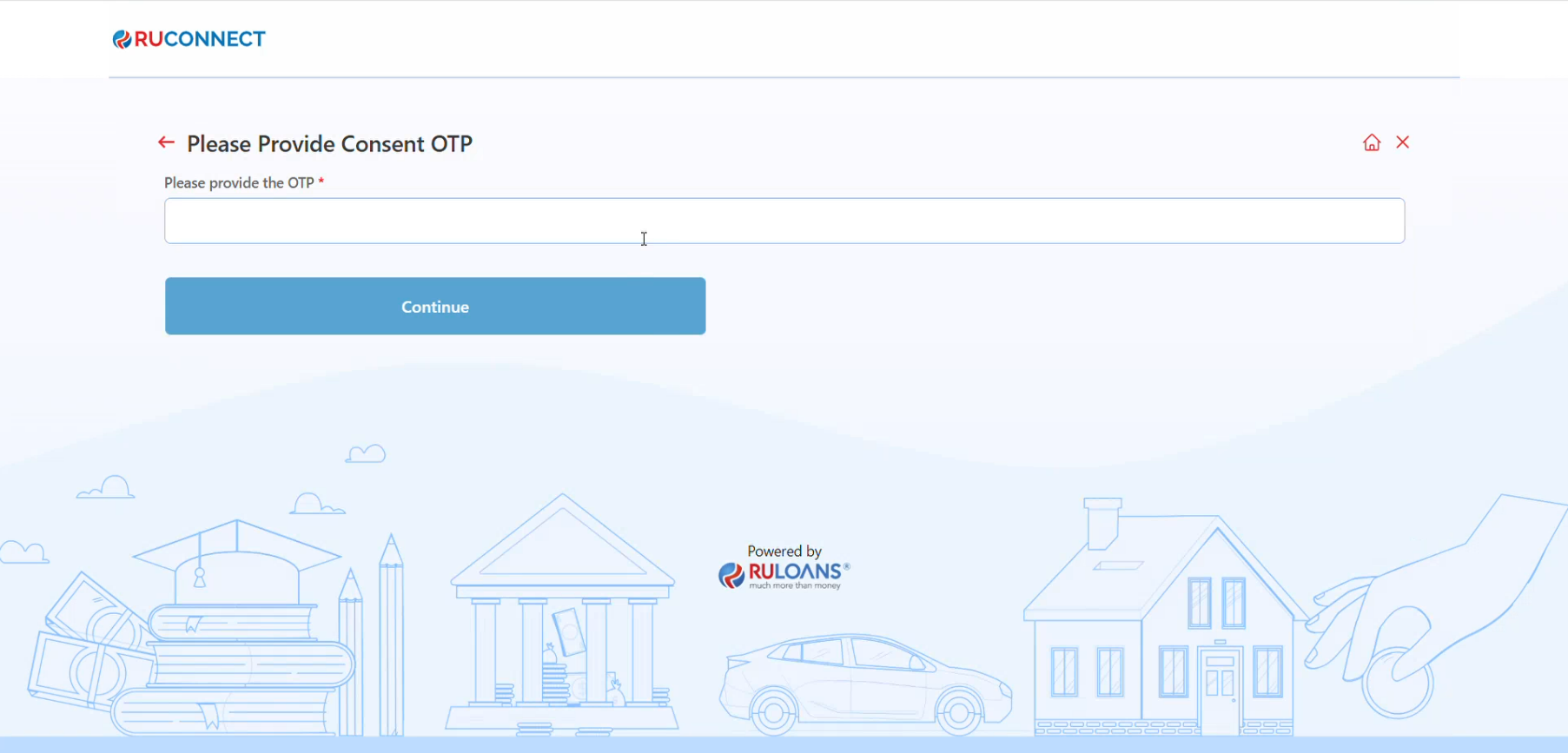
This step involves the borrower providing consent OTP for TATA PL.
The borrower must input the OTP recieved on the applicant's mobile number.
## **Step 20: Provide Consent OTP**
This step involves the borrower providing consent OTP for TATA PL.
The borrower must input the OTP recieved on the applicant's mobile number.
 ## **Step 21:Application Submission Confirmation**
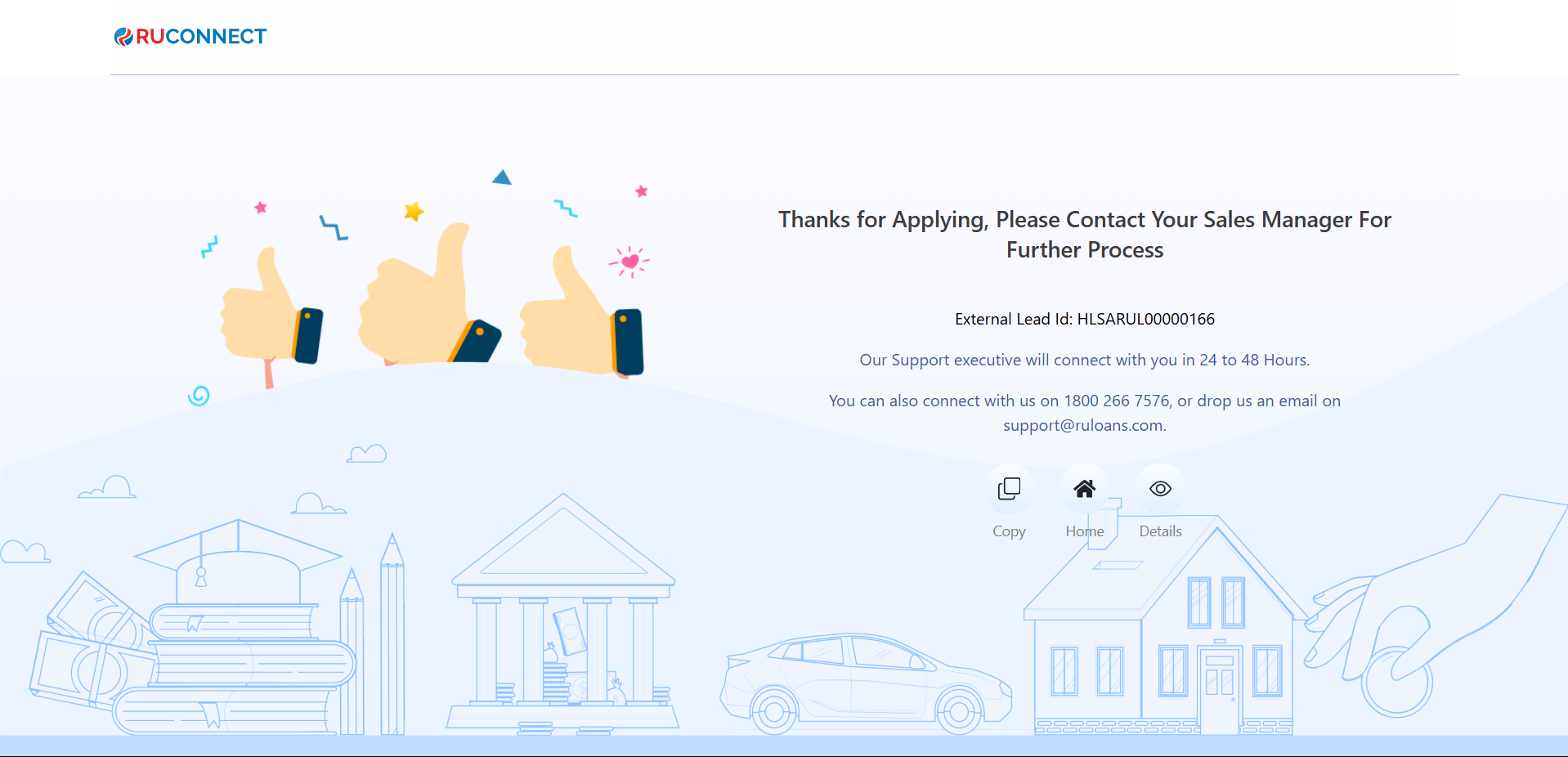
This step displays a confirmation message after the loan application is successfully submitted.
**Key Information Displayed:**
1. **External Lead ID:** A unique identifier (e.g., BLSARUL0000003E) is generated for tracking the application status.
2. **Support Information:** The user is informed that a support executive will contact them within 24 to 48 hours.
3. **Contact Details:** Provides the customer service number 1800 266 7576 and support email [support@ruloans.com](mailto:support@ruloans.com) for any assistance.
4. **Copy External Lead ID:** A button is provided to easily copy the External Lead ID for future reference.
5. **Navigation:** A "Home" button is available to return to the main page.
6. **Details:** A "View" button is available to view further application details.
## **Step 21:Application Submission Confirmation**
This step displays a confirmation message after the loan application is successfully submitted.
**Key Information Displayed:**
1. **External Lead ID:** A unique identifier (e.g., BLSARUL0000003E) is generated for tracking the application status.
2. **Support Information:** The user is informed that a support executive will contact them within 24 to 48 hours.
3. **Contact Details:** Provides the customer service number 1800 266 7576 and support email [support@ruloans.com](mailto:support@ruloans.com) for any assistance.
4. **Copy External Lead ID:** A button is provided to easily copy the External Lead ID for future reference.
5. **Navigation:** A "Home" button is available to return to the main page.
6. **Details:** A "View" button is available to view further application details.
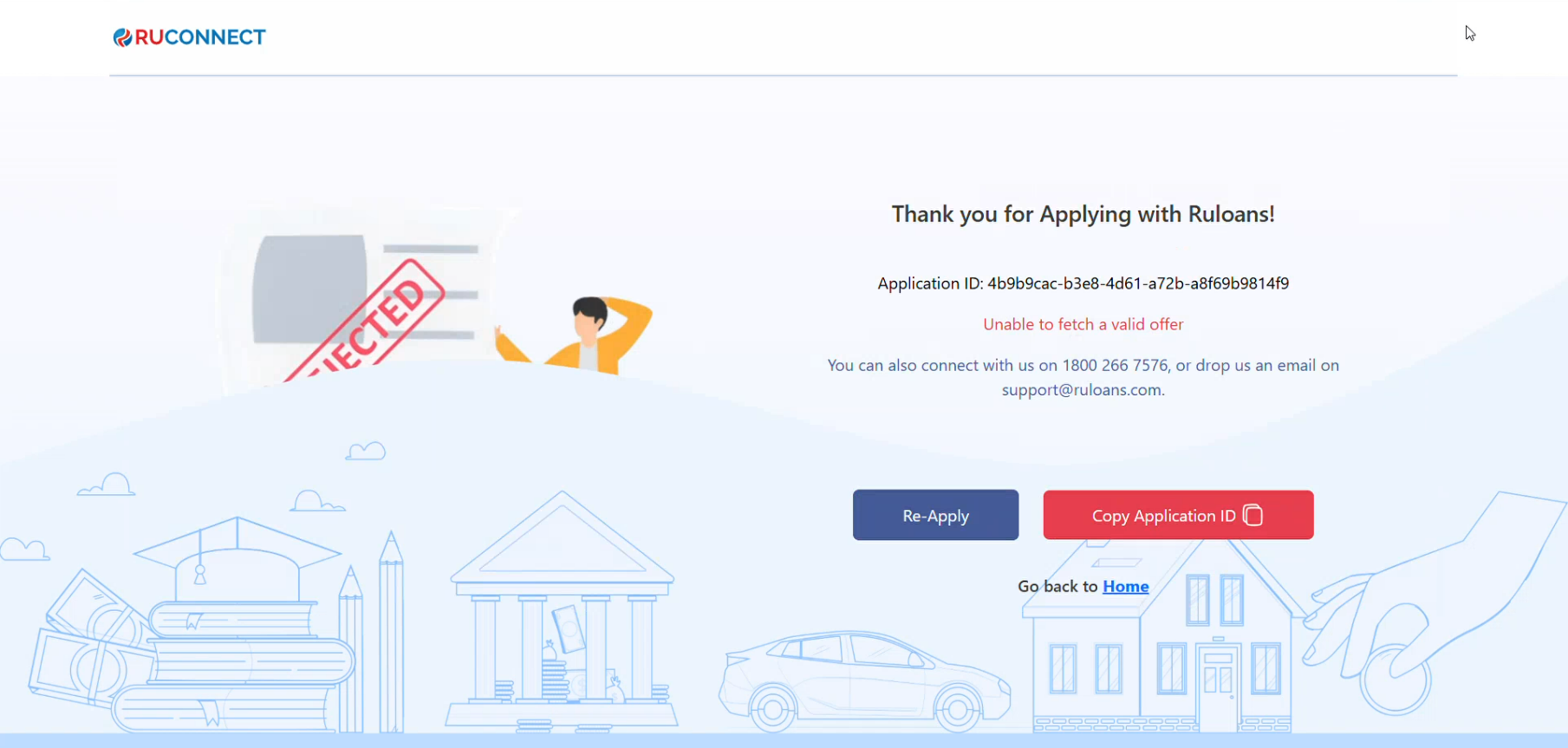
 **If the application is rejected**:
1. On the "Application Status" page, you will see a message regarding the status of your loan application:
* Application ID:
* Status: Rejected
2. Next Steps:
* Contact Support: For further assistance, you can connect with the support team at 1800 266 7576 or send an email.
3. Click on "Go back to Home" to return to the main page and explore other options.
**If the application is rejected**:
1. On the "Application Status" page, you will see a message regarding the status of your loan application:
* Application ID:
* Status: Rejected
2. Next Steps:
* Contact Support: For further assistance, you can connect with the support team at 1800 266 7576 or send an email.
3. Click on "Go back to Home" to return to the main page and explore other options.