> ## Documentation Index
> Fetch the complete documentation index at: https://docs.ruloans.com/llms.txt
> Use this file to discover all available pages before exploring further.
# Branch Code and Vendor Code in DSA Profile on Ruconnect Web Portal
> Users can view the assigned Branch Code and Vendor Code details directly from their DSA Profile on the Ruconnect Web Portal.
## Objective
The objective of this document is to guide users on how to view the Branch Code and Vendor Code details available within the DSA Profile section on the Ruconnect Web Portal. This functionality helps users easily access and verify their assigned branch and vendor information from their profile.
***
# Process Steps
## Step 1: Login to Ruconnect Web Portal
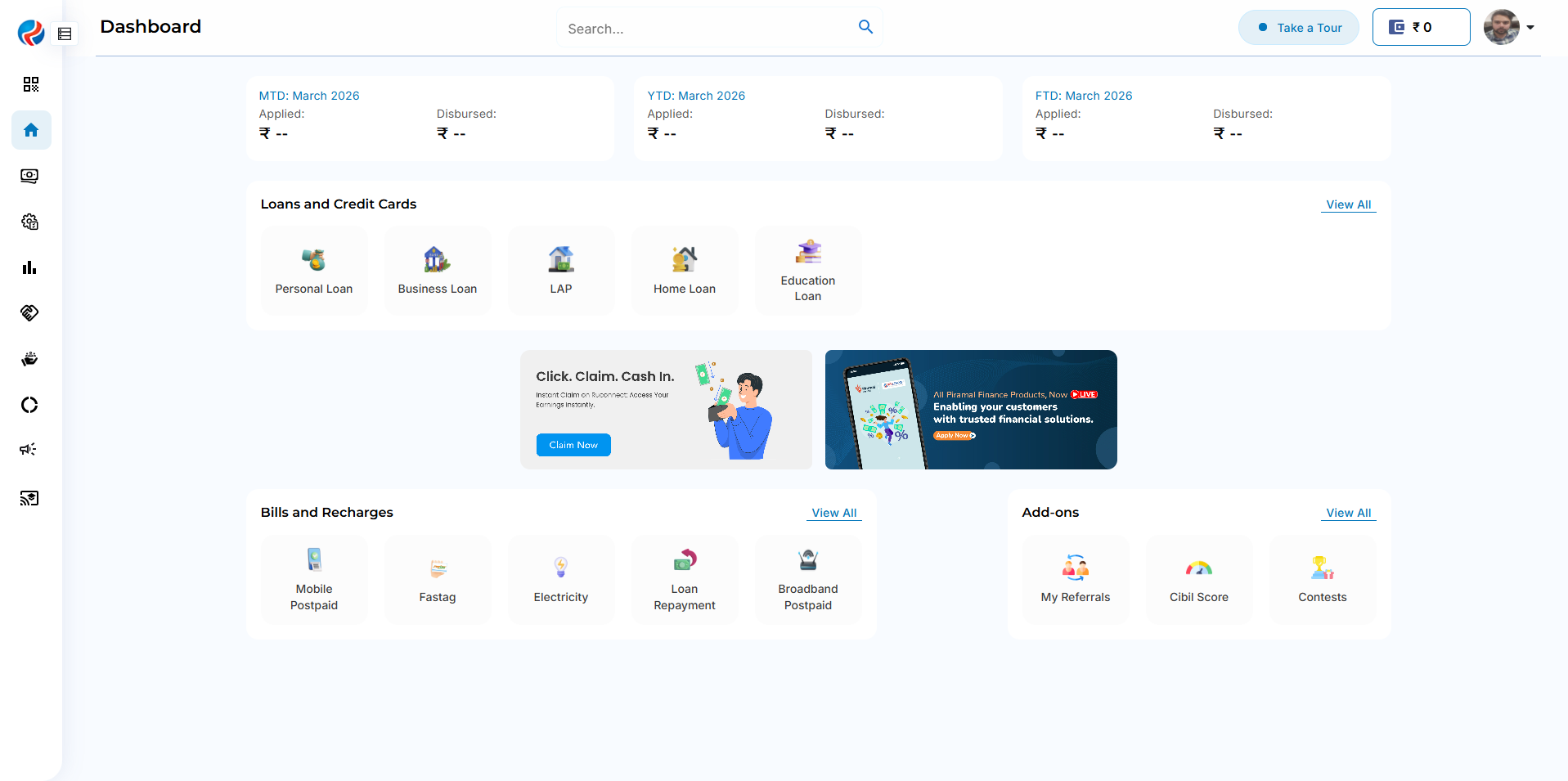
* The user logs in to the Ruconnect Web Portal using valid credentials.
* Upon successful login, the user will be redirected to the dashboard/home page.
 ***
## Step 2: Open User Profile
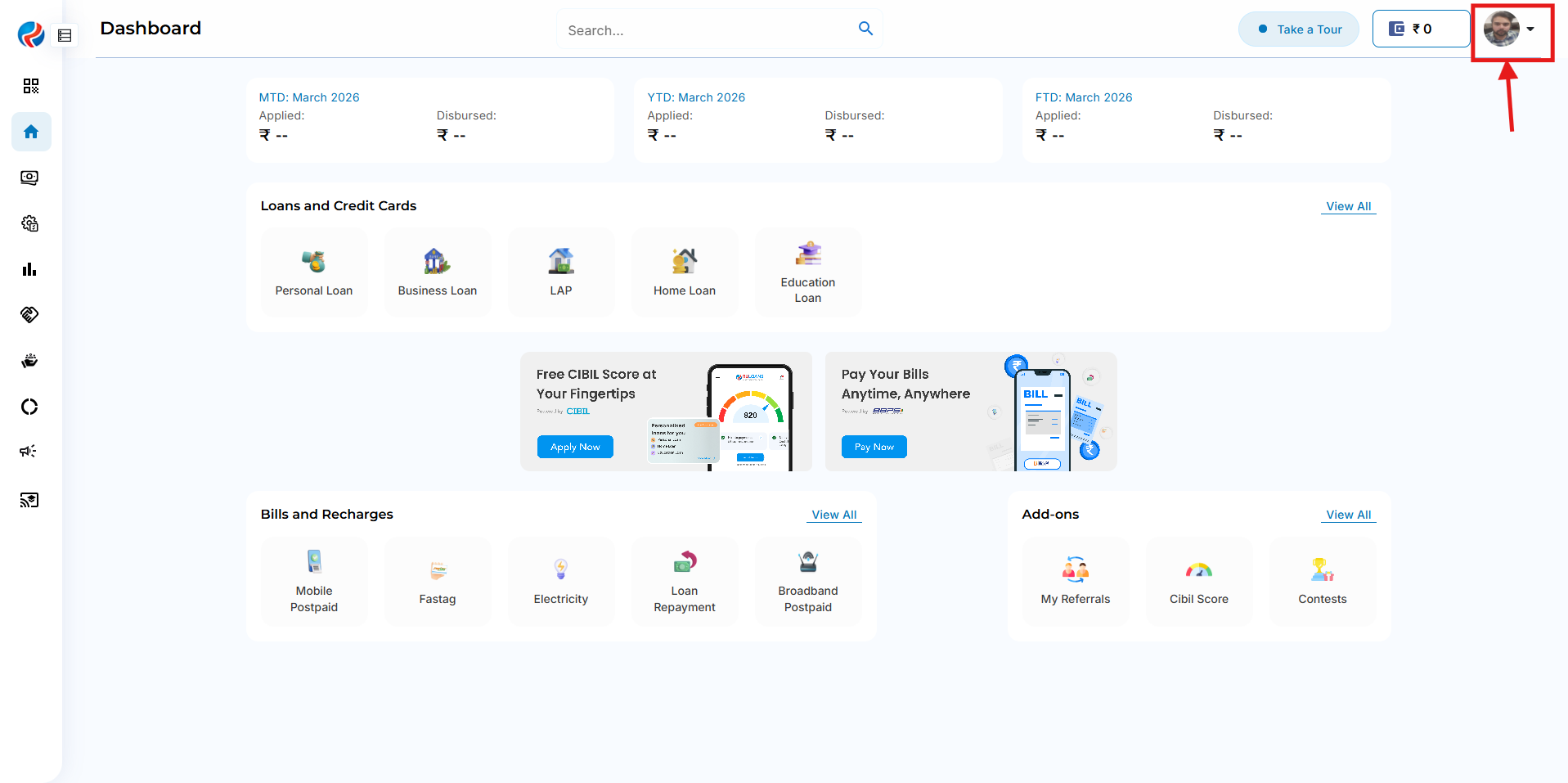
* Click on the **User Profile** option available in the portal.
* The system will open the complete user profile page.
***
## Step 2: Open User Profile
* Click on the **User Profile** option available in the portal.
* The system will open the complete user profile page.
 ***
## Step 3: View Branch Code and Vendor Code
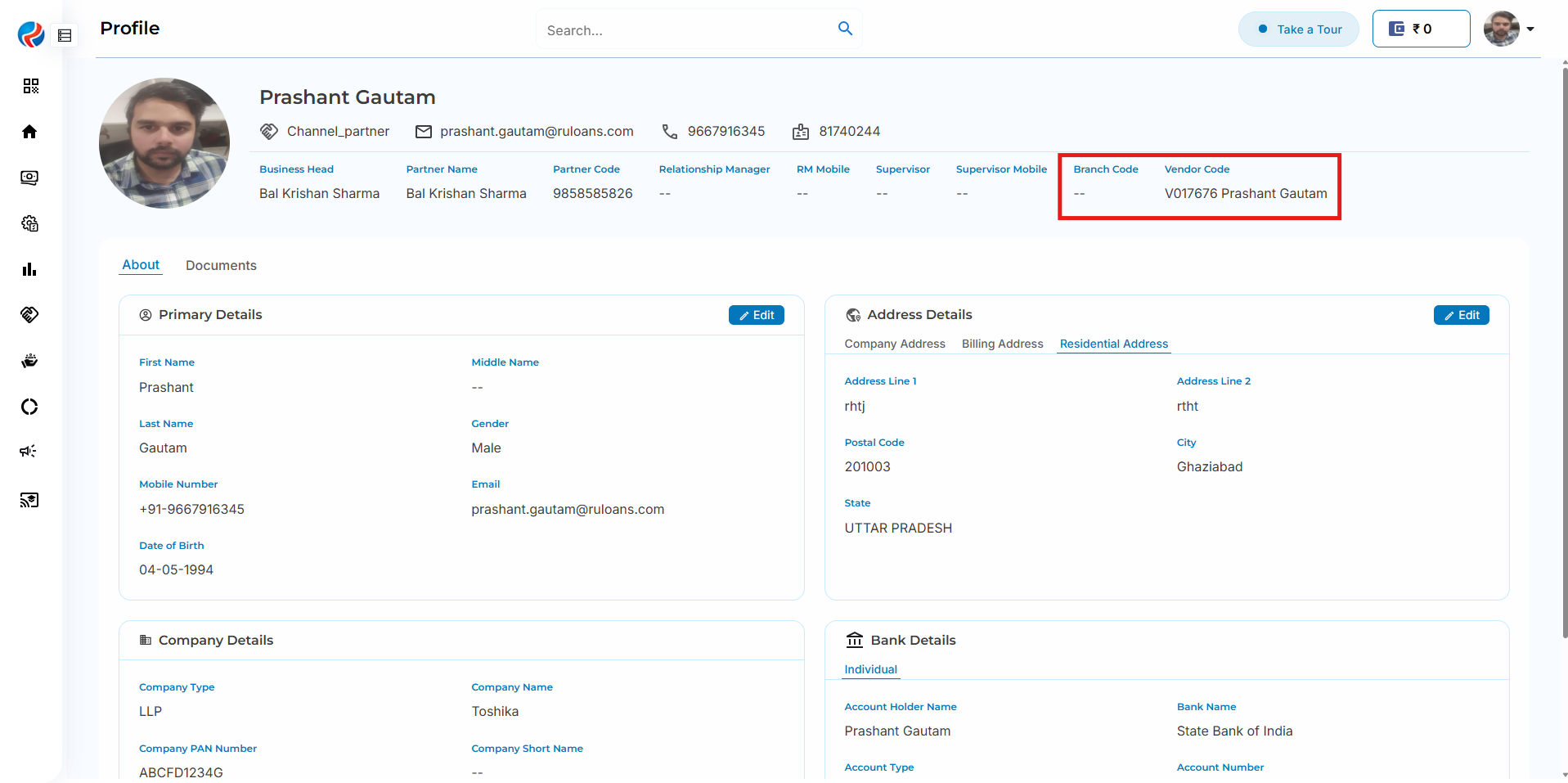
* Within the DSA Profile section, the following details will be visible:
* **Branch Code**
* **Vendor Code**
* Users can view and verify these details directly from the profile page.
***
## Step 3: View Branch Code and Vendor Code
* Within the DSA Profile section, the following details will be visible:
* **Branch Code**
* **Vendor Code**
* Users can view and verify these details directly from the profile page.
 ***
## Note
* The Branch Code and Vendor Code displayed are mapped as per Netsuite(NS), and the user’s DSA profile configuration in the system.
***
## Note
* The Branch Code and Vendor Code displayed are mapped as per Netsuite(NS), and the user’s DSA profile configuration in the system.