> ## Documentation Index
> Fetch the complete documentation index at: https://docs.ruloans.com/llms.txt
> Use this file to discover all available pages before exploring further.
# Customer Mobile Number Update
> Guide to update a customer's registered mobile number through OTP verification.
# Customer Mobile Number Update
## Overview
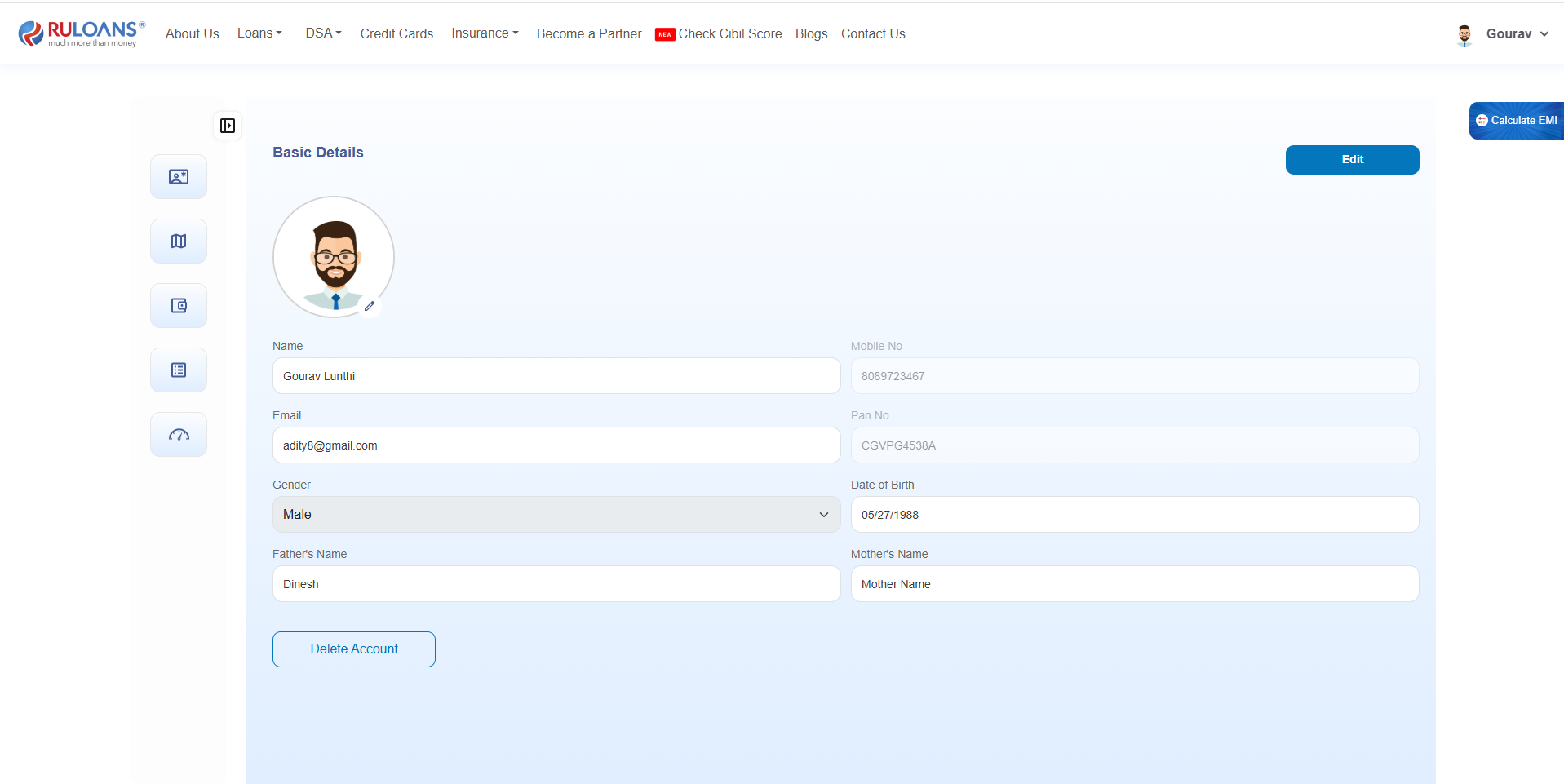
The **Customer Mobile Number Update** feature allows users to securely change their registered mobile number. To ensure account security, OTP verification is performed on both the **existing** and the **new** mobile numbers before the update is completed.
***
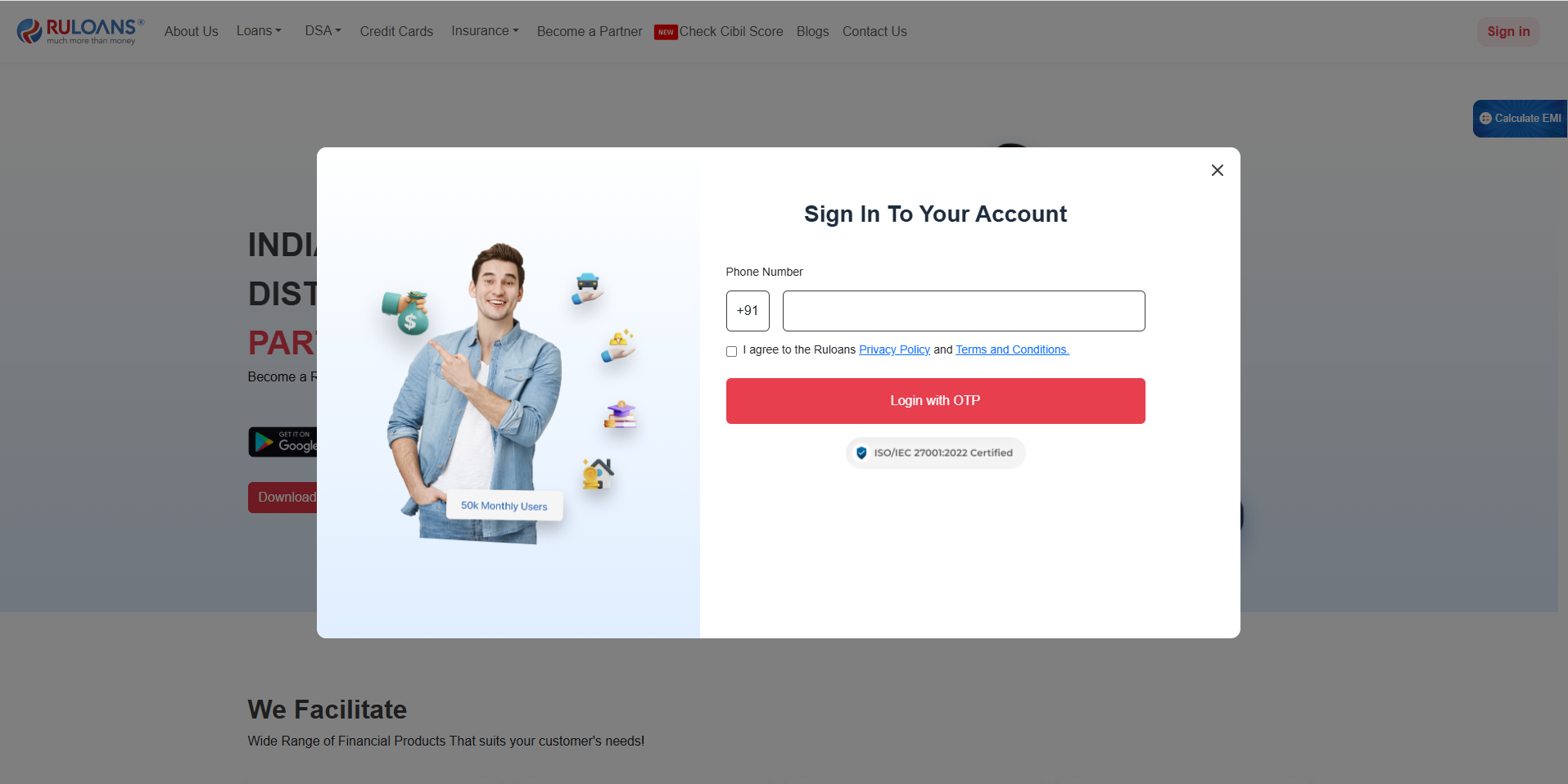
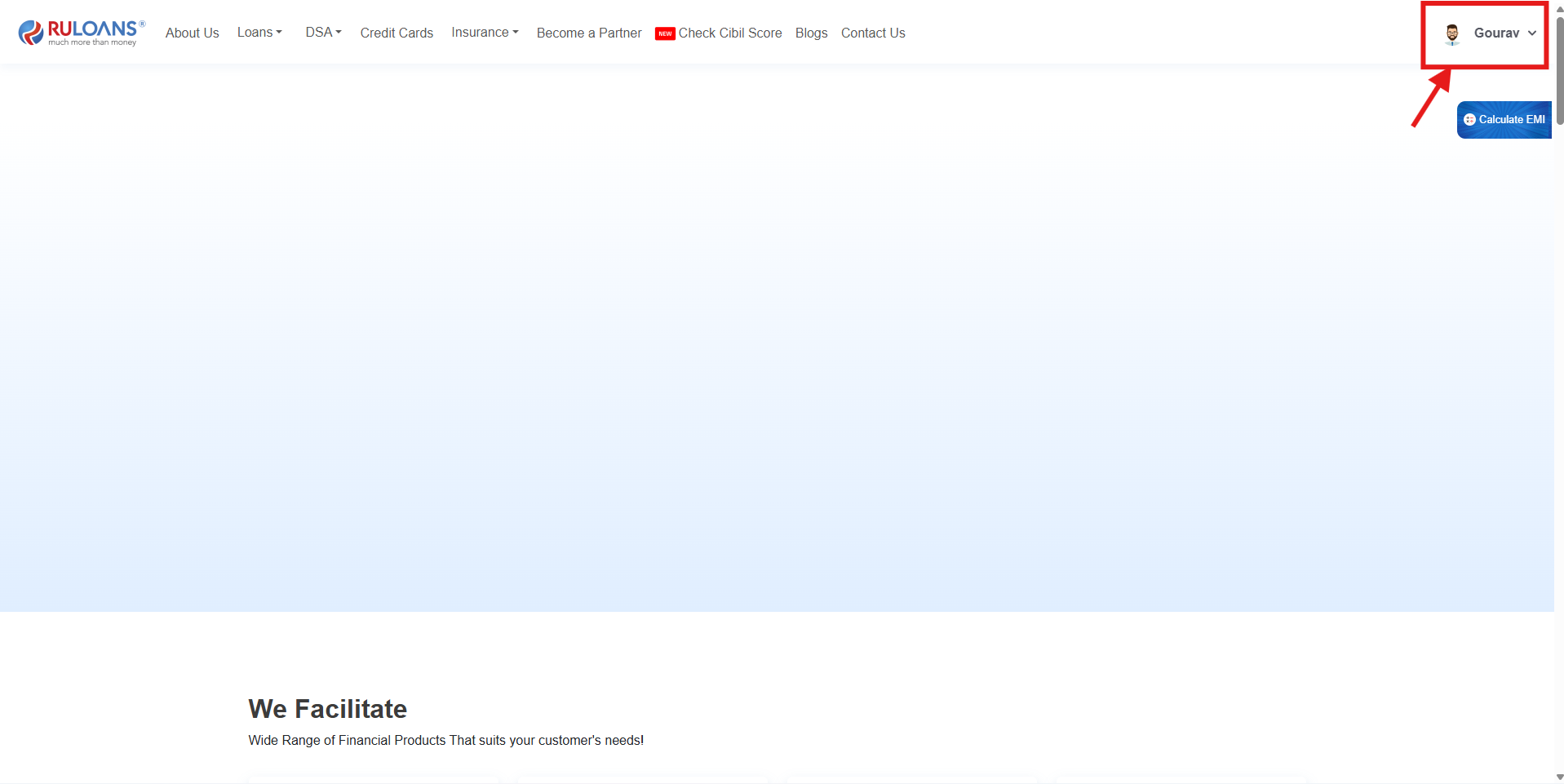
### Step 1: Login to the Portal
1. Open **[https://ruloans.com](https://ruloans.com)**.
2. Enter the registered mobile number.
3. Click **Send OTP**.
4. Enter the OTP received on the registered mobile number.
5. Click **Verify & Login**.
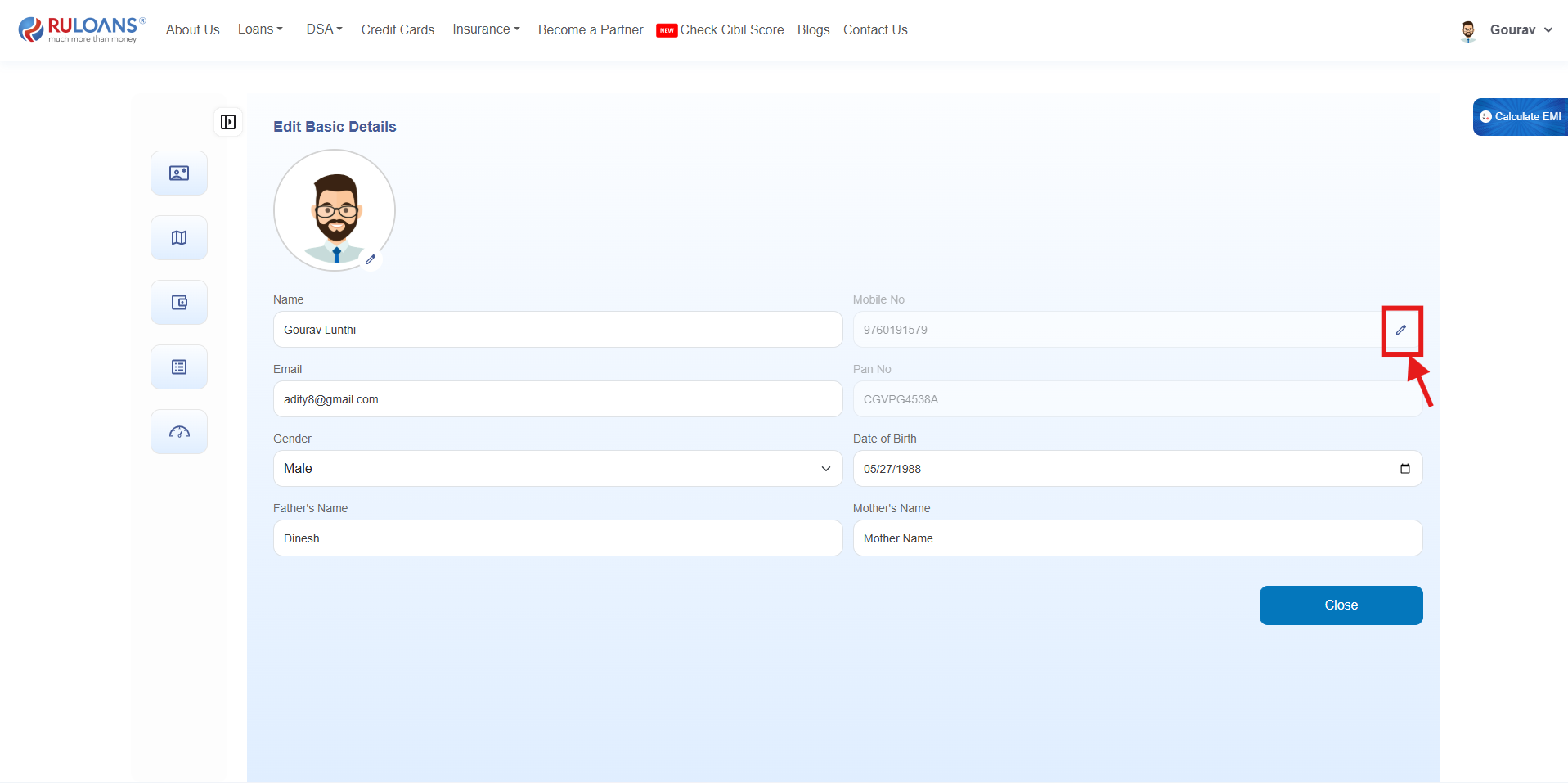 ***
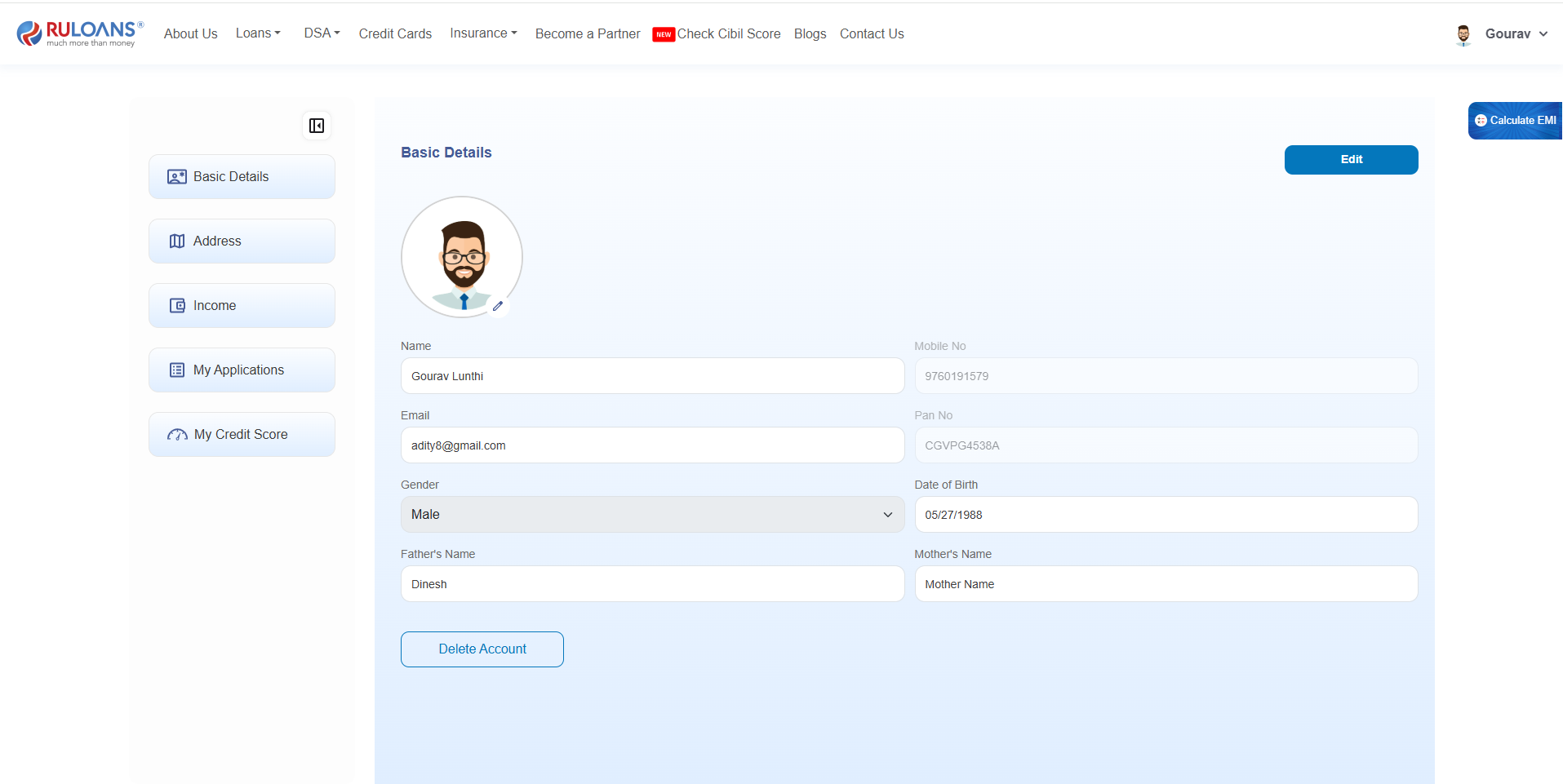
### Step 2: Enter New Mobile Number
1. Navigate to **Profile**.
2. Click **Update Mobile Number**.
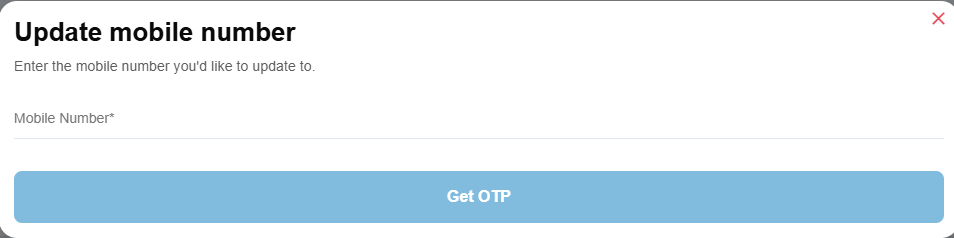
3. Enter the new mobile number.
4. Click **Send OTP**.
> The system validates the entered mobile number before proceeding.
***
***
### Step 2: Enter New Mobile Number
1. Navigate to **Profile**.
2. Click **Update Mobile Number**.
3. Enter the new mobile number.
4. Click **Send OTP**.
> The system validates the entered mobile number before proceeding.
***
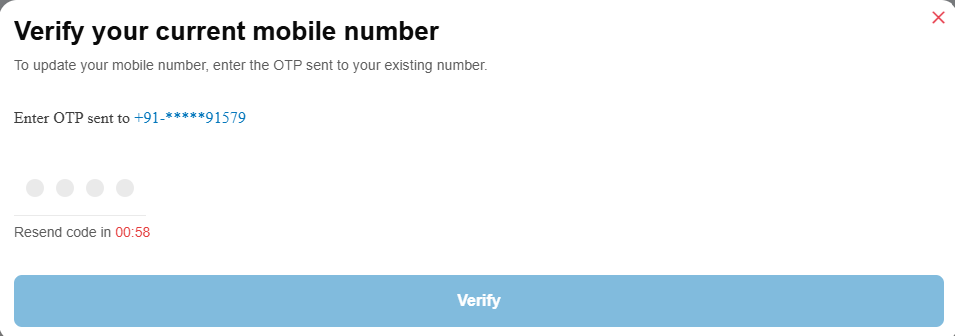
 ### Step 3: Verify Existing Mobile Number
An OTP is sent to the customer's **currently registered mobile number**.
1. Enter the OTP received on the existing mobile number.
2. Click **Verify OTP**.
***
### Step 3: Verify Existing Mobile Number
An OTP is sent to the customer's **currently registered mobile number**.
1. Enter the OTP received on the existing mobile number.
2. Click **Verify OTP**.
***
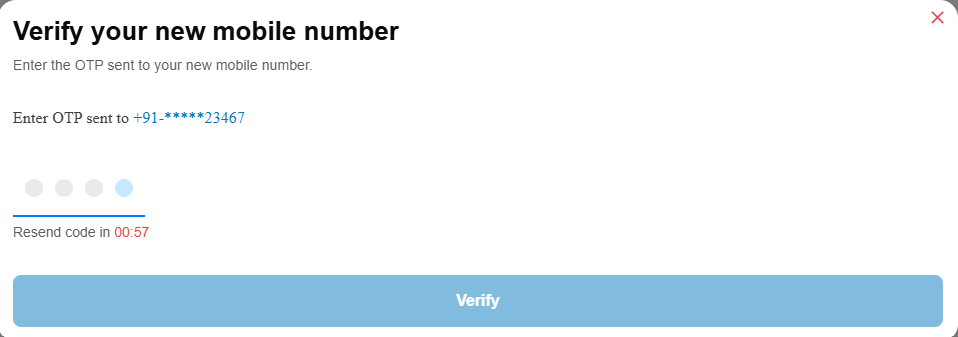
 ### Step 4: Verify New Mobile Number
After successful verification of the existing number, an OTP is sent to the **new mobile number**.
1. Enter the OTP received on the new mobile number.
2. Click **Verify OTP**.
### Step 4: Verify New Mobile Number
After successful verification of the existing number, an OTP is sent to the **new mobile number**.
1. Enter the OTP received on the new mobile number.
2. Click **Verify OTP**.
 ***
## Successful Update
After both OTP verifications are successful:
* The customer's account is mapped to the new mobile number.
* The previous mobile number is replaced with the new mobile number.
* All future logins and OTP-based authentication will use the updated mobile number.
***
## Successful Update
After both OTP verifications are successful:
* The customer's account is mapped to the new mobile number.
* The previous mobile number is replaced with the new mobile number.
* All future logins and OTP-based authentication will use the updated mobile number.