> ## Documentation Index
> Fetch the complete documentation index at: https://docs.ruloans.com/llms.txt
> Use this file to discover all available pages before exploring further.
# Business category validation
**Business Category Validation**
**Module:** Finance - Finance Tools - Business Category Validation
**Date:** 2025-05-02
***
1. A group of leads in split cases is based on the **same disbursement date.**
2. The business category will be validated using the latest lead in the group, or the **"First Claim Allowed Categories"** if none exist.
3. Make sure to enable the **split case** option while adding the leads. **Leads will only be accepted in the CRM based on these validations**
4. This function is accessible only to the **CEO, CFO, and CTO.**
According to the logic, once a lead is saved using the **'First Claim Allowed Category'**, another lead can be saved using the **'Second Claim Allowed Category'** without any error. However, if the second lead is submitted with a different category **(not part of the allowed sequence)**, an error will be triggered.
***
## **How to Access and Edit Business Category Validations in CRM**
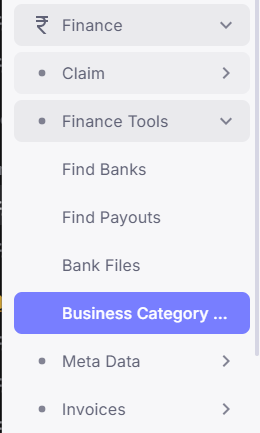 1. Go to the **CRM** system.
2. Under the **Finance** section, click on **Finance Tools**.
3. Select **Business Category Validations**.
4. The **Business Category Validation** page will open.
1. Go to the **CRM** system.
2. Under the **Finance** section, click on **Finance Tools**.
3. Select **Business Category Validations**.
4. The **Business Category Validation** page will open.
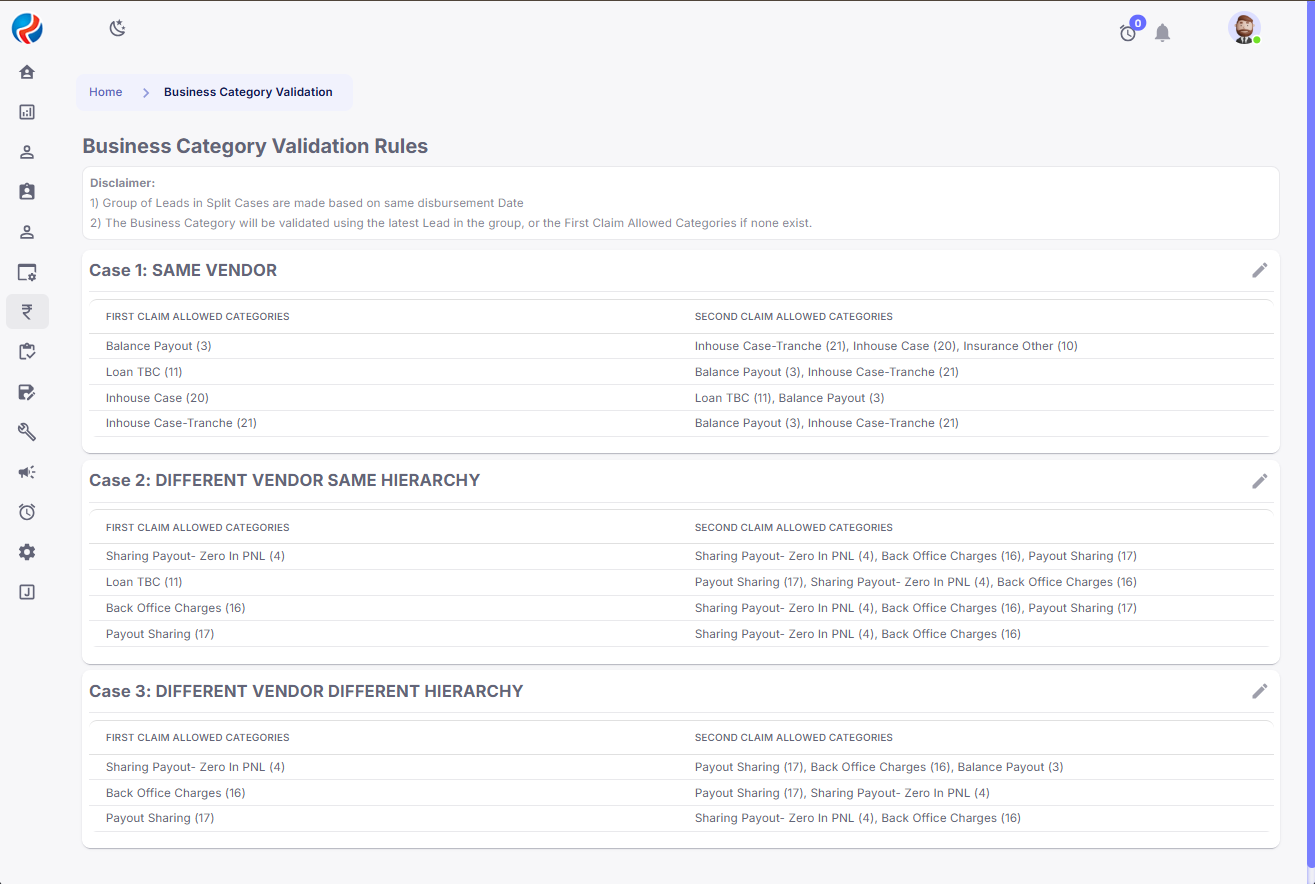 5. You will see three cases:
* **Same Vendor**
* **Different Vendor, Same Hierarchy**
* **Different Vendor, Different Hierarchy**
6. For each case, you will see:
* **First Claim Allowed Categories**
* **Second Claim Allowed Categories**
7. To **add or change** a validation rule:
* Click the **pencil icon** on the right side of the respective case.
5. You will see three cases:
* **Same Vendor**
* **Different Vendor, Same Hierarchy**
* **Different Vendor, Different Hierarchy**
6. For each case, you will see:
* **First Claim Allowed Categories**
* **Second Claim Allowed Categories**
7. To **add or change** a validation rule:
* Click the **pencil icon** on the right side of the respective case.
 * A **popup window** will appear.
* In the popup, select:
* One or more categories for **First Claim Allowed Category**
* Corresponding categories for **Second Claim Allowed Category**
* A **popup window** will appear.
* In the popup, select:
* One or more categories for **First Claim Allowed Category**
* Corresponding categories for **Second Claim Allowed Category**
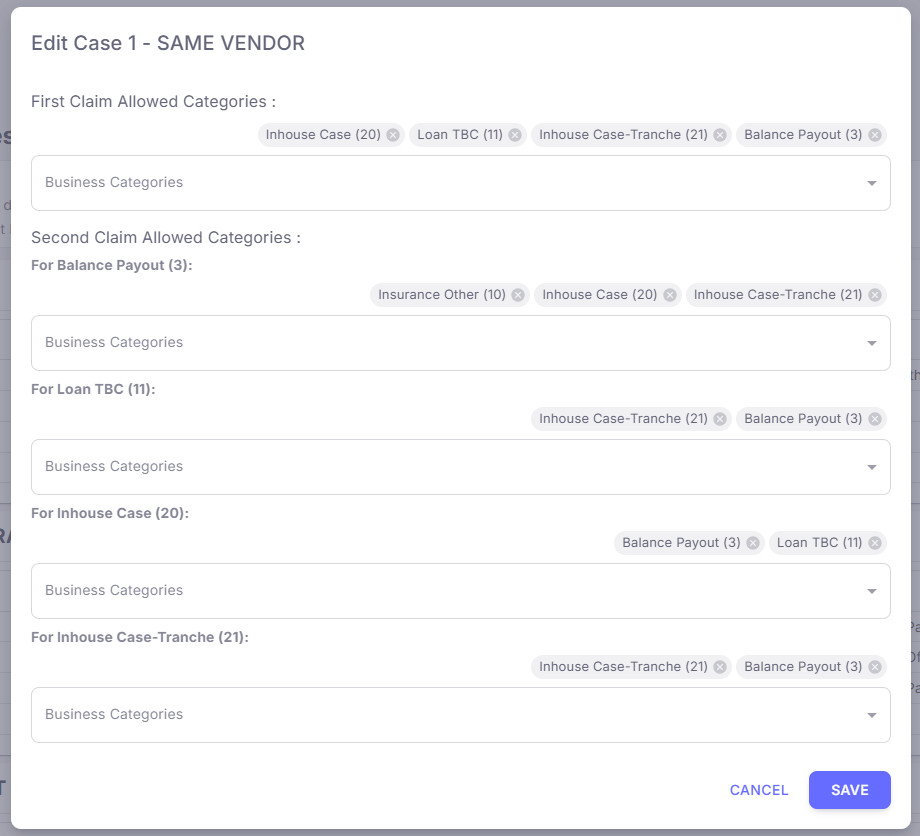 * Click **Save** to apply the validation rule.
This tool allows you to maintain control over which category combinations are permitted for claims across various vendor and hierarchy scenarios.
***
**Examples**
### **Case 1: SAME VENDOR**
**Definition:** Both the first and second claim are made by the same vendor.
**For Example, Allowed Category Combinations:**
* **First Claim: Balance Payout (3)**
* **Second Claim Allowed:** Inhouse Case-Tranche (21\*\*)\*\*, Inhouse Case (20), Insurance Other (10)
***
### **Case 2: DIFFERENT VENDOR, SAME HIERARCHY**
**Definition:** The first and second claims are from different vendors but they report to the same business hierarchy.
**For Example, Allowed Category Combinations:**
* **First Claim: Sharing Payout - Zero In PNL (4)**
* **Second Claim Allowed:** Sharing Payout - Zero In PNL (4), Back Office Charges (16), Payout Sharing (17)
***
### **Case 3: DIFFERENT VENDOR, DIFFERENT HIERARCHY**
**Definition:** Both the vendor and their hierarchy are different — meaning different organizational lines with no direct reporting connection.
**For Example, Allowed Category Combinations:**
* **First Claim: Sharing Payout - Zero In PNL (4)**
* **Second Claim Allowed:** Payout Sharing (17), Back Office Charges (16), Balance Payout (3)
***
These rules are important to prevent misuse or overclaiming and to ensure proper credit sharing across teams based on their relationship and involvement in the deal closure process.
**Prepared By:** Aparmita Srivastav
* Click **Save** to apply the validation rule.
This tool allows you to maintain control over which category combinations are permitted for claims across various vendor and hierarchy scenarios.
***
**Examples**
### **Case 1: SAME VENDOR**
**Definition:** Both the first and second claim are made by the same vendor.
**For Example, Allowed Category Combinations:**
* **First Claim: Balance Payout (3)**
* **Second Claim Allowed:** Inhouse Case-Tranche (21\*\*)\*\*, Inhouse Case (20), Insurance Other (10)
***
### **Case 2: DIFFERENT VENDOR, SAME HIERARCHY**
**Definition:** The first and second claims are from different vendors but they report to the same business hierarchy.
**For Example, Allowed Category Combinations:**
* **First Claim: Sharing Payout - Zero In PNL (4)**
* **Second Claim Allowed:** Sharing Payout - Zero In PNL (4), Back Office Charges (16), Payout Sharing (17)
***
### **Case 3: DIFFERENT VENDOR, DIFFERENT HIERARCHY**
**Definition:** Both the vendor and their hierarchy are different — meaning different organizational lines with no direct reporting connection.
**For Example, Allowed Category Combinations:**
* **First Claim: Sharing Payout - Zero In PNL (4)**
* **Second Claim Allowed:** Payout Sharing (17), Back Office Charges (16), Balance Payout (3)
***
These rules are important to prevent misuse or overclaiming and to ensure proper credit sharing across teams based on their relationship and involvement in the deal closure process.
**Prepared By:** Aparmita Srivastav