> ## Documentation Index
> Fetch the complete documentation index at: https://docs.ruloans.com/llms.txt
> Use this file to discover all available pages before exploring further.
# Payout claim format download
## **Payout Claim Access & File Download Process Documentation**
### **Overview**
This document outlines the process for accessing payout claims in the RuLoans CRM and downloading the related payout claim file from Zoho WorkDrive for review or further processing.
### **Prerequisites**
Before starting, ensure:
* You have valid login credentials for the **RuLoans CRM**.
* You have access to **Zoho WorkDrive**.
* Required permissions are enabled for viewing payout claims and downloading files.
***
## **Step-by-Step Process**
### **Step 1: Login to RuLoans CRM**
* Open the browser.
* Navigate to: **crm.ruloans.com**
* Log in using your authorized credentials.
**Purpose:** Access the CRM dashboard to initiate the payout claim process.
***
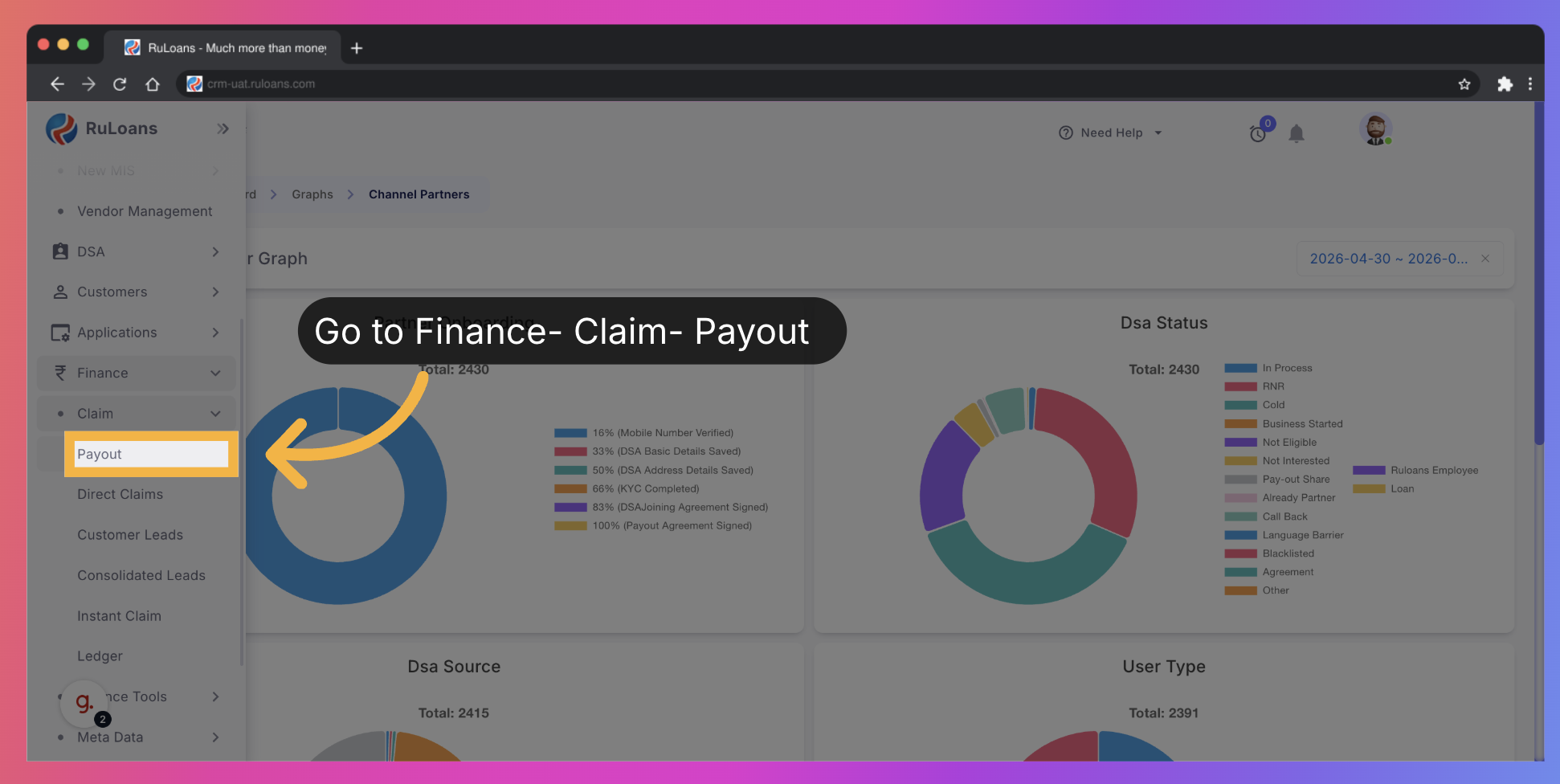
### **Step 2: Access Finance Module**
* From the main navigation menu, click on the **Finance** tab.
**Purpose:** Open the financial operations section.
***
### **Step 3: Open Claim Section**
* Under the Finance module, click on **Claim**.
**Purpose:** View all claim-related records and operations.
***
### **Step 4: Navigate to Payout Claims**
* Click on the **Payout** option.
**Purpose:** Open the payout claim listing page.
 ***
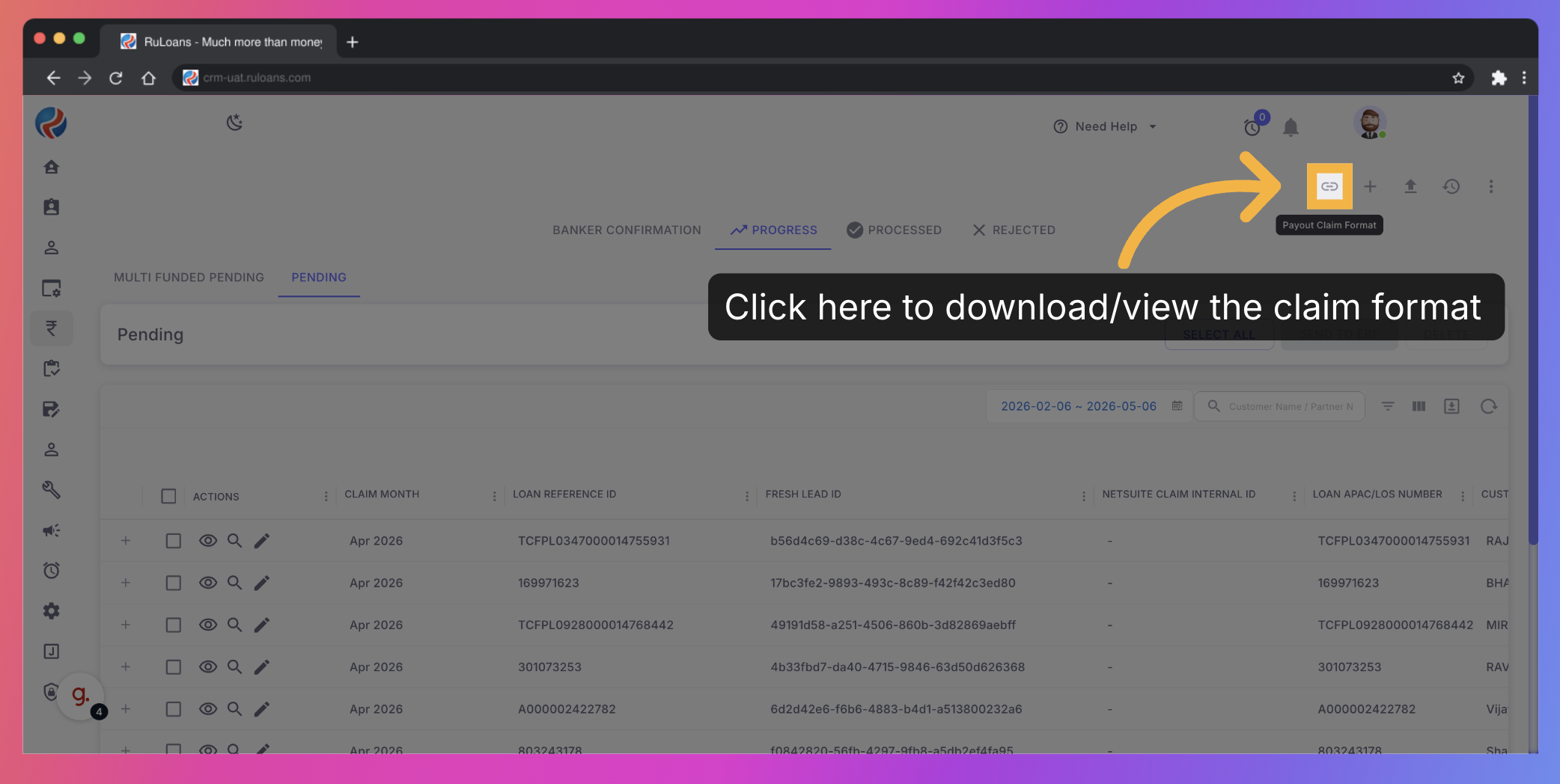
### **Step 5: Accessing to the latest format via dynamic link,**
* Click on the **Link icon**, next to the **Add Claim** icon.
**Purpose:** To view/download the latest claim format file.
***
### **Step 5: Accessing to the latest format via dynamic link,**
* Click on the **Link icon**, next to the **Add Claim** icon.
**Purpose:** To view/download the latest claim format file.
 ***
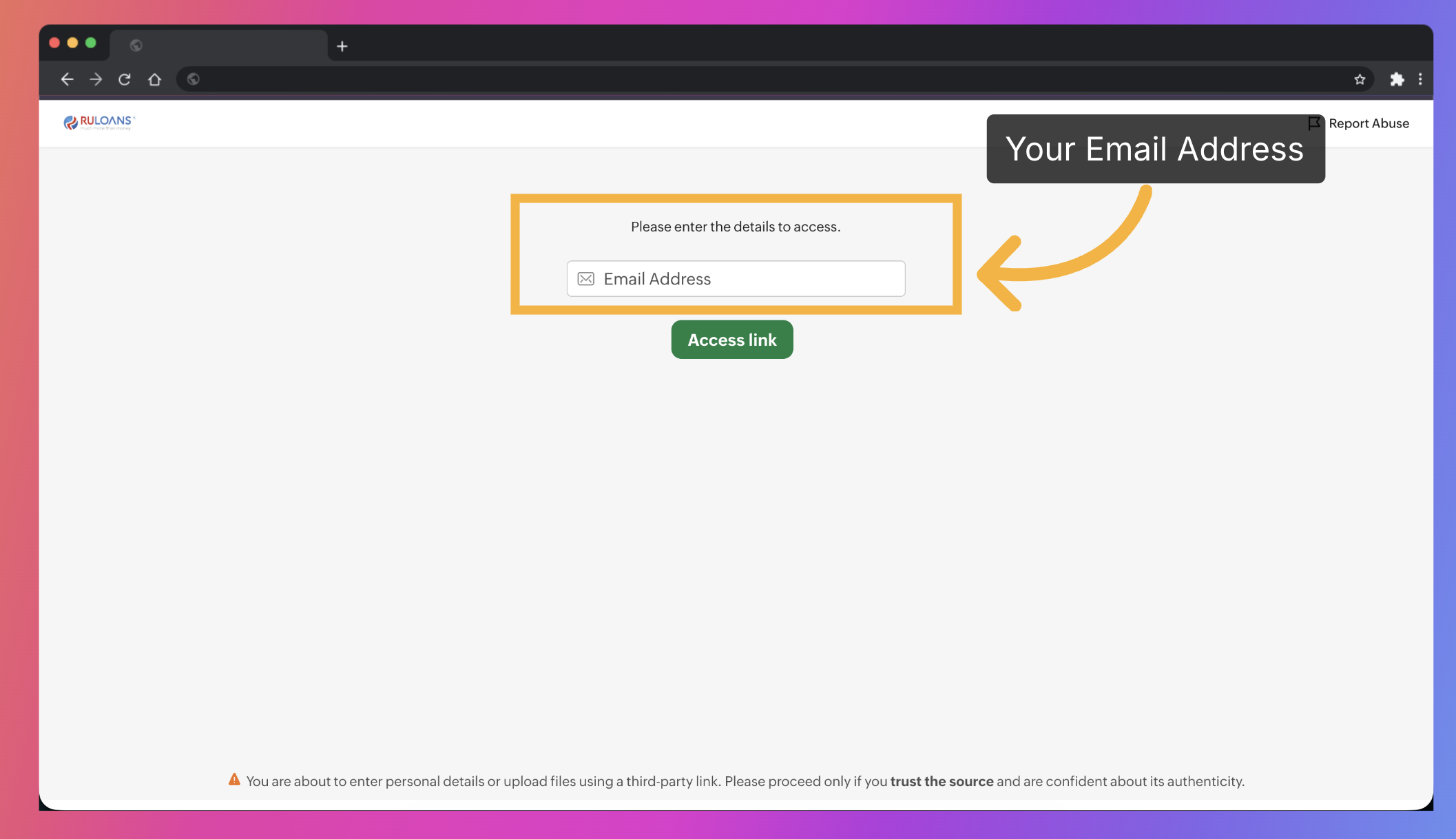
### **Step 7: Access Zoho WorkDrive**
* User is redirected to **Zoho WorkDrive**.
* Enter **Email** to get access.
* Navigate to: **workdrive.zohoexternal.in**
**Purpose:** Access the uploaded payout claim files linked to the selected claim.
***
### **Step 7: Access Zoho WorkDrive**
* User is redirected to **Zoho WorkDrive**.
* Enter **Email** to get access.
* Navigate to: **workdrive.zohoexternal.in**
**Purpose:** Access the uploaded payout claim files linked to the selected claim.
 ***
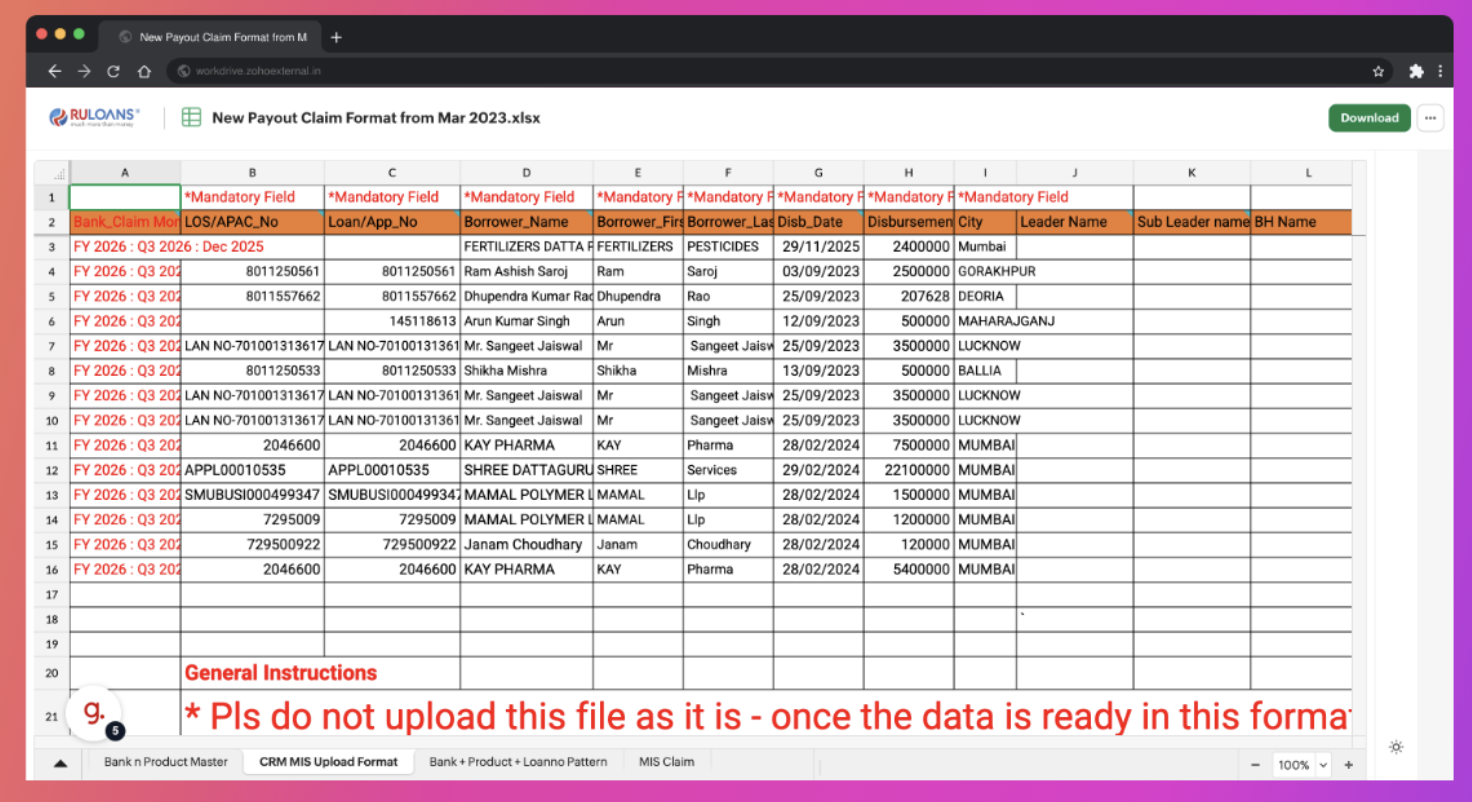
### **Step 8: Download Claim File**
* Locate the required file (**New Payout Claim Format – March 2023**).
* Click on **Download**.
**Purpose:** Save the claim file locally for review or processing.
***
### **Step 8: Download Claim File**
* Locate the required file (**New Payout Claim Format – March 2023**).
* Click on **Download**.
**Purpose:** Save the claim file locally for review or processing.
 ***
## **Completion**
You have successfully:
✅ Accessed payout claims in RuLoans CRM\
✅ Located the associated payout file\
✅ Downloaded the required document from Zoho WorkDrive
### **Post-Download Verification**
After downloading:
* Verify the file has been downloaded successfully.
* Check file integrity and format.
* Proceed with payout claim verification or further processing.
## **Important Notes**
* Ensure you download the correct payout file for the selected claim.
* Maintain data confidentiality while handling payout files.
* Contact the Finance/Admin team if access issues occur.
### ---
**Prepared By:** Aparmita Srivastav
***
## **Completion**
You have successfully:
✅ Accessed payout claims in RuLoans CRM\
✅ Located the associated payout file\
✅ Downloaded the required document from Zoho WorkDrive
### **Post-Download Verification**
After downloading:
* Verify the file has been downloaded successfully.
* Check file integrity and format.
* Proceed with payout claim verification or further processing.
## **Important Notes**
* Ensure you download the correct payout file for the selected claim.
* Maintain data confidentiality while handling payout files.
* Contact the Finance/Admin team if access issues occur.
### ---
**Prepared By:** Aparmita Srivastav