> ## Documentation Index
> Fetch the complete documentation index at: https://docs.ruloans.com/llms.txt
> Use this file to discover all available pages before exploring further.
# Product mapping
## **Product Mapping Process**
This guide outlines the steps to map products within the **Meta Data** module using **NetSuite Bank**, **NetSuite Product**, and **Bank Product Combination**.
***
### **Step-by-Step Process**
 ####
####
#### **1.Navigate to Meta Data**
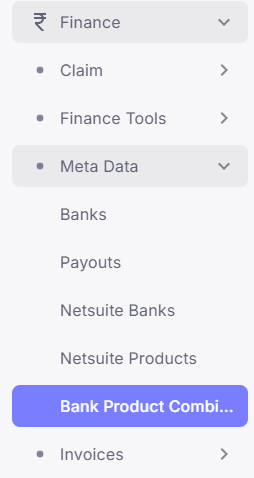
Go to the **Finance** section, and then to **Meta Data** where the modules **NS Bank**, **NS Product**, and **Bank Product Combination** are available.
***
#### **2.NetSuite Product**
####
####
#### **1.Navigate to Meta Data**
Go to the **Finance** section, and then to **Meta Data** where the modules **NS Bank**, **NS Product**, and **Bank Product Combination** are available.
***
#### **2.NetSuite Product**
 * In this module, add the required products as per business needs.
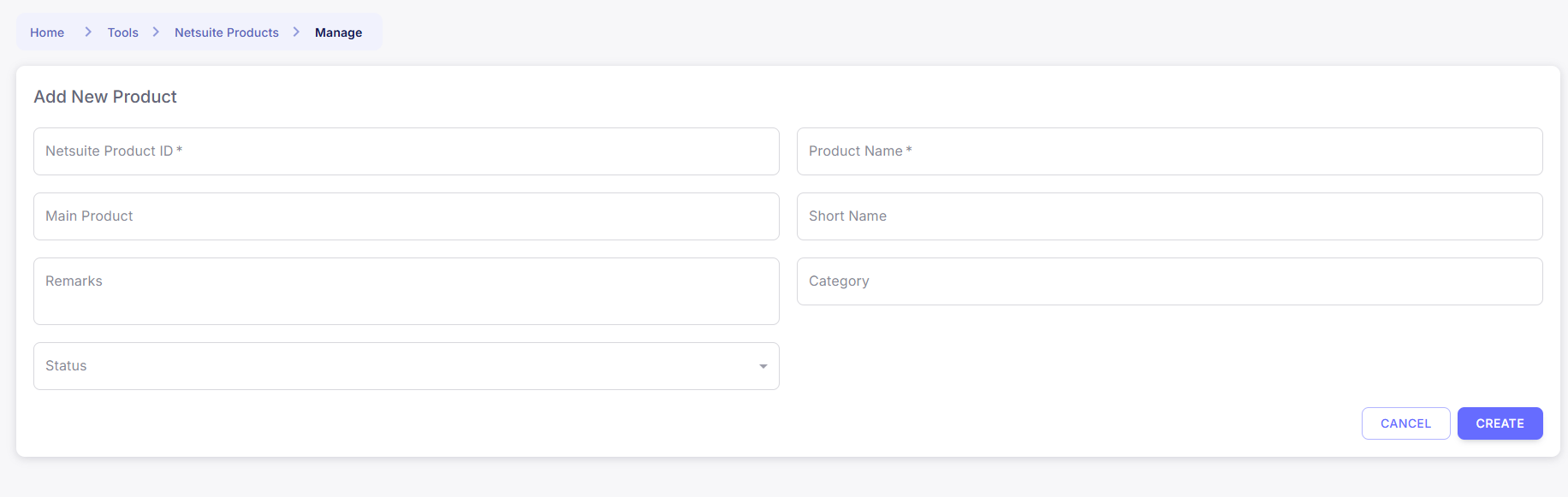
* Click on the **‘’ADD PRODUCT’’** Button, **‘Add New Product’** window opens.
* Fill the required fields and set the status of the product as required, Active or Inactive, if inactive then the product will not be visible on the other pages.
* In this module, add the required products as per business needs.
* Click on the **‘’ADD PRODUCT’’** Button, **‘Add New Product’** window opens.
* Fill the required fields and set the status of the product as required, Active or Inactive, if inactive then the product will not be visible on the other pages.
 * Each product represents a service or offering that may be mapped to a bank later.
***
#### **3.NetSuite Bank**
* Add banks to the system through the **NS Bank** module.
* Each product represents a service or offering that may be mapped to a bank later.
***
#### **3.NetSuite Bank**
* Add banks to the system through the **NS Bank** module.
 * Go to NetSuite Banks, Click on The **‘’ADD BANK’’** Button.
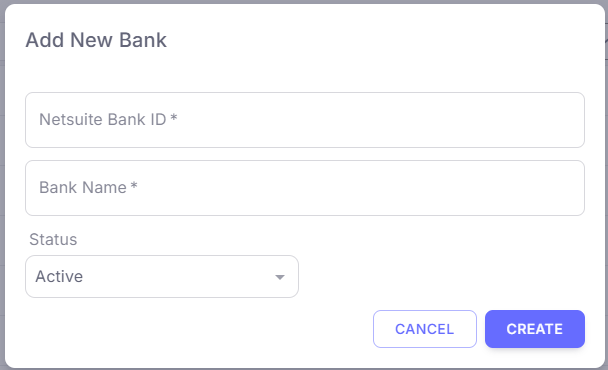 * Fill the required fields and set the status of the bank as required, Active or Inactive, if inactive then the bank will not be visible on the other pages.
* Once a bank is saved, a **plus (+) icon** appears next to the bank name.
* Fill the required fields and set the status of the bank as required, Active or Inactive, if inactive then the bank will not be visible on the other pages.
* Once a bank is saved, a **plus (+) icon** appears next to the bank name.
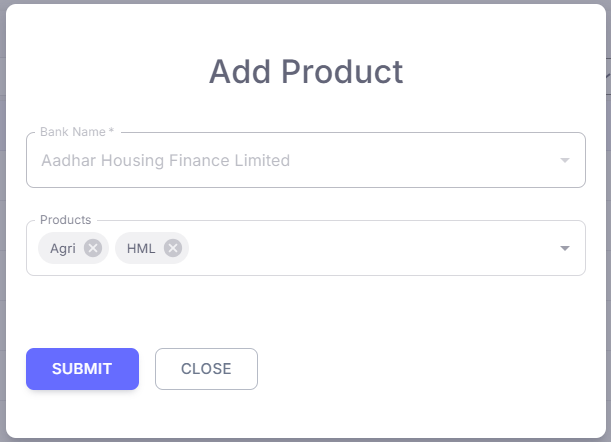
 * Click the **plus icon** to associate products (from NS Product) with that specific bank.
 ***
#### **4.Product Mapping**
* The selected products will now be **mapped to the bank**.
* This product-mapping links the bank to the services/products it offers.
***
#### **5.Bank Product Combination**
***
#### **4.Product Mapping**
* The selected products will now be **mapped to the bank**.
* This product-mapping links the bank to the services/products it offers.
***
#### **5.Bank Product Combination**
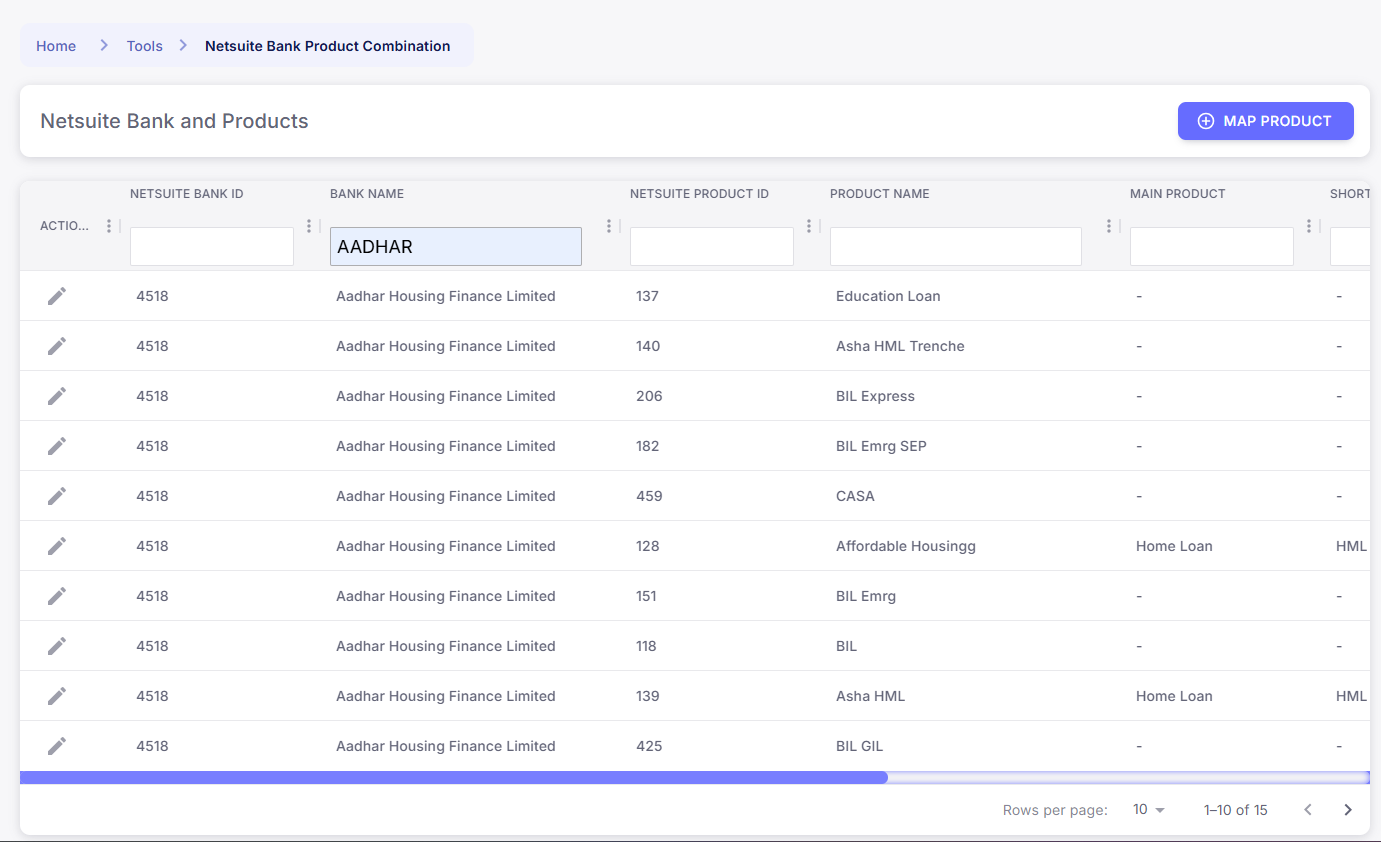 * To **view all mappings**, go to the **Bank Product Combination** module.
* This section displays all banks along with their associated products in a structured format.
***
### **Outcome**
After completing the steps above, each bank will have its own set of mapped products visible under the **Bank Product Combination** module, making it easy to track and manage offerings.
**Prepared By:** Aparmita Srivastav
* To **view all mappings**, go to the **Bank Product Combination** module.
* This section displays all banks along with their associated products in a structured format.
***
### **Outcome**
After completing the steps above, each bank will have its own set of mapped products visible under the **Bank Product Combination** module, making it easy to track and manage offerings.
**Prepared By:** Aparmita Srivastav