
Objective
The objective of this section is to enable users to efficiently manage, track, and process bills in the B2B Web Portal. By utilizing the Bills section, users can view, update, and track the status of various bills for faster approvals and better management.Process Steps
Step 1: Login to the B2B Web Portal
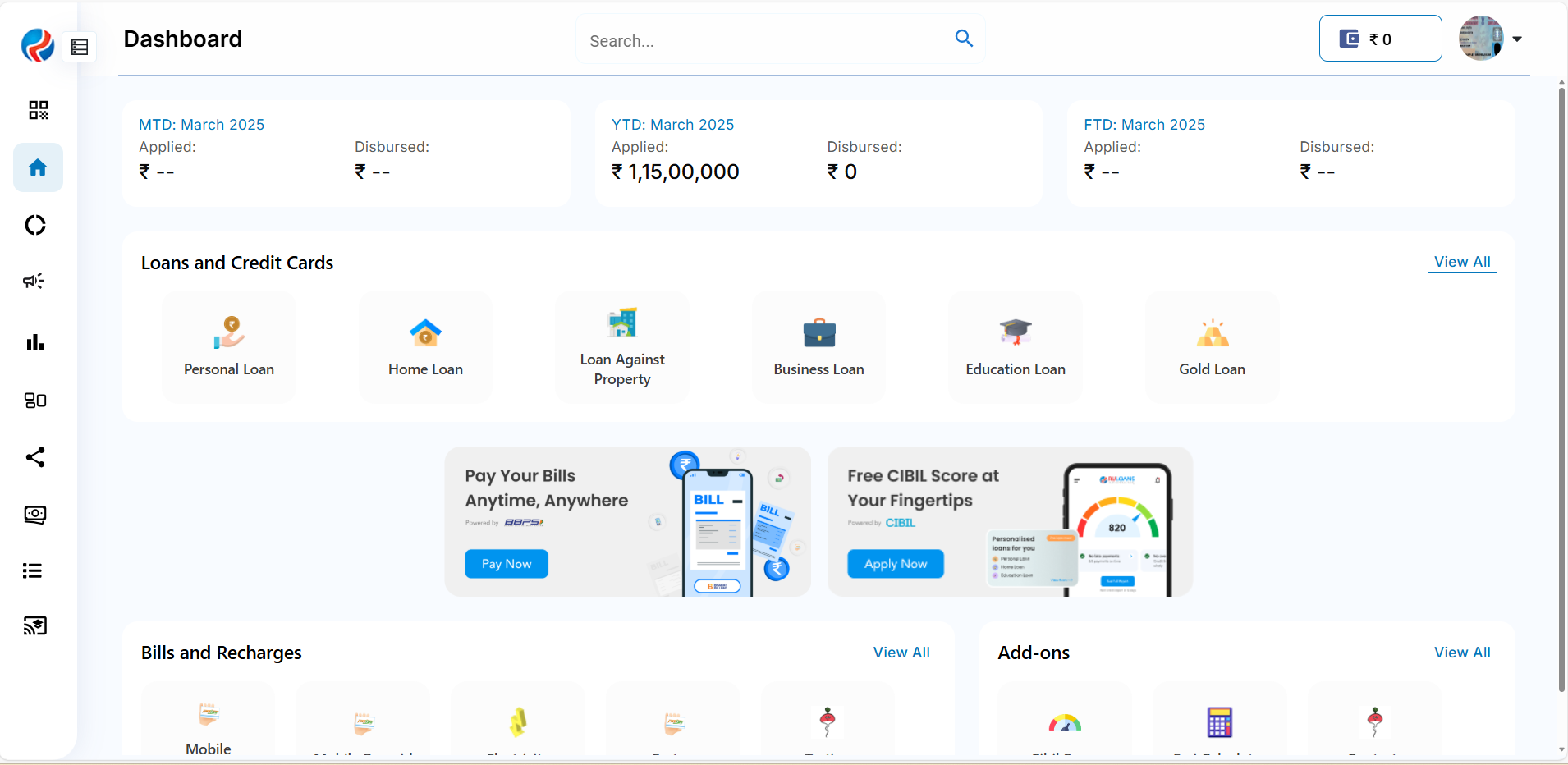
The user logs in using their provided credentials.Upon successful login, the B2B Dashboard will appear.
Step 2: Navigate to the Bills Section
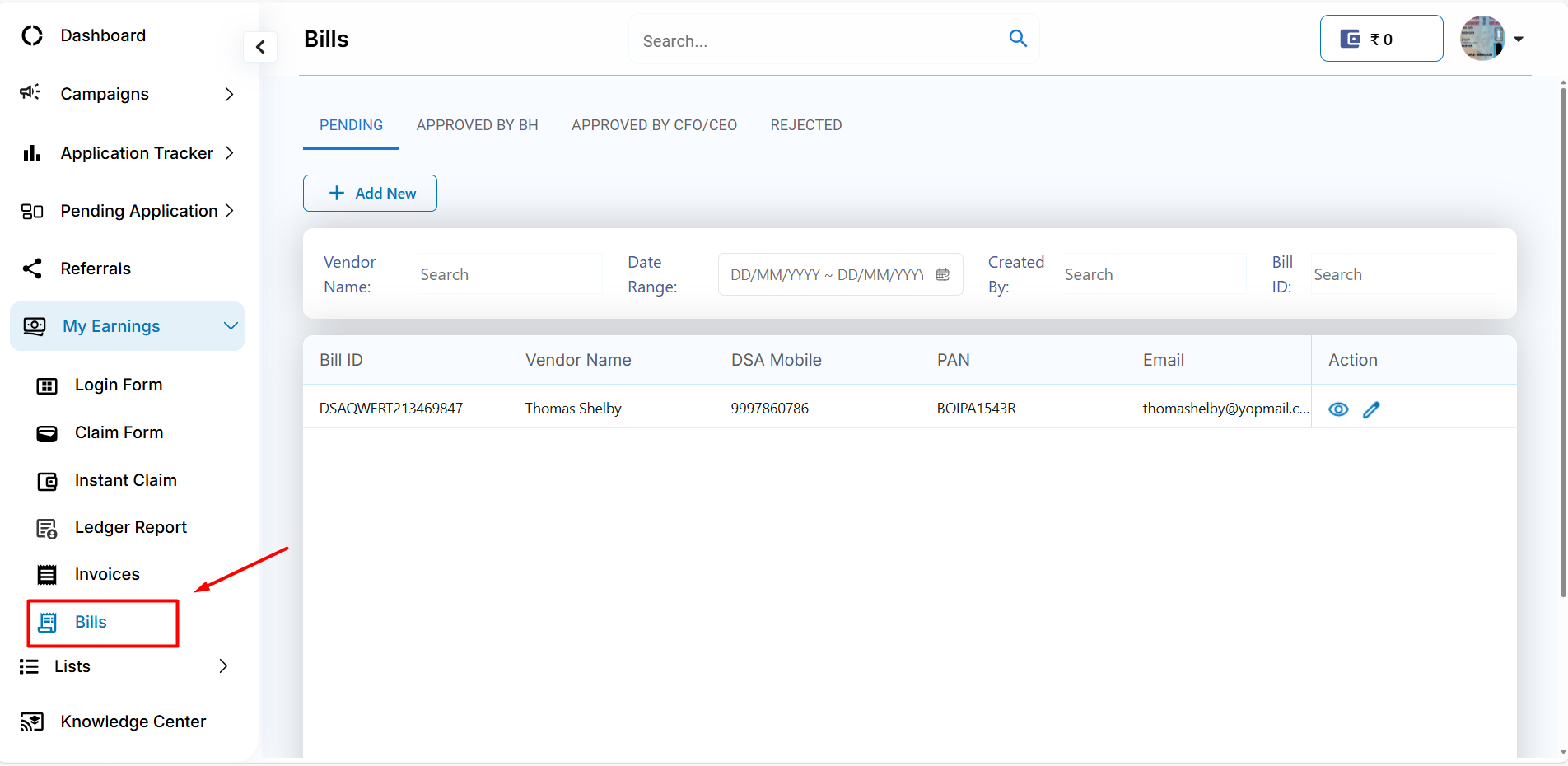
Access the Bills section by clicking on the Bills tab in the main menu on the left.The system will redirect the user to the Bills Overview Page.
Step 3: Overview of the Bills Section
On the Bills Overview Page, the following sections will be displayed:Tabs for different bill statuses:
- Pending
- Approved by BH
- Approved by CFO/CEO
- Rejected
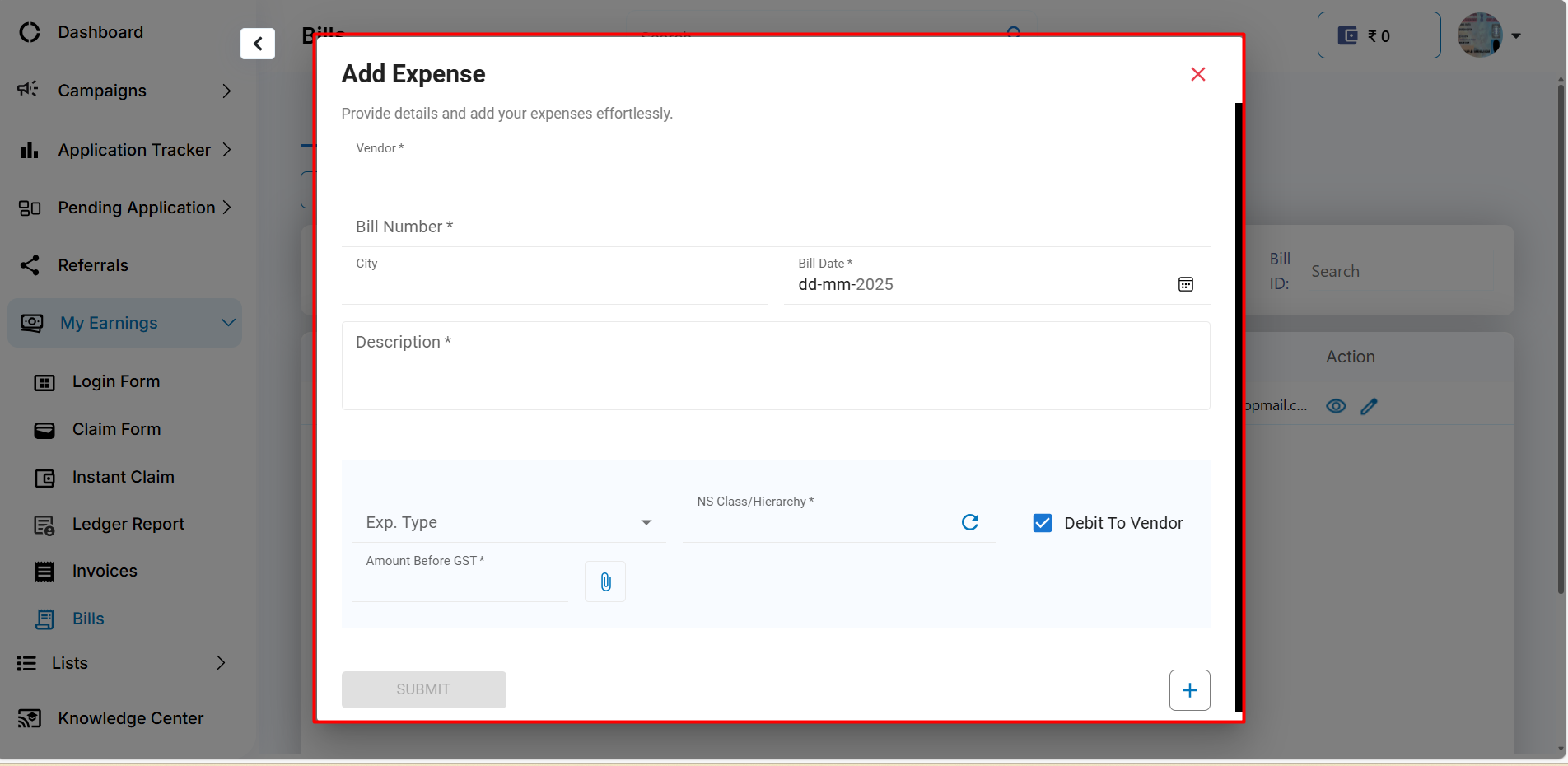
- Vendor – The user is required to select or enter the Vendor for the bill. This could be the supplier or service provider associated with the bill.
- Bill Number – A unique number identifying the bill. This field is mandatory for identification and tracking.
- City – The user is required to select the city for the bill.
- Bill Date – The date when the bill was generated or received.
- Description – A brief description of the expense or service for which the bill was generated.
- Expense Type – A dropdown menu for the user to select the type of expense (e.g., travel, office supplies, etc.).
- Amount Before GST – The amount before applying GST (Goods and Services Tax). This helps in calculating the total payable amount after tax.
- NS Class/Hierarchy – A field related to the classification or hierarchy for accounting or internal categorization.
- Debit to Vendor – A checkbox option to mark whether the expense should be debited to the vendor, indicating that this amount will be due from the vendor.
- Attach Files – An option to upload related documents or receipts for the bill (indicated by the paperclip icon).
- Submit – After filling in all the necessary information, the user can click on Submit to save the expense and add it to the system.
Step 4: Search and Filter Bills
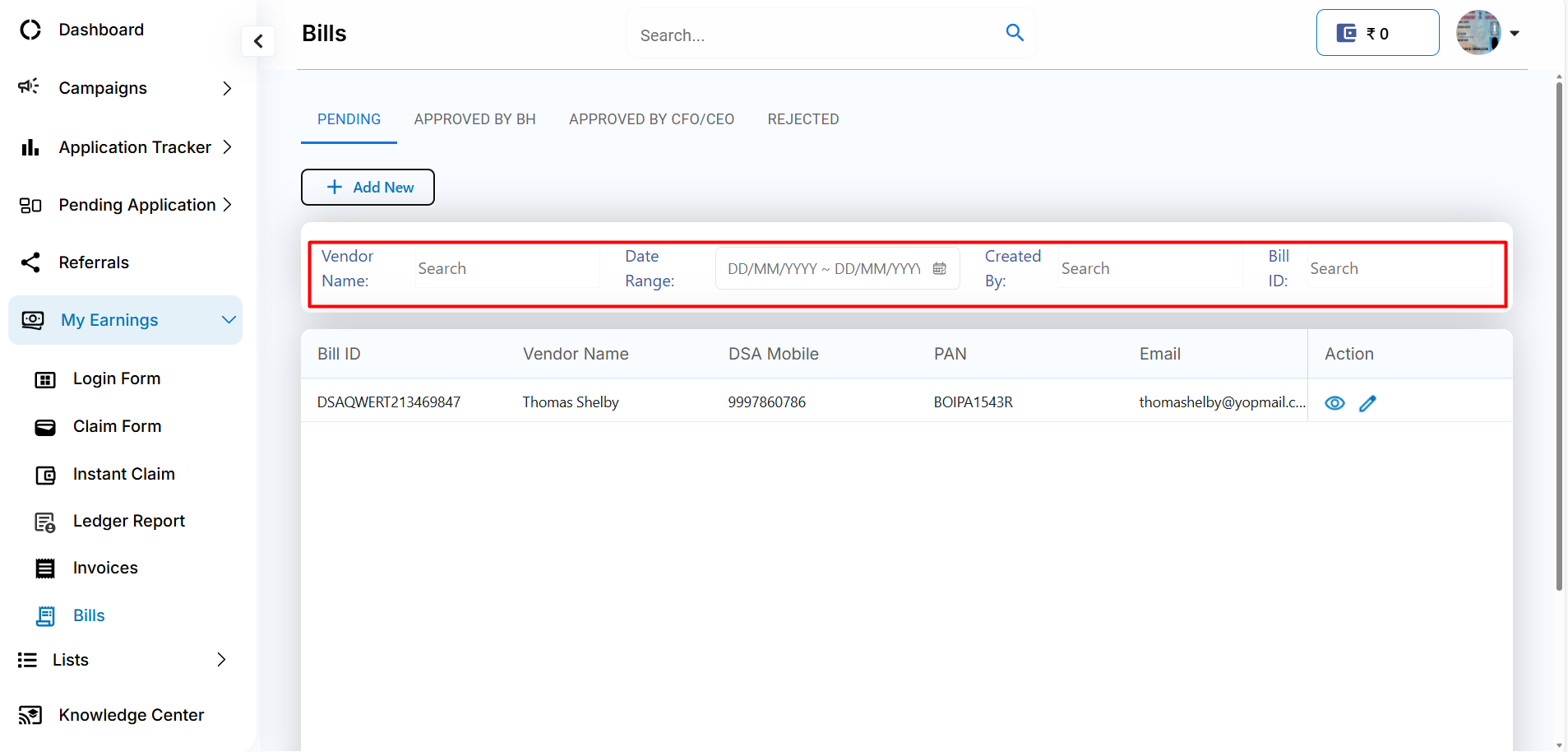
Users can search and filter bills using the following options:- Vendor Name – Search by vendor name
- Date Range – Filter using specific dates
- Created By – Filter bills by user who created them
- Bill ID – Search by bill identifier
Step 5: Actions on Bills
View Bill
Click View to see detailed bill information.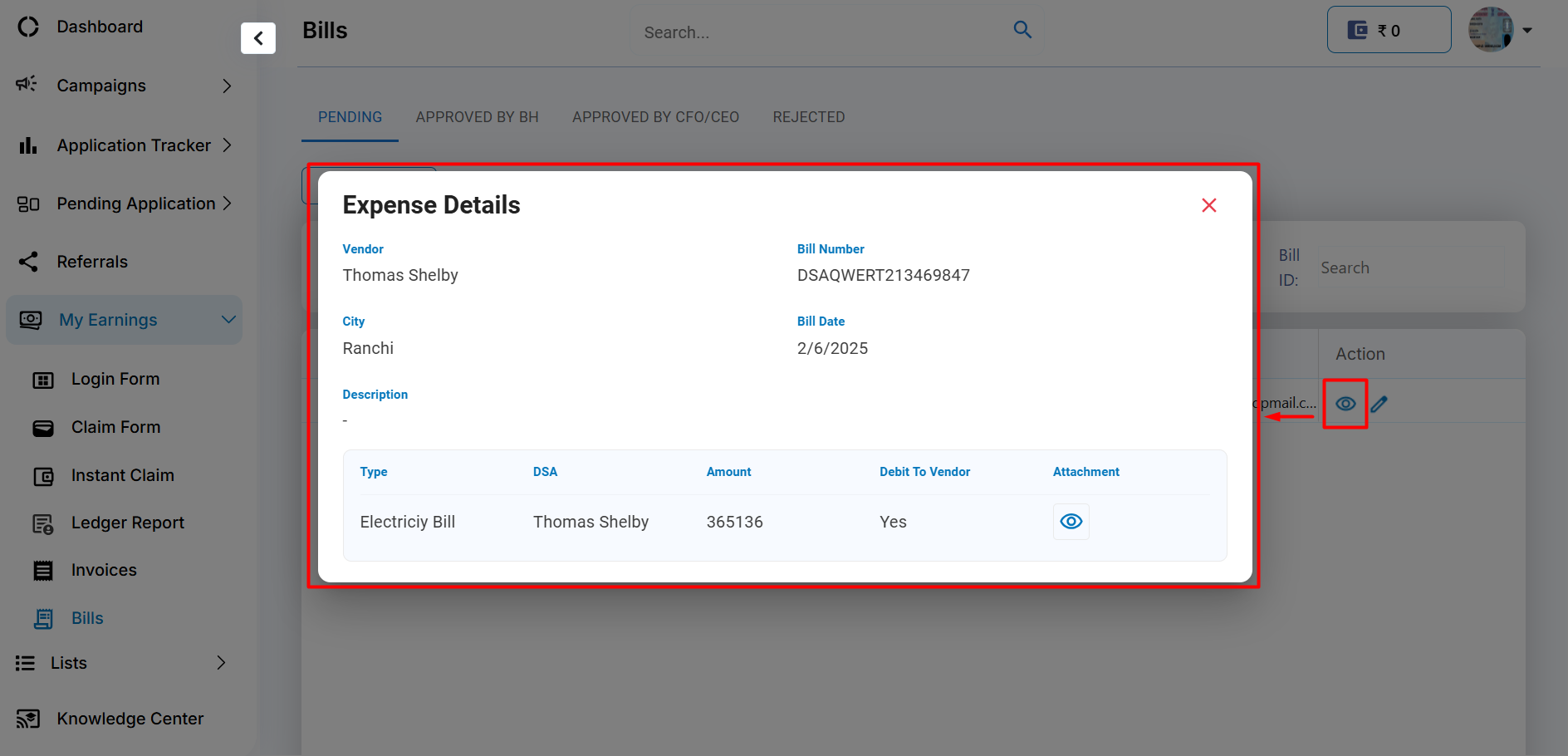
Edit Bill
Click Edit to modify an existing bill.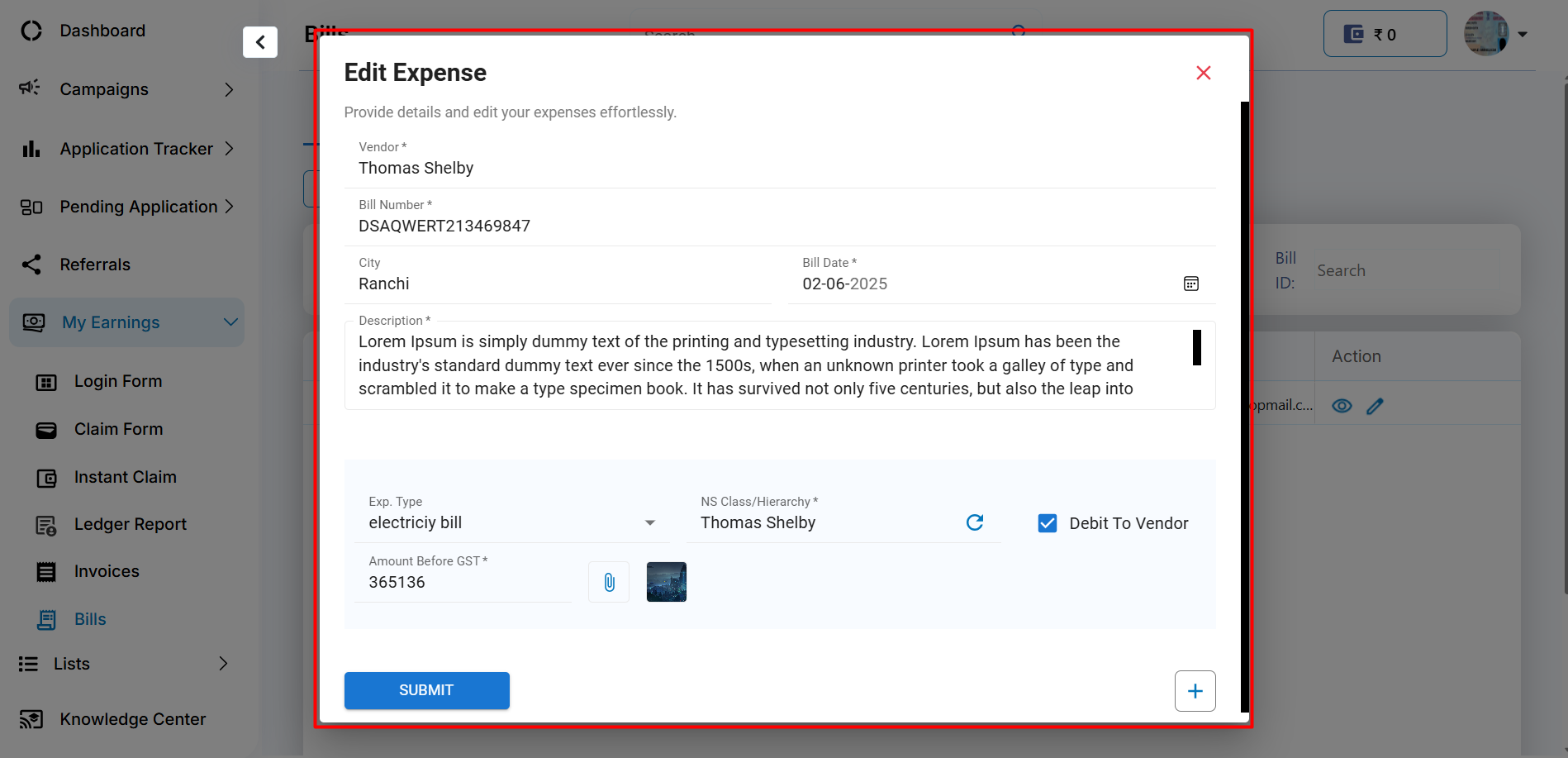
Step 6: Bill Tracking and Status Updates
Each bill displays its current status such as:- Pending
- Approved by BH
- Approved by CFO/CEO
- Rejected
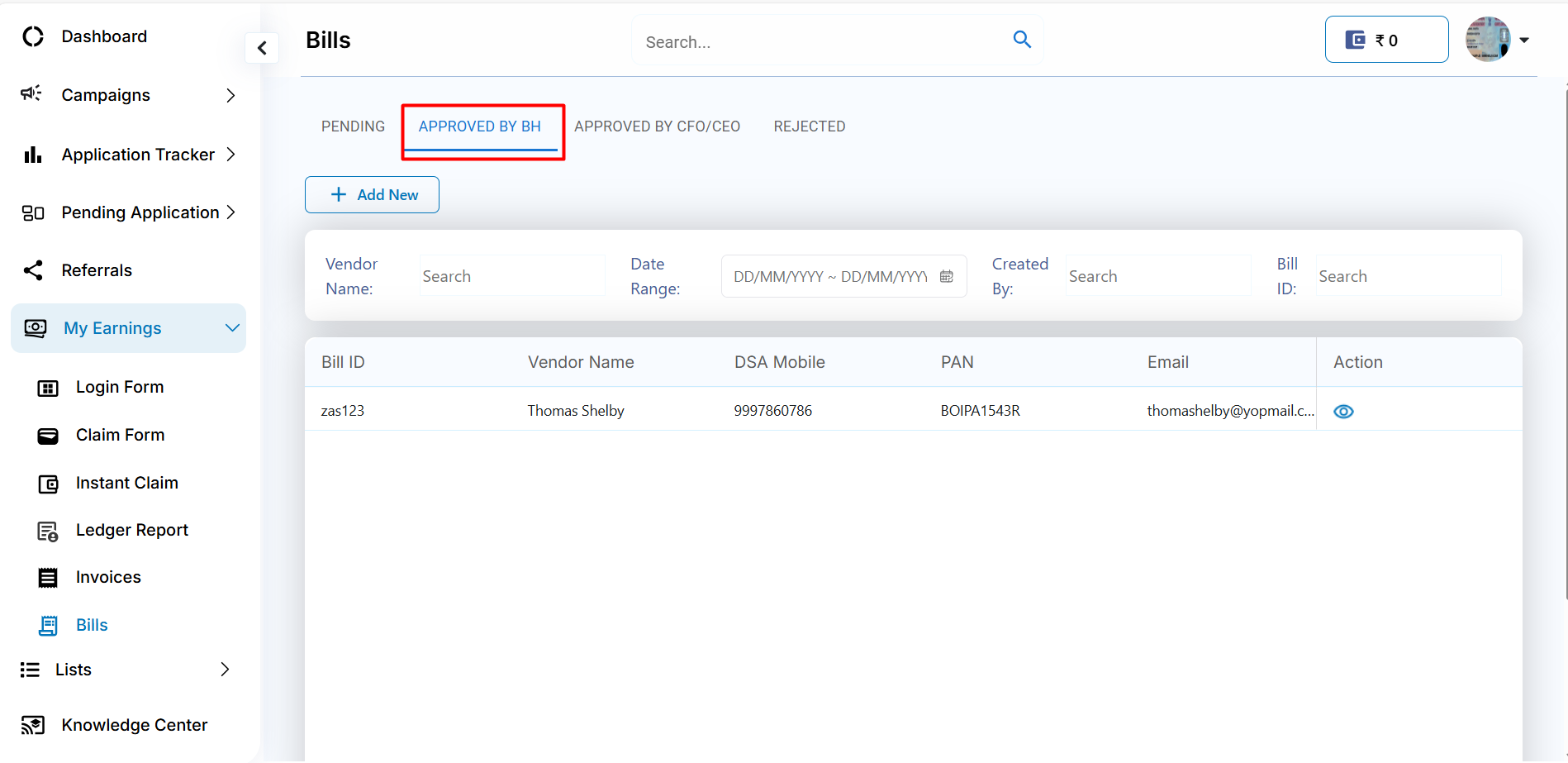
Conclusion
By following the above structured steps, users can:- Track and manage bills efficiently until completion
- Sync all bill-related data for full visibility and faster processing