
Invoices Section – Process Flow (Ruconnect B2B)
Objective
The objective of this section is to enable users to efficiently view, track, and manage invoices in the Ruconnect B2B portal. This section provides complete visibility into invoice details, statuses, filters, and available actions to ensure accurate billing and smooth financial operations.Step 1: Login to Ruconnect B2B
- The user logs in to the Ruconnect B2B portal using valid credentials.
- Upon successful login, the B2B Dashboard is displayed.
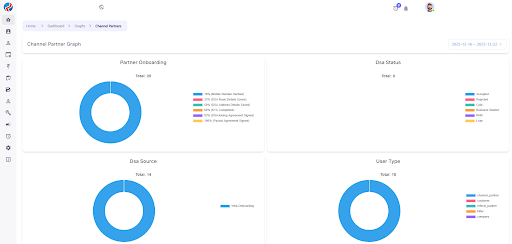
Step 2: Navigate to the Invoices Section
- From the left-side menu, navigate to: My Earnings → Invoices
- The system redirects the user to the Invoices List Page.
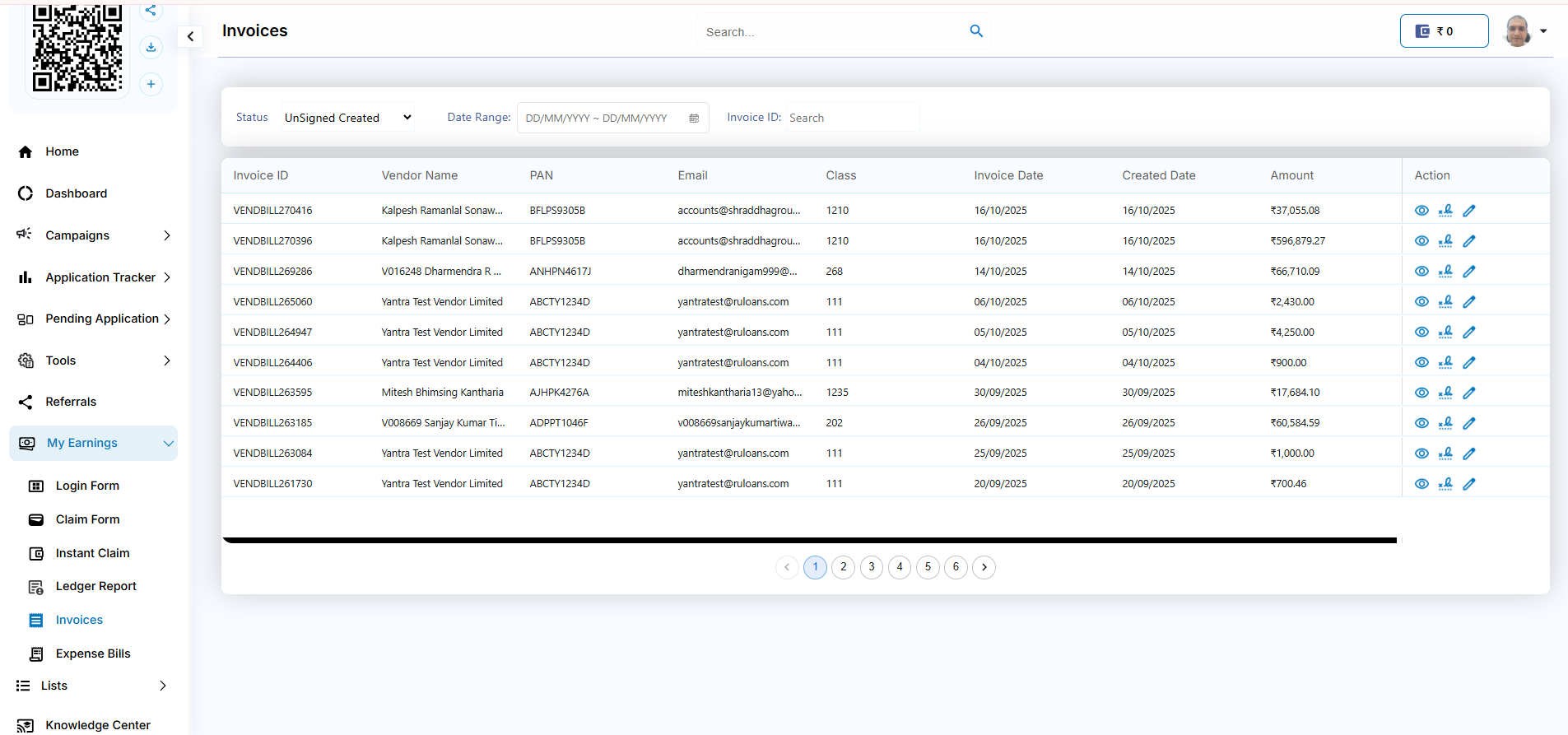
Overview of the Invoices Section
The Invoices page displays invoices categorized by their current status. These status tabs help users quickly identify invoices at different stages of the invoice lifecycle.Invoice Status Definitions
- Pending – Invoice has been created and is awaiting further action or review.
- Unsigned Created – Invoice has been generated but has not yet been viewed or signed by the vendor.
- Unsigned Viewed – Invoice has been viewed by the vendor but is not yet signed or approved.
- Approved By Vendor – Invoice has been reviewed and approved by the vendor.
- Approved By NS – Invoice has been approved by the NS team and is ready for further processing.
- Rejected By Vendor – Invoice has been reviewed and rejected by the vendor.
- Rejected By CRM – Invoice has been rejected during CRM review.
- Rejected By NS – Invoice has been rejected by the NS team during final verification.
- Invalid Data – Invoice contains missing, incorrect, or inconsistent information and requires correction.
Search & Filter Invoices
Users can filter invoices using the following options available at the top of the page:- Status – Filter invoices based on invoice status.
- Date Range – Filter invoices within a specific date range.
- Invoice ID – Search invoices using the unique invoice ID.
Invoices List View
Each invoice is displayed in a tabular format with the following details:- Invoice ID – Unique system-generated invoice reference number.
- Vendor Name – Name of the vendor or partner associated with the invoice.
- PAN – PAN linked to the vendor.
- Email – Registered email ID associated with the invoice.
- Class – Accounting or financial classification used for internal tracking.
- Invoice Date – Date mentioned on the invoice.
- Created Date – Date on which the invoice was created in the system.
- Amount – Total invoice amount payable.
Actions on Invoices
Under the Action column, the following options are available based on invoice status and user permissions:- View – Opens the detailed invoice view.
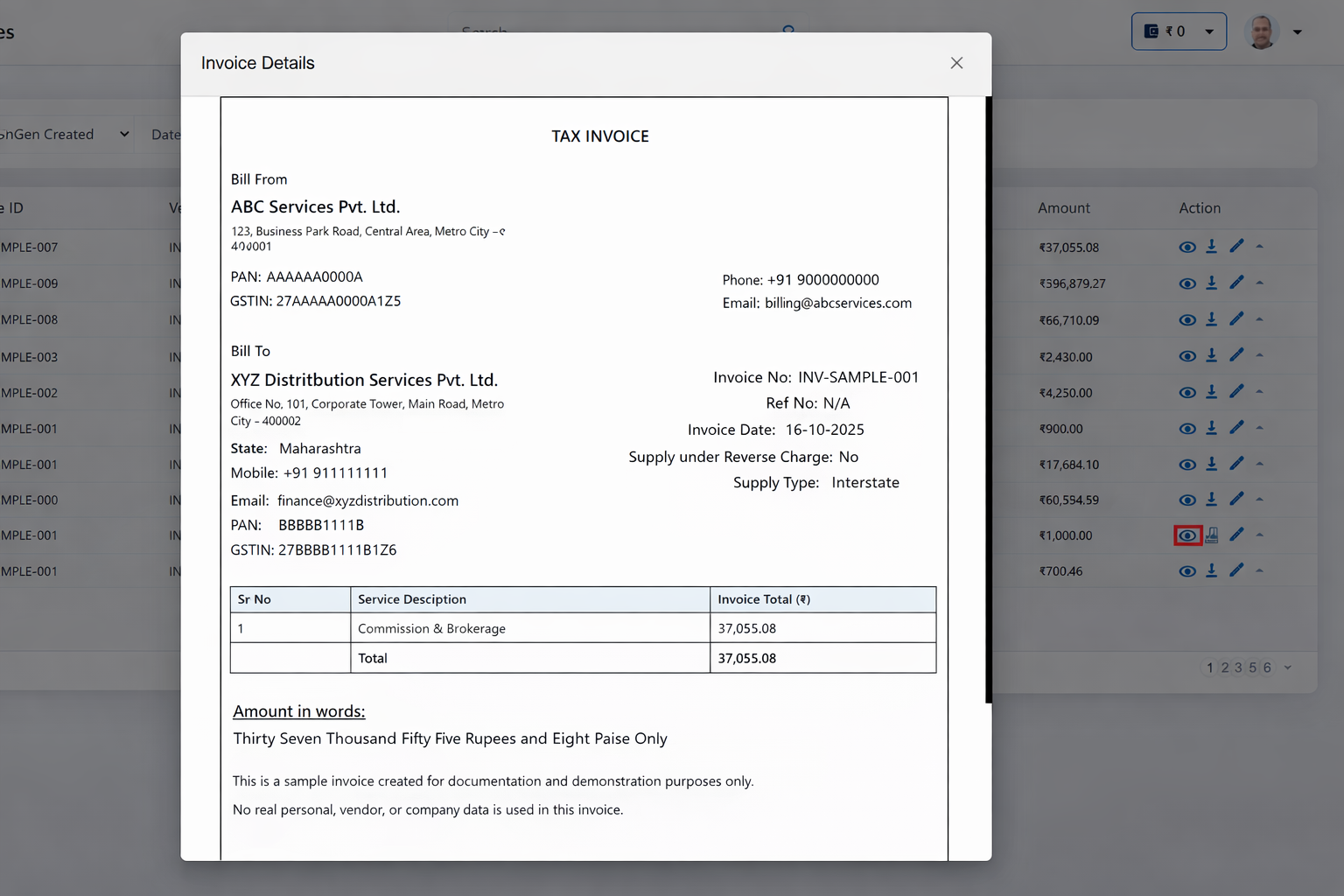
- Sign – Allows users to download the invoice for offline reference.
- Edit – Enables modification of invoice details for eligible invoices.
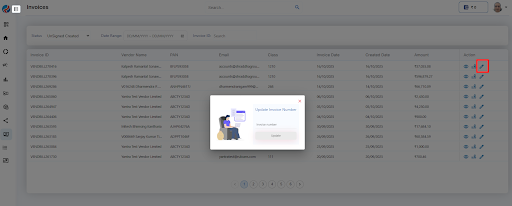 Any action performed on an invoice is reflected in real time in the invoice list.
Invoice Status Tracking
- Invoice status updates automatically as it moves through different approval and verification stages.
- Status changes are reflected in real time under the respective tabs.
Conclusion
By following the above structured flow, users can:- View and track invoices across all statuses.
- Search and filter invoices efficiently.
- Perform required actions such as view, edit, or download.
- Maintain accurate financial visibility and control.