
CRM User Auto Deactivation and Reactivation
Overview
A new inactivity control mechanism has been introduced in the CRM to strengthen access governance and reduce risks from dormant user IDs. If a user does not log in for 45 continuous days, the system will automatically deactivate the account. The user will be prevented from accessing CRM until the account is manually reactivated by authorized Admin/Ops users after Business Head (BH) approval.Key Features
Automatic Inactivity Detection
Users inactive beyond the defined duration are automatically deactivated.Login-Based Measurement
Only successful login activity is considered for calculating inactivity.Manual & Controlled Reactivation
Reactivation is not automatic and must be performed by Admin/Ops.RBAC Enabled
Only authorized roles can see and use the activation option.User List – Active Status Indicator
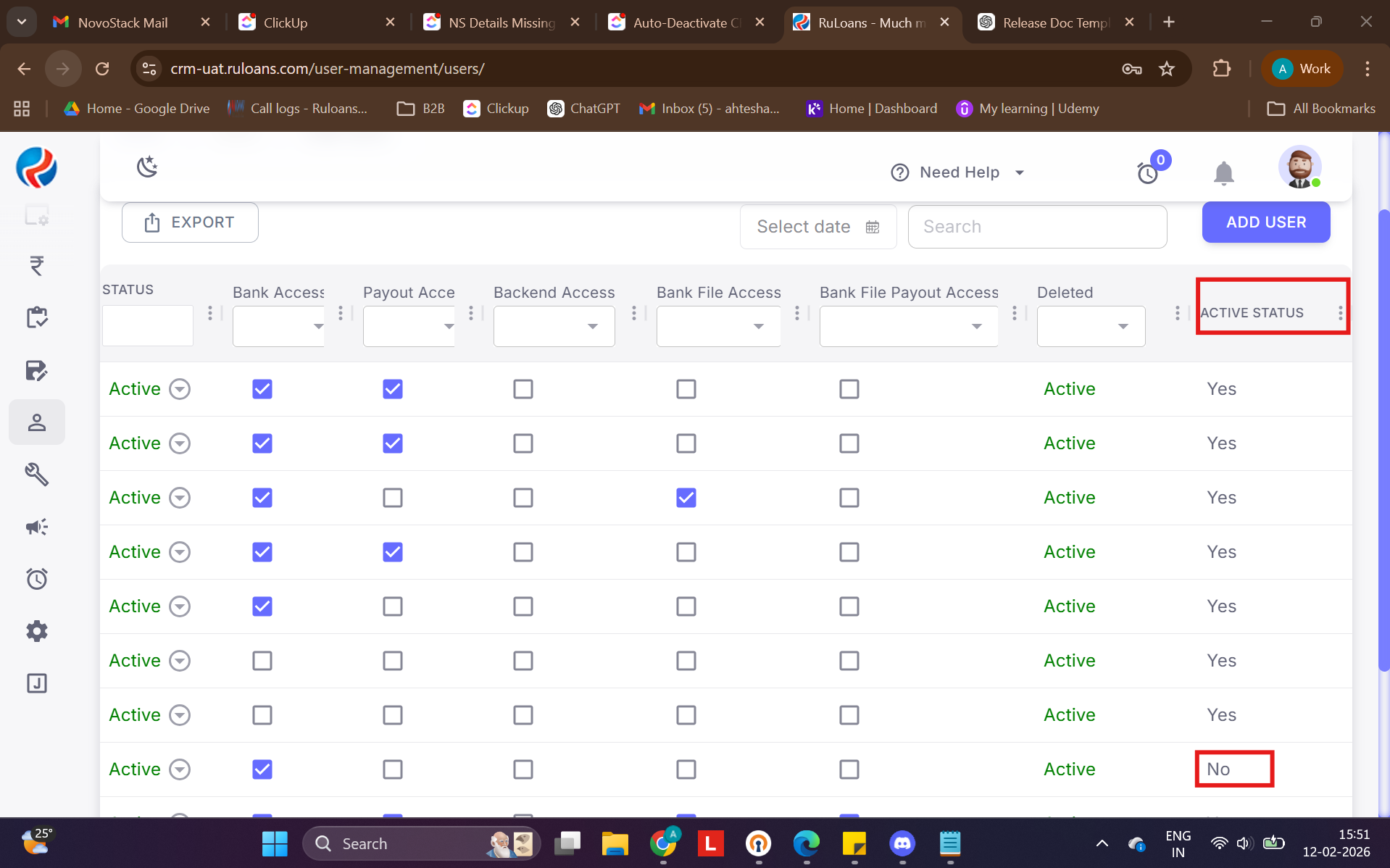 A new Active Status column is available in the CRM Users list.
| Value | Meaning |
|------|---------|
| Yes | User account is active and login is allowed |
| No | User is deactivated due to inactivity |
A new Active Status column is available in the CRM Users list.
| Value | Meaning |
|------|---------|
| Yes | User account is active and login is allowed |
| No | User is deactivated due to inactivity |
Auto-Deactivation Rule
If a user does not log in for 45 continuous days, the system will:- Deactivate the account
- Prevent login
- Block access to CRM modules
What Counts as Activity?
The system considers: ✔ Successful login The following do not count:- Page visits
- Background API activity
- Auto sessions
Login Experience for Deactivated User
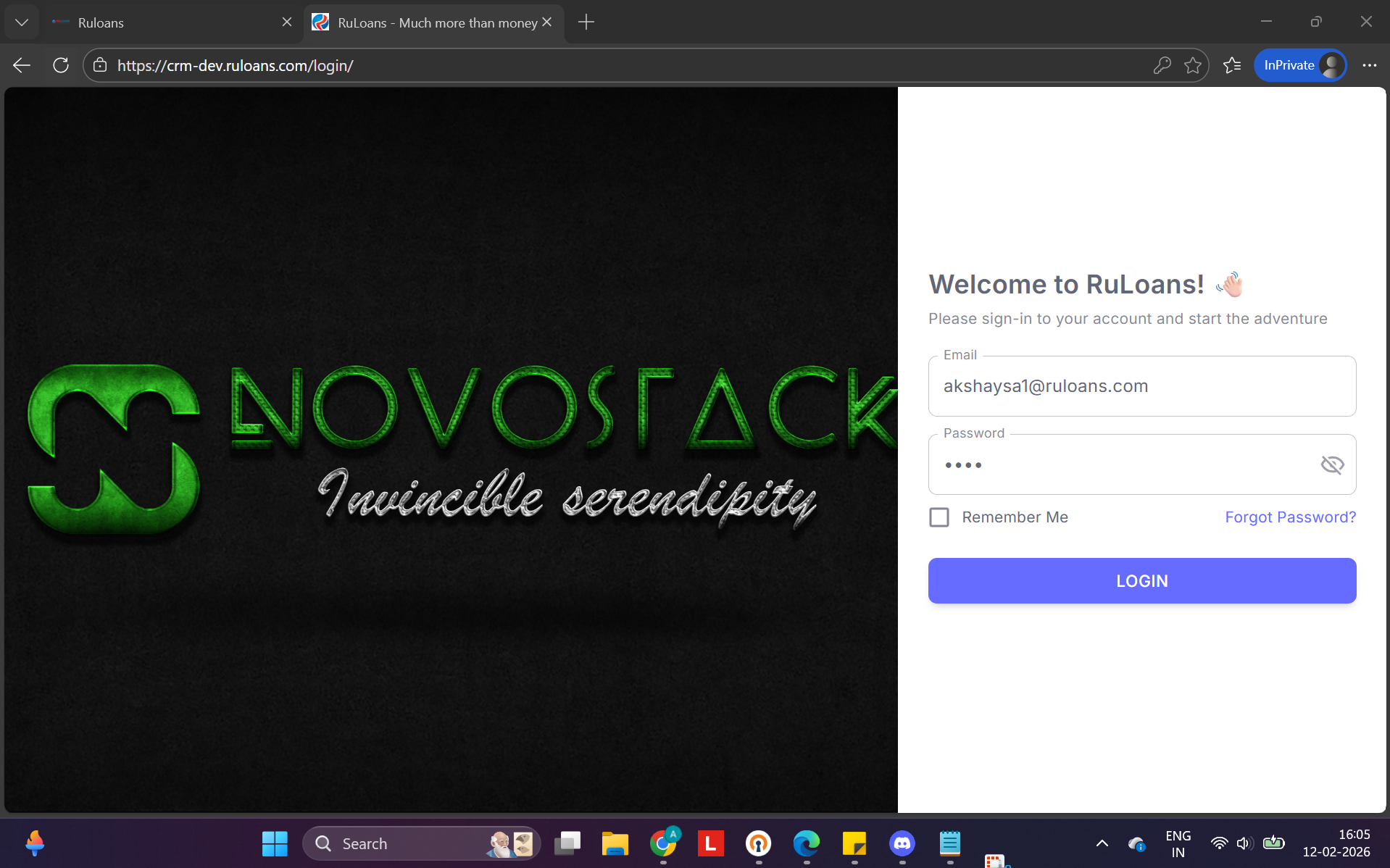
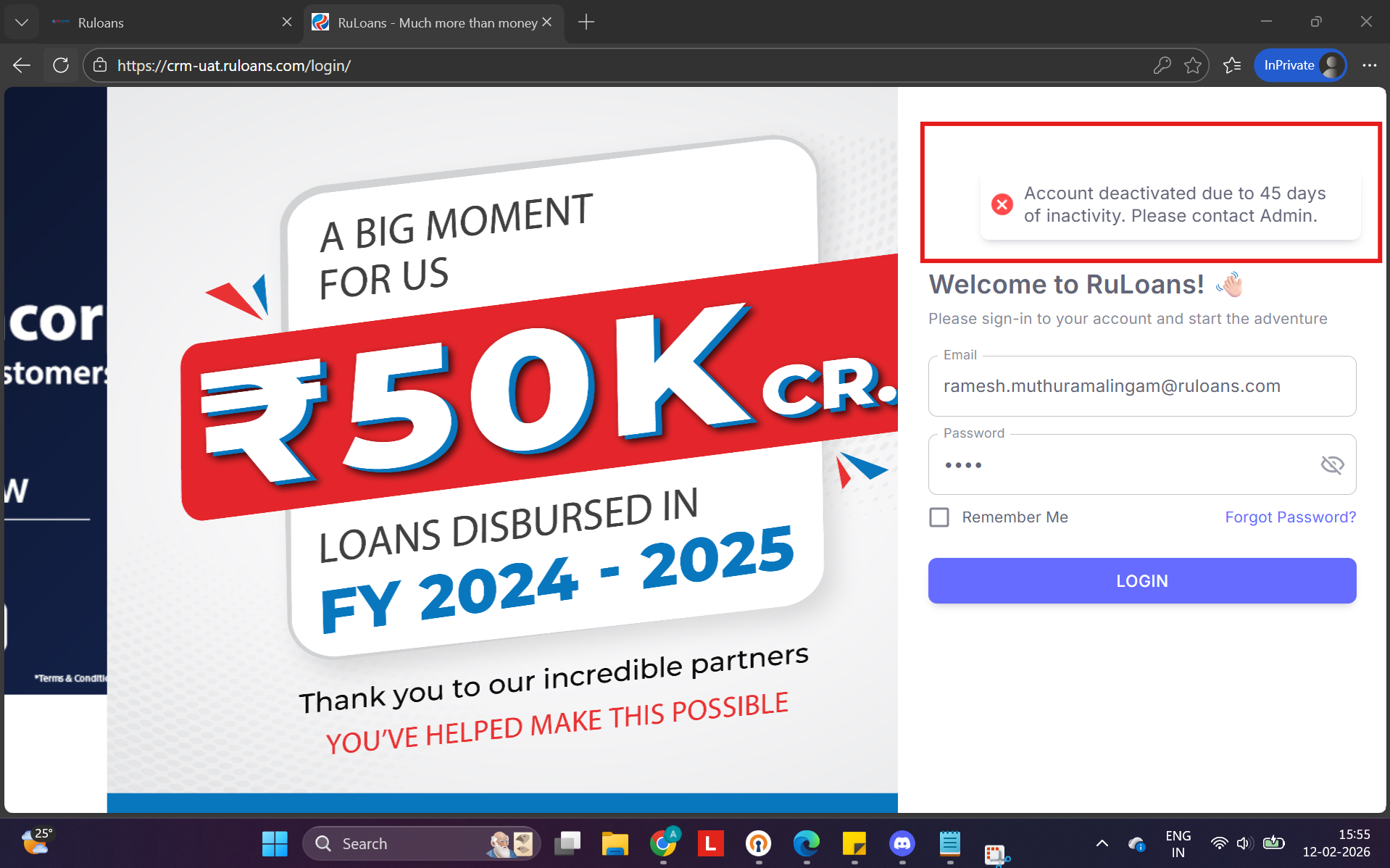 If a user attempts to log in after crossing the inactivity threshold, the following error appears:
“Account deactivated due to 45 days of inactivity. Please contact Admin.”
If a user attempts to log in after crossing the inactivity threshold, the following error appears:
“Account deactivated due to 45 days of inactivity. Please contact Admin.”
CRM UI Change – Activate User Option
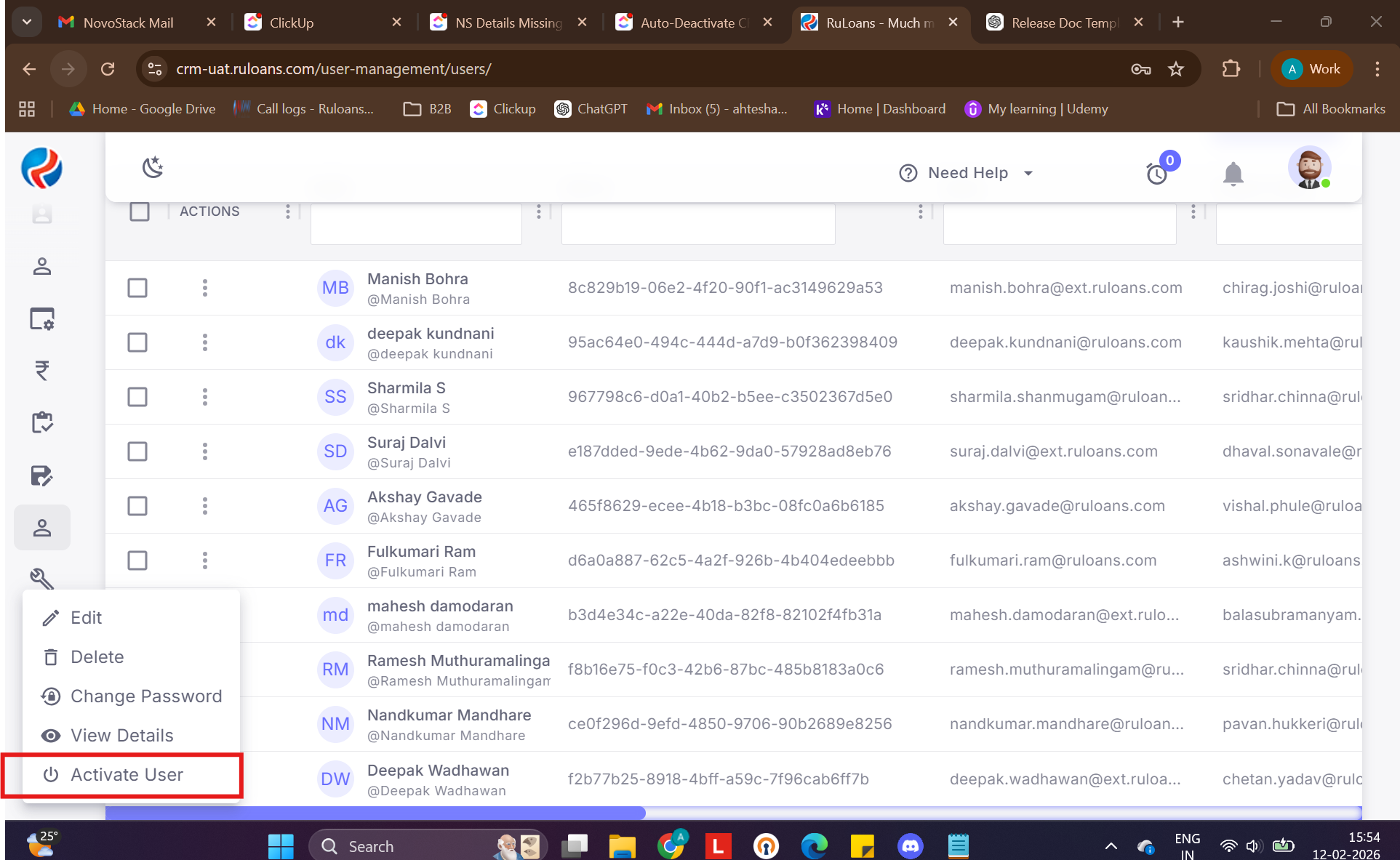 A new option Activate User is available inside the Actions menu.
Visibility Rules
- Available only for Admin/Ops roles
- Shown only when user is Deactivated (Inactivity)
How to Reactivate a User
Step 1 – Receive Approval
BH shares approval manually via official communication (outside CRM).Step 2 – Admin Action
Open CRM Users → Actions → Activate User.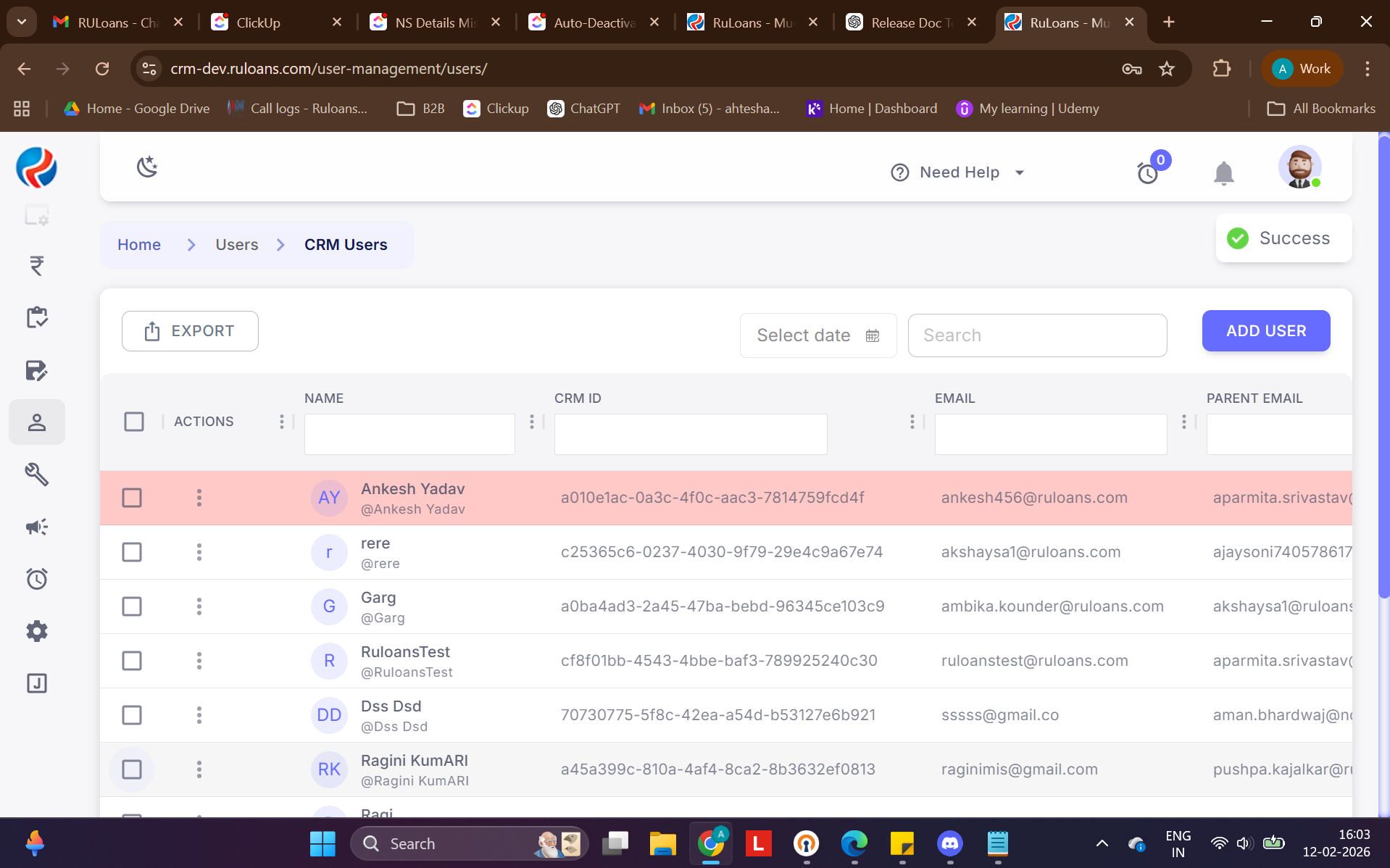
Step 3 – Immediate Effect
User status becomes Active instantly.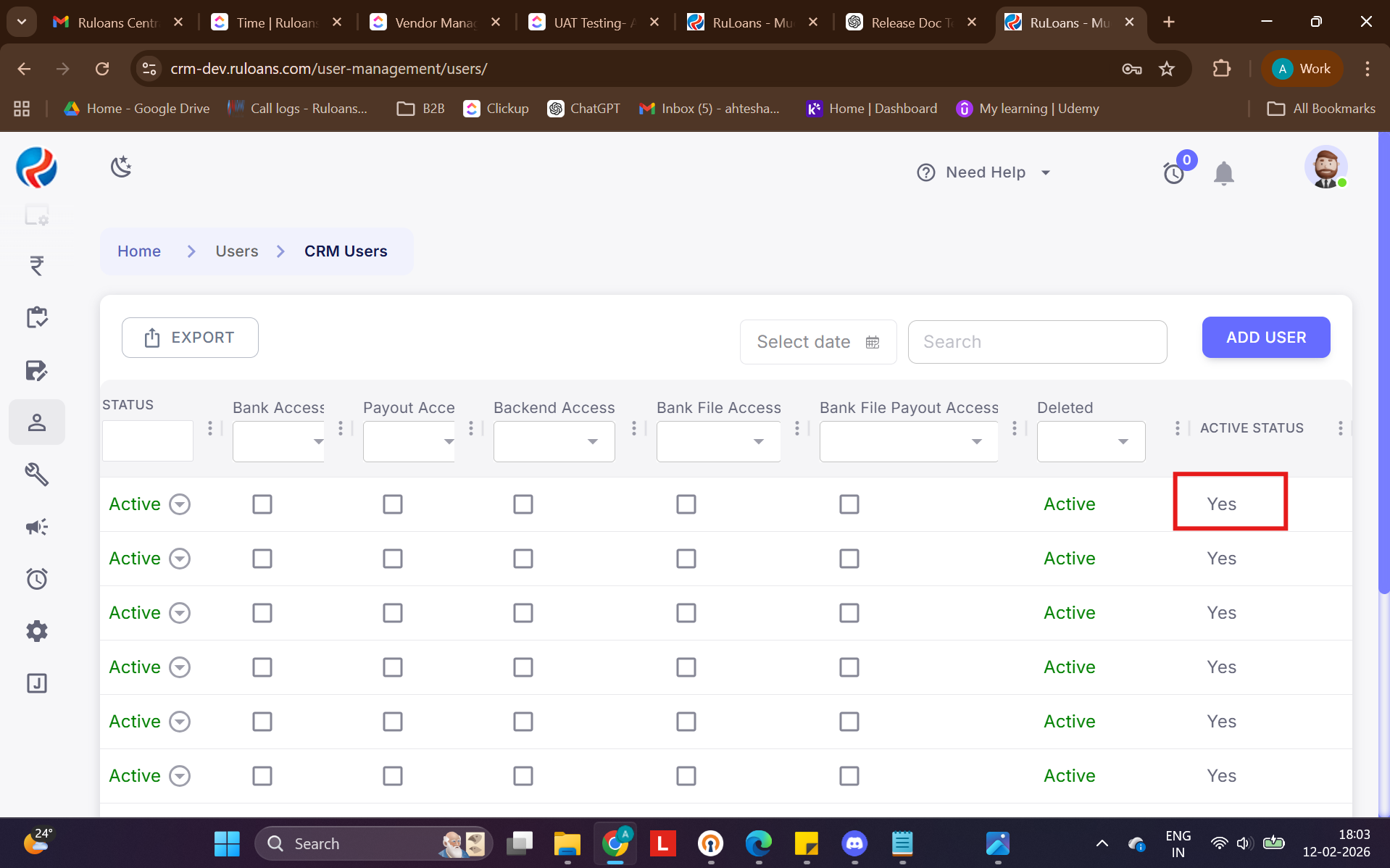
Login After Reactivation
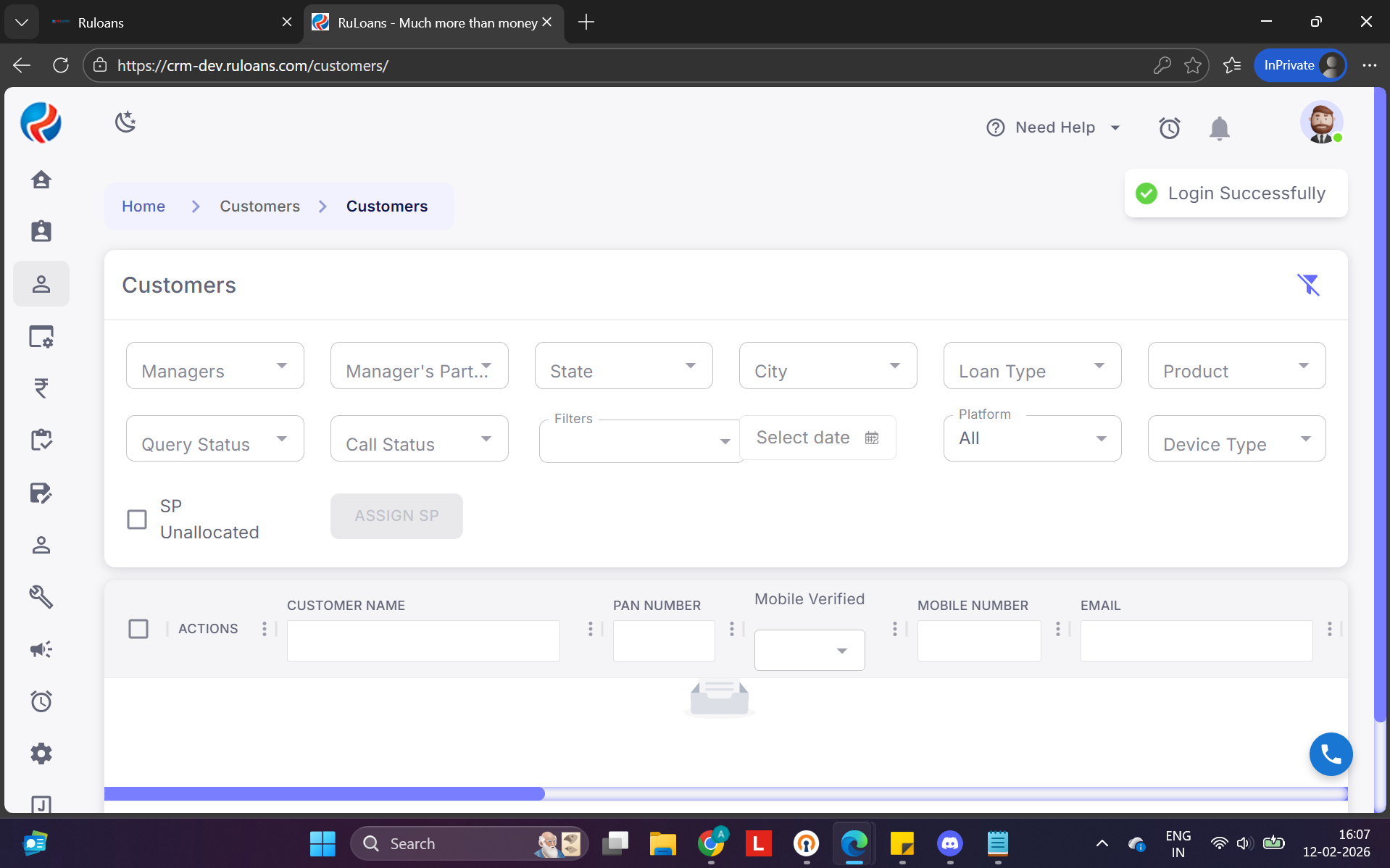 The user can log in normally once activation is completed.
Reactivation Policy
- No automatic or system-driven reactivation exists.
- Approval must be obtained manually from BH.
- Ops/Admin must validate before enabling access.
Important Notes
- This is a compliance and security measure.
- Dormant IDs pose operational risks.
- Access restoration without approval is not allowed.
Summary of Benefits
- Improves access governance.
- Reduces risk from unused accounts.
- Ensures approval-driven control.
- Provides immediate recovery after validation.
Prepared By: Ahtesham Ahmad