
RBAC (Role-Based Access Control) – Functional Documentation
Ruloans CRM → Settings → Role Management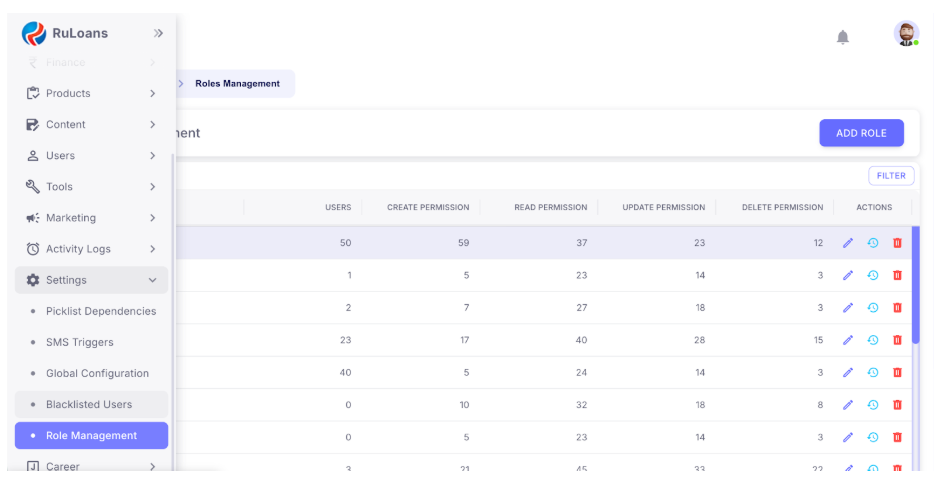
1. Introduction
RBAC (Role-Based Access Control) in Ruloans CRM ensures that each user has access only to the functionalities required for their job role. All permissions are controlled through predefined roles, and every role has module-wise control for Create, Read, Update, and Delete. This helps maintain security, consistency, and operational efficiency across the CRM.2. Access Control for RBAC Management
The RBAC settings can be accessed and managed ONLY by CEO and Super Admin. These two roles exclusively have permission to add new roles, modify existing roles, update module-wise permissions, delete a role (if no users are assigned), and view permission change history (logs). No other role in the CRM has access to the RBAC management section.3. Navigation Path
CRM → Settings → Roles Management This page displays the complete list of system roles along with their permissions.4. Roles Management – Page Overview
The Roles Management table includes the following columns: Role – Name of the role (e.g., HUB_HEAD, CRM_EXECUTIVE, TELE_CALLER, etc); Users – Number of users assigned to that role; Create Permission – Count of modules where the role has create access; Read Permission – Count of modules where the role can view data; Update Permission – Count of modules where the role can edit/update records; Delete Permission – Count of modules where the role can delete entries; Actions – Edit role, view audit logs, delete role.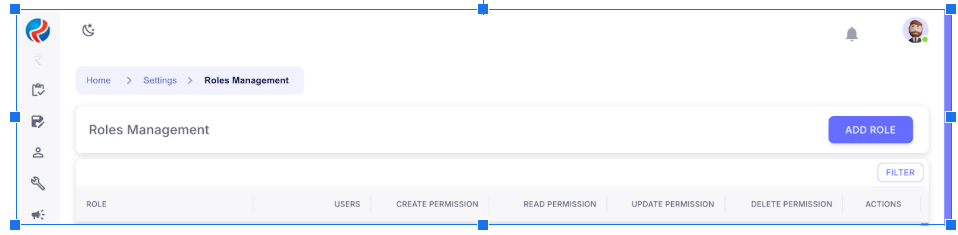
5. Permission Types
Create Permissions allow users to add new leads, add DSAs, create internal records, and upload data.Read Permissions allow users to view leads, access dashboards, view DSA/user details, and read reports.
Update Permissions allow users to edit lead information, modify DSA or master data, and update internal entries.
Delete Permissions allow users to remove records where permitted, delete uploaded data, and delete internal items (with restrictions).
6. Role Actions
Every role row provides three action buttons: Edit – Modify or update permissions; History – View permission change audit log; Delete – Remove the role (only if zero users are assigned).
7. Adding a New Role
Only CEO/Super Admin can click on Add Role, enter the role name, assign permissions module-wise (Create/Read/Update/Delete), and save the role.8. Editing Existing Roles
By clicking on pencil icon under Actions, CEO/Super Admin can update permissions, module access, restrictions, and special access privileges. All changes automatically appear in the audit log.
9. Permission Audit Log
The audit log displays who made the change, what permissions were modified, timestamp, and previous vs new values. This ensures full transparency and traceability.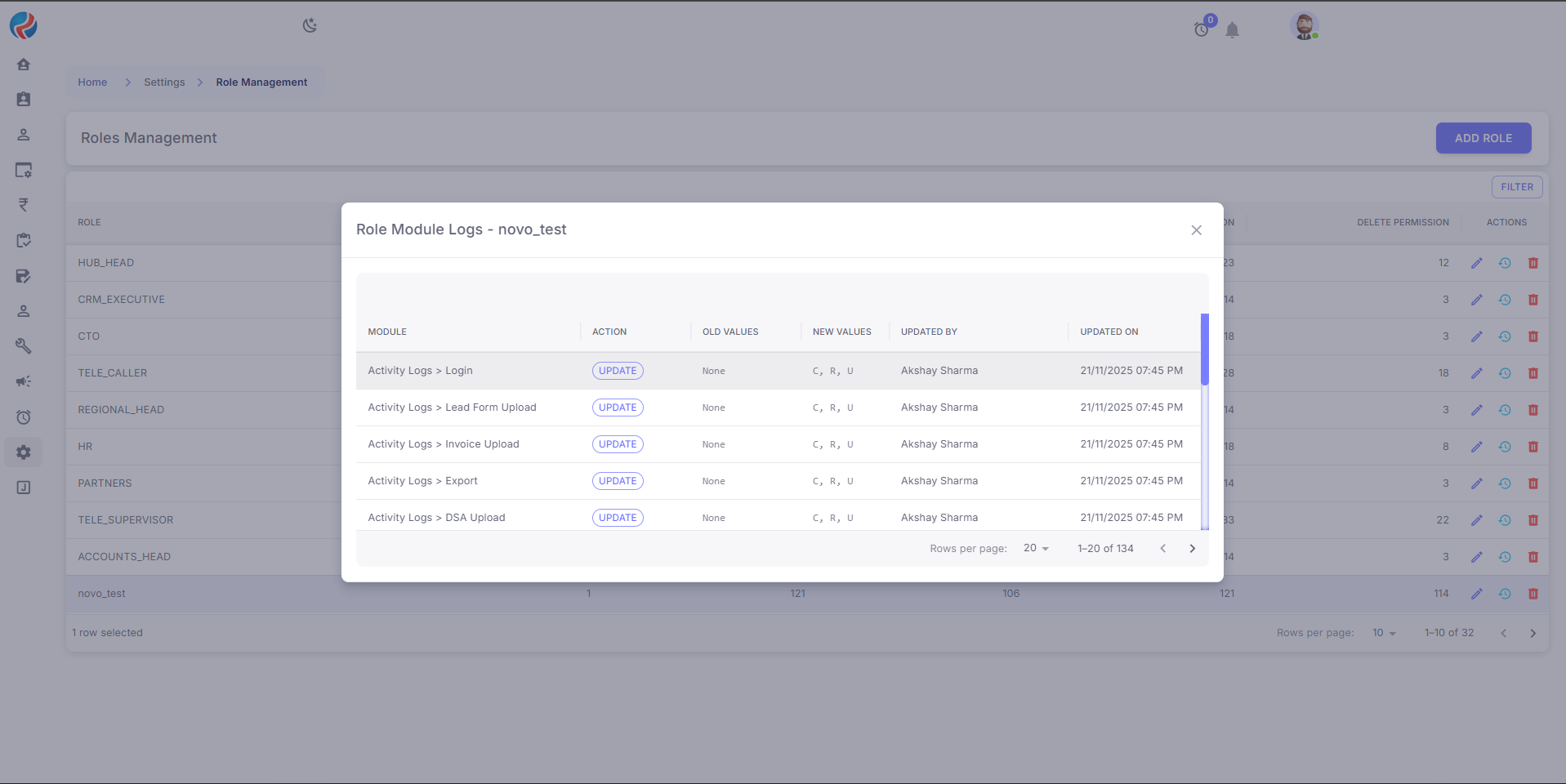
10. Benefits of RBAC in Ruloans CRM
Enhanced Security: Only required access is given. Centralized Control: CEO & Super Admin manage all permissions. Reduced Errors: Prevents accidental access to sensitive modules. Scalability: New roles can be created as departments grow. Compliance Ready: Helps maintain strict access guidelines.11. Example Roles (based on actual system)
HUB_HEAD – Wide read and update access with limited delete rights.CRM_EXECUTIVE – Daily operations role with moderate read and update permissions.
TELE_CALLER – Can read and update leads with limited create permissions.
REGIONAL_HEAD – Branch-level reporting and approvals with controlled update and delete rights.
12. Summary
Ruloans CRM’s RBAC ensures a secure and structured permission system where only CEO and Super Admin control role permissions, all other roles receive controlled and module-wise restricted access, audit logs maintain transparency, and permissions remain aligned with organizational hierarchy. Prepared By:- Aparmita Srivastav
- Ahtesham Ahmad