
Payout Claim Access & File Download Process Documentation
Overview
This document outlines the process for accessing payout claims in the RuLoans CRM and downloading the related payout claim file from Zoho WorkDrive for review or further processing.Prerequisites
Before starting, ensure:- You have valid login credentials for the RuLoans CRM.
- You have access to Zoho WorkDrive.
- Required permissions are enabled for viewing payout claims and downloading files.
Step-by-Step Process
Step 1: Login to RuLoans CRM
- Open the browser.
- Navigate to: crm.ruloans.com
- Log in using your authorized credentials.
Step 2: Access Finance Module
- From the main navigation menu, click on the Finance tab.
Step 3: Open Claim Section
- Under the Finance module, click on Claim.
Step 4: Navigate to Payout Claims
- Click on the Payout option.
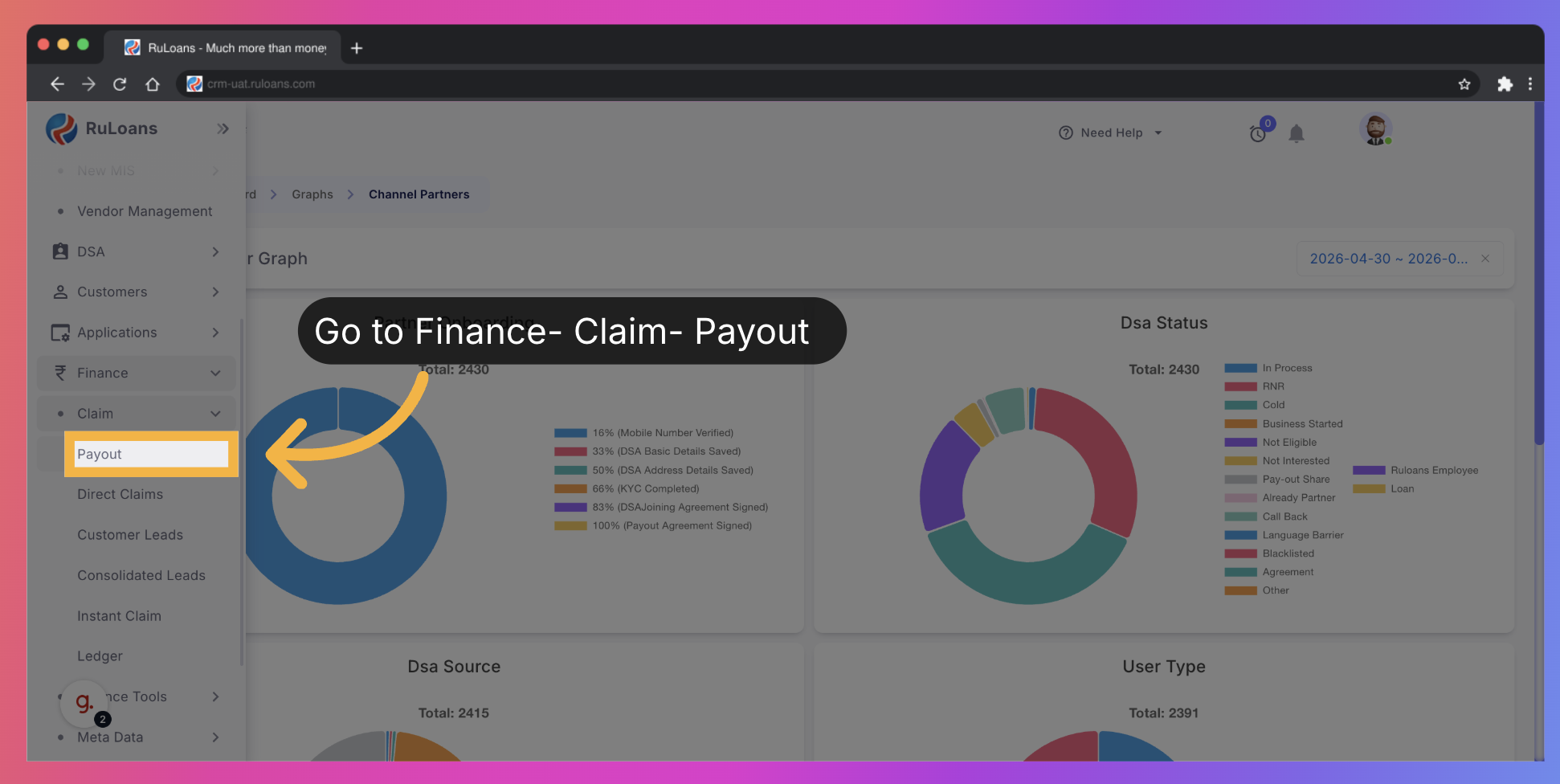
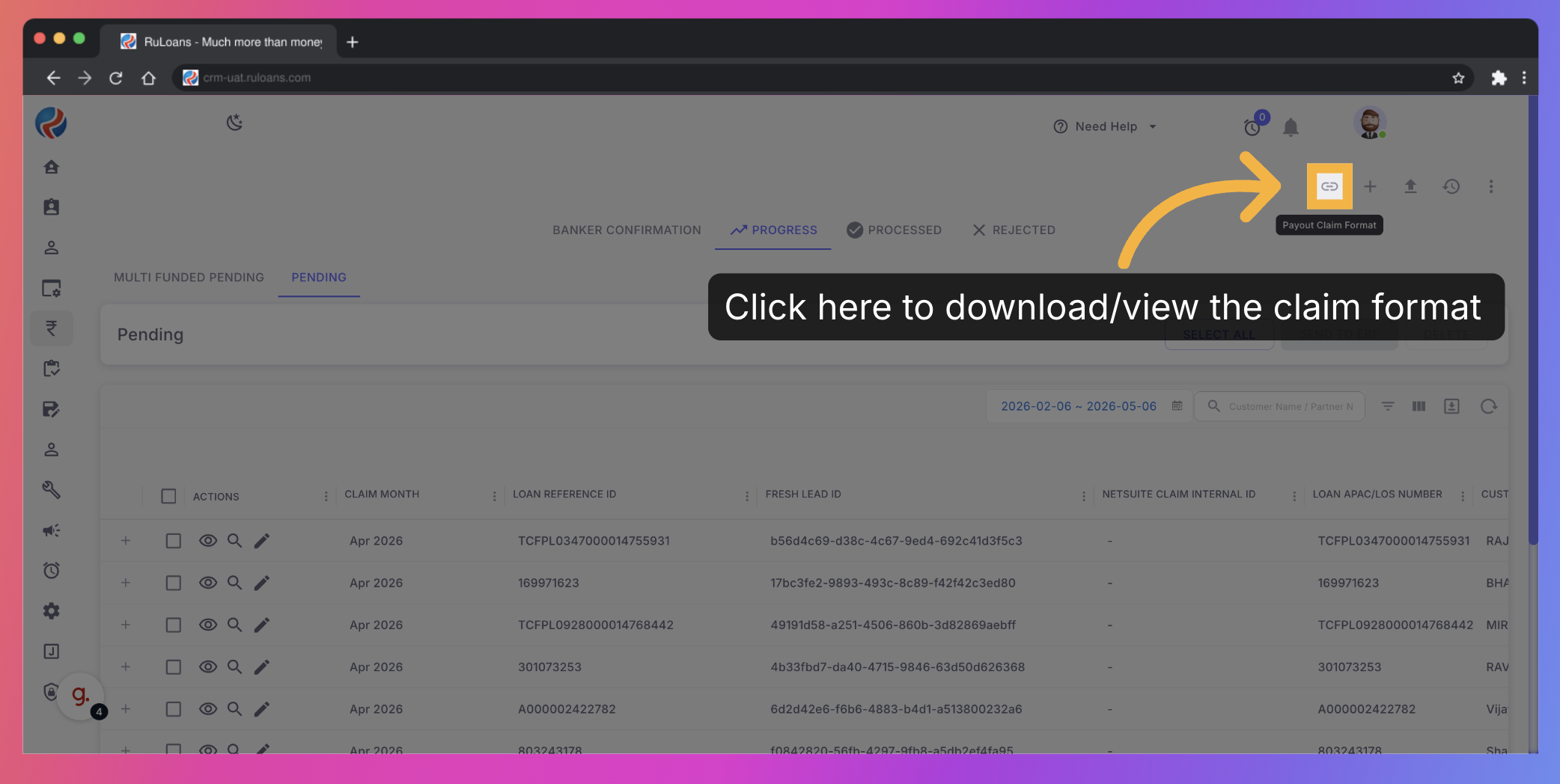
Step 5: Accessing to the latest format via dynamic link,
- Click on the Link icon, next to the Add Claim icon.
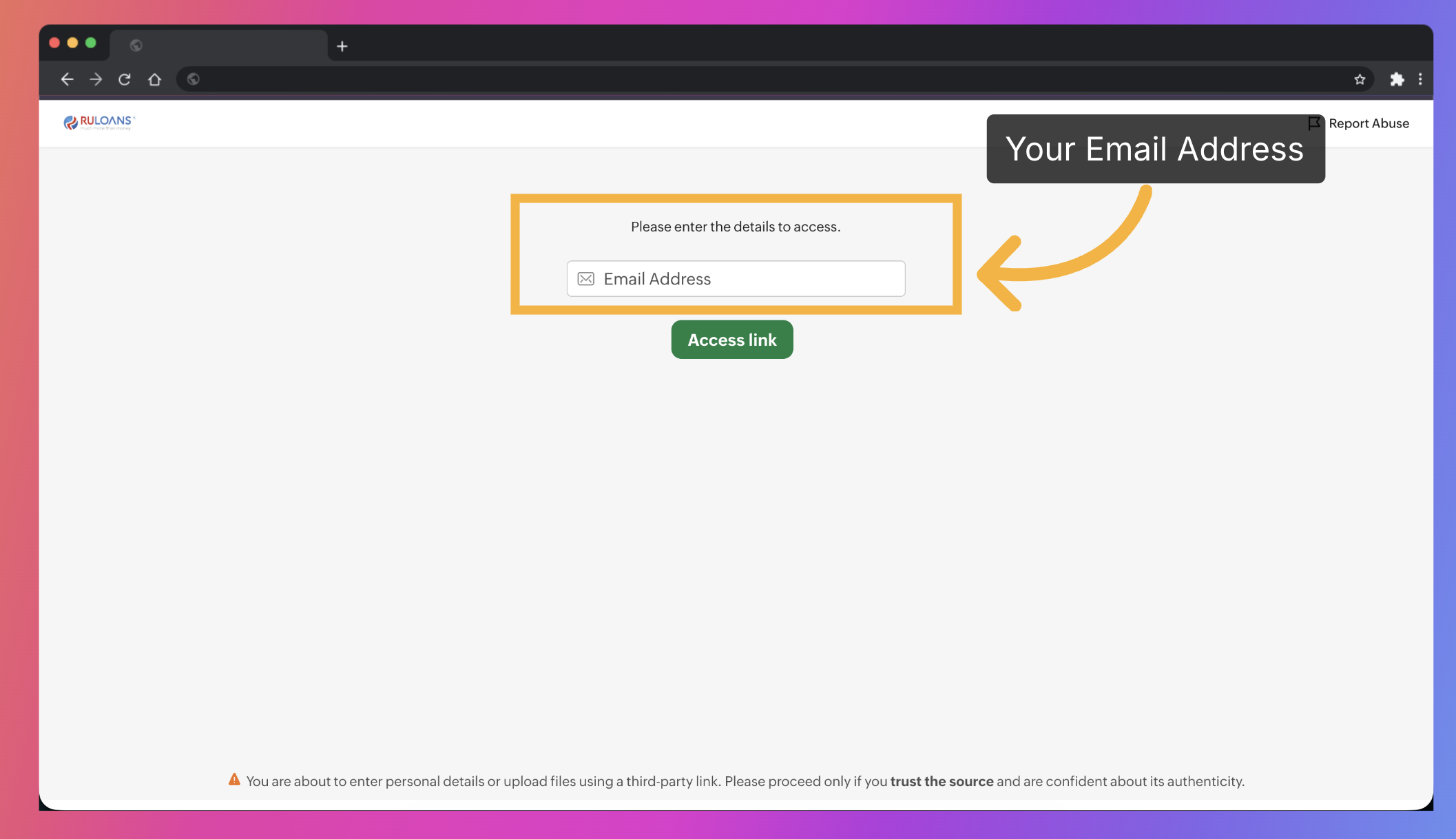
Step 7: Access Zoho WorkDrive
- User is redirected to Zoho WorkDrive.
- Enter Email to get access.
- Navigate to: workdrive.zohoexternal.in
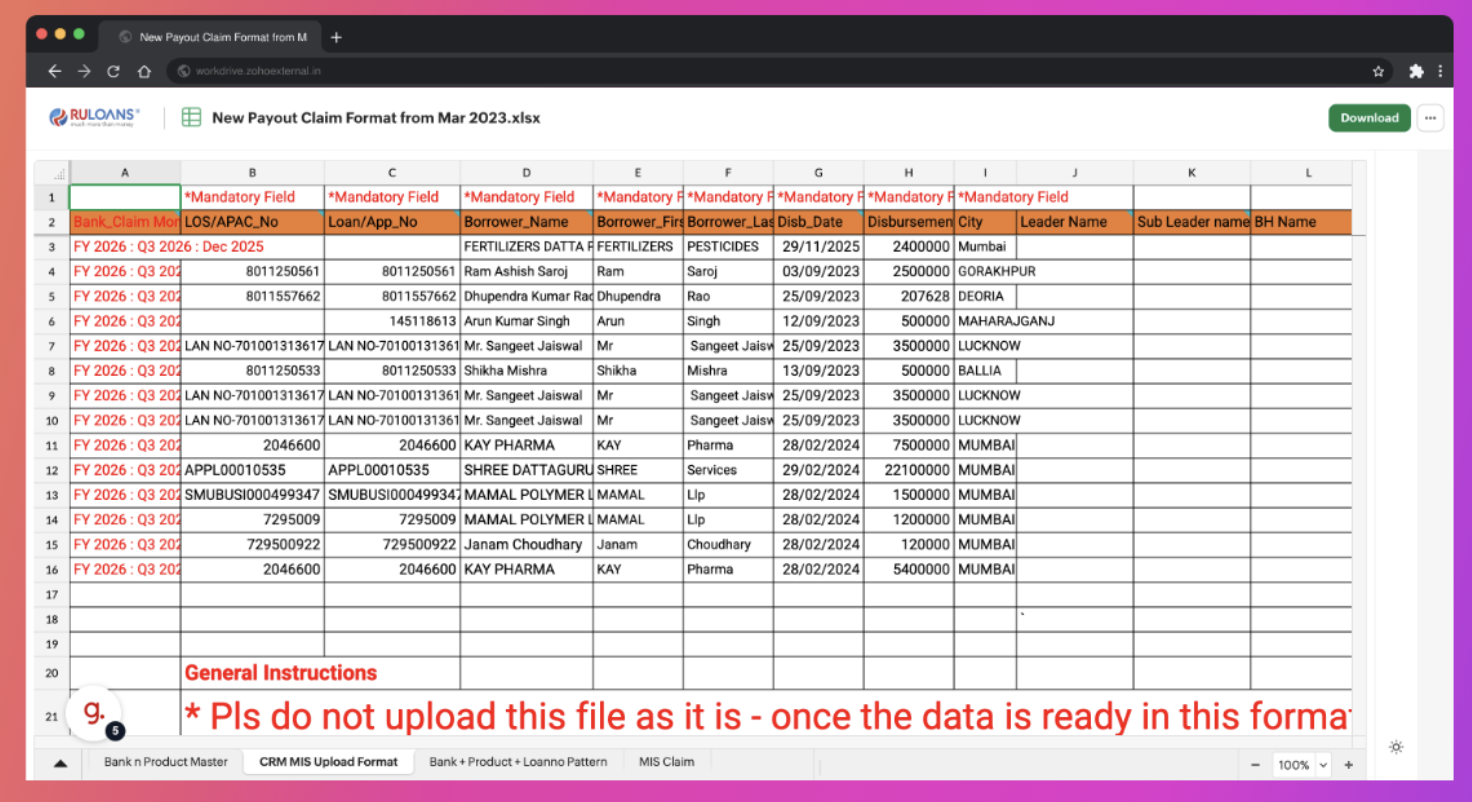
Step 8: Download Claim File
- Locate the required file (New Payout Claim Format – March 2023).
- Click on Download.
Completion
You have successfully: ✅ Accessed payout claims in RuLoans CRM✅ Located the associated payout file
✅ Downloaded the required document from Zoho WorkDrive
Post-Download Verification
After downloading:- Verify the file has been downloaded successfully.
- Check file integrity and format.
- Proceed with payout claim verification or further processing.
Important Notes
- Ensure you download the correct payout file for the selected claim.
- Maintain data confidentiality while handling payout files.
- Contact the Finance/Admin team if access issues occur.