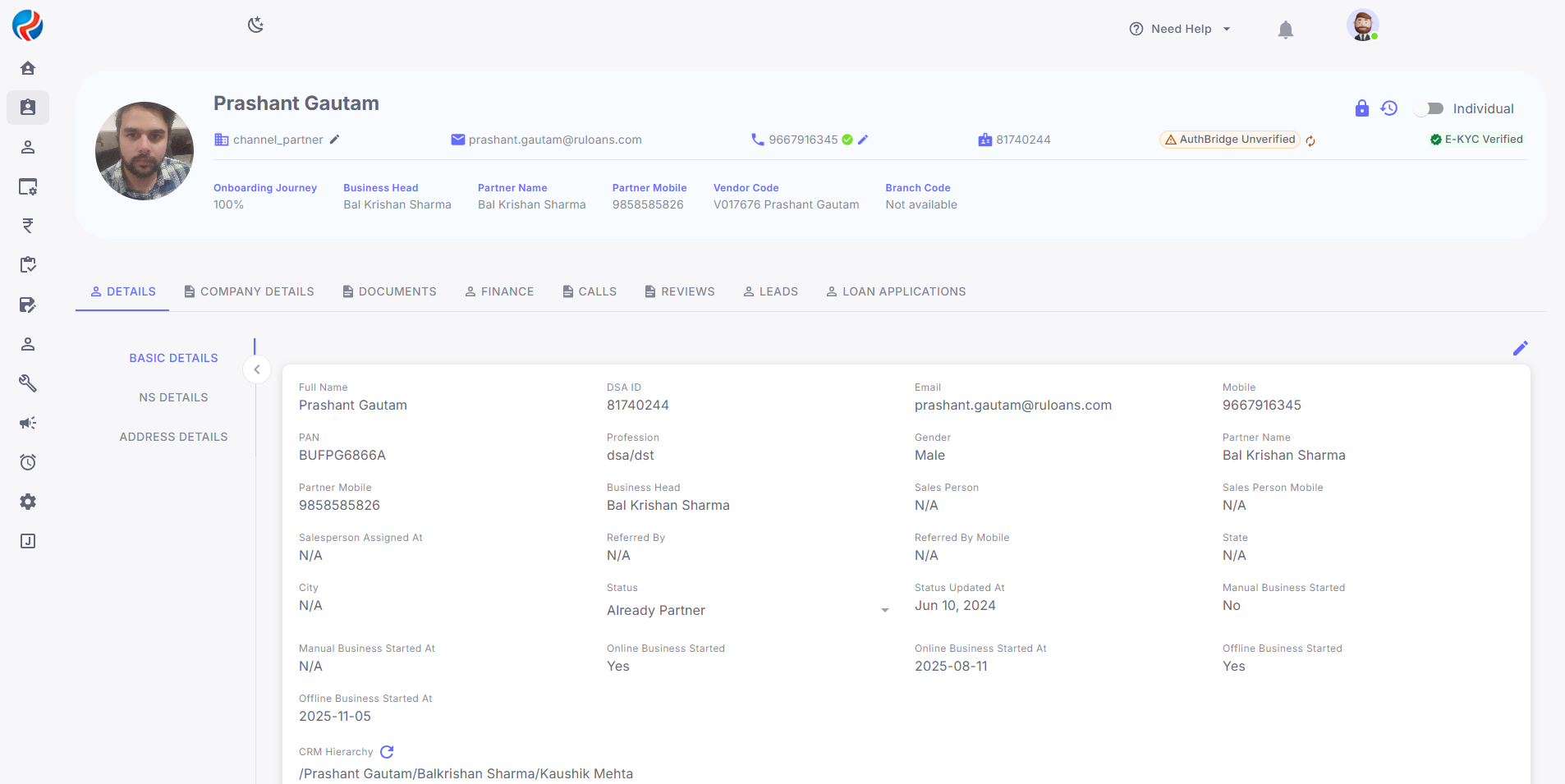
Objective
The objective of this document is to provide a detailed overview of the Bulk AuthBridge Validation functionality introduced for users. This feature enables users to perform verification and validation of multiple records simultaneously through AuthBridge integration, reducing manual effort, improving operational efficiency, minimizing processing time, and ensuring accurate bulk verification management within the system.Process Steps
Step 1: Login to the CRM.
The user logs in using their provided credentials.Upon successful login, the user will be redirected to landing page.
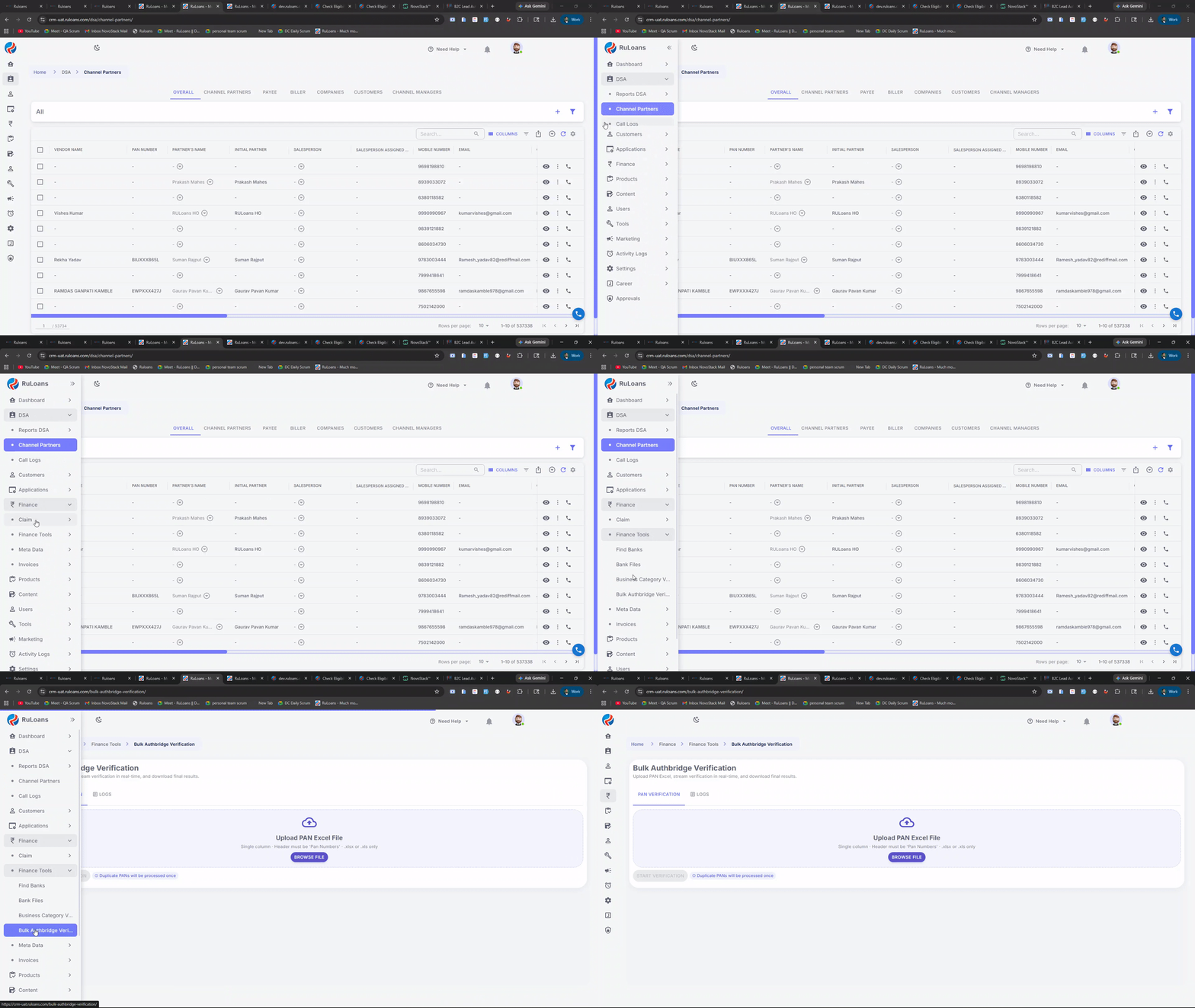
Step 2: Navigate to the Bulk AuthBridge Verification Section
Access the Bulk AuthBridge Verification section by clicking on the Finance > Finance Tools > Bulk AuthBridge Verification tab in the main menu on the left.The system will redirect the user to the Bulk AuthBridge Verification Page.
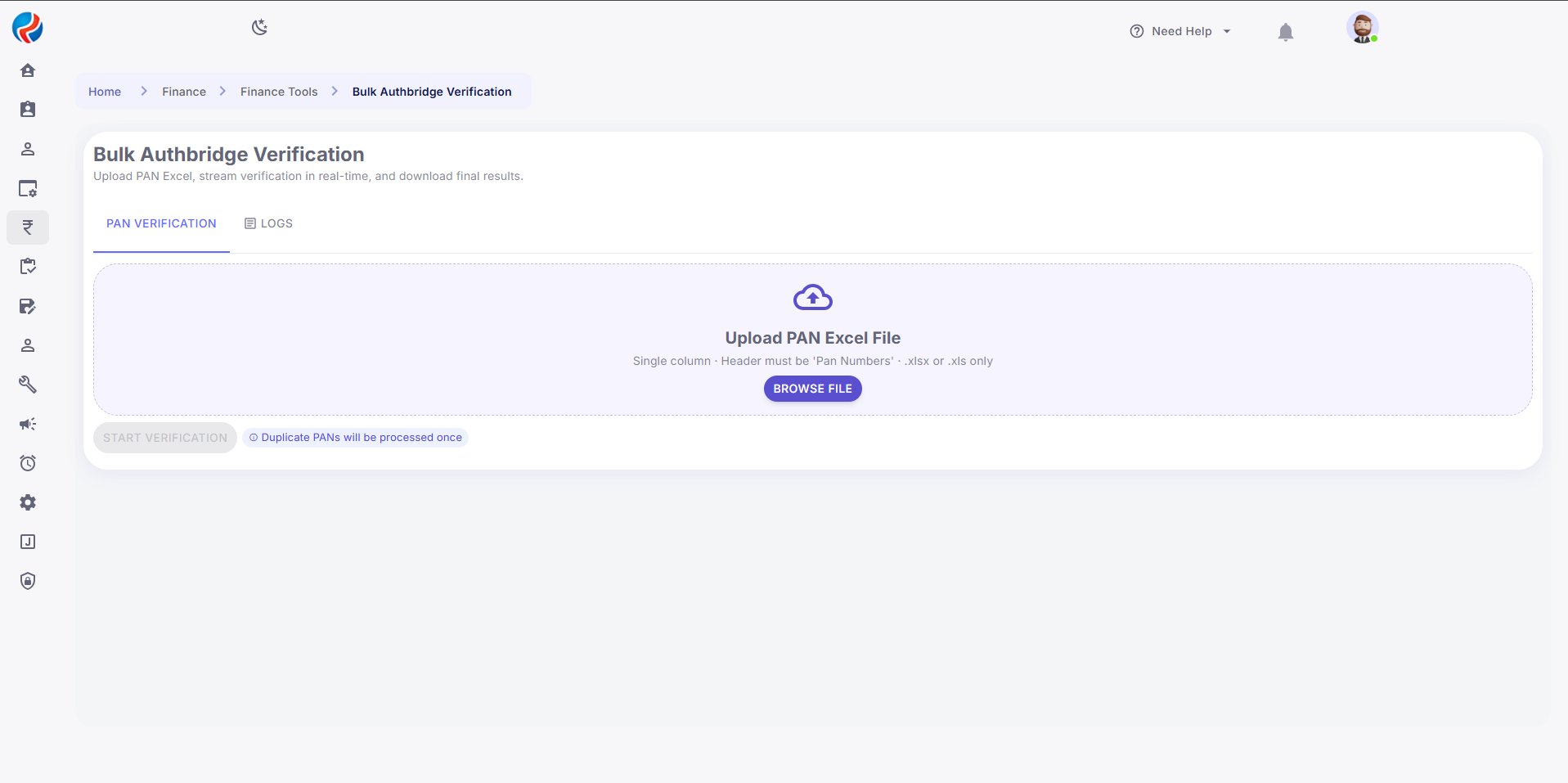
Step 3: Overview of the Bulk AuthBridge Verification Page
The following sections will be displayed:Tabs for different bill statuses:
- PAN Verification
- Logs
- Browse File Button: When user clicks on this button window will open in user’s destop files. User can choose which file to upload.
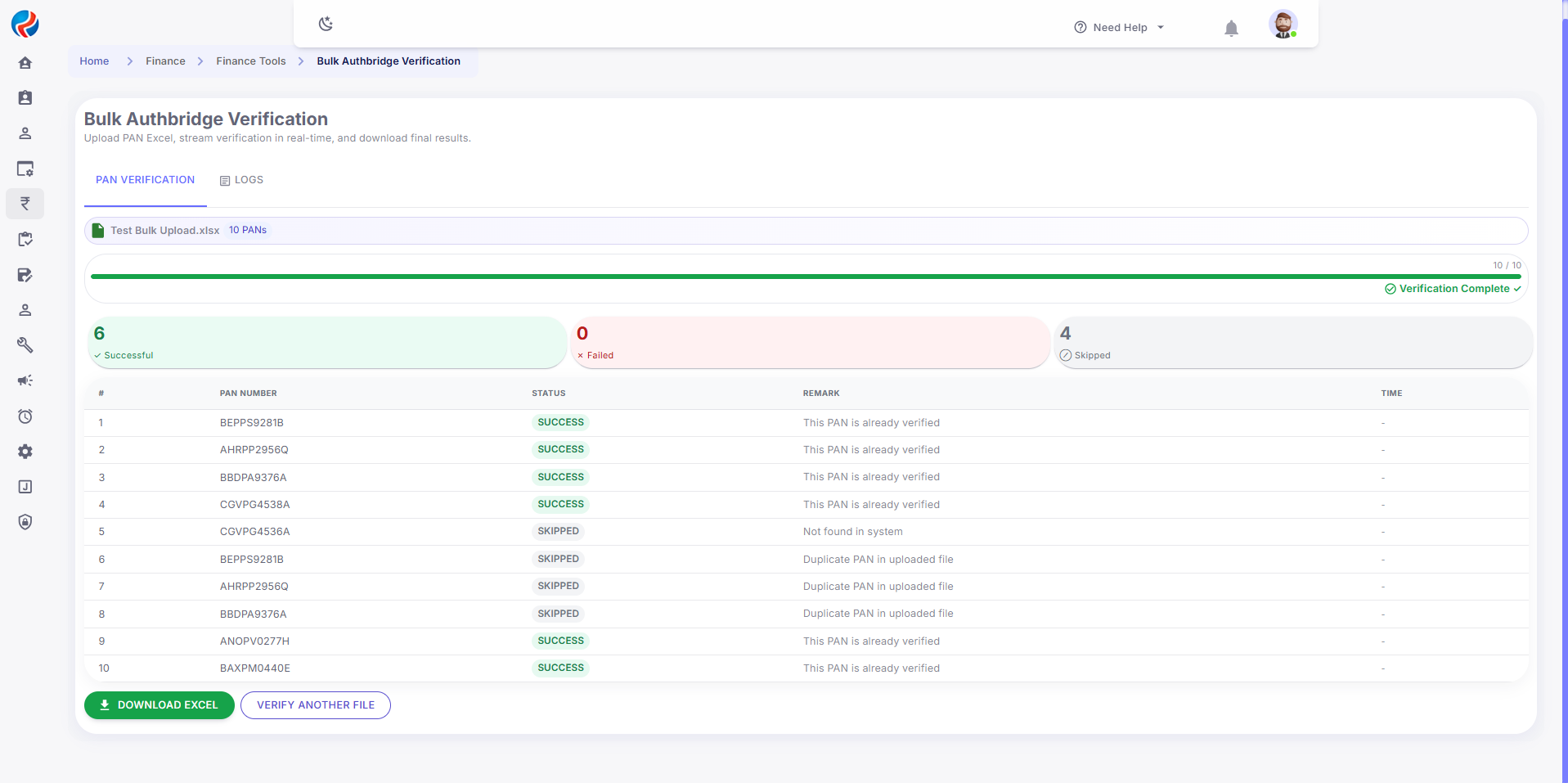
Step 4: Bulk AuthBridge File Verification
Users can View the processing of the file in real time. View will show successful, Failed, Skipped files. Below table will show:- Serial Numbers
- PAN Number
- Status
- Remark
Step 5: Logs Section
Logs Section will show the files uploaded along the user name who uploaded the file and time & date file is updated at. User can also download the uploaded files from the FROM section and result file from TO section.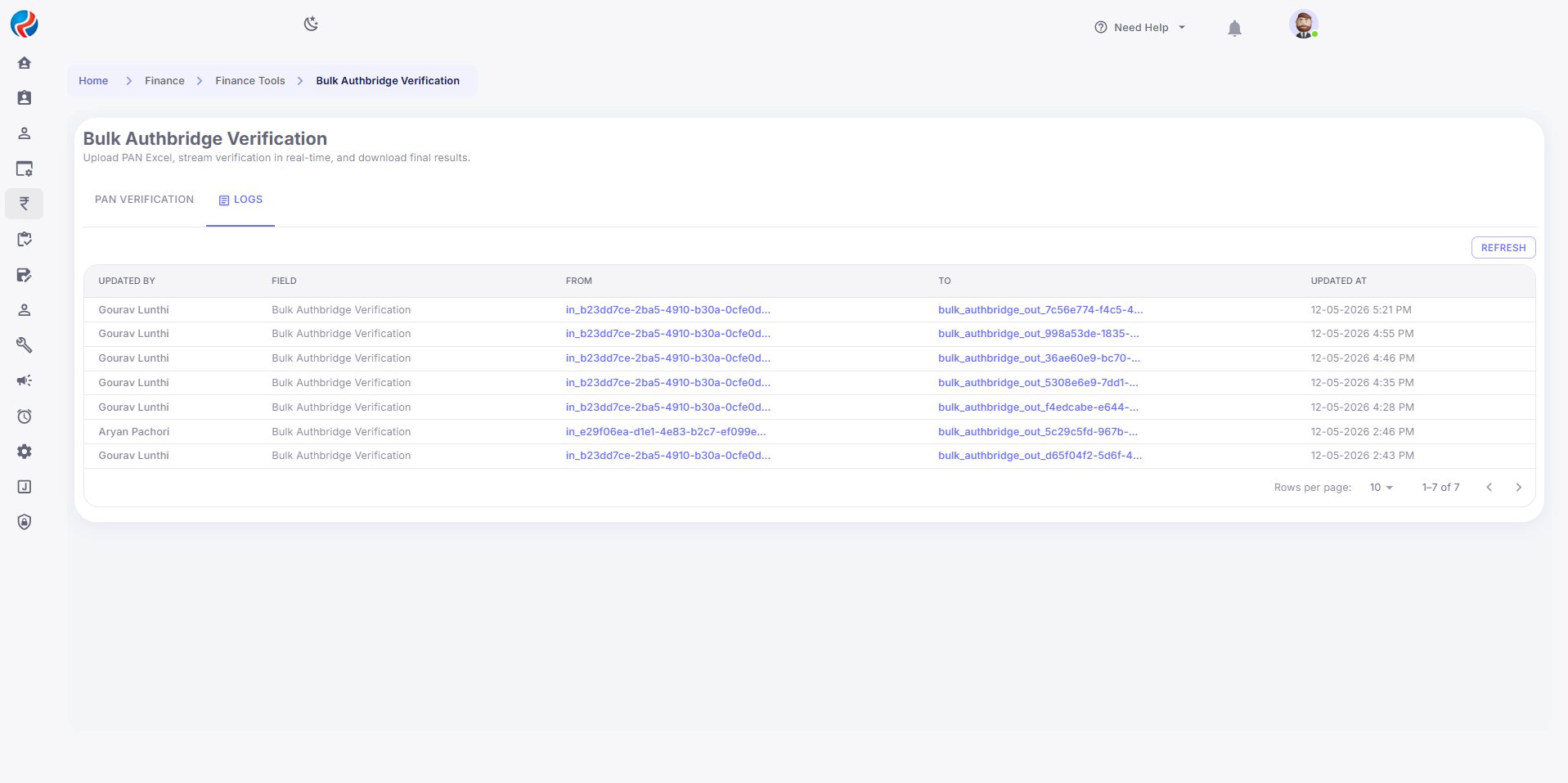 **Note: Manual Trigger for AuthBridge Verification has been implemented in the DSA Profile.