
Overview:
The Share Invoice Link functionality allows authorized users to share the invoice signing link with the required recipient through the existing workflow. The functionality is available to the following user roles:- Lead Admin
- Branch Head (BH)
- Sub Branch Head (Sub BH)
Steps-by-Step Process
1. Navigate to the Invoice Signing Section
- Log in to the CRM.
- Scroll on to the Hamburger menu located on the left side of the dashboard.
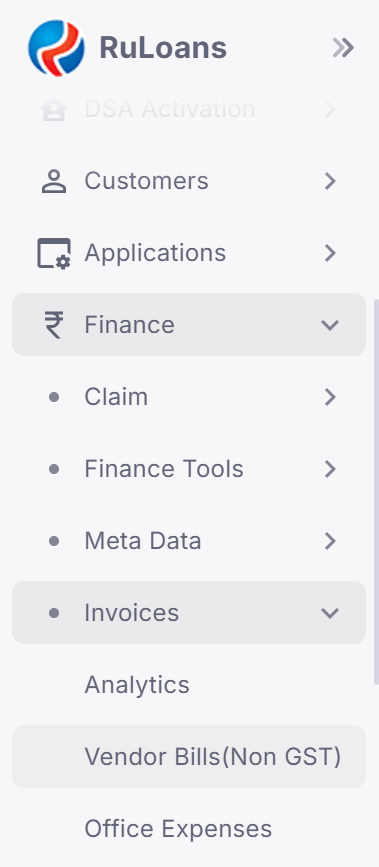
- In the menu, click on Finance > Invoices > Vendor Bills(Non GST).
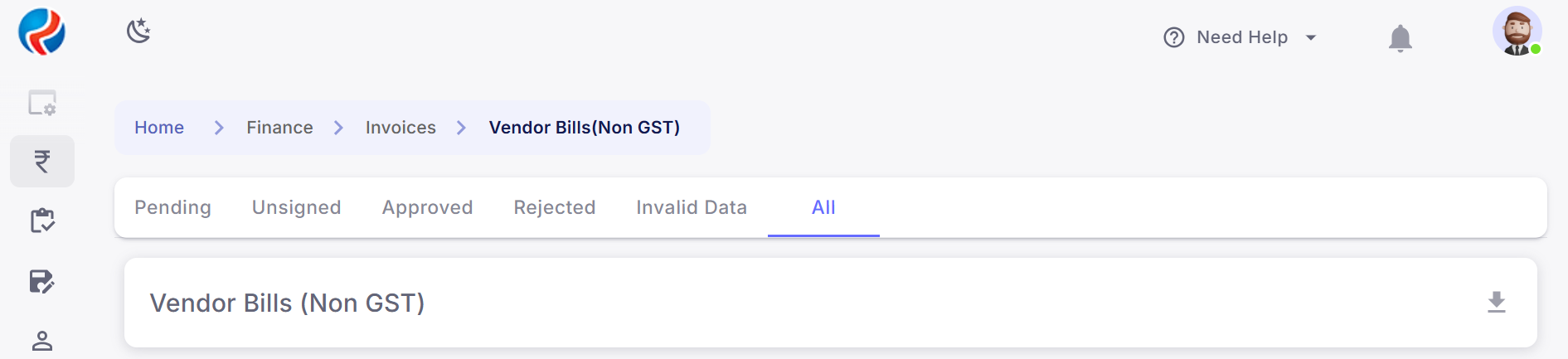
- Navigate to the All section.
2. Locate the Invoice
Within the Vendor Bills(Non GST), locate the Resend Invoice Email option the invoice that you want to share.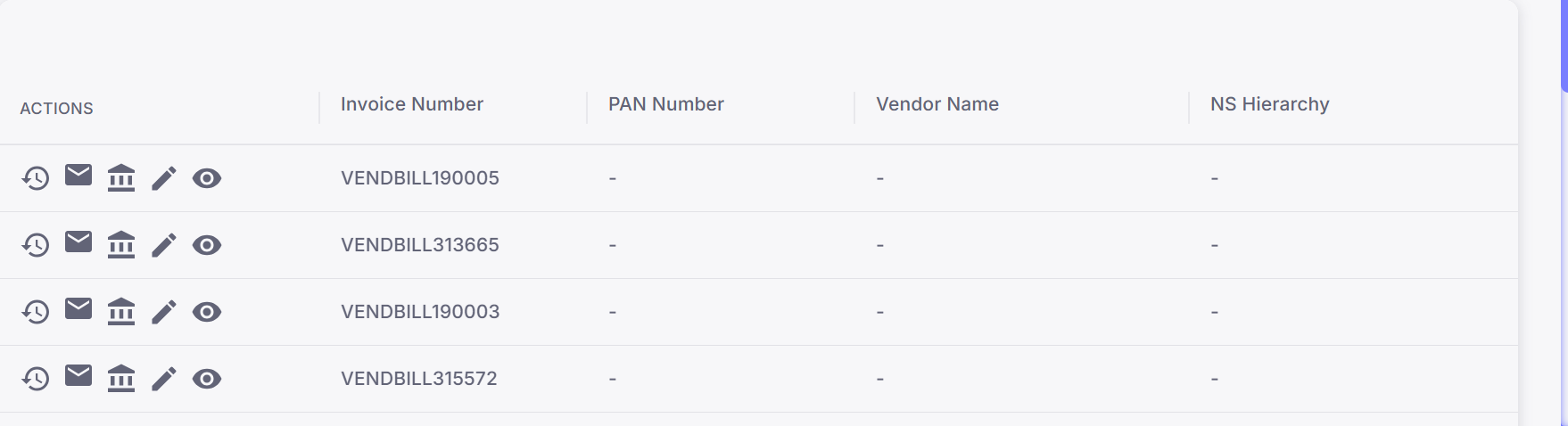 The option should be available to users with the following roles:
- Lead Admin
- Branch Head (BH)
- Sub Branch Head (Sub BH)
3. Share the Invoice Signing Link
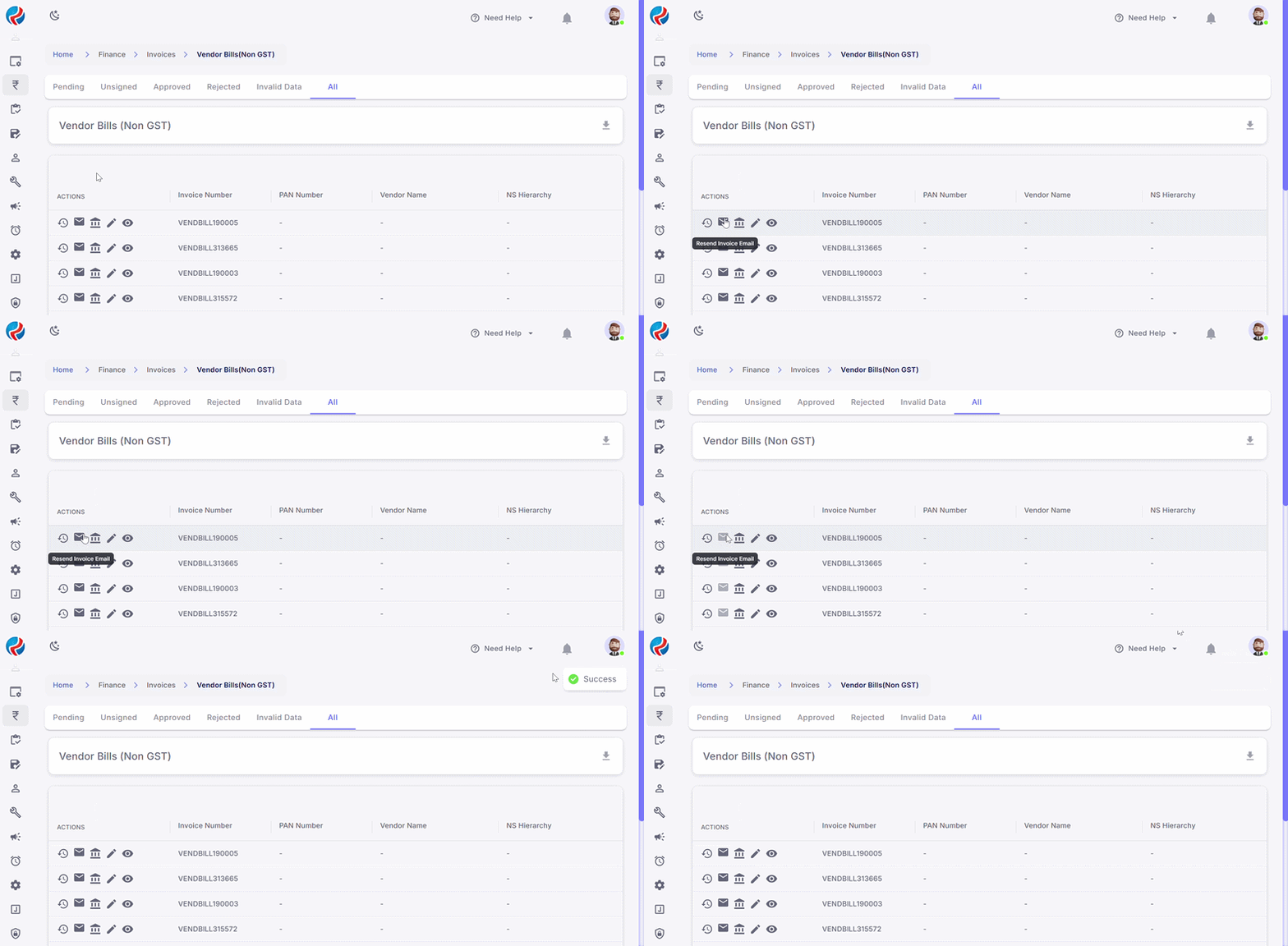
- Click on the Resend Invoice Email button.
- It will send the invoice link to the respective email address.
Role-Based Access
The Share Invoice Link functionality is available for the following roles:Authorization
The Share Invoice Link functionality is controlled by role-based access. Only users belonging to the authorized roles should be able to access and use this functionality. If a user does not have the required authorization, the Share Invoice Link functionality should not be available to them.Benefits
⏱️ Faster Process: Authorized users can share invoice signing links directly through the existing workflow. 🔐 Controlled Access: Only Lead Admin, Branch Head, and Sub Branch Head users are provided access to the functionality. 📄 Easy Invoice Signing: Users can share the required invoice signing link without needing additional manual steps. 🎯 Role-Based Authorization: Access is controlled based on the user’s assigned role and applicable authorization checks.Prepared By: Harsh Vardhan