
Overview:
The system maintains a separate Latest MOU Signed Date while retaining the existing/old MOU Signed Date. Whenever the MOU Signed Date is updated, the system records the change in the DSA Profile Logs. This ensures that the original date is not overwritten or deleted and that the complete history of MOU date changes can be tracked.Steps to Update the MOU Signed Date
1. Login to RuConnect
- Log in to the DSA account on RuConnect.
- It will ask the DSA to sign the MOU and upload a signature.
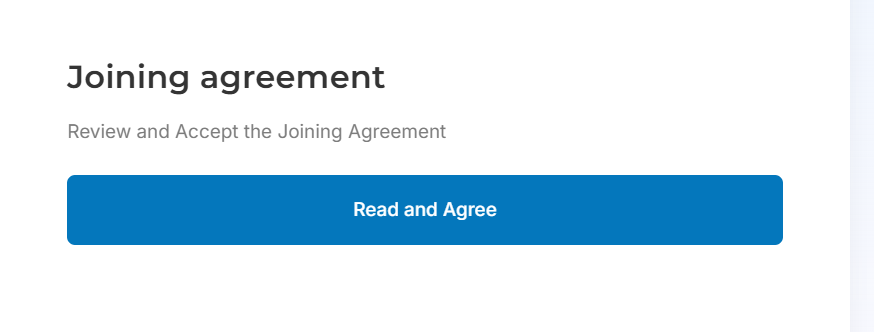
- After signing the MOU, DSA will then be able to access their account.
2. Latest MOU Signed date
- The system will update the latest MOU Signed Date in CRM logs.
- The original/old MOU will remain the same.
3. Locate the MOU Signed Date
- Navigate to the DSA profile in CRM.
- DSA > Channel Partners > DSA Profile
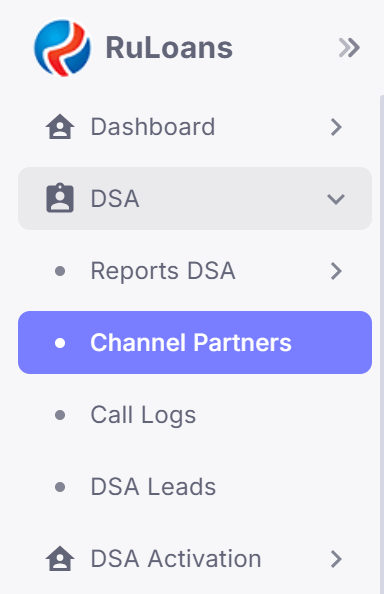
- Check the existing and latest MOU Signed Date in the logs.
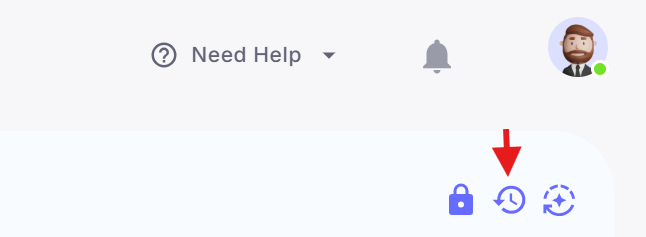 Note: The existing/old MOU Signed Date should be retained and should not be overwritten or deleted.
4. Check the DSA Profile Logs
Whenever the MOU Signed Date is updated, a new entry should be added to the DSA Profile Logs. The log should capture:- Device IP
- Old MOU Signed Date
- New/Latest MOU Signed Date
- Updated Date & Time
Audit Trail
The old MOU Signed Date should always remain available in the DSA Profile Logs. For every update, the audit trail should maintain: Old Date → New Date Along with: Device IPUpdated Date & Time
Updated By The previous log entries should not be overwritten or deleted when a new MOU Signed Date is added.
Benefits
📋 Complete History: All MOU Signed Date changes can be tracked from the DSA Profile Logs. 🔐 Better Auditability: The system records who made the change, when it was made, and from which device IP. 📅 Old Date Retention: The original MOU Signed Date remains available and is not overwritten. 🔄 Change Tracking: Every subsequent MOU date update creates a separate log entry.Prepared By: Harsh Vardhan