
CRM Rule Management
Objective:
To configure rules for the buttons and Mail data Configuration under Finance > Claim > Ledger and Finance > Claim > Payout using Role Management settings in CRM.Navigation Path:
CRM → Settings → Role Management → Select Role → Edit → Finance → Claim → Ledger / PayoutStep-by-Step Process:
- Access Role Management
- Go to CRM Settings
- Click on Role Management
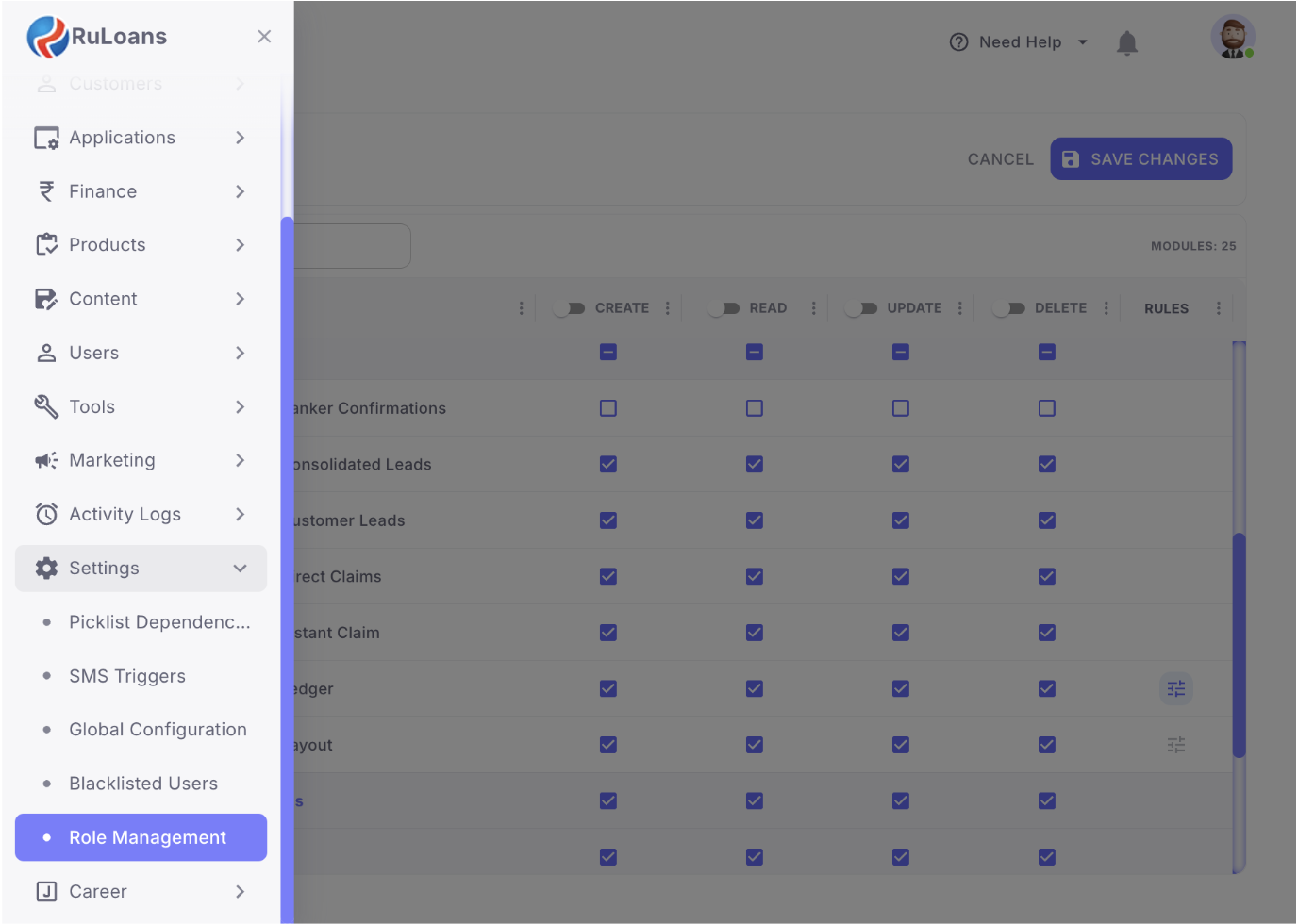
- Select Role
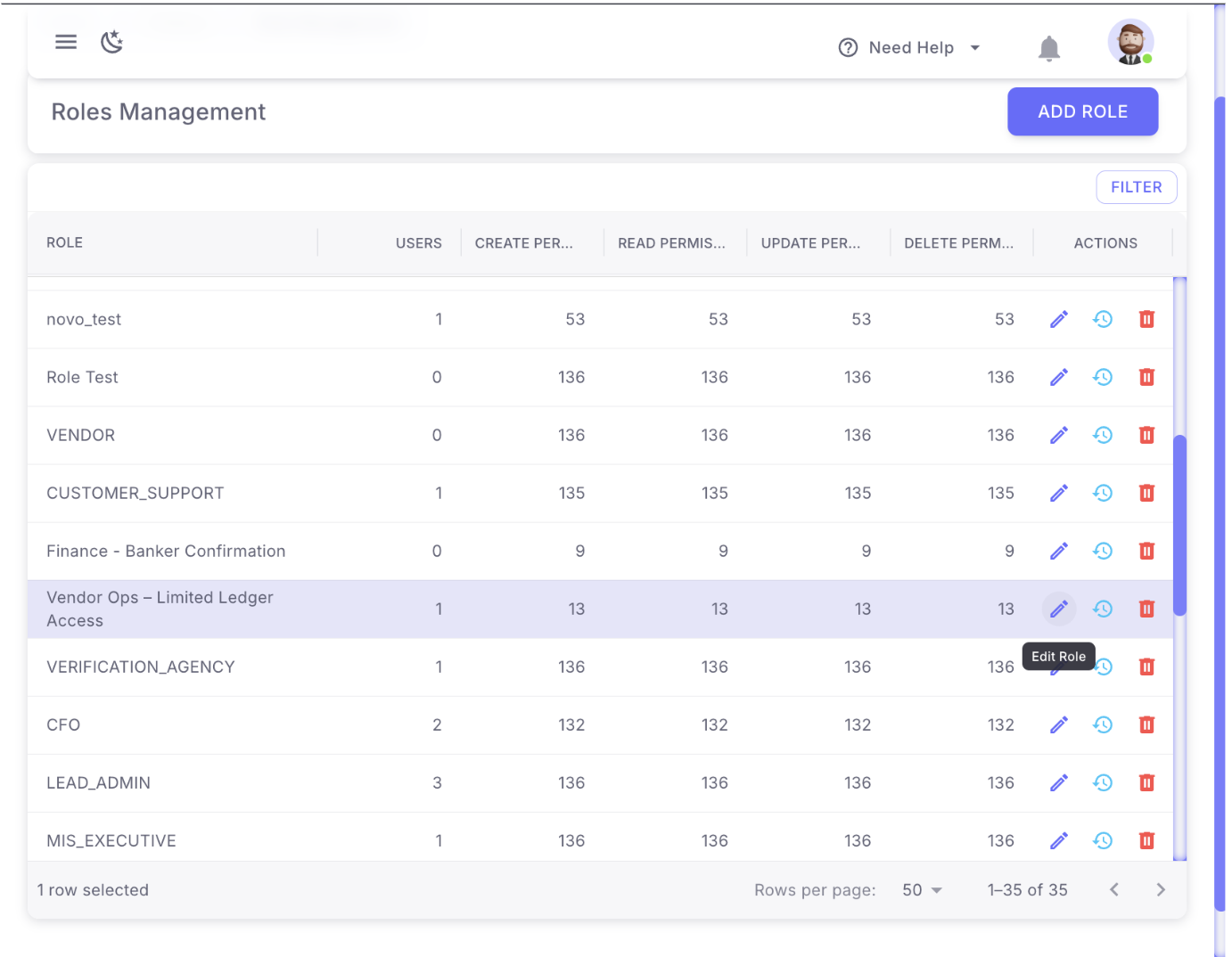
- Choose the specific role for which you want to modify permissions or rules
- Edit Role
- Under the Actions column, click on the Edit (pencil icon)
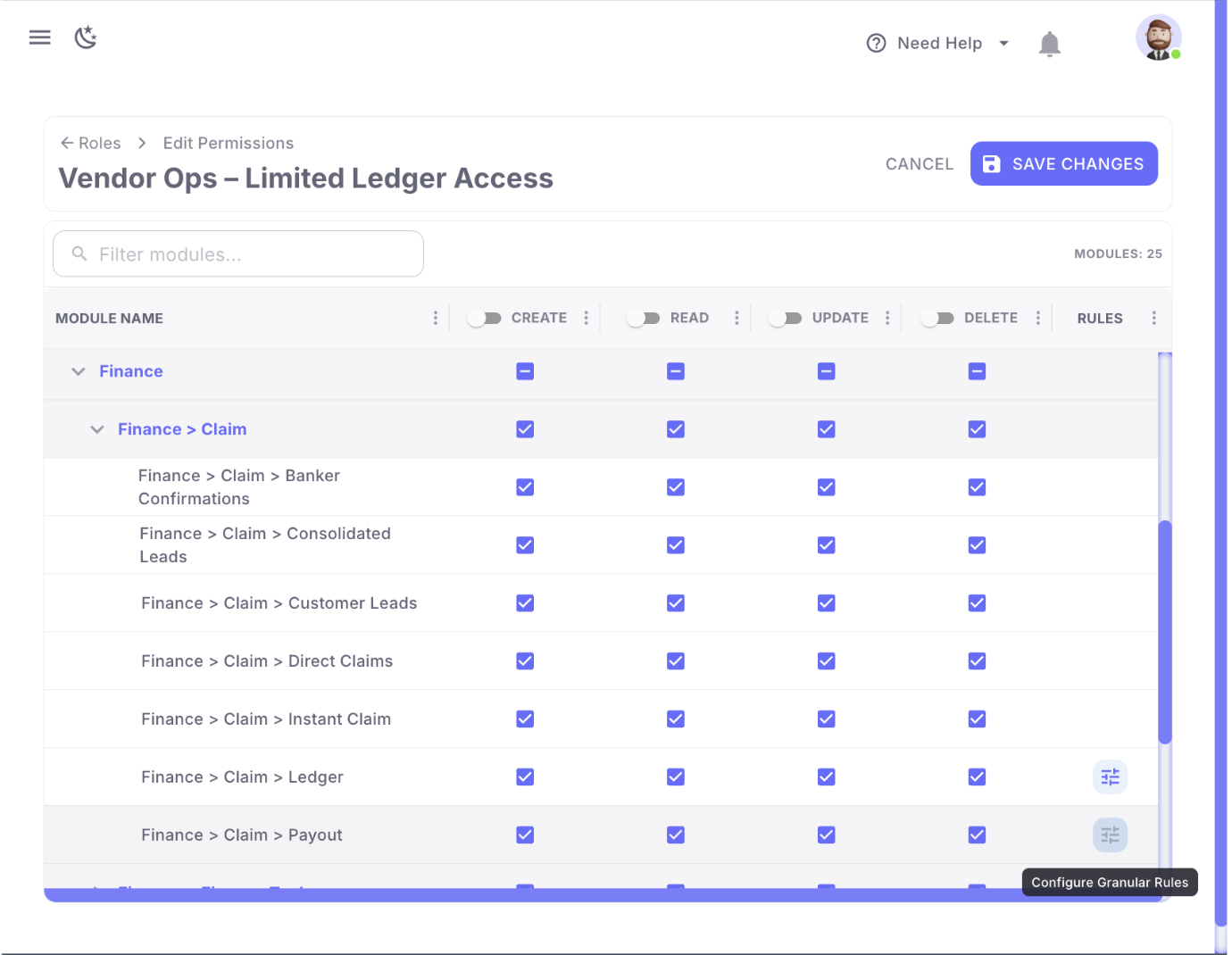
- Navigate to Finance Module
- Scroll down to locate the Finance section
- Click on Finance
- Go to Finance > Claim Section
- Inside Finance, select Finance > Claim
- Open Ledger/Payout Configuration
- Go on Finance > Claim > Ledger under Finance > Claim
Also, - Go on Finance > Claim > Payout under Finance > Claim to manage the Authbridge skip verification button function.
- Go on Finance > Claim > Ledger under Finance > Claim
- Manage Rules
- On the right-hand side, locate the Rules section
- Click on the Configure Granular Rules to manage rules
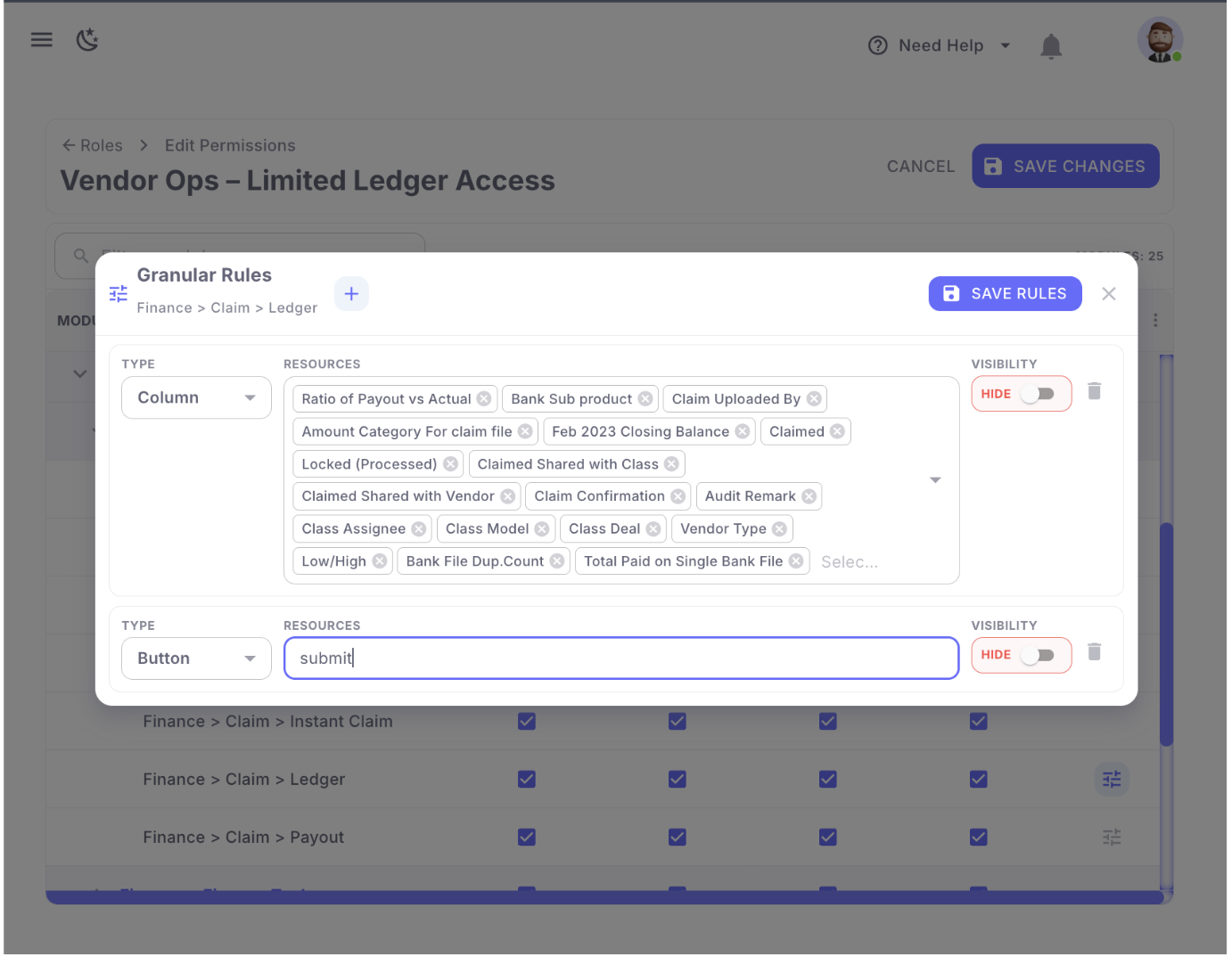
- Add New Rule
- In the popup that appears:
- Click on “Add Rule”
- In the popup that appears:

- Configure Rule Details
- Type: Select the required rule type
- Columns: Choose relevant columns from the dropdown (for managing the data present in ledger emails)
- Button: Type “Submit” for submit button in ledger**,**
or Select Auth bridge Authentication from the dropdown in payout.
- Save Changes
- After configuring the rule, save/apply the changes as required
Expected Outcome:
- The configured rule will control the behavior/visibility of the Submit button in the Ledger section based on selected conditions.
- After making changes in the Ledger section, you can manage the buttons within Ledger and also configure the columns included in Ledger-related emails.
- In the Payout section, you can control the visibility of the AuthBridge Authentication button, which is required during the Send to ERP process.
- This rule management functionality will soon be extended to other modules as well as per the requirement raised
Prepared By: Aparmita Srivastav