
AUTHBridge PAN Verification for DSA Authentication
Objective
The objective of this functionality is to authenticate DSAs by verifying PAN details through AUTHBridge before a lead is sent to the ERP system. This ensures PAN validity, Aadhaar linkage, and accurate DSA identification before financial processing.Navigation
Users can access PAN verification through the following paths:- Login → Finance → Claim → Payout
(Progress → Pending section) - Login → Finance → Claim → Instant Claim
Verification Flow
- After submitting the lead form in CRM, the user selects one or more leads.
- When the user clicks Send to ERP, the system automatically triggers the AUTHBridge PAN verification API.
- The system validates:
- PAN number validity
- PAN–Aadhaar linkage
- If all lead details are valid and PAN verification is successful, the lead is sent to ERP.
Lead Status Indicators
- Verified Leads
Displayed with a blue badge and checkmark, indicating successful AUTHBridge verification. - Unverified Leads
Displayed with a red badge and cross icon, indicating verification failure or pending verification.
“Record not found.” The Lead ID is shown as a hyperlink, allowing the user to click and review lead details.
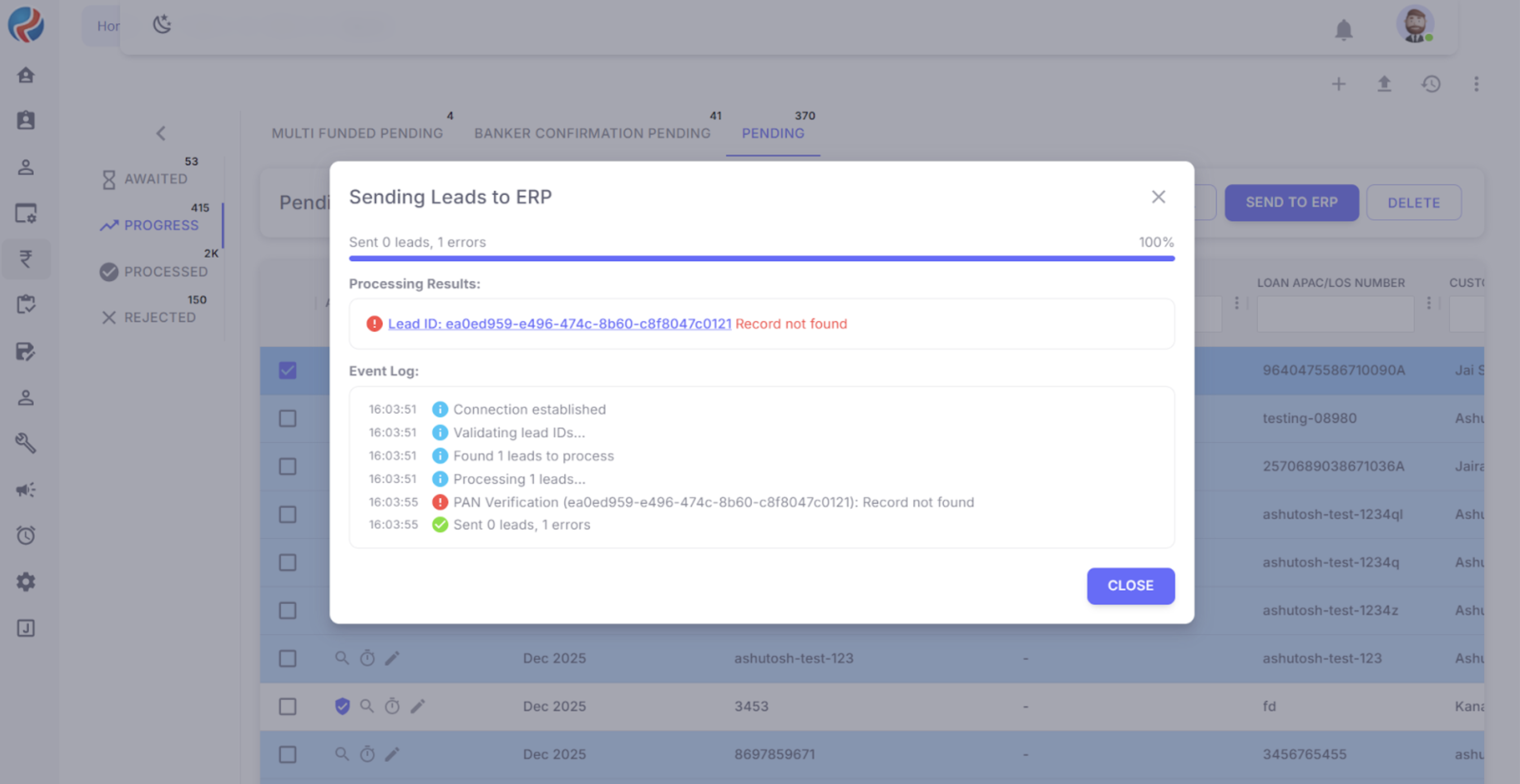
Manual Verification via Red Cross Icon
- Clicking the red cross icon manually triggers AUTHBridge verification.
- If verification fails, the relevant error message is displayed.
- If verification succeeds:
- A success message is shown
- The badge updates to a blue checkmark
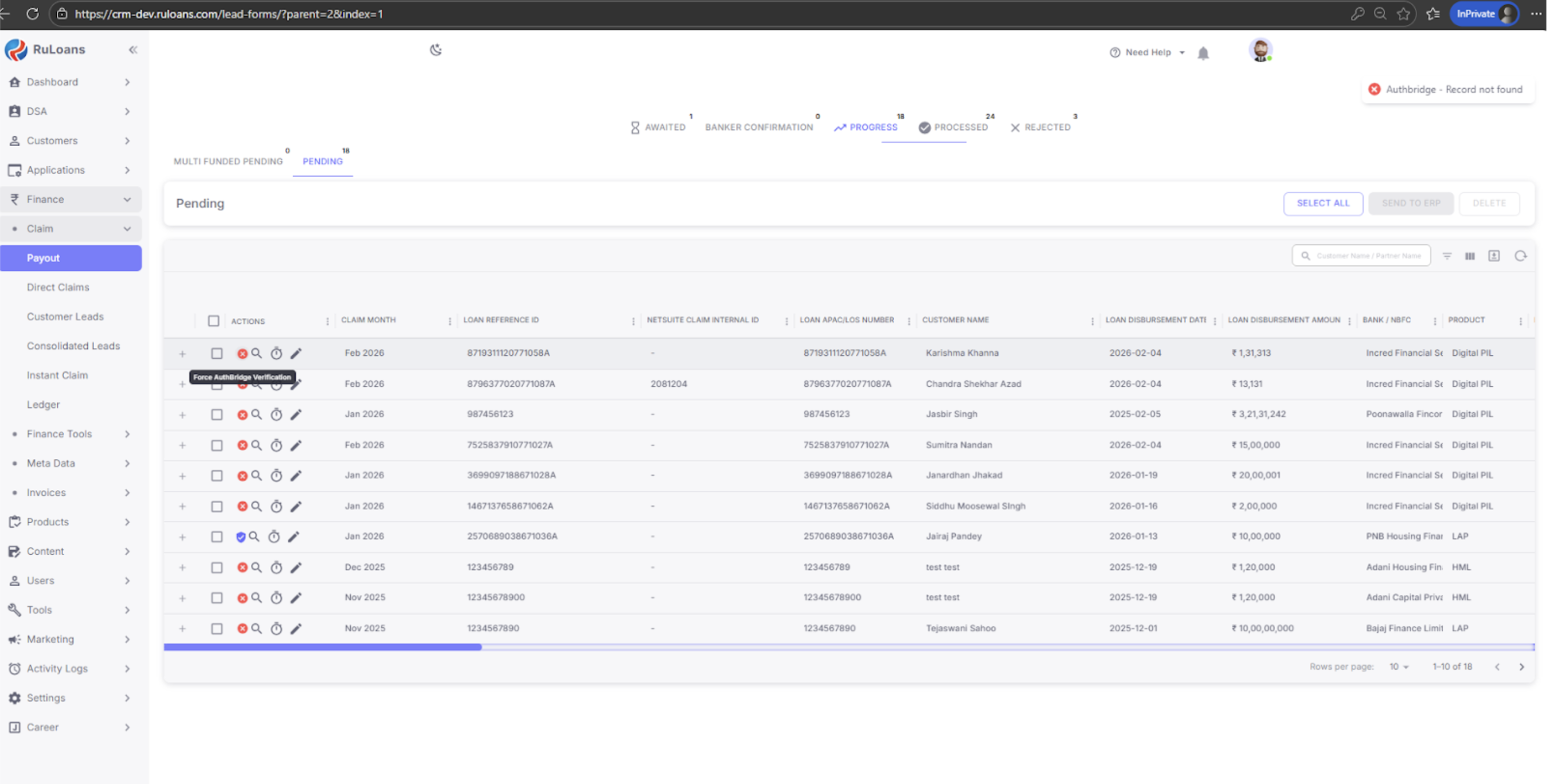 If the user is not sending the lead to ERP and manually triggers verification via the red cross icon, AUTHBridge verification is allowed a maximum of four attempts per lead.
Verification While Sending Lead to ERP
- When a lead is sent to ERP, AUTHBridge verification is triggered automatically.
- Automatic verification during ERP submission is allowed a maximum of three attempts per lead.
“PAN verification limit reached. Check PAN details and retry after 24 hours or use Force AUTHBridge verification.”
Force AUTHBridge Verification
- After exhausting three verification attempts during ERP submission, the user can manually trigger Force AUTHBridge Verification.
- Force verification is allowed only once per lead.
- After this attempt, no further AUTHBridge verification is permitted for that lead.
PAN Already Verified
If the PAN number has already been verified, the system displays the message:“This PAN is already verified.”
Name Mismatch Handling
- If the PAN number is valid but the name does not match, the system automatically updates the DSA name based on AUTHBridge verification.
- Once updated, the DSA name cannot be modified through CRM or Ruconnect.
- If the user attempts to edit the name after verification, the system displays a message indicating that the name cannot be changed as it has been verified and updated through AUTHBridge.
Error Handling and Lead Navigation
- If a lead is unverified or encounters any error:
- It is highlighted in red
- The Lead ID is displayed as a hyperlink
- Clicking the Lead ID redirects the user to the Lead Details page, where the user can review or correct the information.
DSA Types Supported
The AUTHBridge PAN verification flow supports the following DSA types:- Individual
- Company
Conclusion
This AUTHBridge PAN verification mechanism ensures:- Accurate DSA authentication
- Compliance with PAN and Aadhaar validation requirements
- Controlled and limited verification attempts
- Secure and reliable lead submission to ERP