
DSA Email Verification on CRM Platform
Objective
The objective of this document is to provide a detailed overview of the DSA Email Verification functionality introduced for users. This feature enables users to verify their email address using OTP authentication during DSA onboarding on CRM, RuConnect WebApp, RuConnect Mobile App, and before sending files to ERP, ensuring secure communication, accurate user validation, reduced manual verification effort, and seamless ERP processing within the system.CRM Platform
Step 1: Login to CRM
The user logs in using their provided credentials. Upon successful login, the user will be redirected to the landing page/dashboard.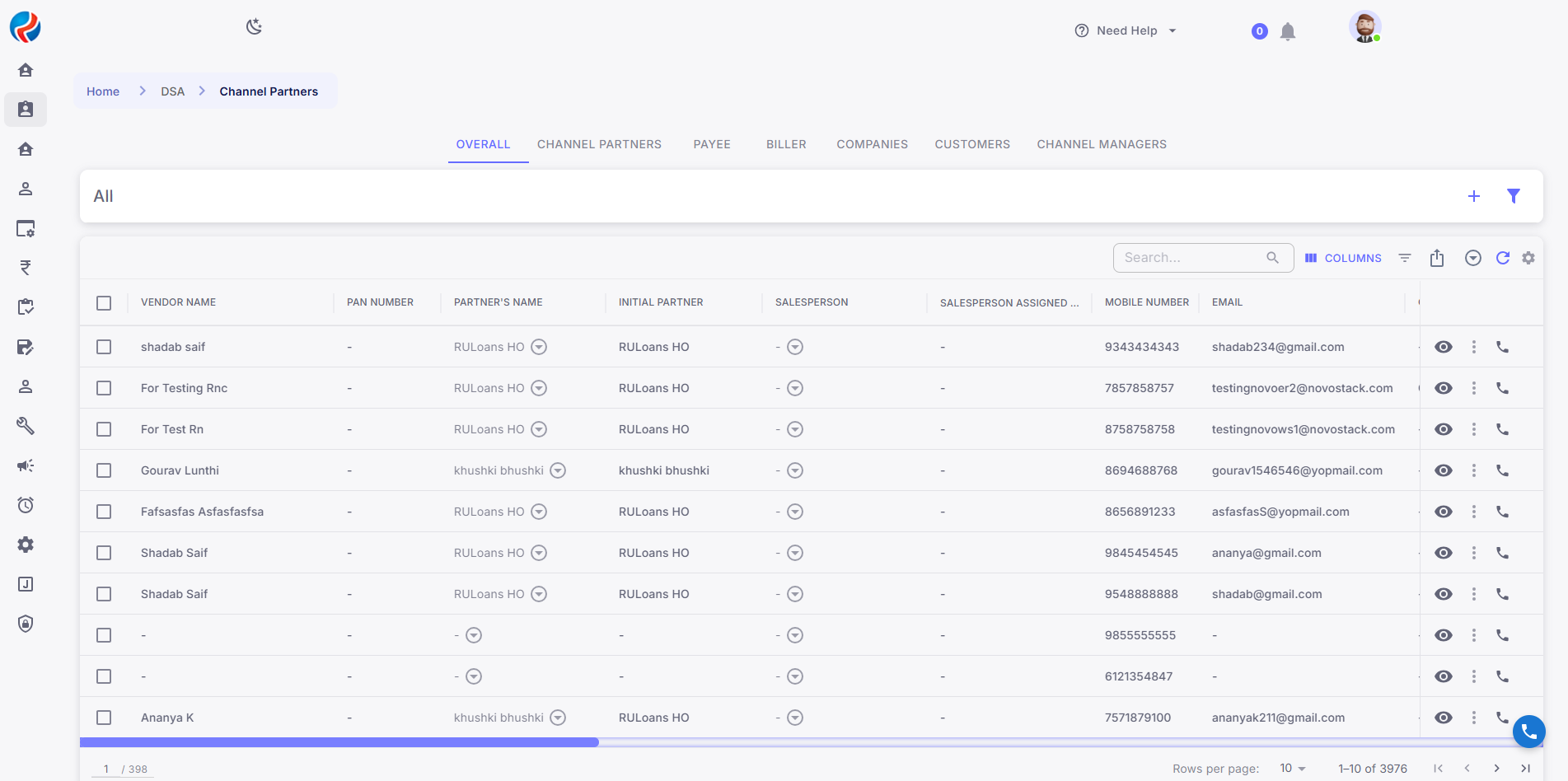
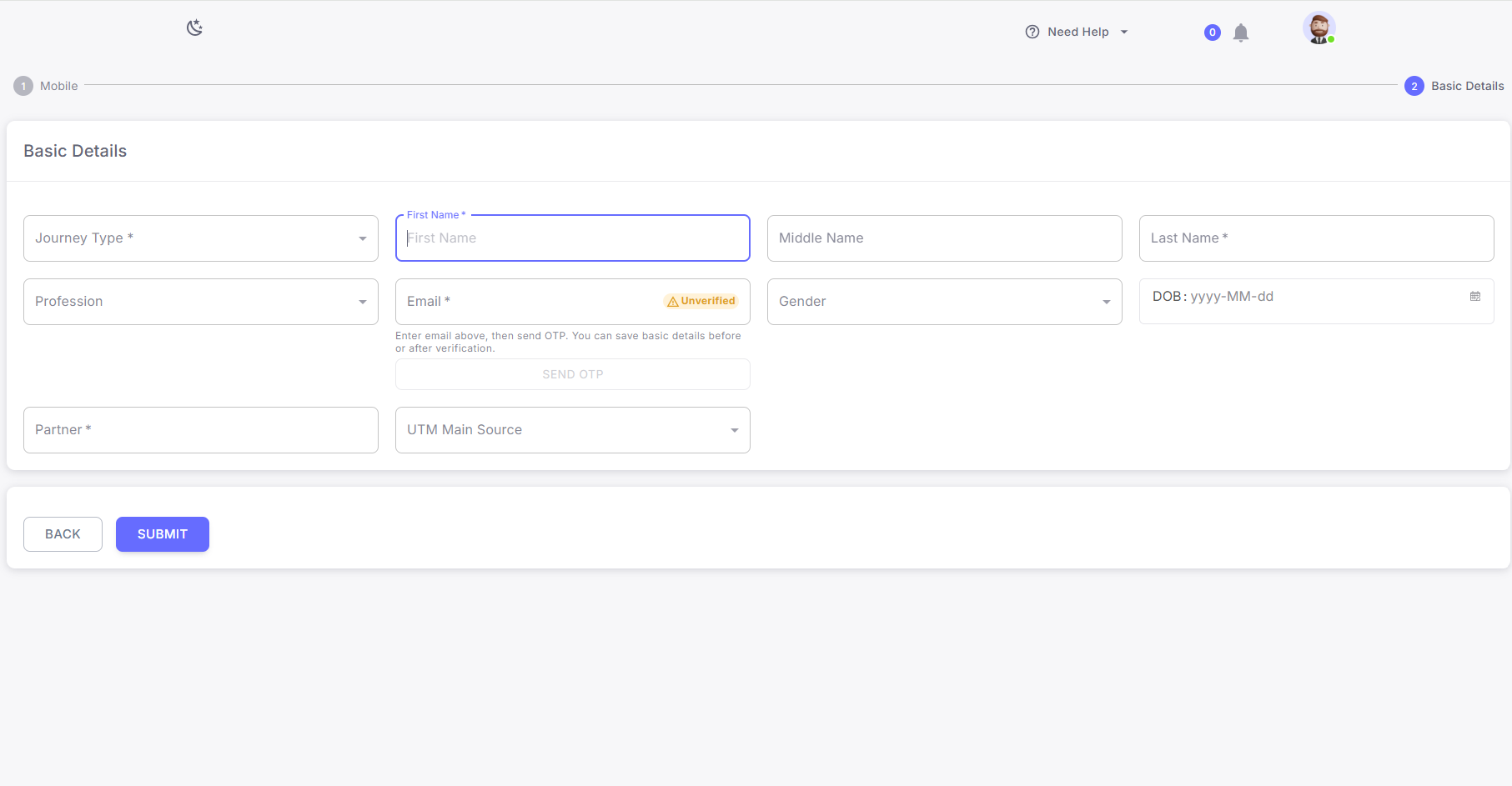
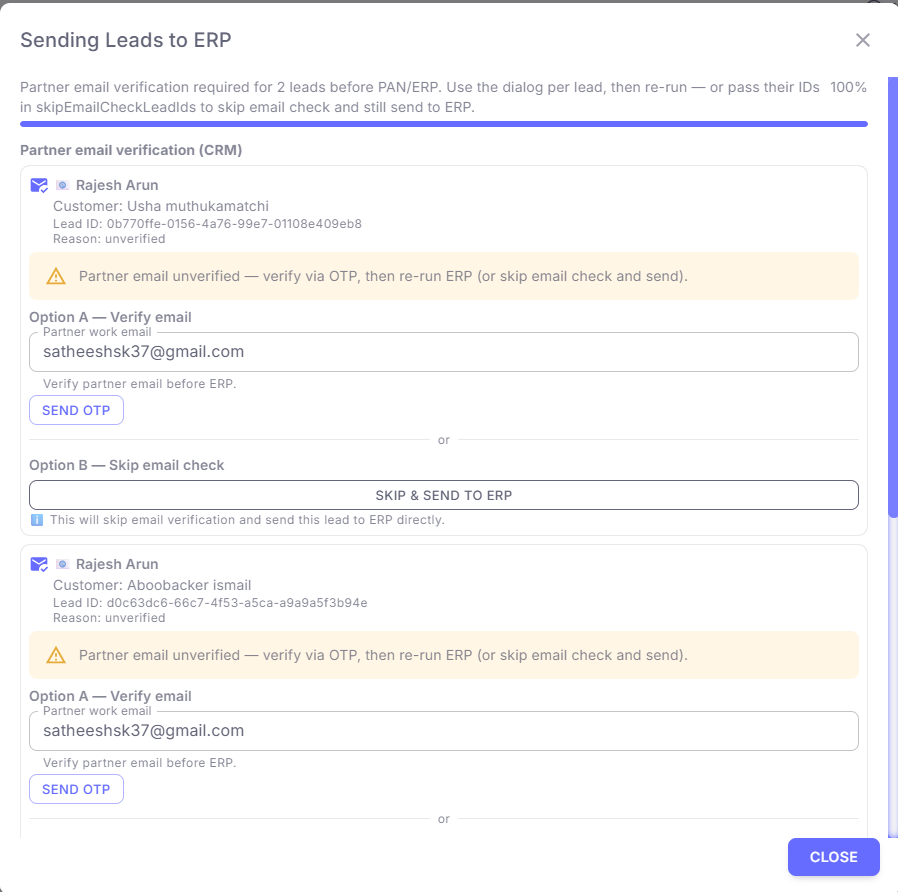
Step 2: Navigate to New DSA Onboarding or Send to ERP or Existing DSA Profile
Users can access Email Verification functionality in the following CRM flows:- New DSA Onboarding
- Send to ERP
- Existing DSA Profile
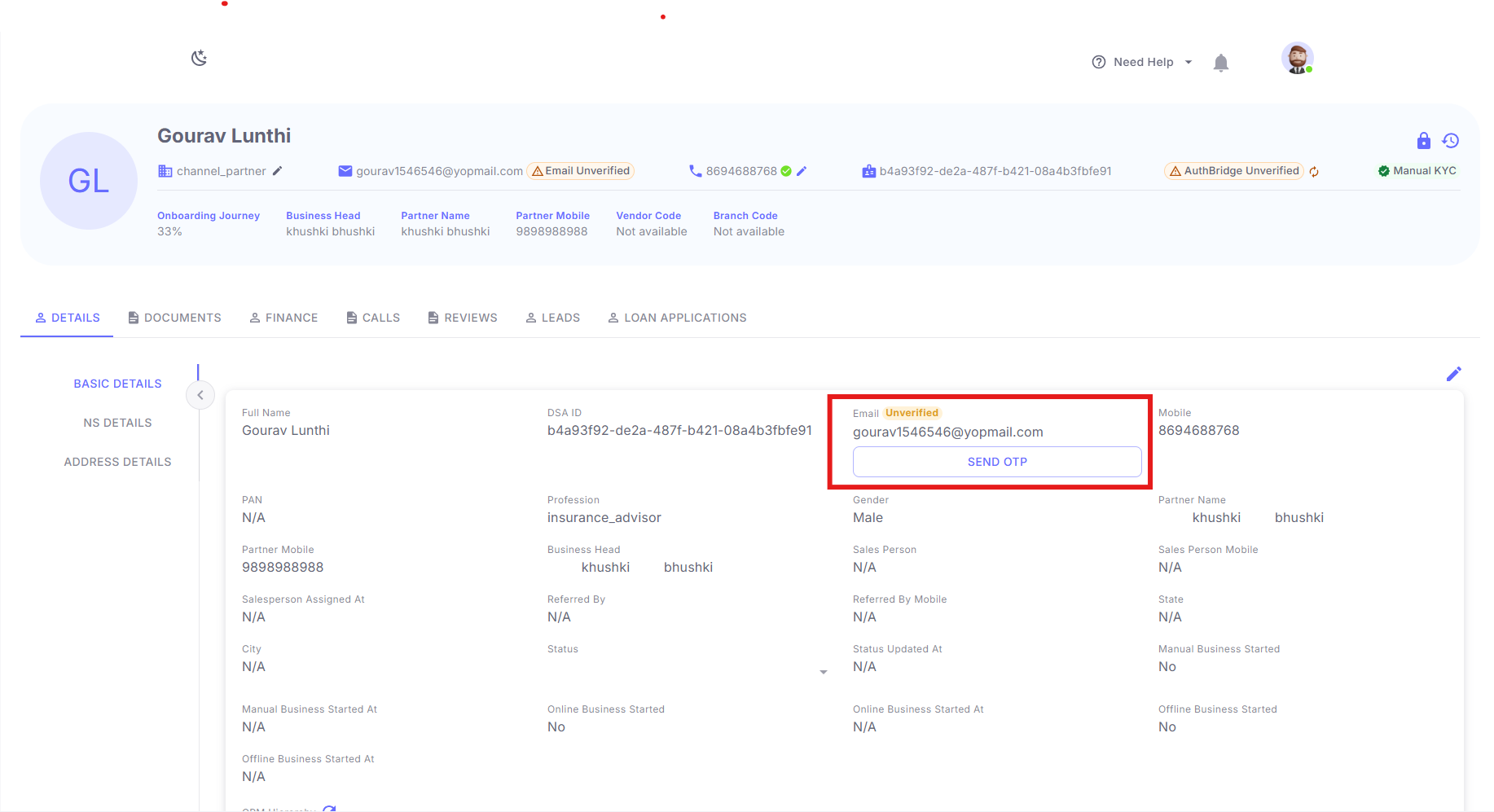
Step 3: CRM Email Verification from Profile
Verification Status
The system displays the following statuses:- Verified
- Verification Pending
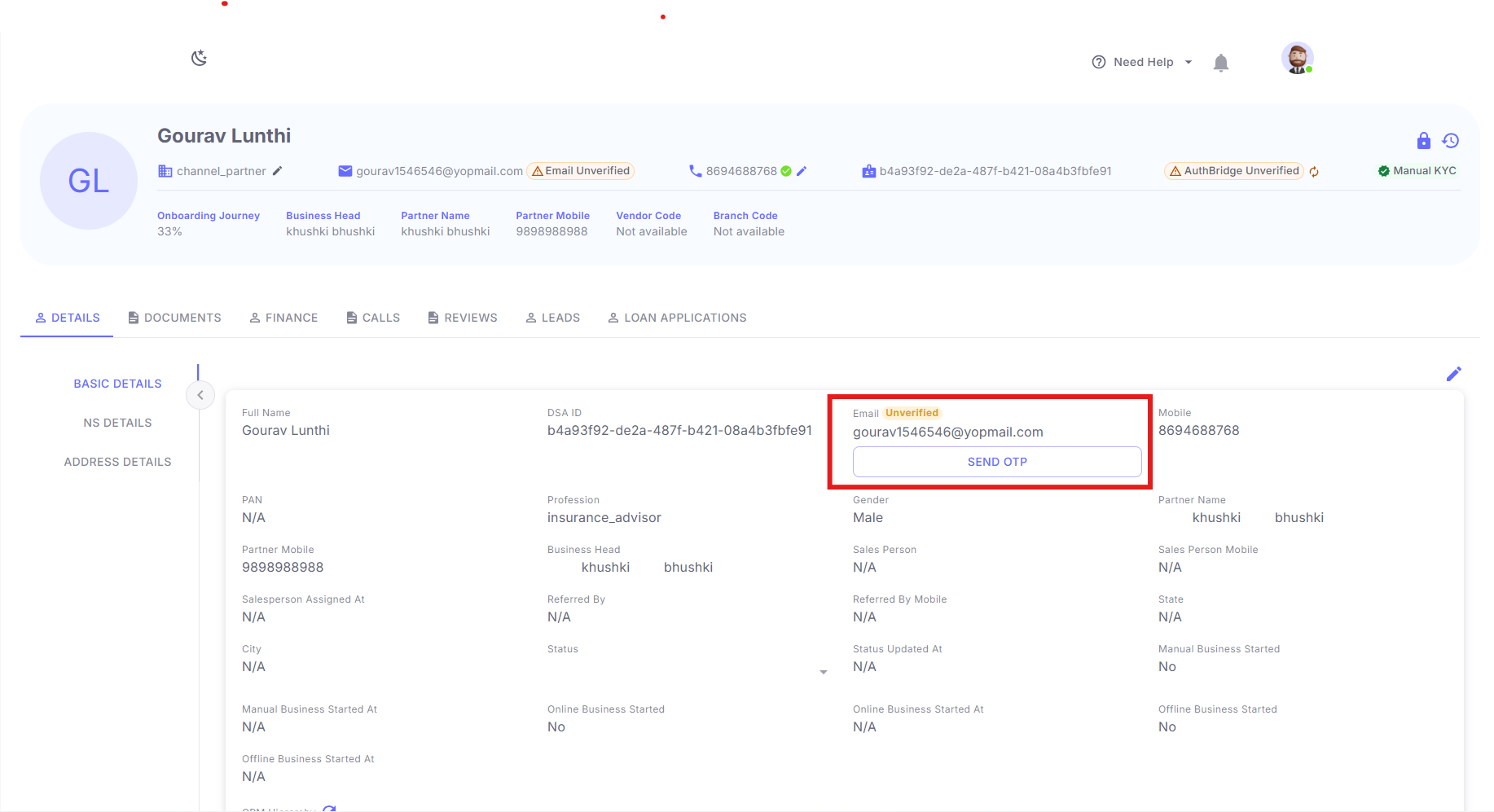
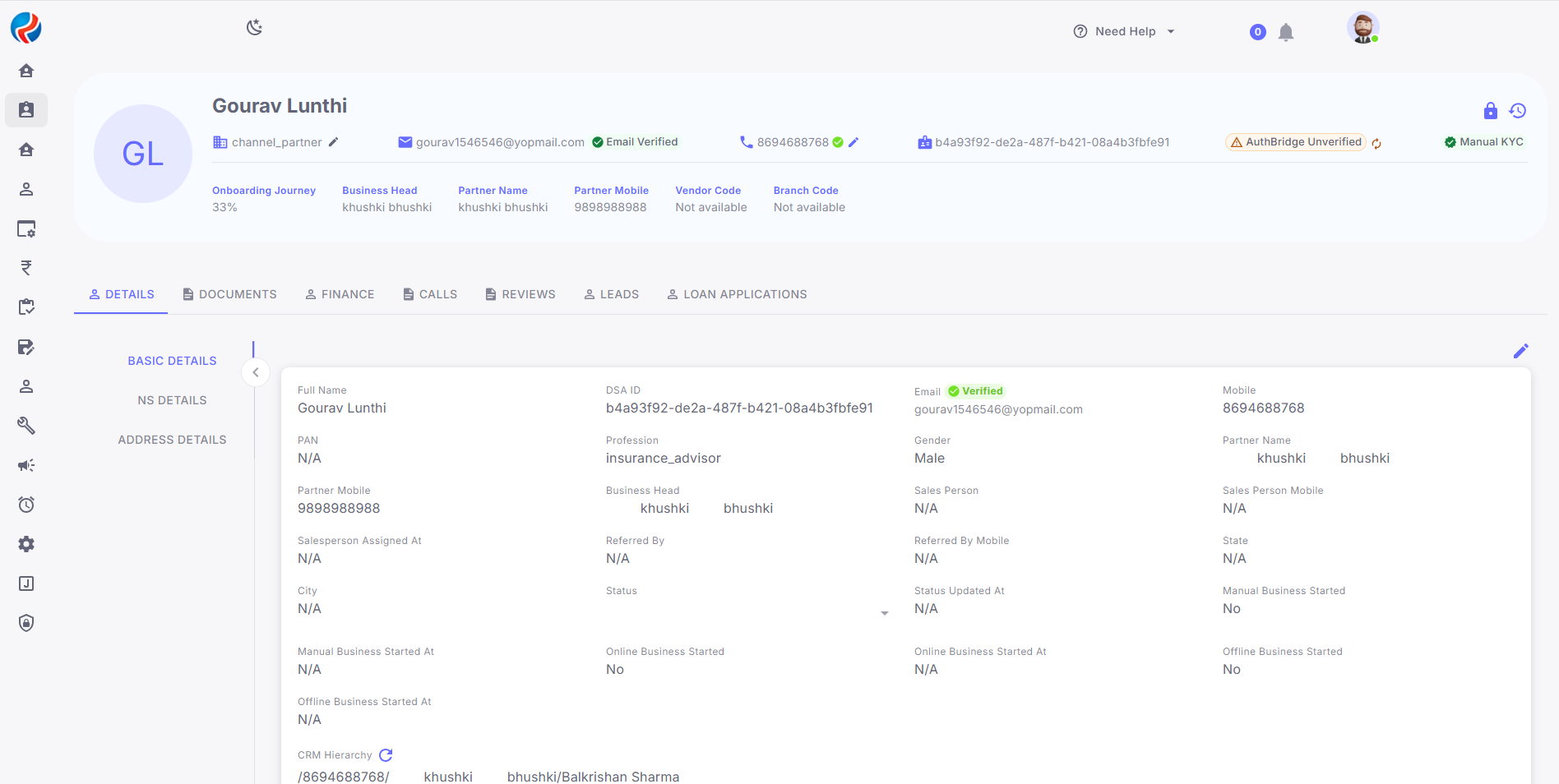
Step 4: CRM Email Verification Process
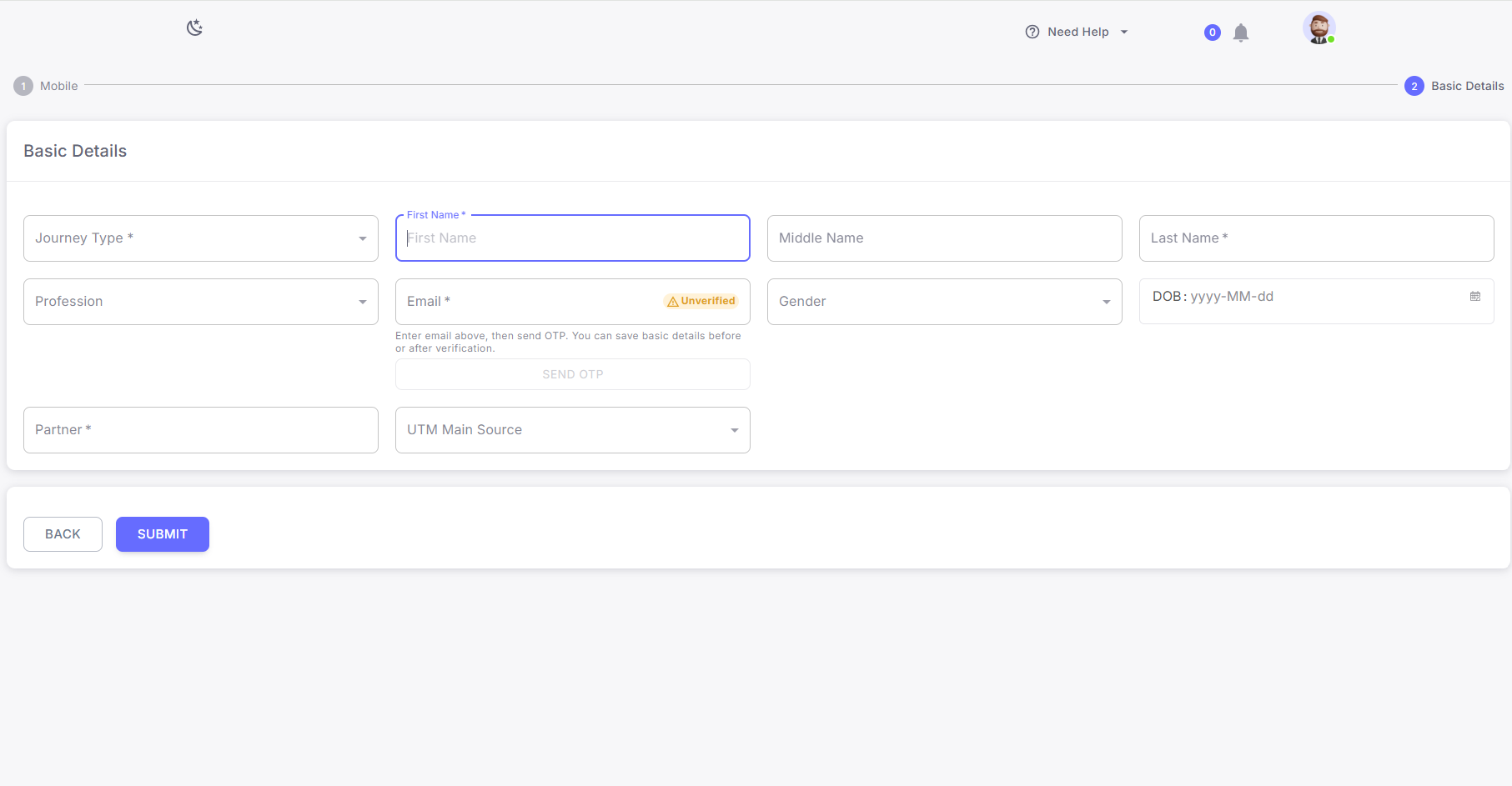
During DSA Onboarding
- User enters email address in basic details.
- OTP is sent to registered email address
- User enters OTP
- System validates OTP
- Email status is marked as Verified
- User proceeds with onboarding
During Send to ERP
- User clicks on Send to ERP
-
System validates email verification status:-
If email is verified:
- File is sent successfully to ERP
- User can verify OTP or can be skipped by (CEO)
- User retries Send to ERP action
RuConnect WebApp
Step 1: Login to RuConnect WebApp
The user logs in using valid credentials. Upon successful login, the user is redirected to the dashboard.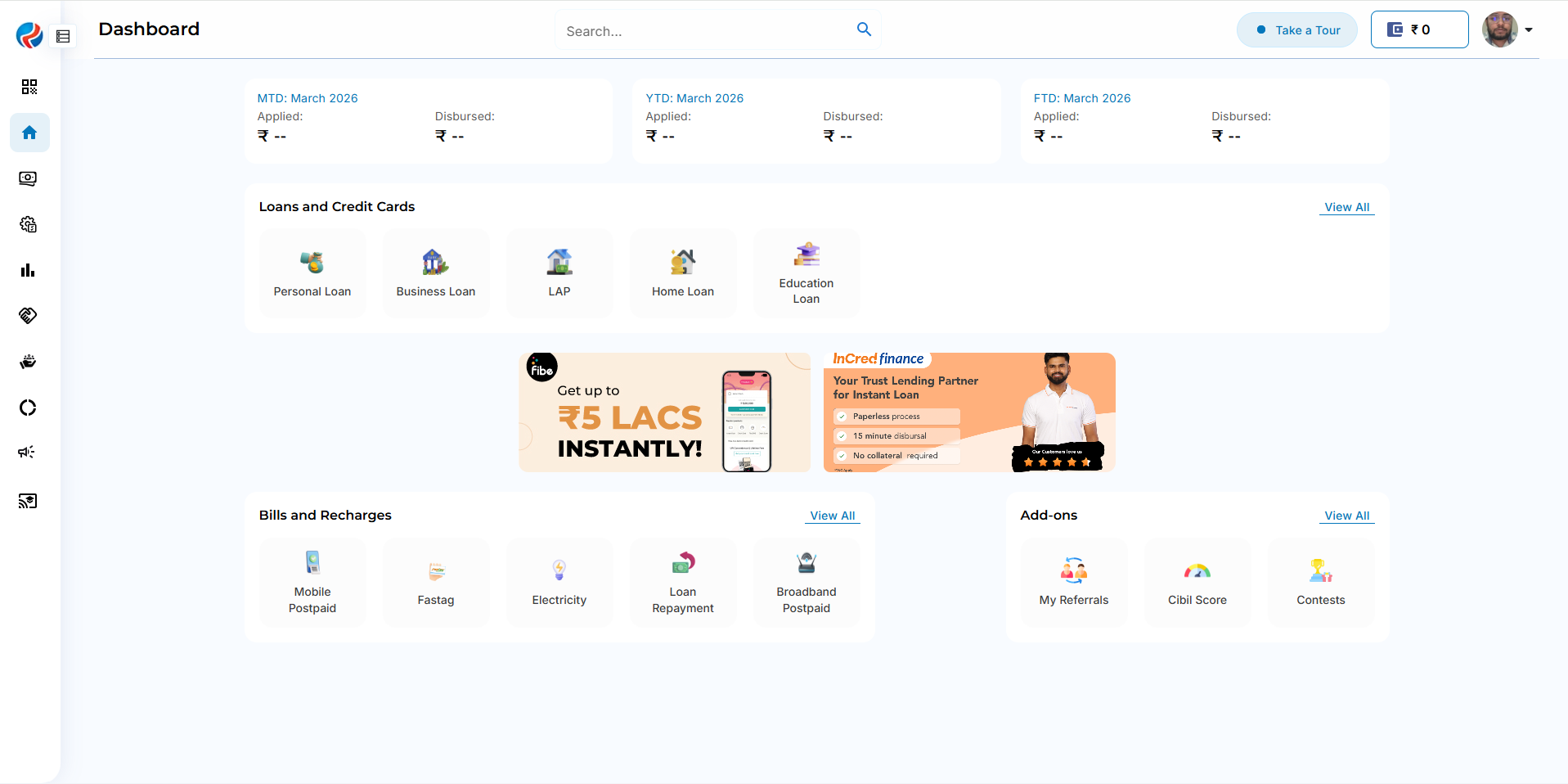
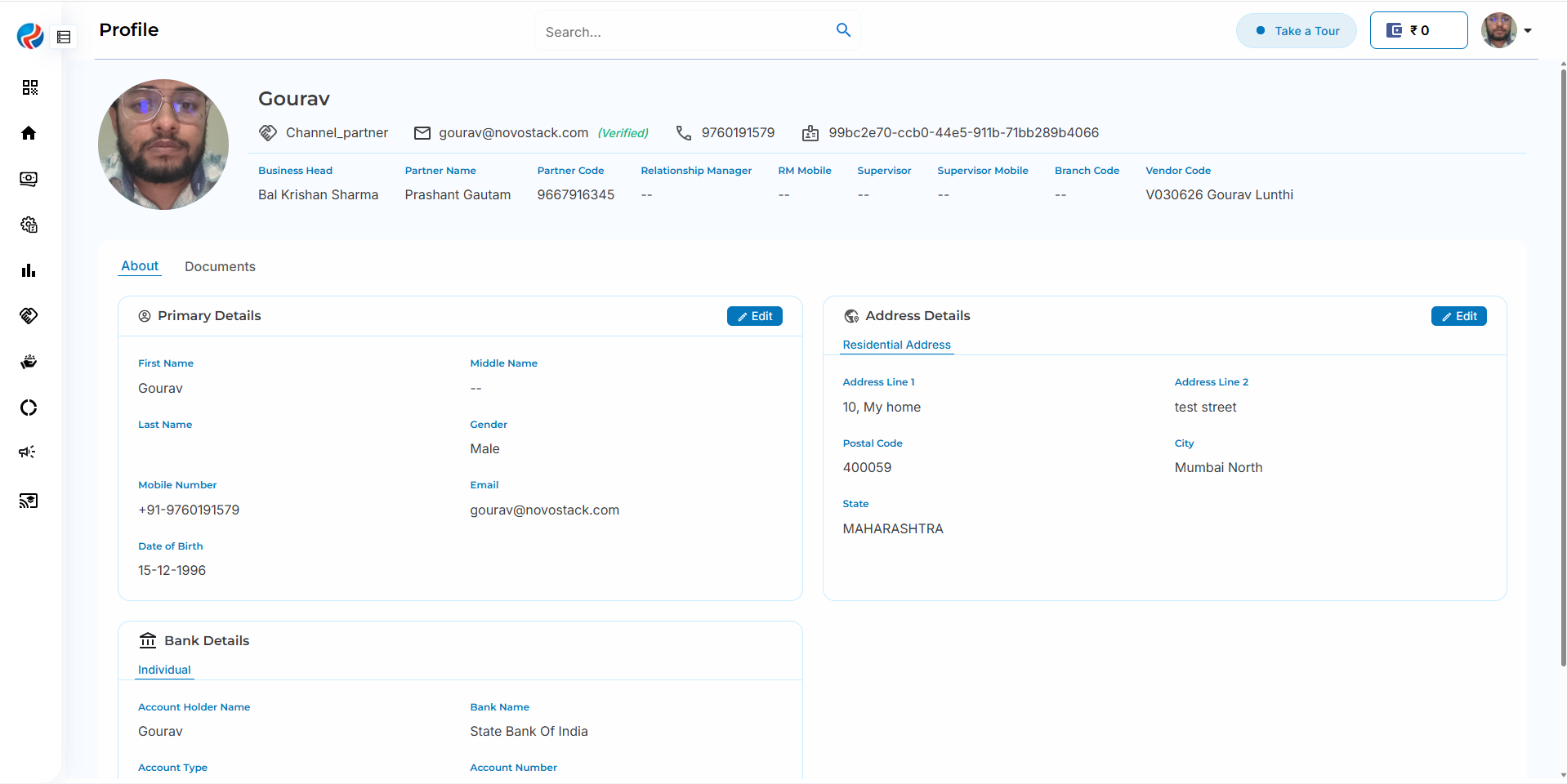
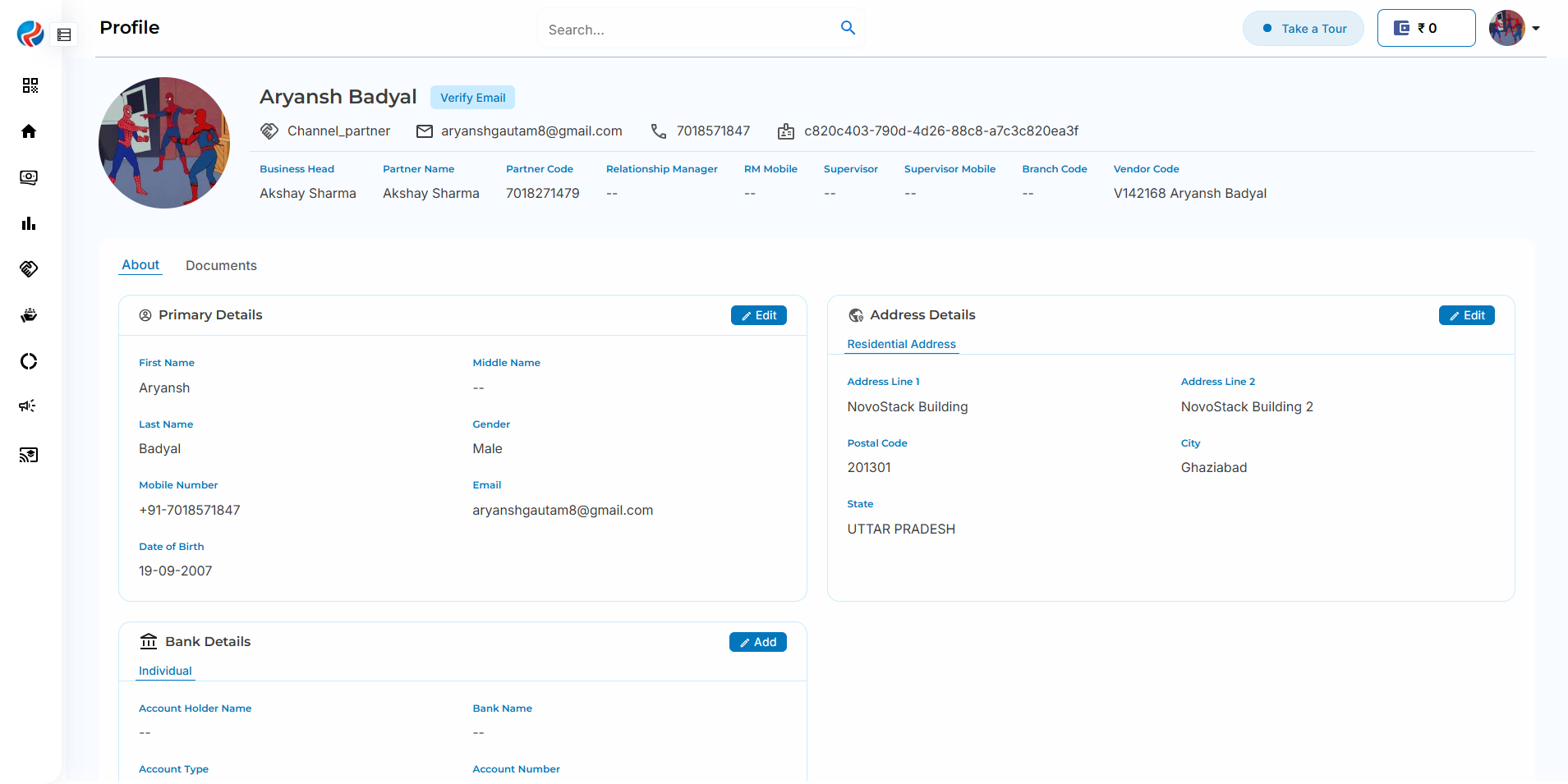
Step 2: Navigate to DSA Profile
Users can complete Email Verification form their DSA Profile. The system displays the following statuses:- Verified
- Verification Pending
Step 3: Webapp DSA Email Verification Process
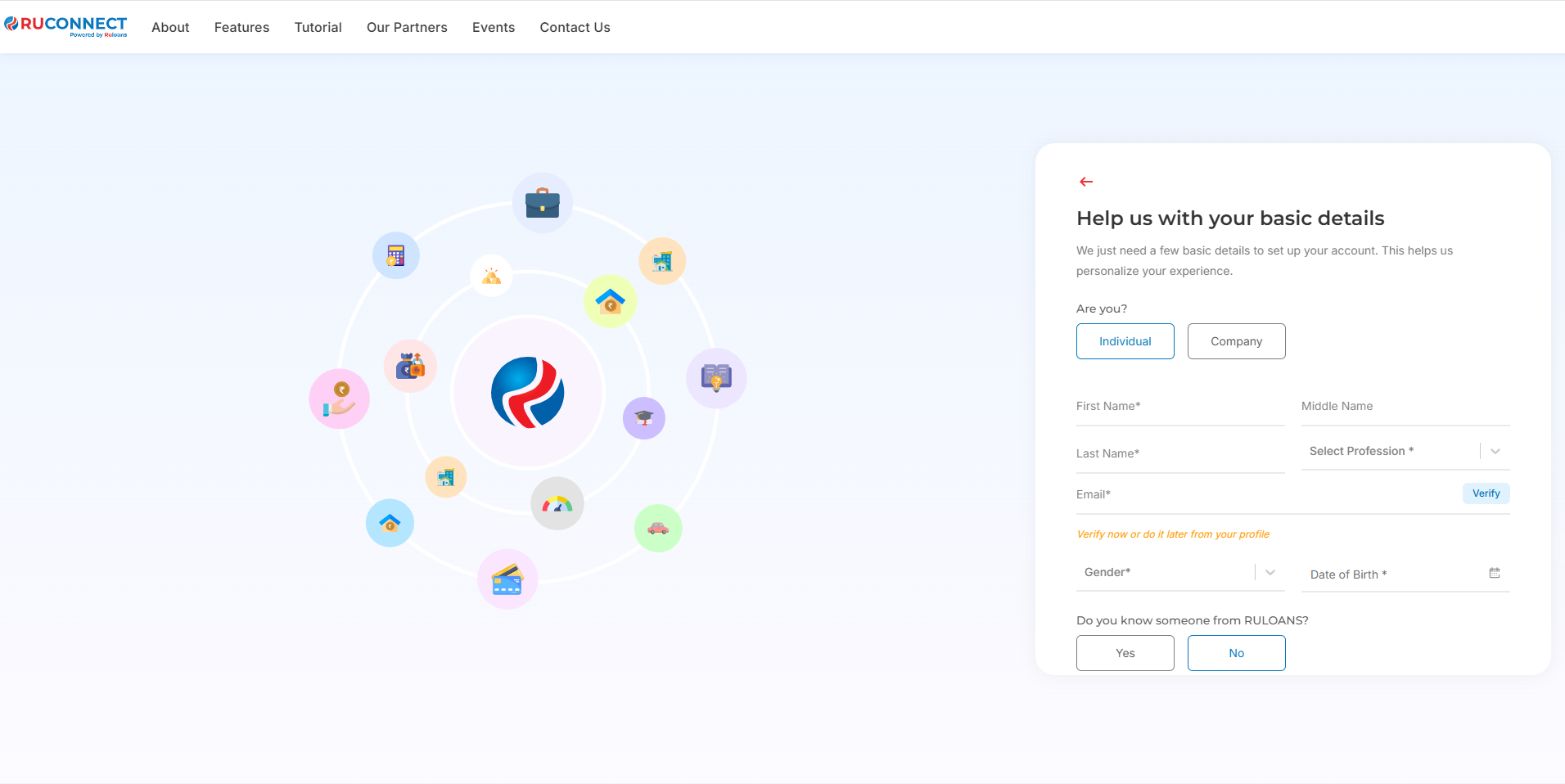
During DSA Onboarding
- User enters email address in basic details.
- OTP is sent to registered email address
- User enters OTP
- System validates OTP
- Email status is marked as Verified
- User proceeds with onboarding
RuConnect Mobile App
Step 1: Login to RuConnect App
The user logs in using valid credentials. Upon successful login, the user is redirected to the dashboard.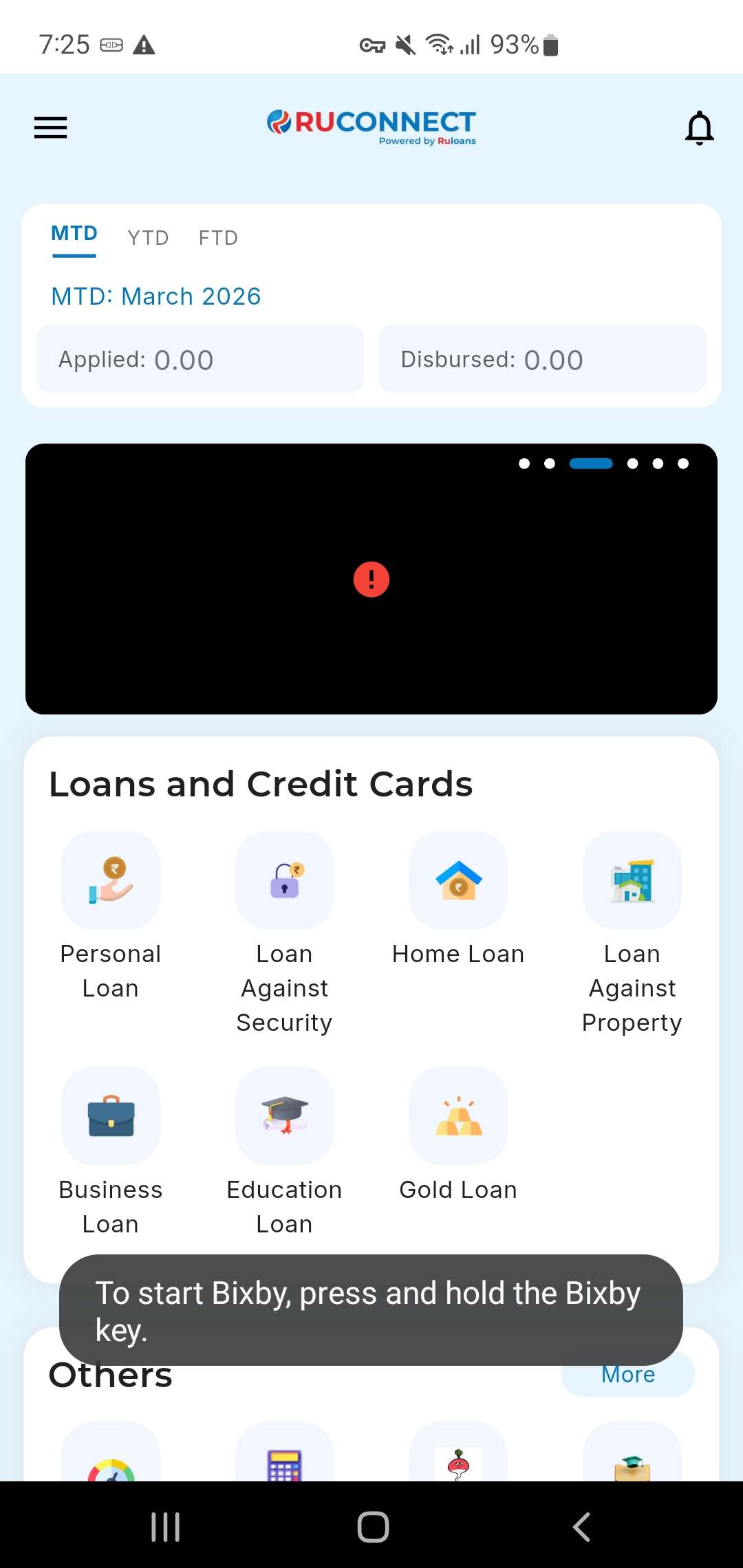
Step 2: Navigate to DSA Profile
Users can complete Email Verification form their DSA Profile. The system displays the following statuses:- Verified
- Verification Pending
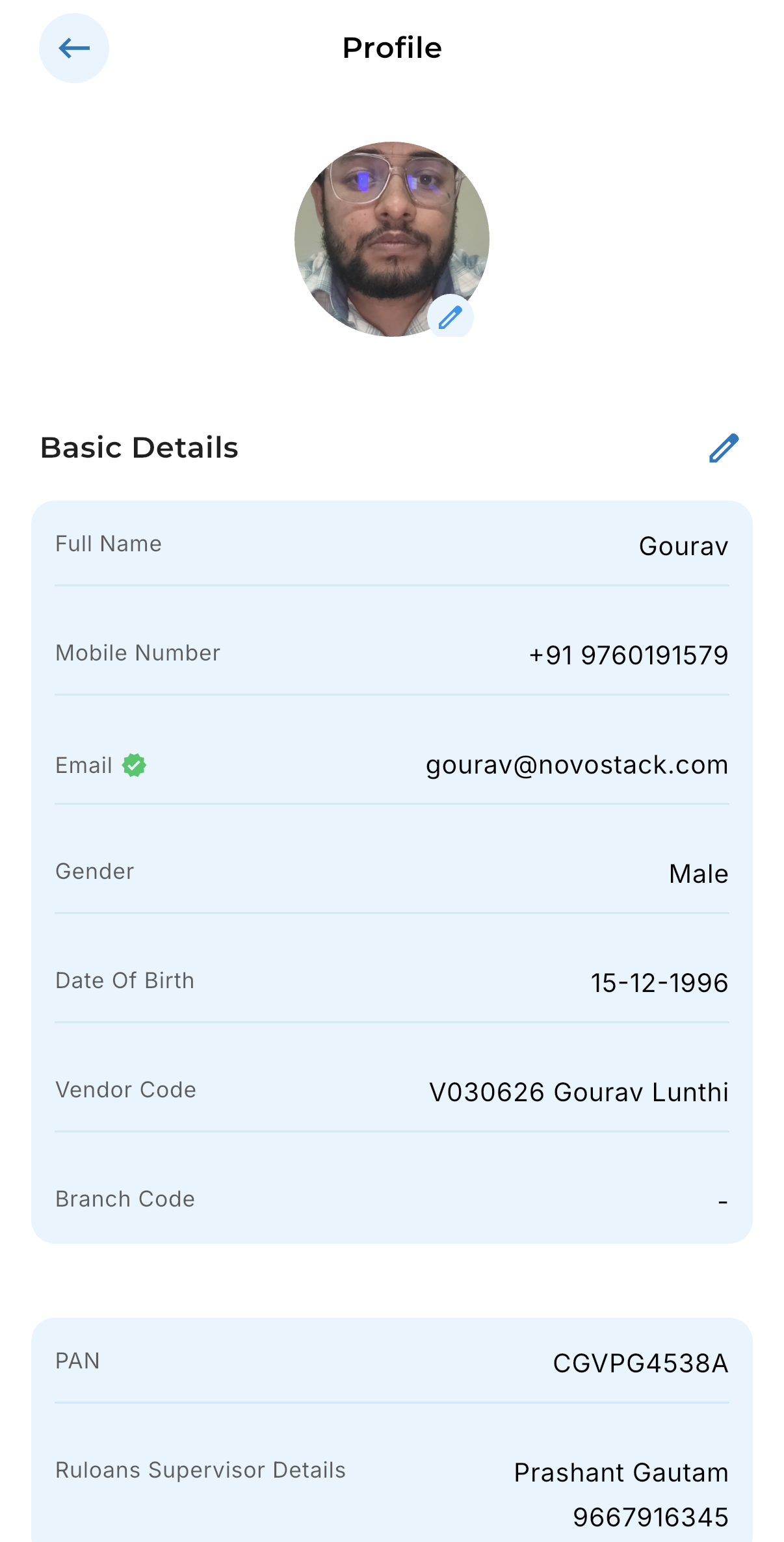
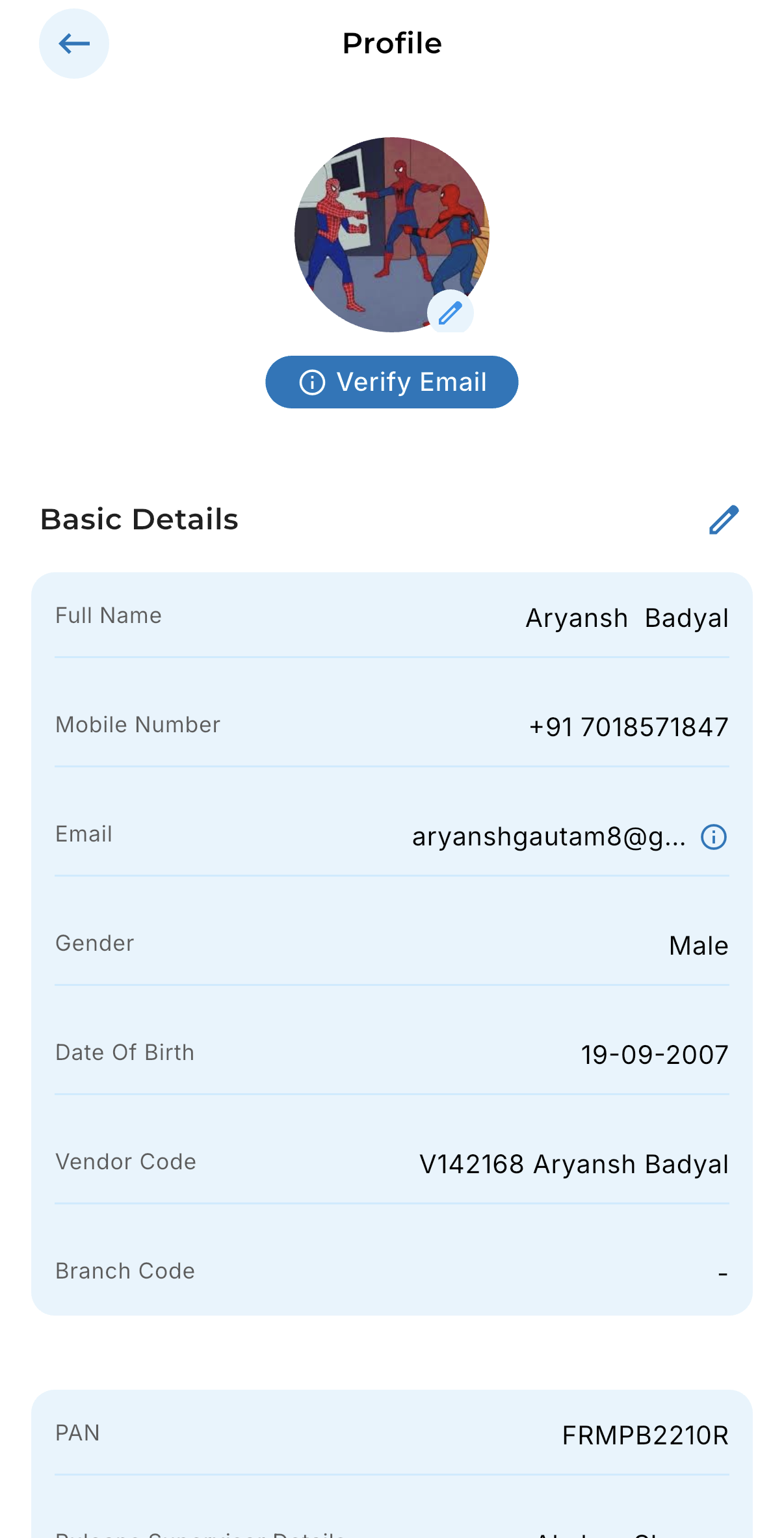
Step 3: App DSA Email Verification Process
During DSA Onboarding
- User enters email address in basic details.
- OTP is sent to registered email address
- User enters OTP
- System validates OTP
- Email status is marked as Verified
- User proceeds with onboarding
OTP Verification Details
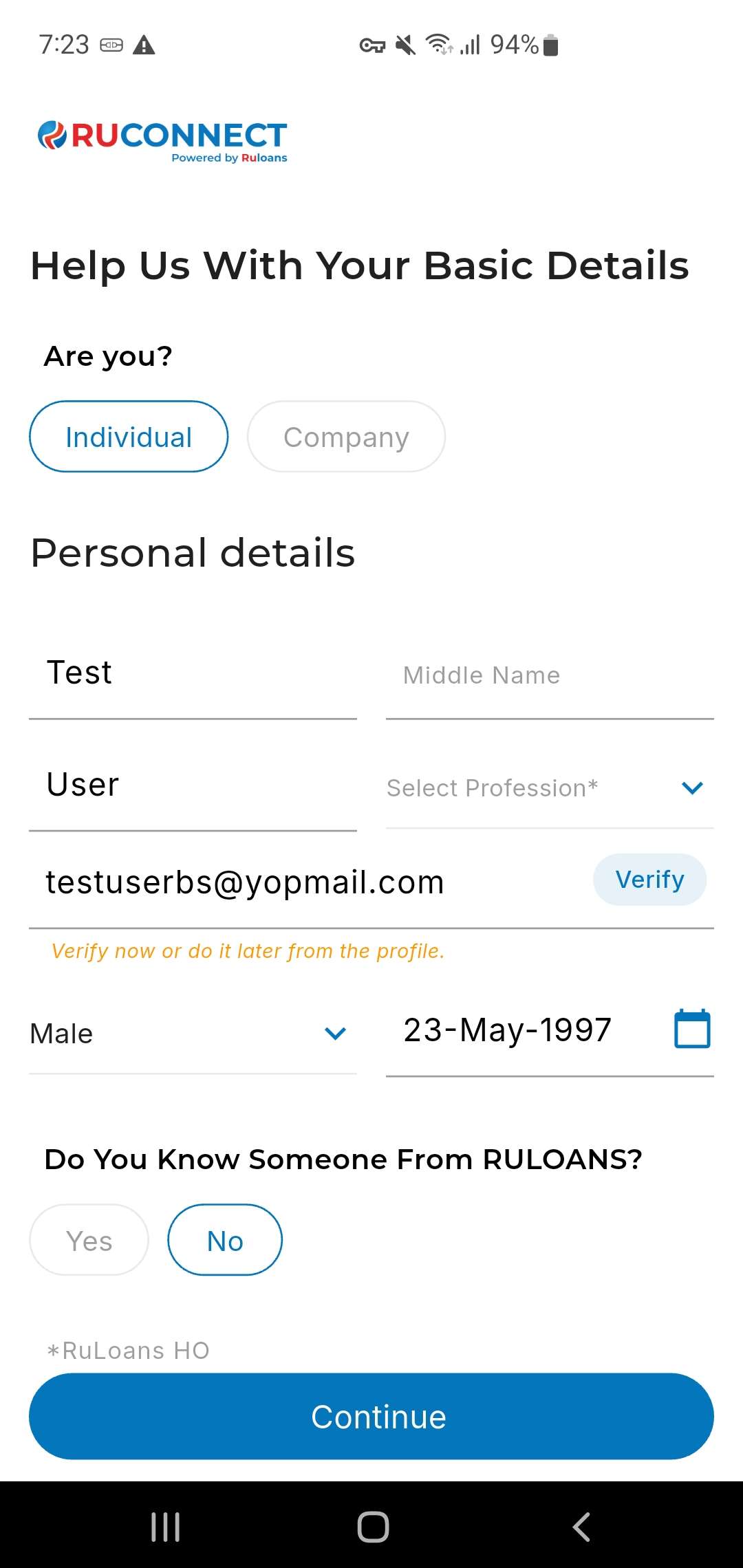 Users can perform the following actions across all platforms:
- Enter OTP received on email
- Retry verification in case of invalid OTP
- Resend OTP if OTP expires
- View verification status in real time