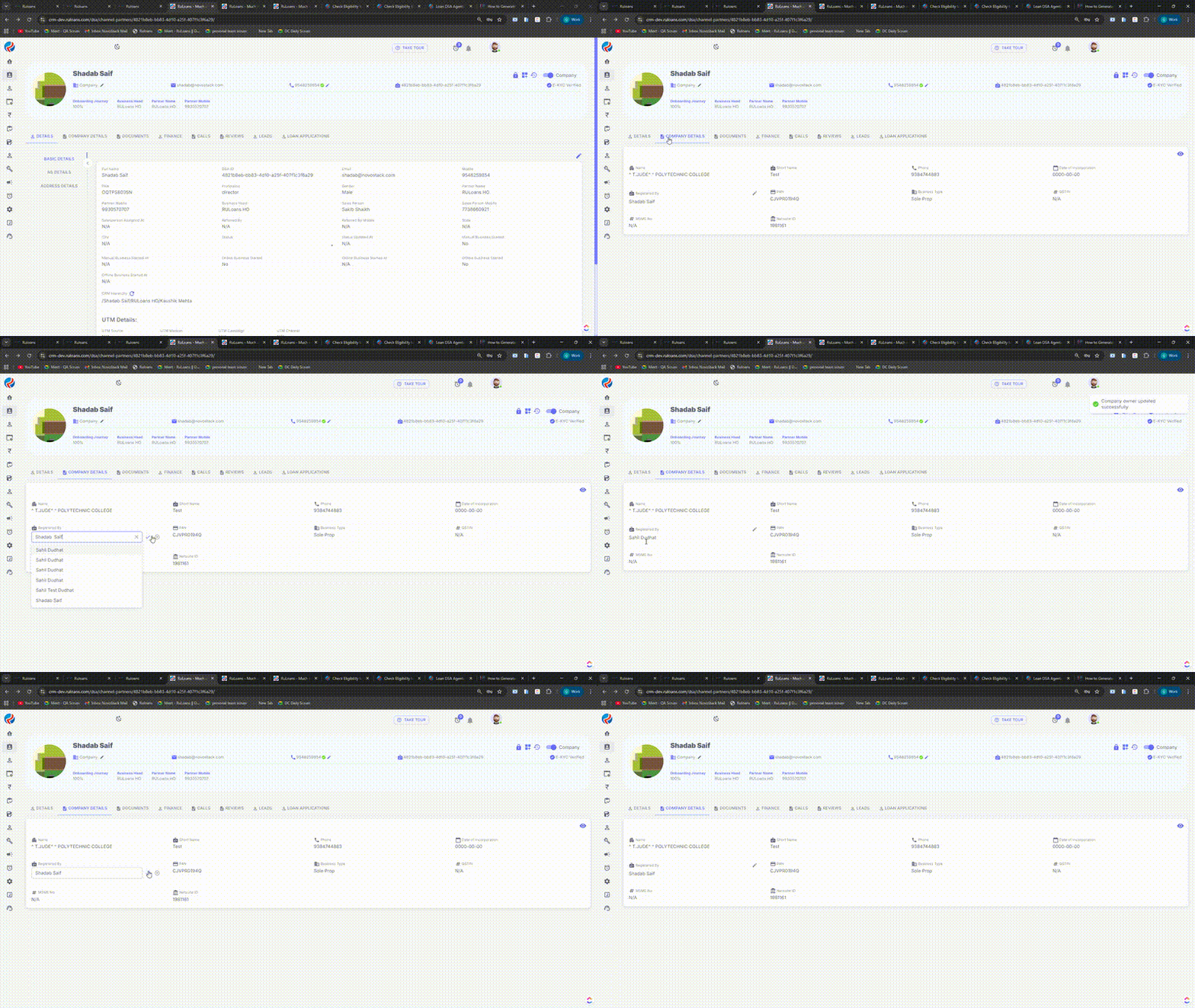
Introduction
This document provides an overview of the user type change flow between Individual and Company in the DSA CRM. It explains the validation rules, ownership checks, and system behavior during company association and owner reassignment.Steps to Access the DSA Section
- Log in to the CRM.
- Navigate to DSA —> Channel Partners from the side menu.
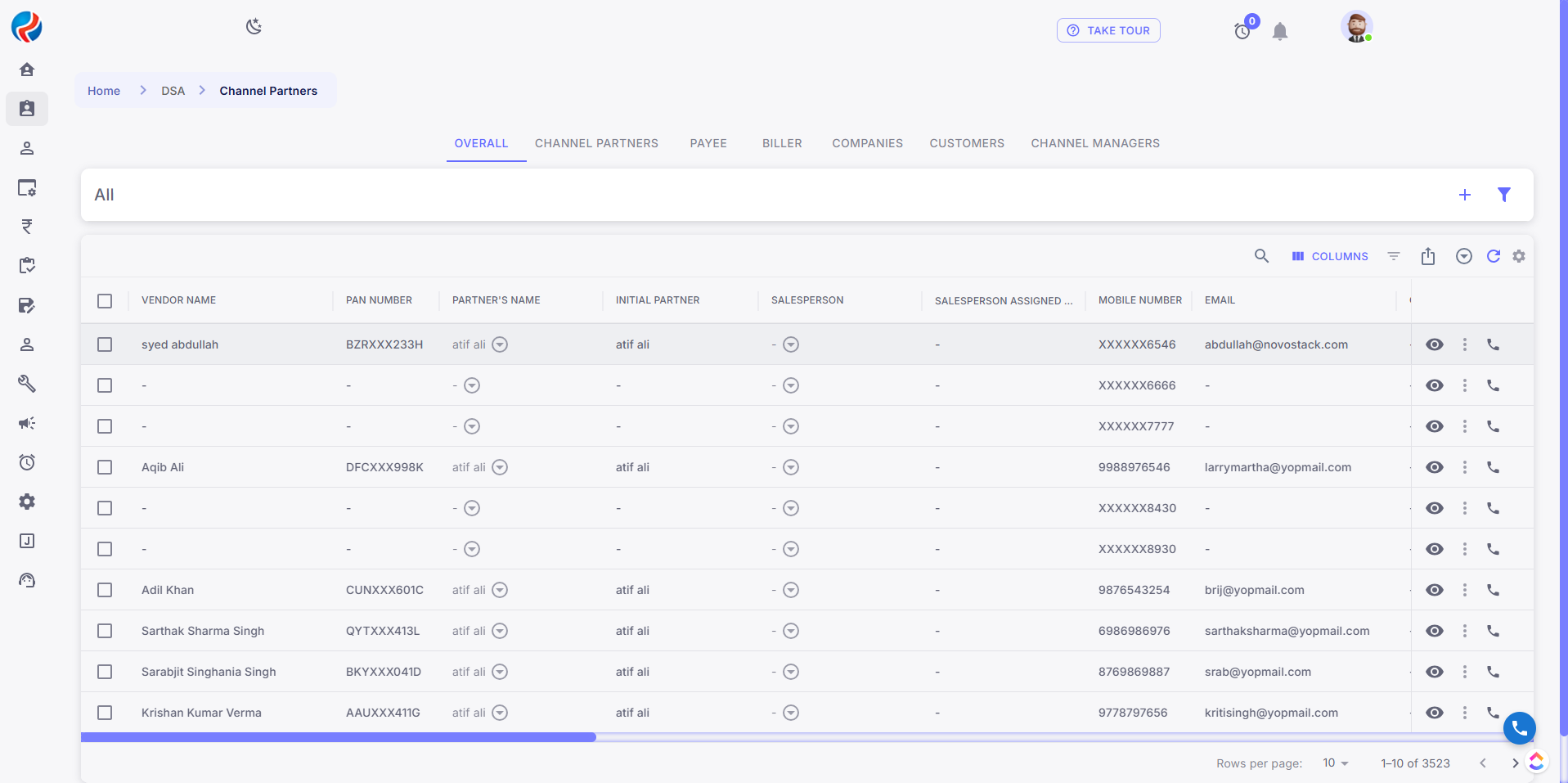
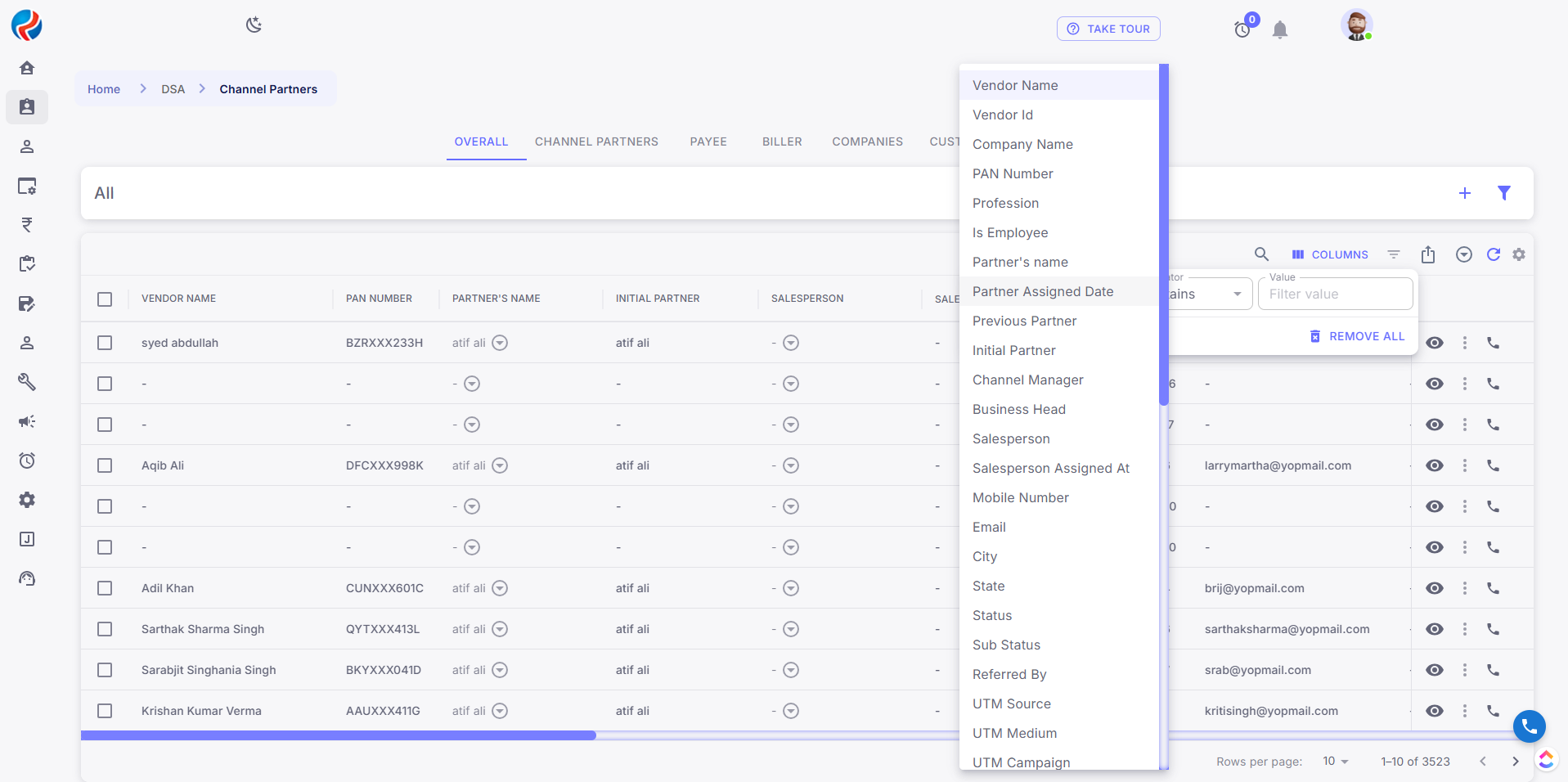
- Search for the DSA you want to change the details for.
- Click on the Eye Button
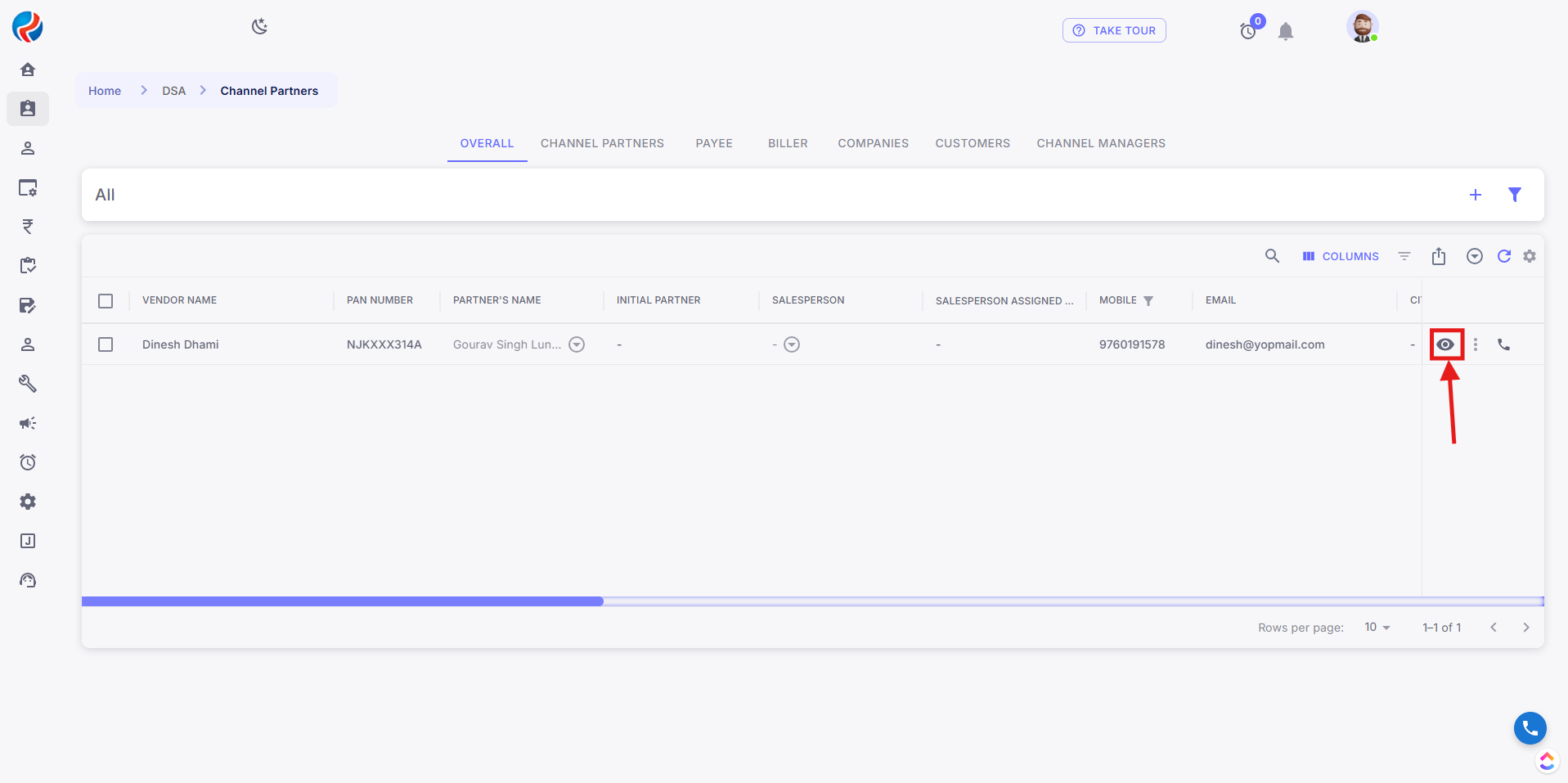
- A Detailed User Profile for the selected DSA will be opened.
For Individual User
When the user type is Individual and he wants it to be changed to company.- From the user type dropdown select the company option.
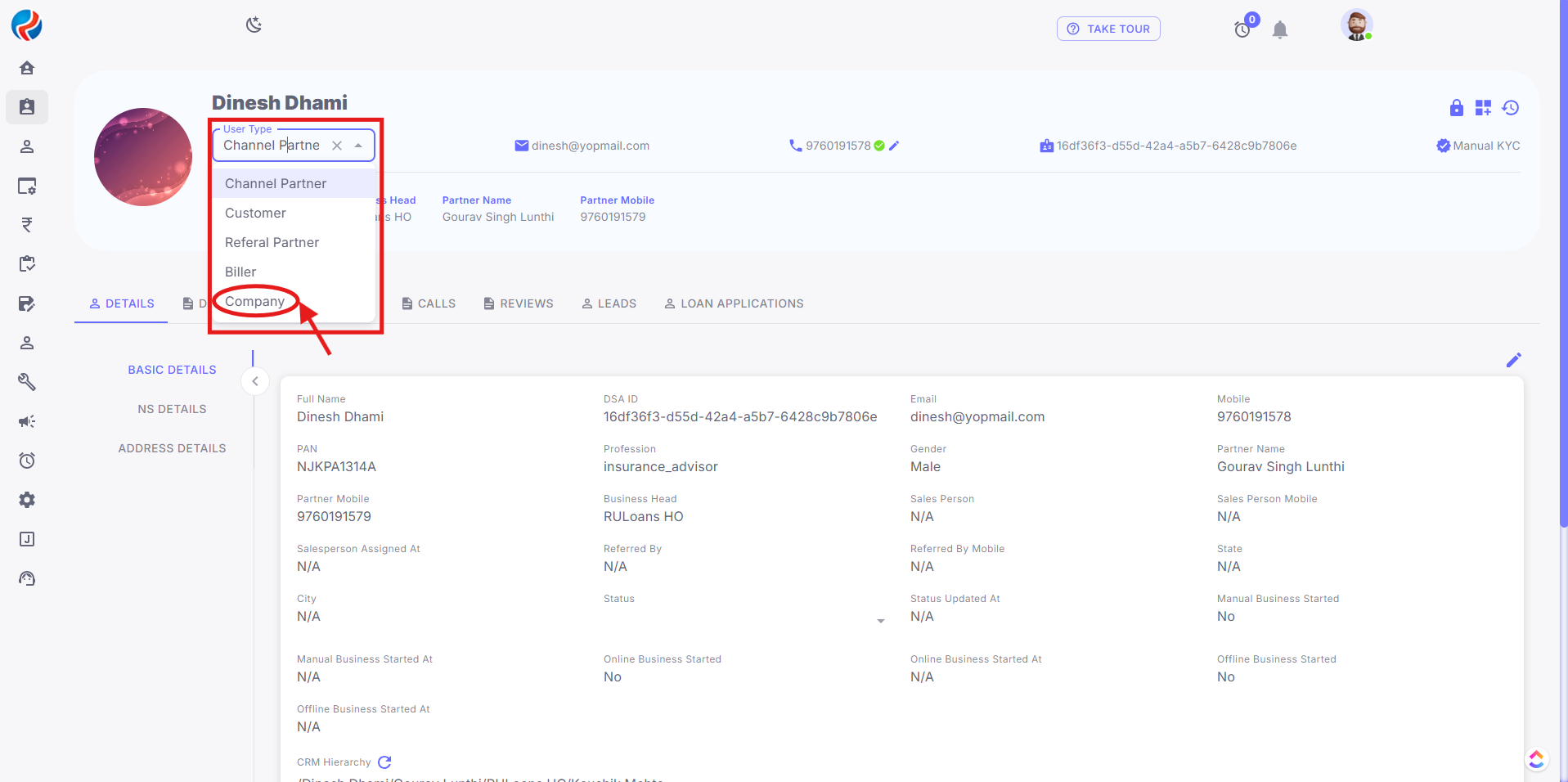
- A pop-up will appear on the screen from which user can select the company he wants to be associated with.
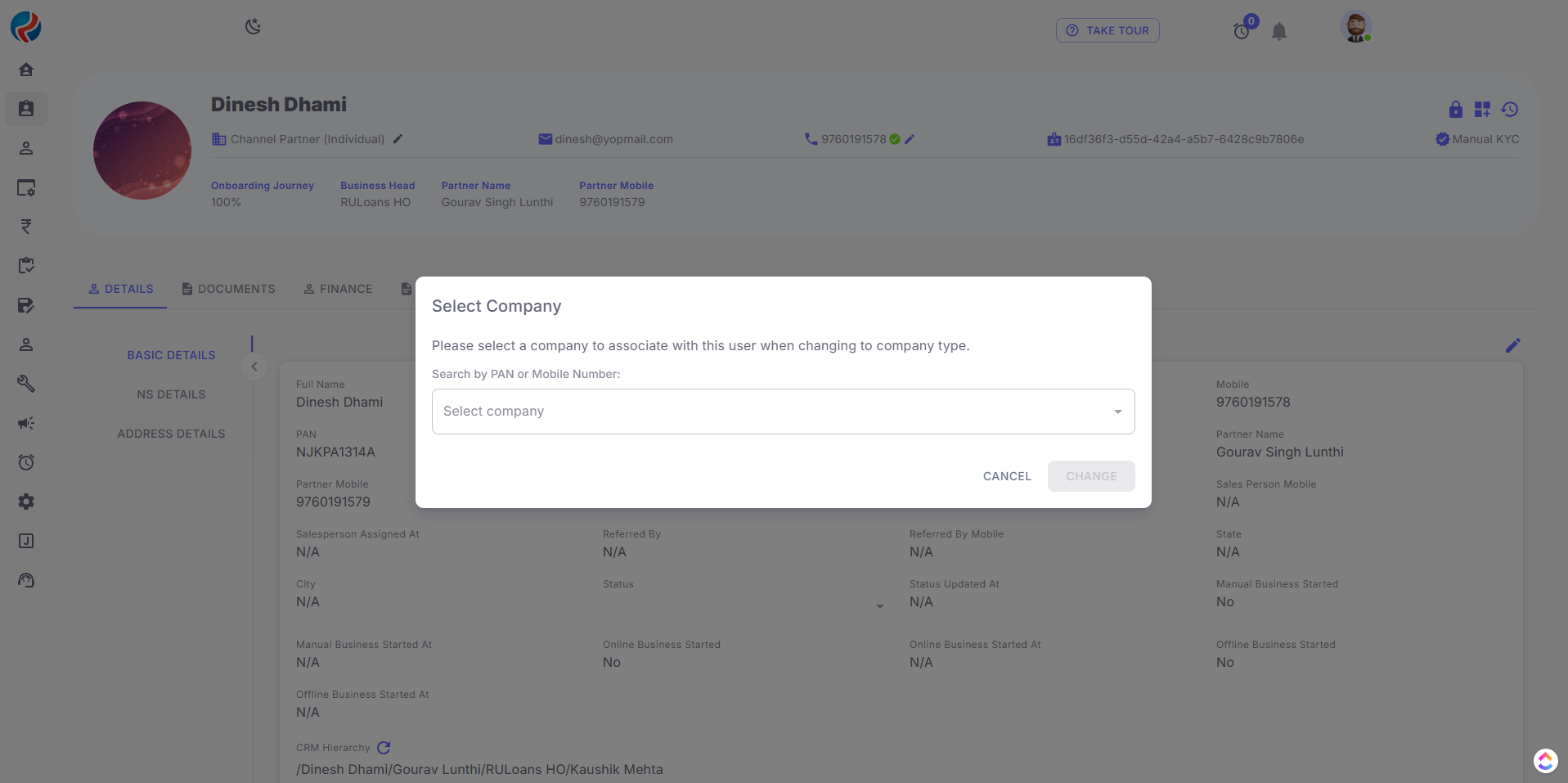 Once the company is selected the user type will be changed to company for the user and the company onboarding steps will be added to the DSA onboarding steps.
For Company User
When the user type is Company and the same DSA is the company owner, and the user attempts to change the user type to Individual.
- From the user type dropdown select the channel partner option.
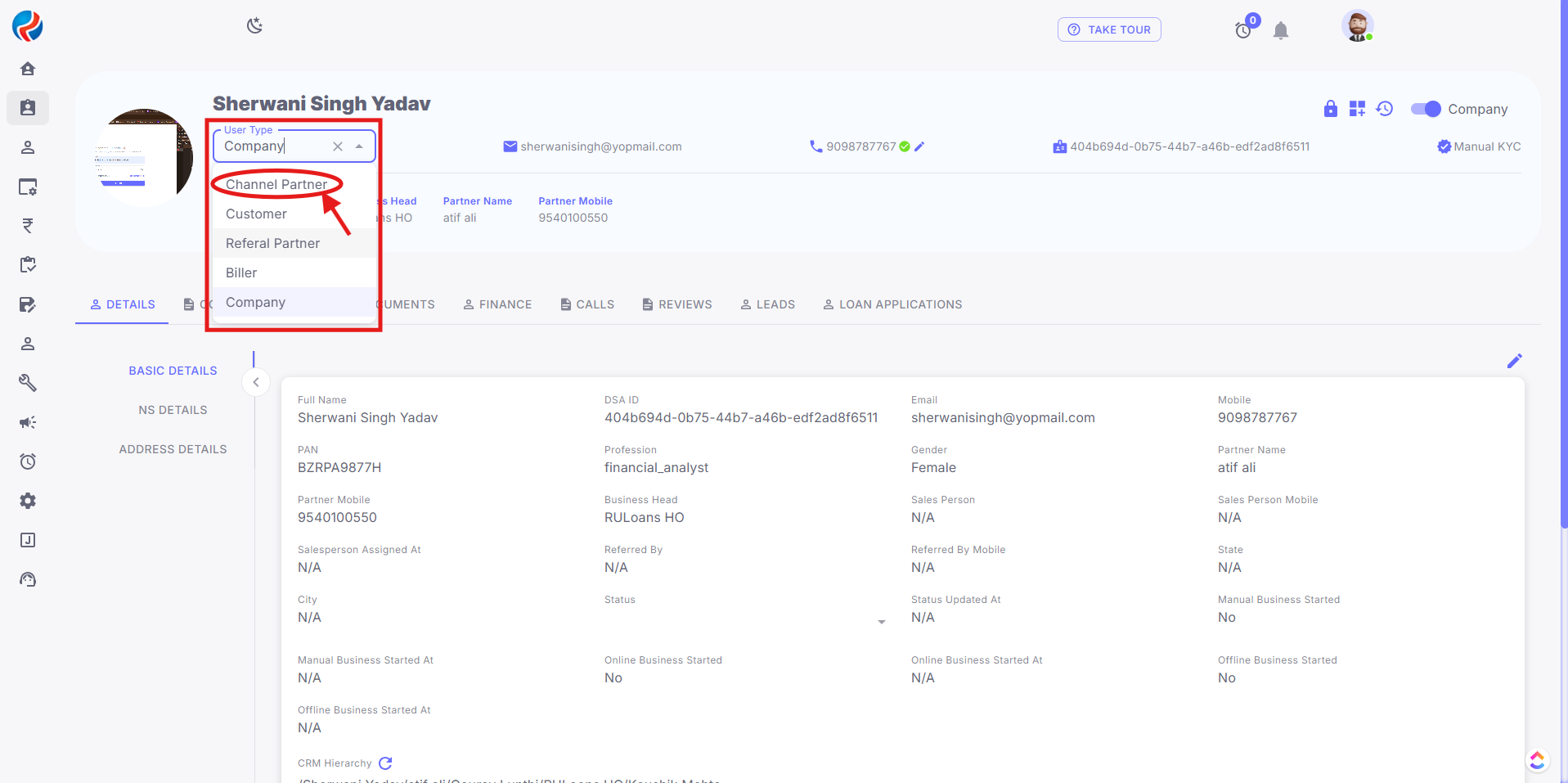 Note:- This step is available when there are users present in that company.
- A pop-up will appear on the screen from which user can select the new company owner of the company from the existing users associated with that company.
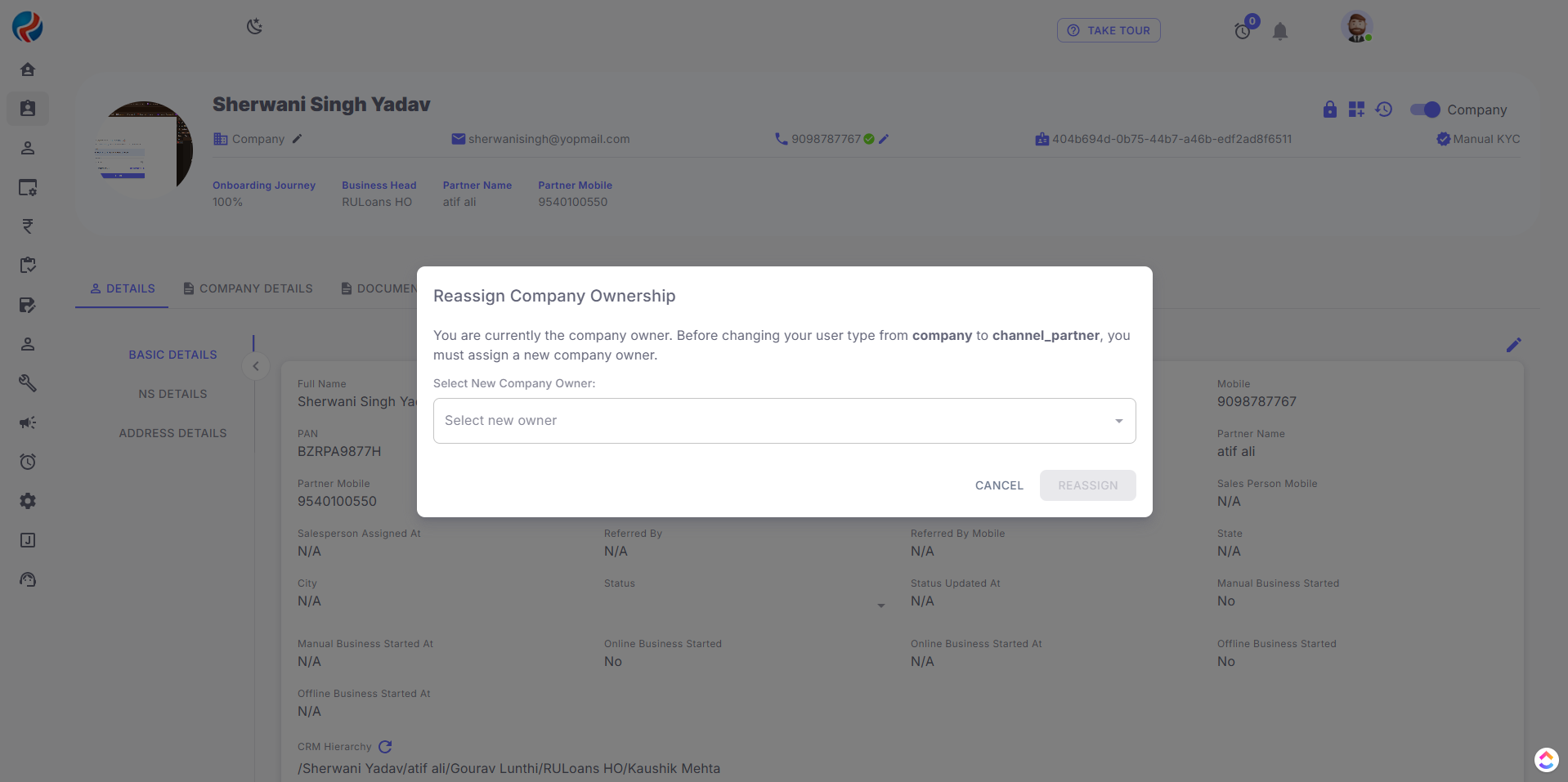
- The User for this DSA will be changed to Individual.
- Also The user steps for the new DSA who is assigned ownership of the company will be changed accordingly and the if all steps were previously for the company only the Company MOU step will be incomplete as the new owner will be required to sign the MOU again.
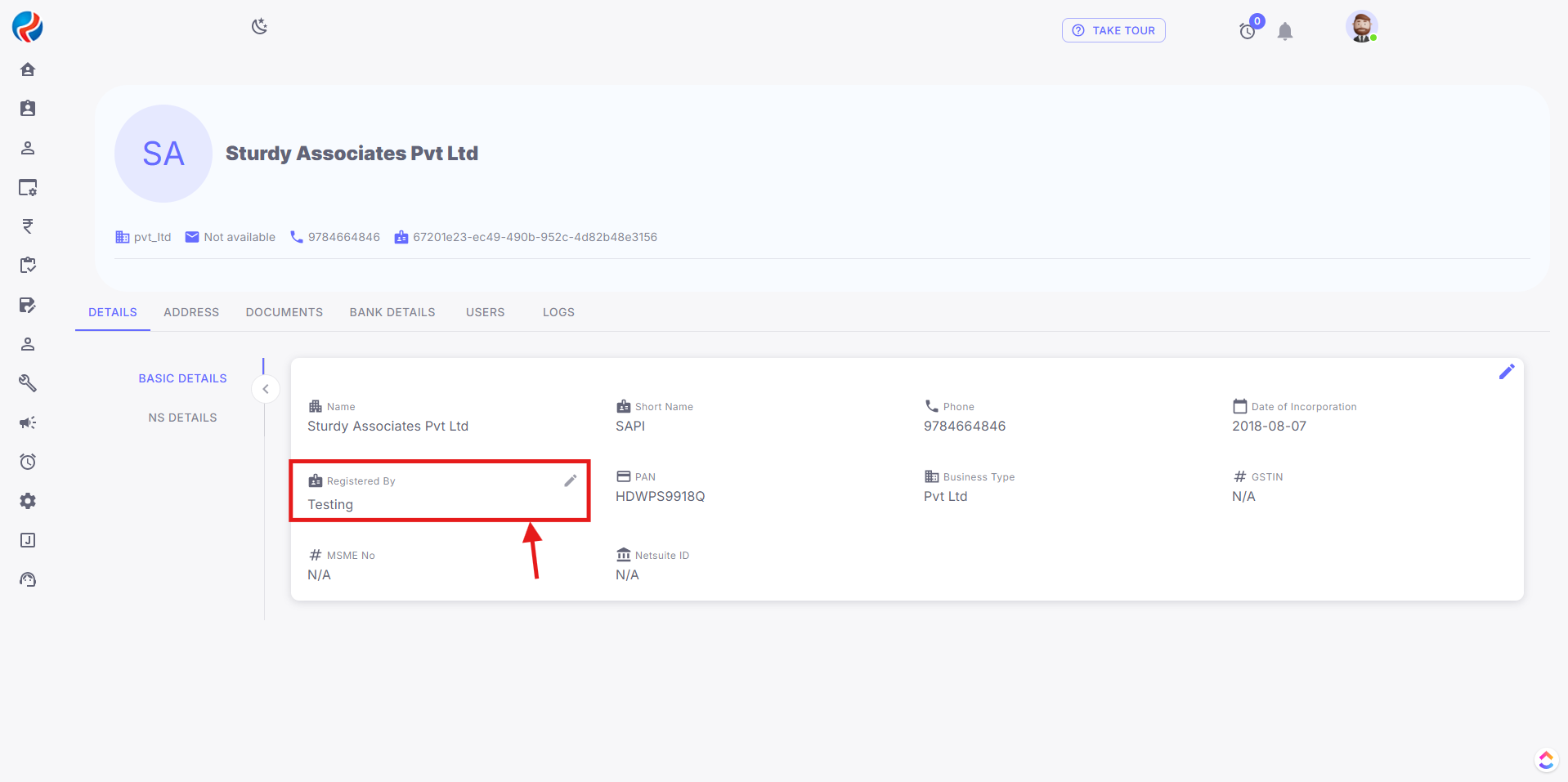
- A pop-up will appear on the screen asking user to confirm the change. The user registered by will remain the same.
For Directly changing Company Owner
To change the company owner Directly from the users assigned in that company.