How to Update DSA Email on CRM
Objective
This document explains how DSA email updates are handled in CRM and RuConnect WebApp, including direct update by authorized users and OTP-based email change flows.CRM Platform
CRM supports two verified email update flows for changing an already verified email address.1. Direct Email Update by CEO / BH / Lead Admin
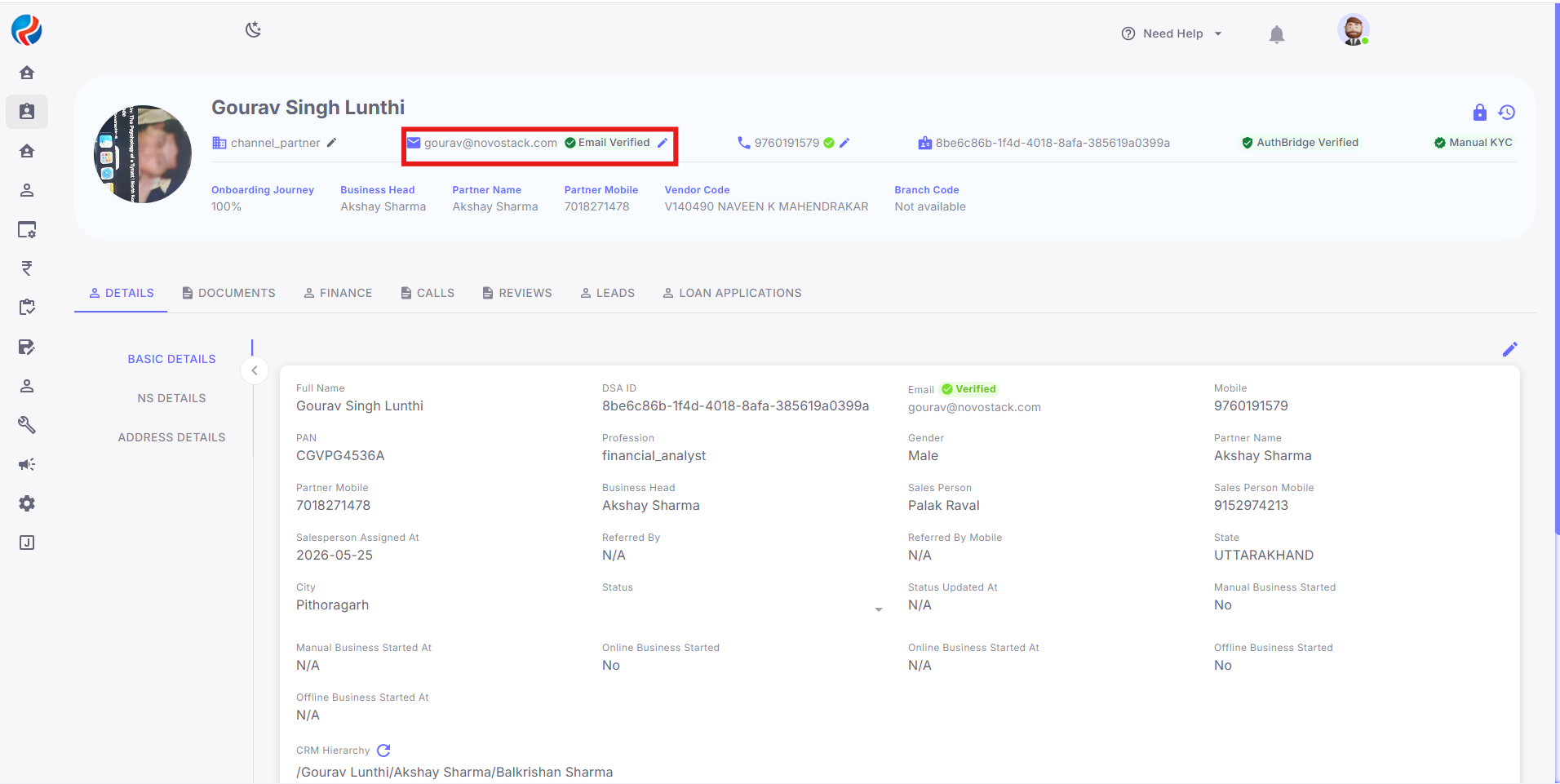
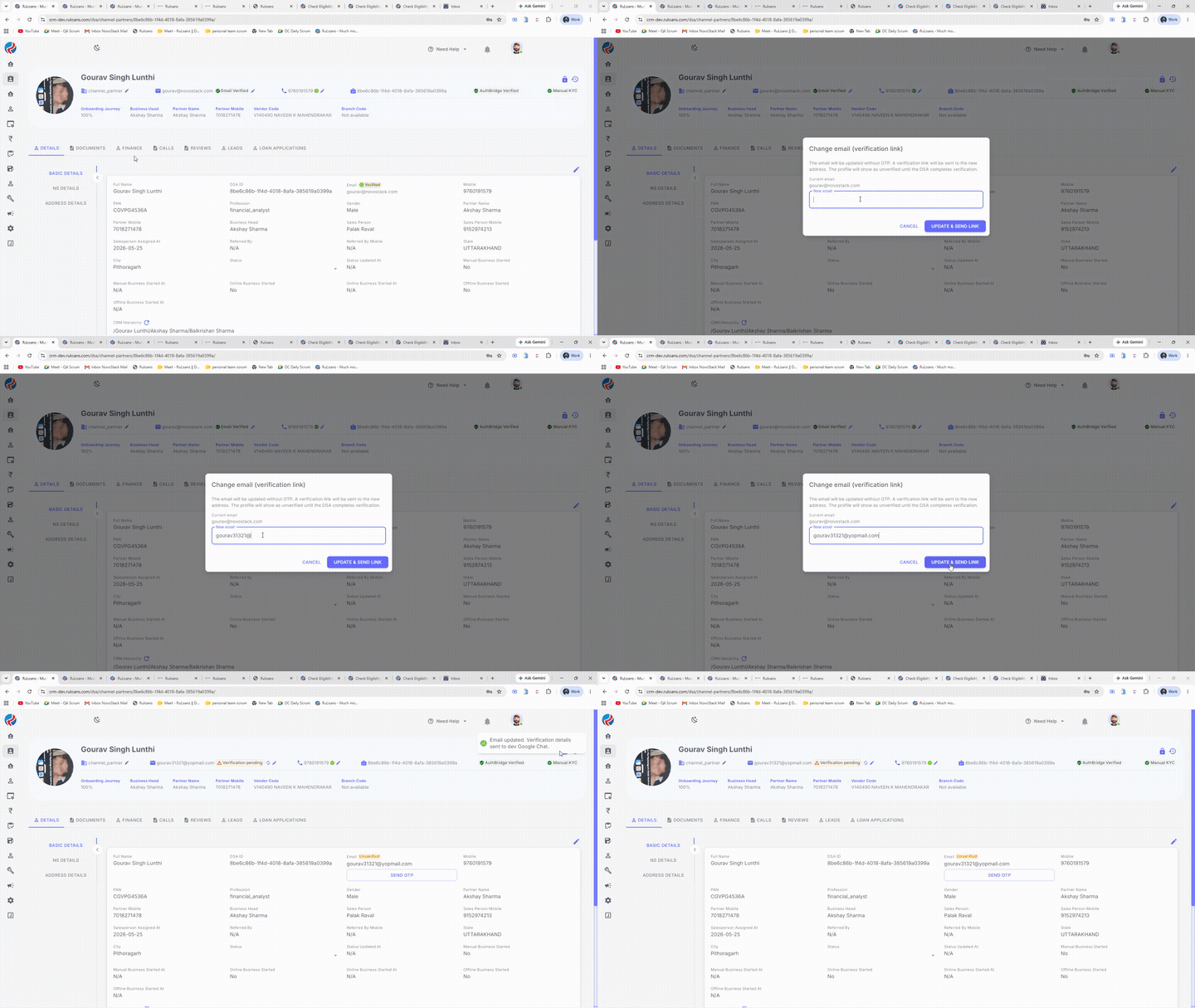
- If the logged in user is a CEO, BH, or Lead Admin, they can directly update the email address of any DSA or channel partner from the DSA profile.
- After updating the email, the system sends a verification link to the updated email address.
- The verification link is valid for 24 hours.
- When the user clicks the link, the new email address is updated and marked as verified.
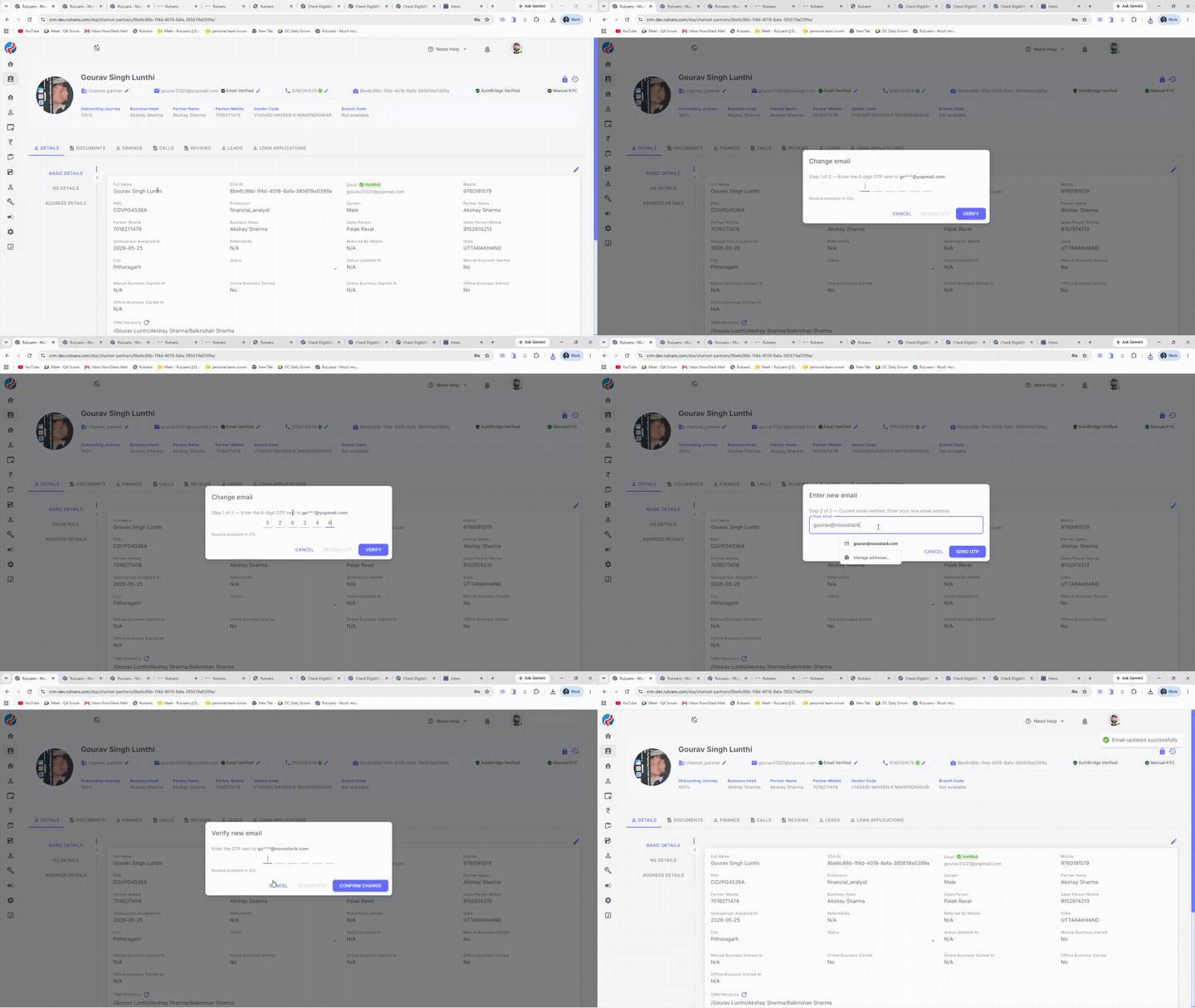
2. Email Update via OTP Verification
- The user selects email update from the DSA profile.
- The system sends a code to the existing verified email address.
- The user verifies the existing email by entering the OTP.
- After successful verification, the user is allowed to enter a new email address.
- The system sends a code to the new email address.
- The user verifies the new email by entering the OTP sent to it.
- Once verified, the new email is updated and marked as verified.
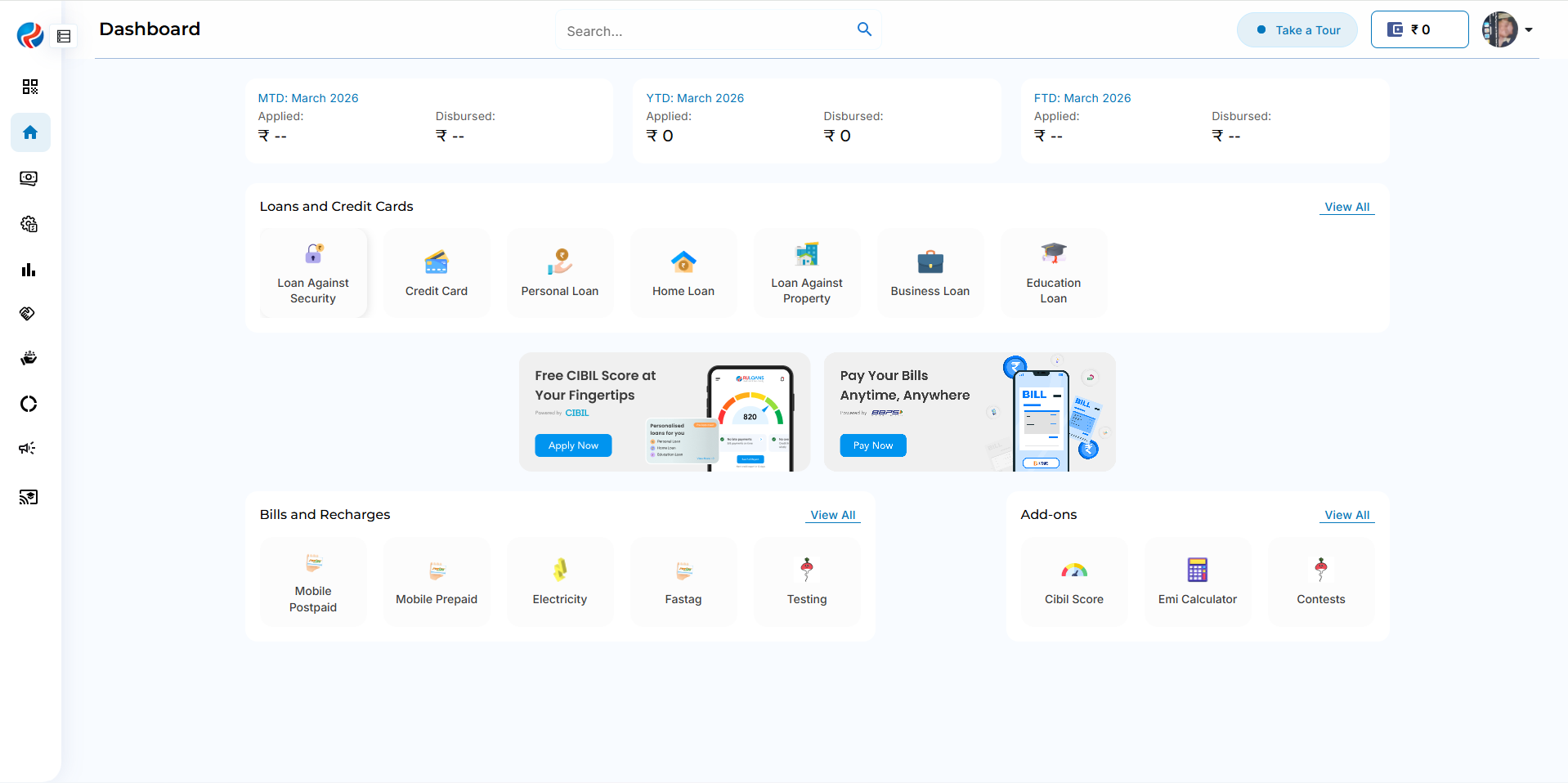
RuConnect WebApp
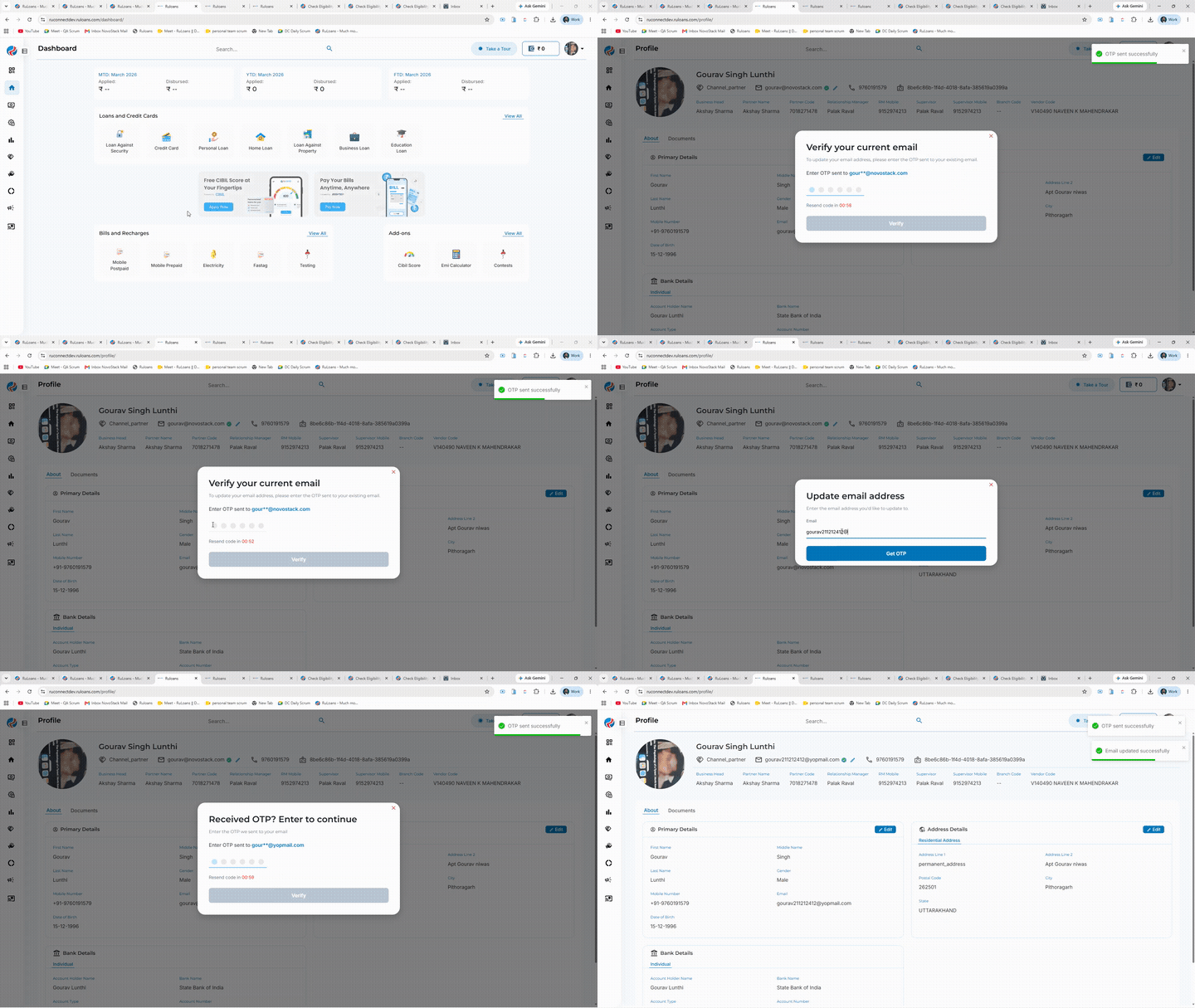
DSA users can edit their email address from their profile by completing an existing-email and new-email OTP verification flow.Email Update Flow
- The DSA user selects the email edit option from their profile.
- The system sends a code to the existing verified email address.
- The user verifies the existing email by entering the OTP.
- The user enters the new email address.
- The system sends a code to the new email address.
- The user verifies the new email by entering the OTP sent to it.
- Once verified, the new email is updated and marked as verified.