
Bank Product Combination
Objective
To enable the Bank Product Combination feature for a specific DSA in CRM and access it from the B2B RuConnect portal.Step 1: Enable Bank Product Combination Permission in CRM
- Log in to CRM.
- Navigate to the profile of the required DSA.
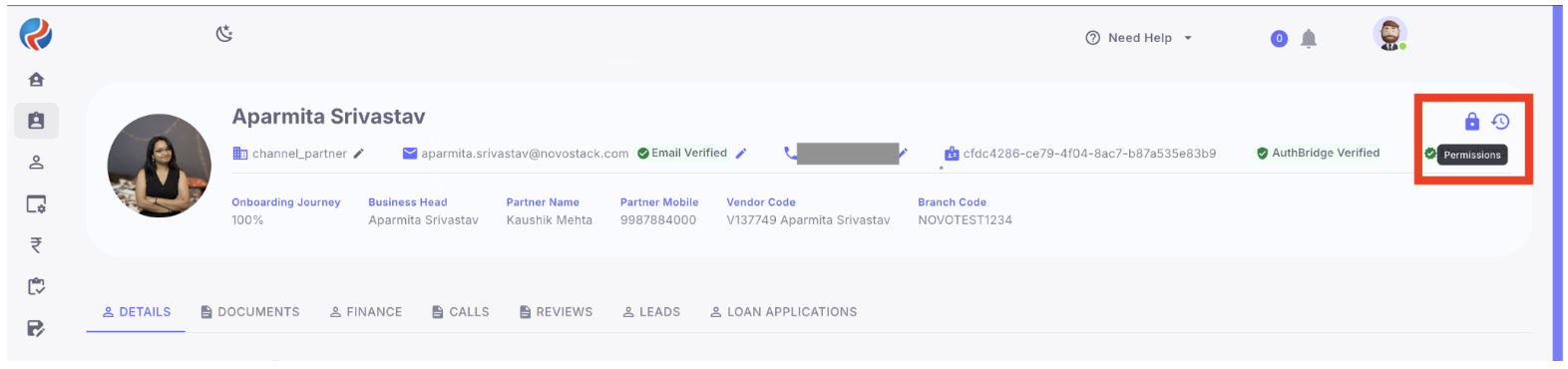
- Click the Permissions icon located at the top-right corner of the profile page.
- From the dropdown menu, select Bank Product Combination.
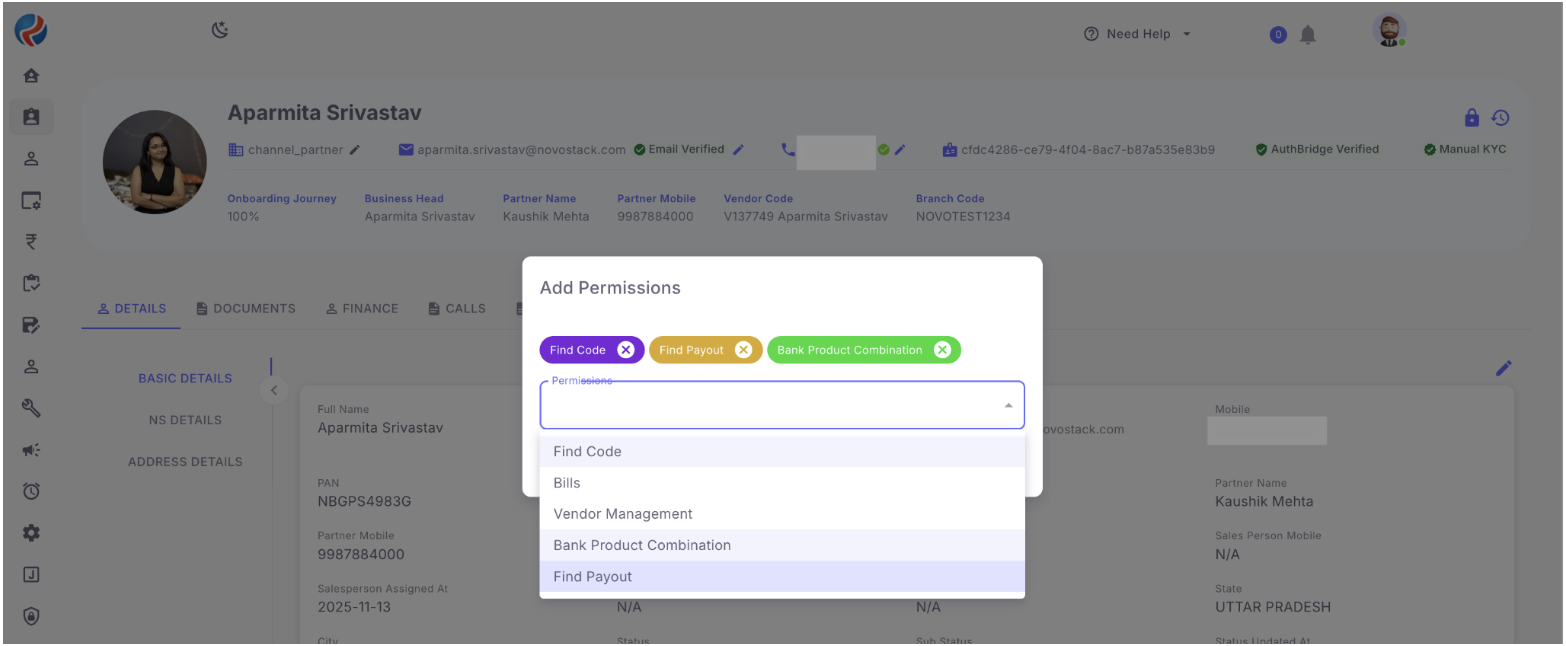
- Add/enable the required permission and save the changes. (This can be done by CEO role only)
Step 2: Access Bank Product Combination in B2B RuConnect
- Log in to B2B RuConnect.
- From the left sidebar, expand the Tools section.
- A new option named Bank Product Combination will be available along with Your Payout and Find Bank.
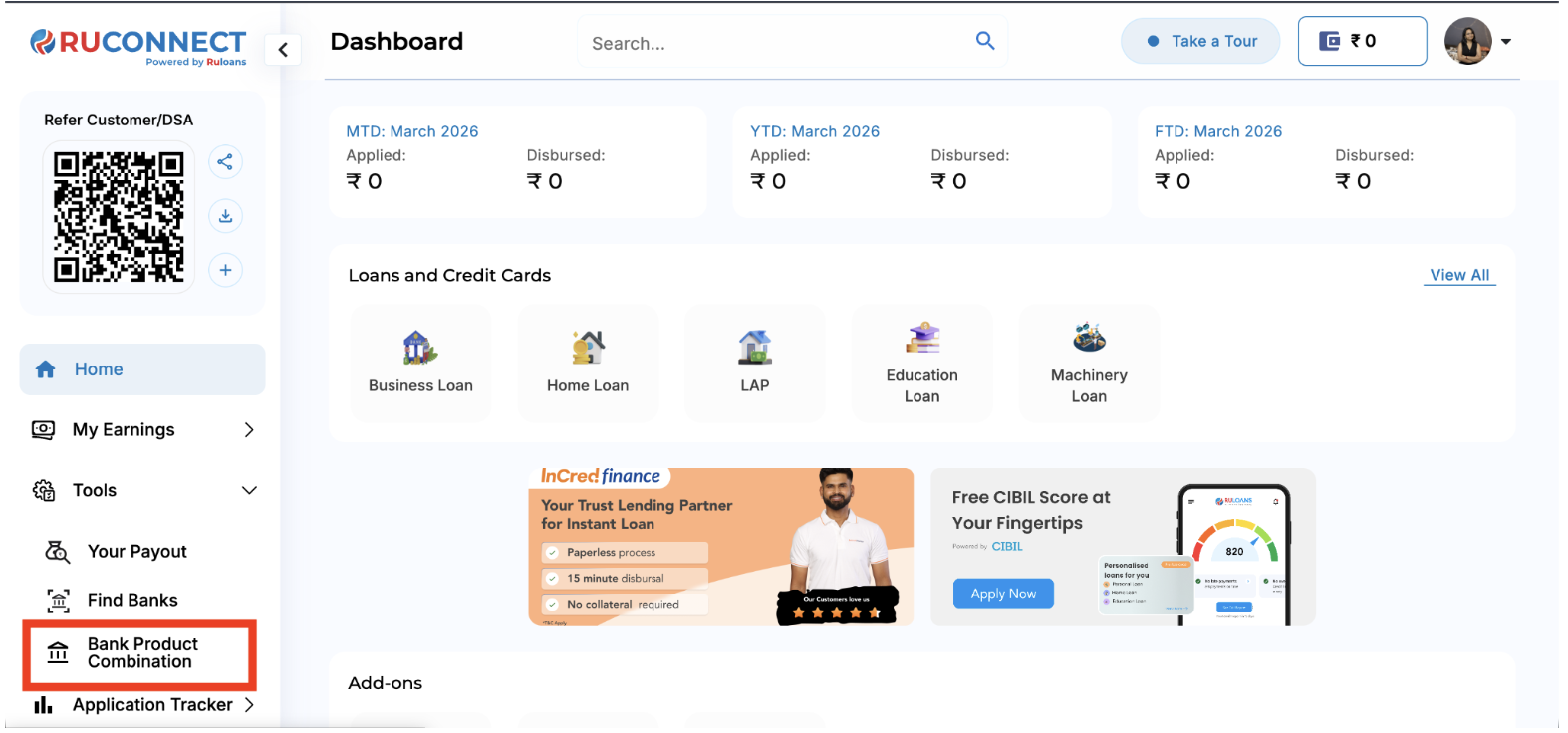
- Click Bank Product Combination to open the page.
Step 3: View Bank Product Details
- On the Bank Product Combination page, all available bank details will be displayed.
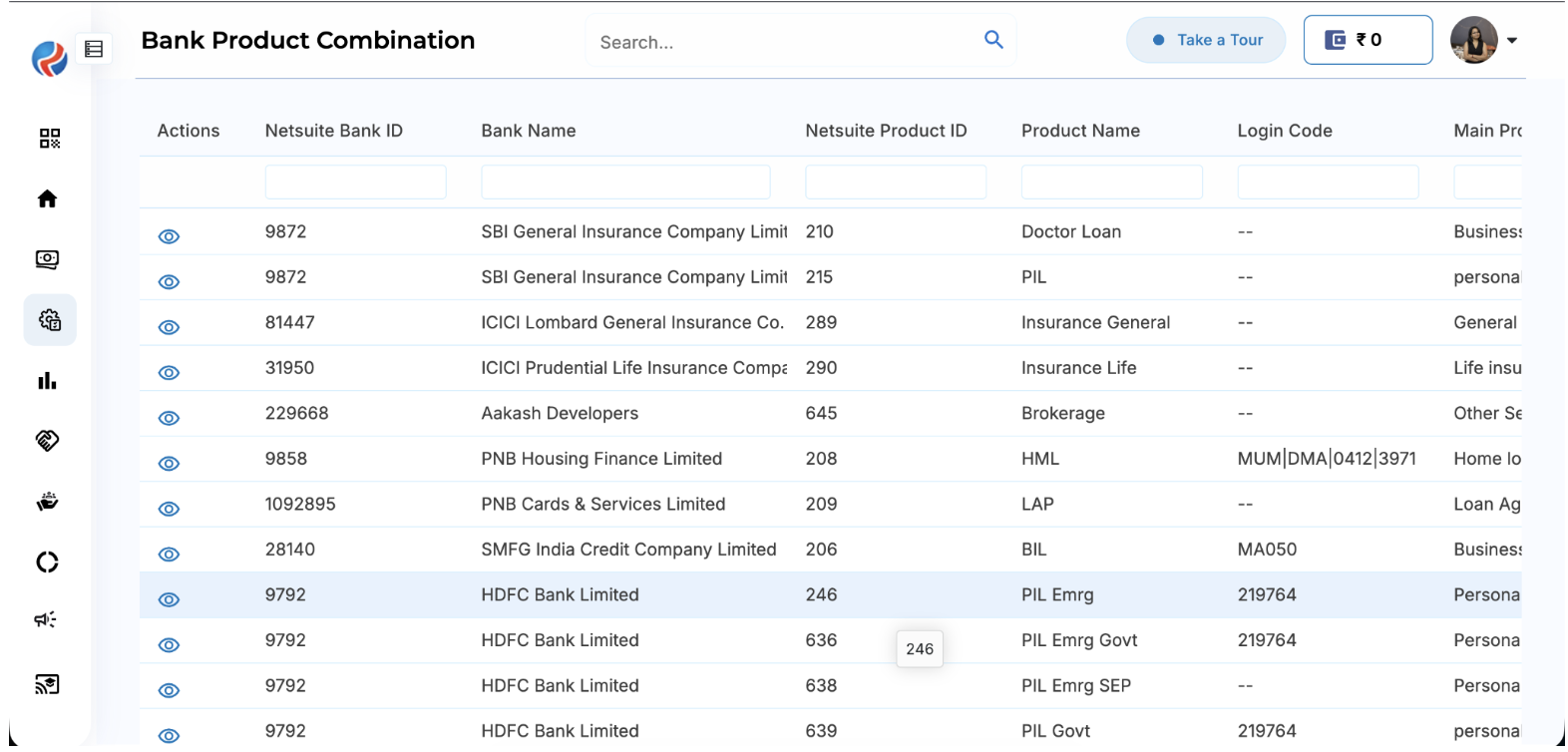
- To view the product details of a specific bank, click the Eye (View) icon corresponding to that bank.

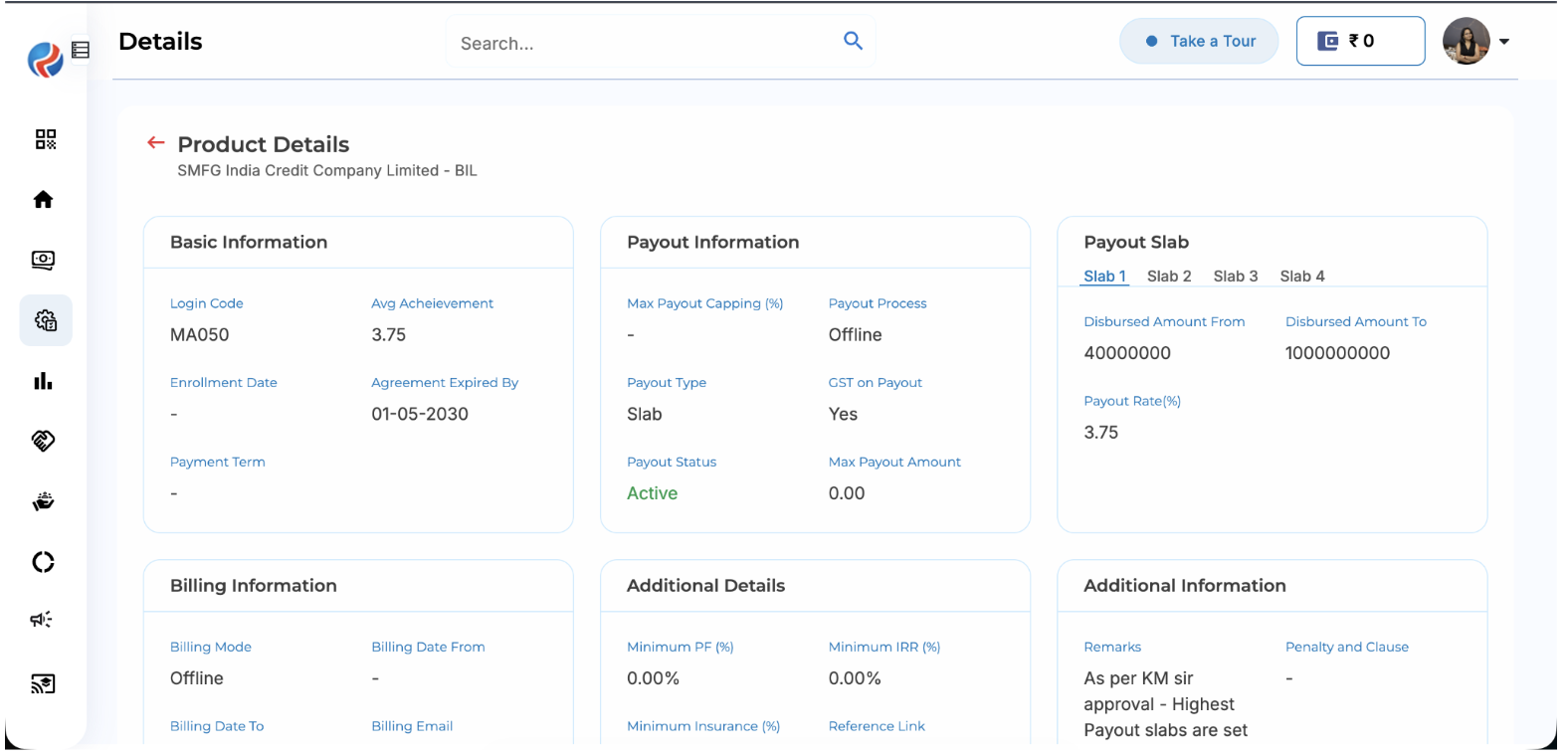
- The complete product combination details for the selected bank will be displayed.
Prepared By: Aparmita Srivastav