
Video walkthrough
A 3-minute walkthrough (English, with captions and chapters):Which changes need approval
Values of 80% or below, and payout edits that don’t change the lock, save normally.
The two Approvals permissions
Roles management has a module called Approvals with two permissions:- Role has Update on the permission: the change saves straight away.
- Role does not have it: the user picks an approver, and the change waits for approval.
- Approvers are active users whose role has Update on the same permission, plus Super Admins. Nobody can approve their own request.
- After approval, the change is applied in the nightly run at 9:00 PM.
Approvers come from Roles management only. The old email and phone number lists in Global configuration are no longer used for these changes.
Set up: give a role the permission
Only CEO and Super Admin can change role permissions.1
Open Roles management
Go to Settings → Roles Management. The CEO role already has both Approvals permissions.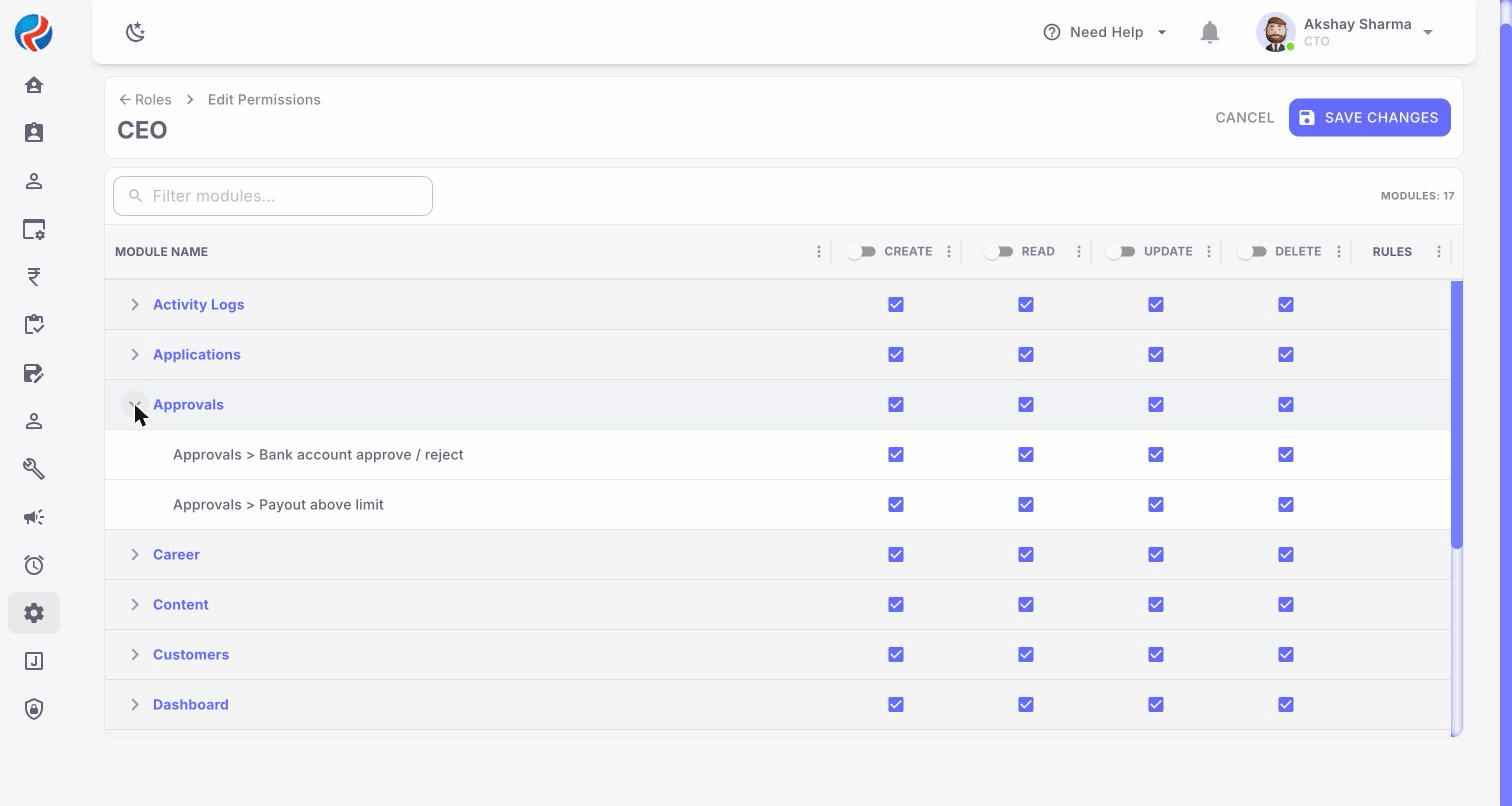
2
Edit the role
Use Filter to find the role (for example 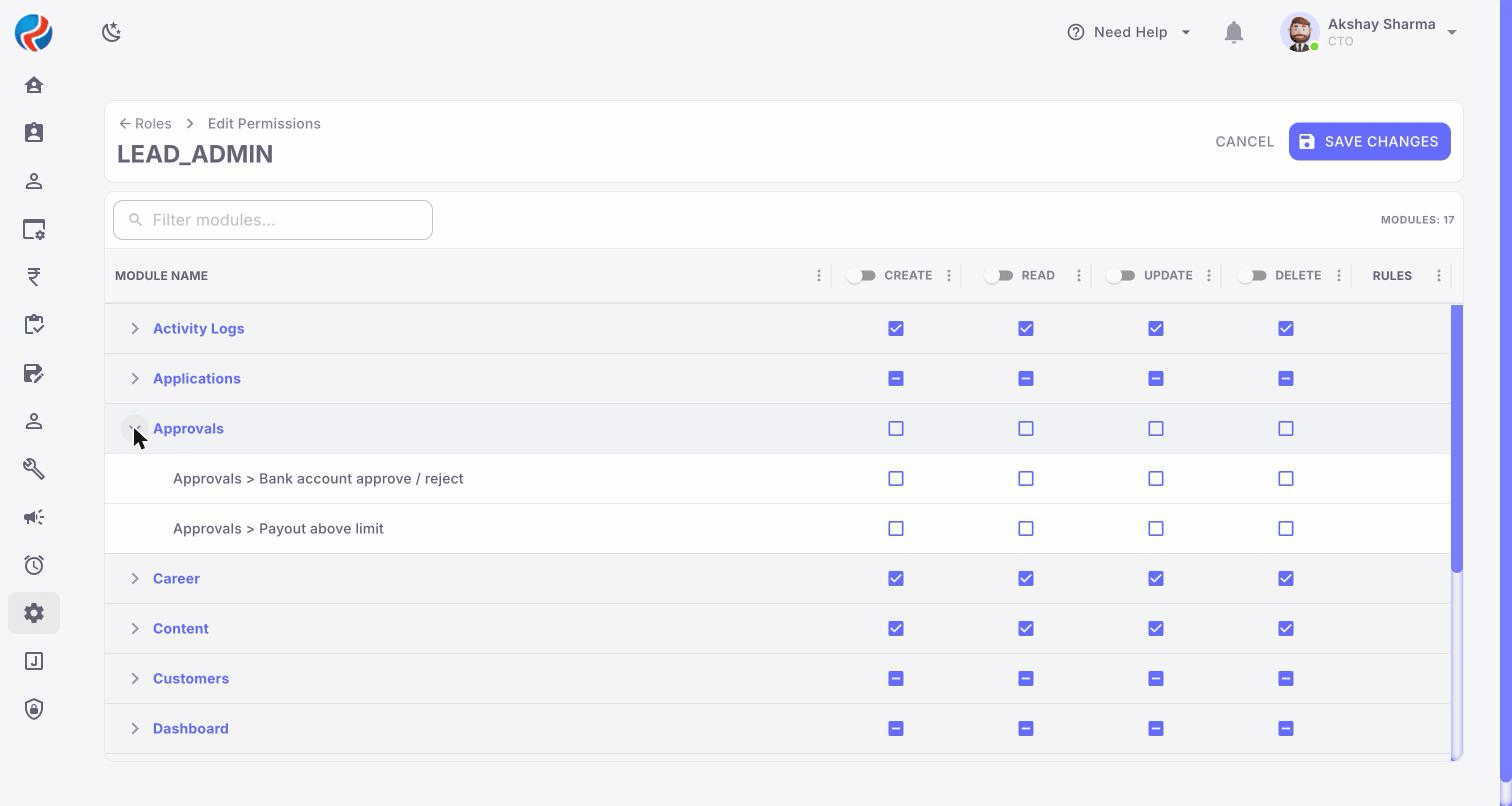
LEAD_ADMIN) and click the pencil (Edit) icon. Expand Approvals. A role without the permissions shows both rows unticked.3
Tick Read and Update, then save
Tick Read and Update on the rows you need, and click Save changes. Update is the one that matters. Leave Create and Delete unticked.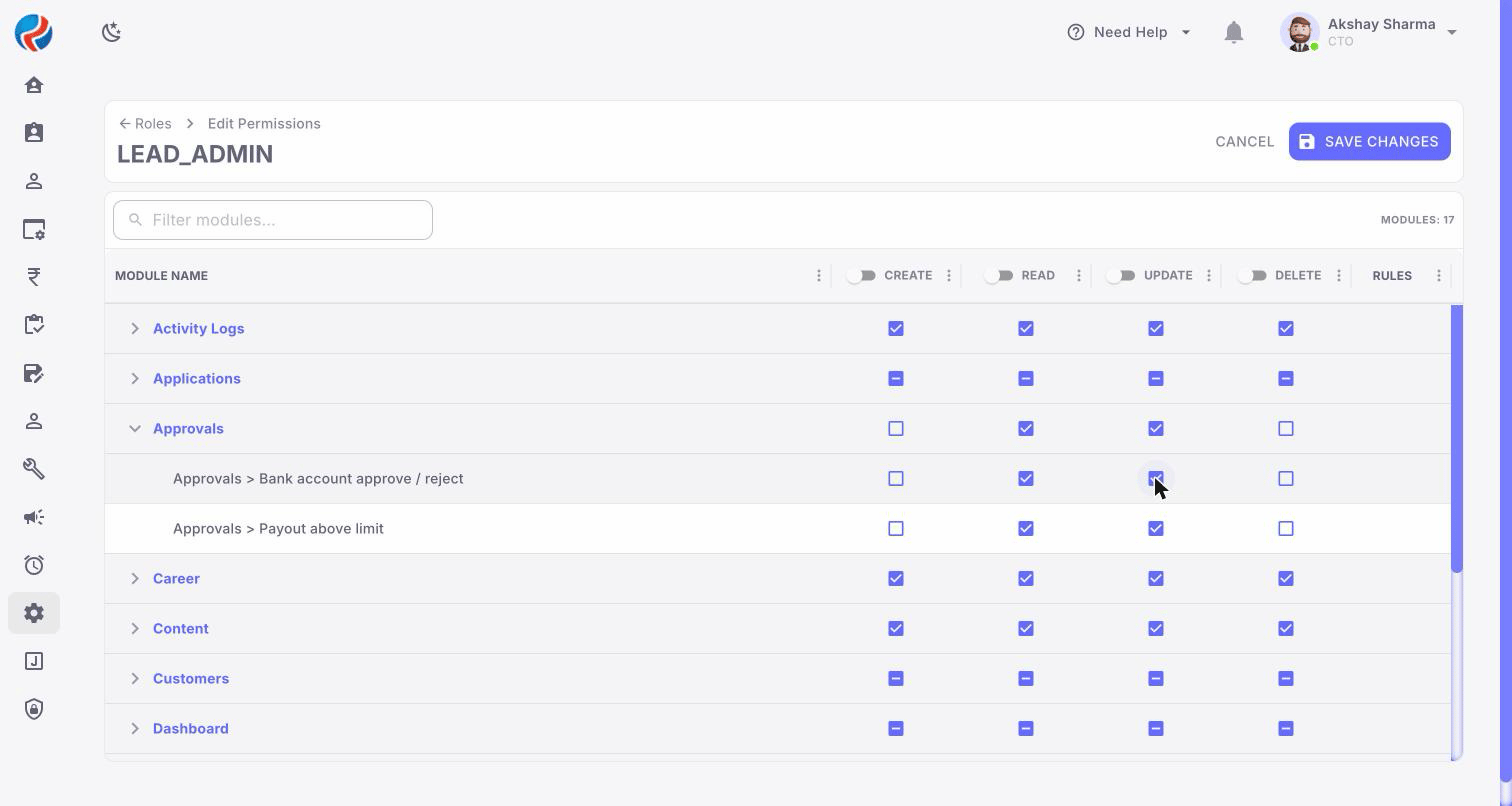
Suggested starting point
Adjust this to your own process.
Making a change that needs approval
Payout above 80%
1
Edit and save as usual
For example, set a partner’s global payout to 90%.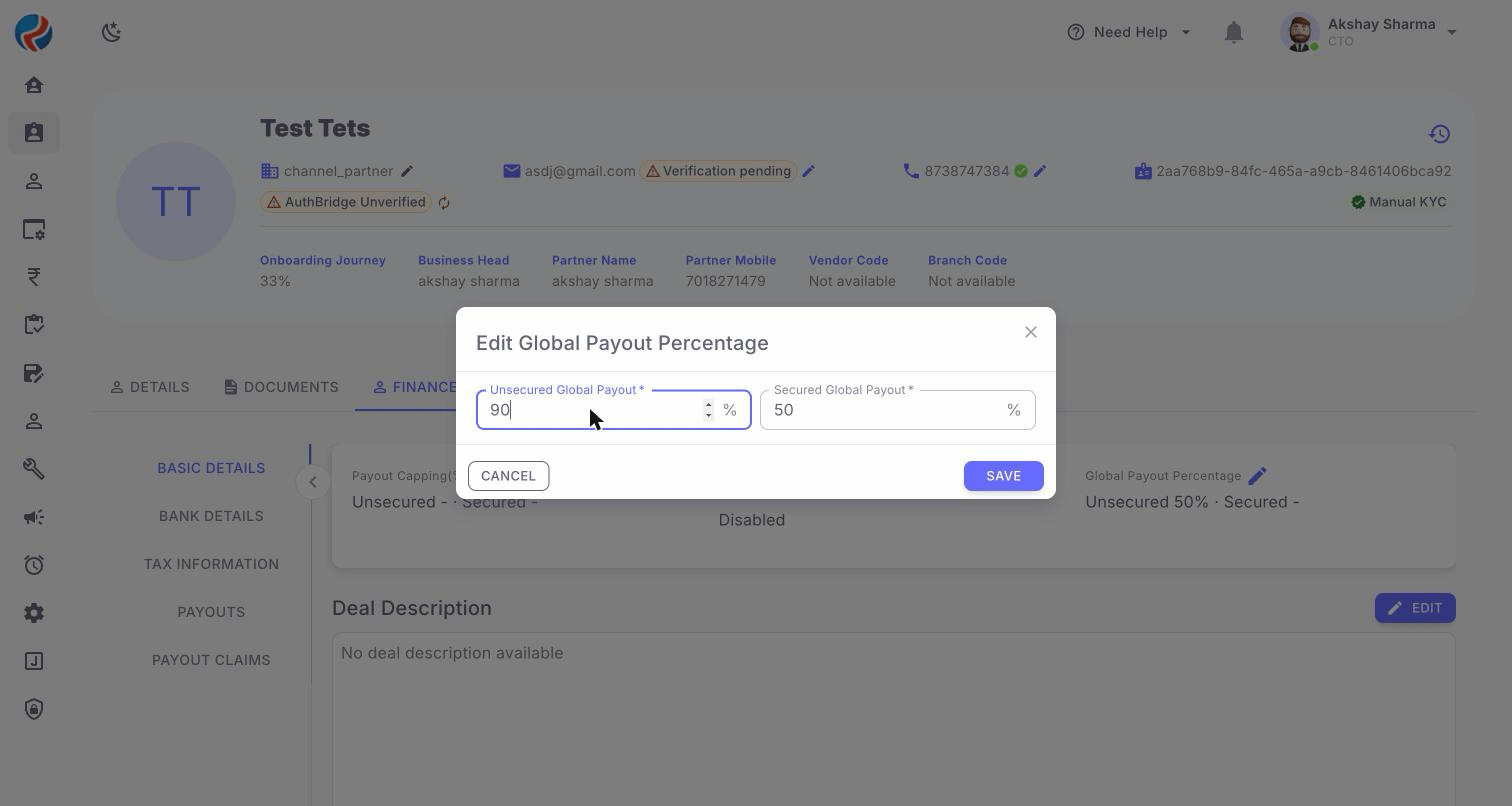
2
Pick an approver
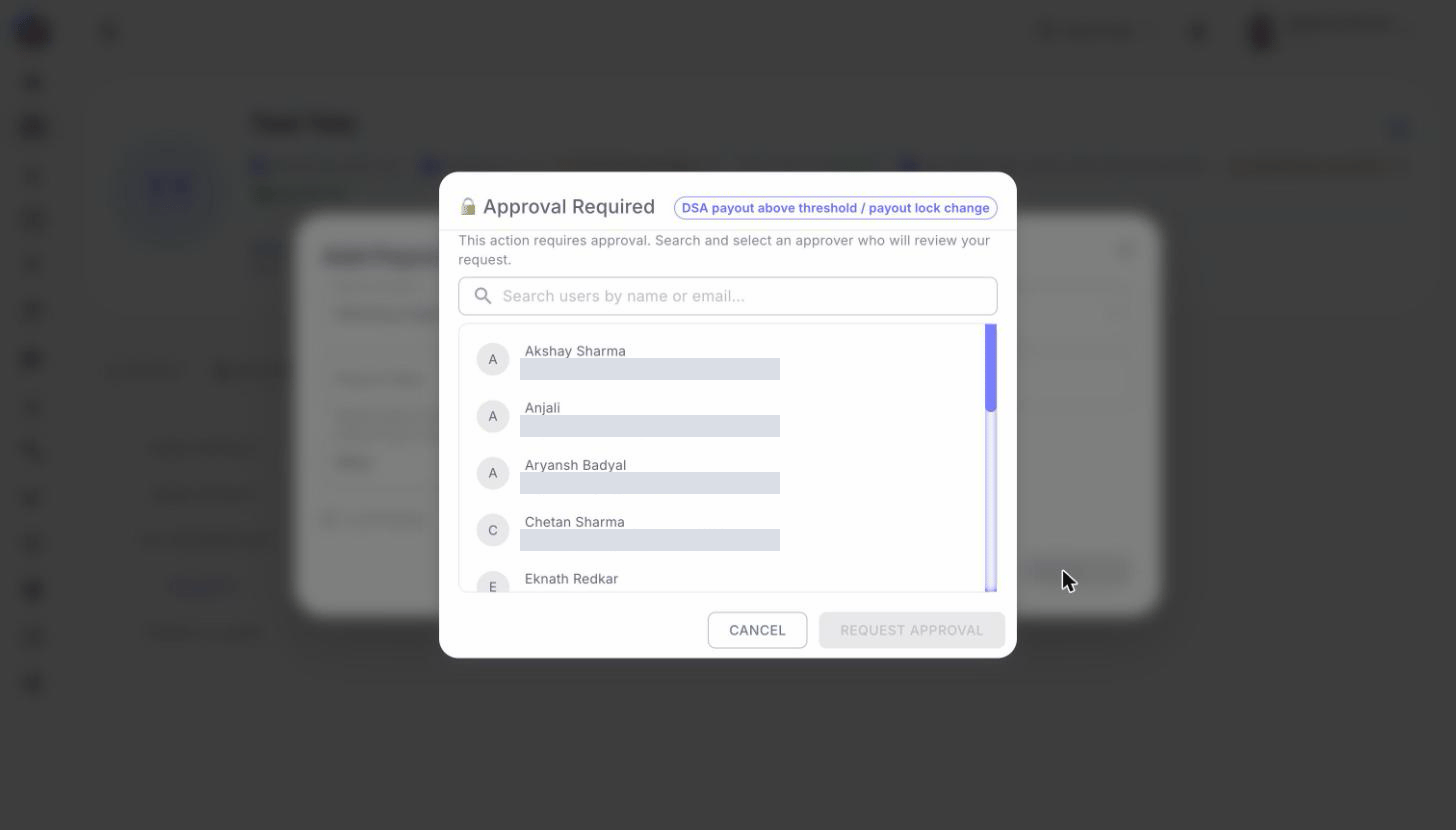
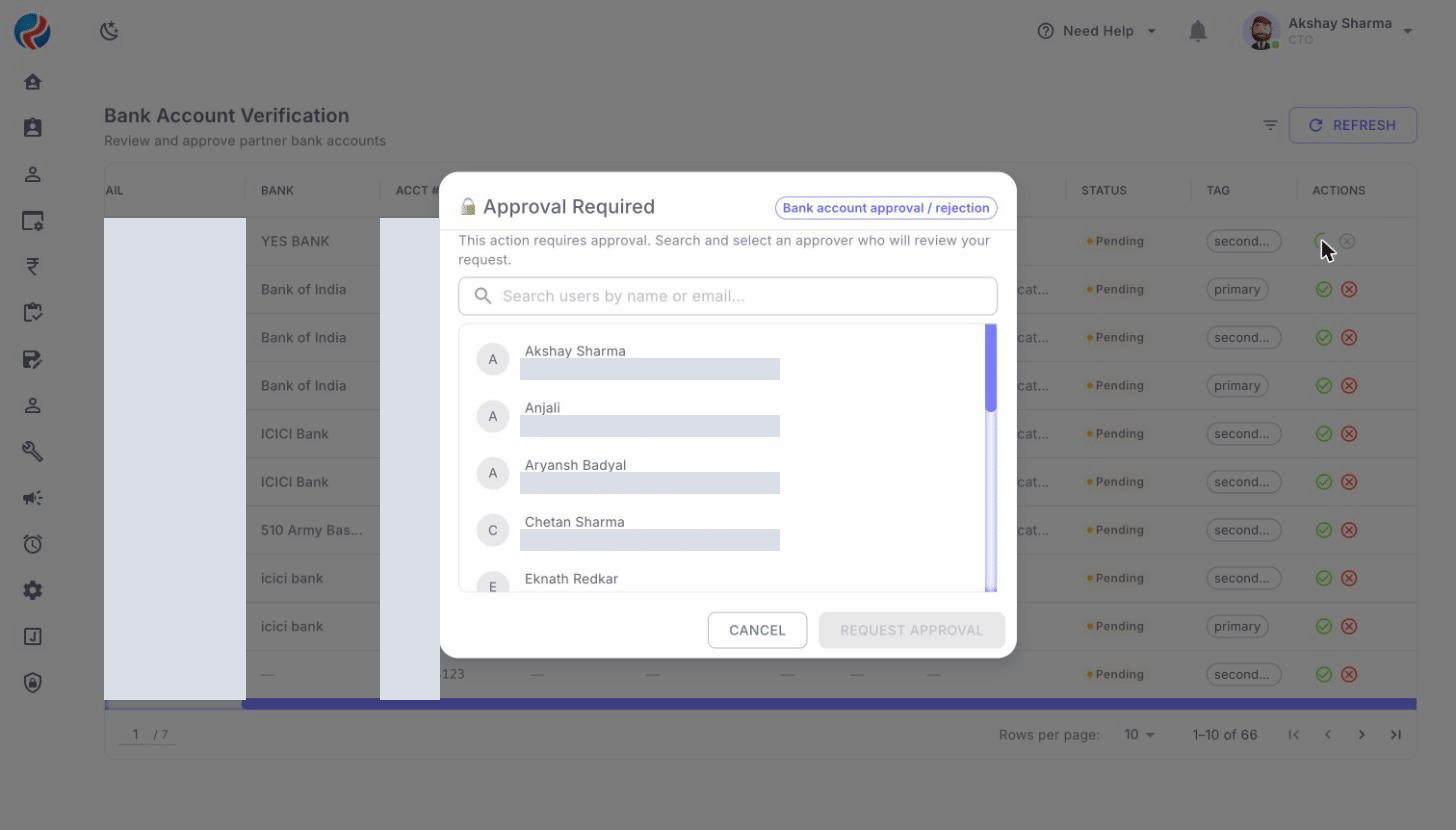
If your role doesn’t have the permission, the Approval Required window opens instead of saving. The label at the top shows what needs approval. Only people who can approve this change are listed. Search, pick one, and click Request approval.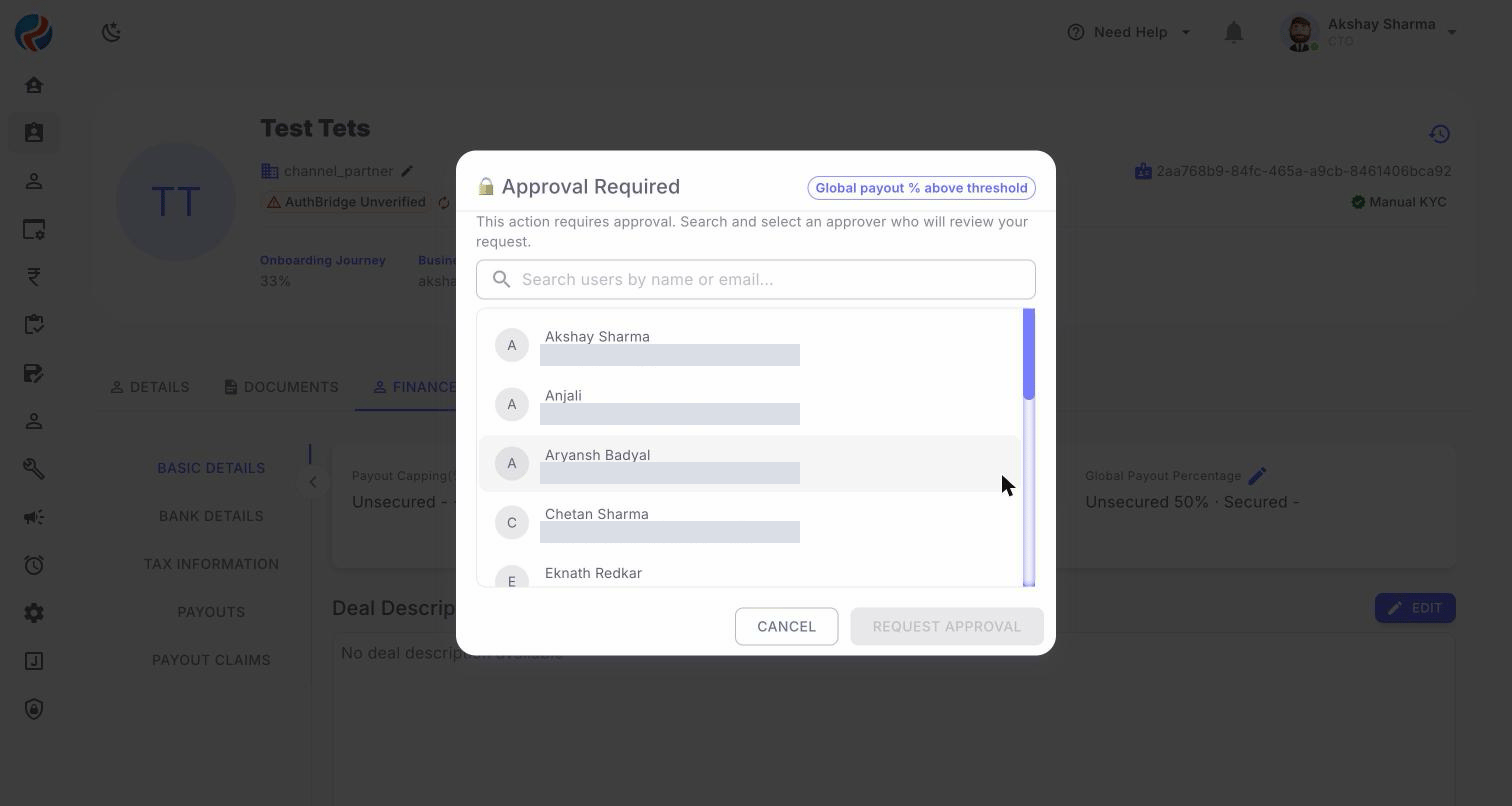
3
Or cancel
Click Cancel and nothing is saved.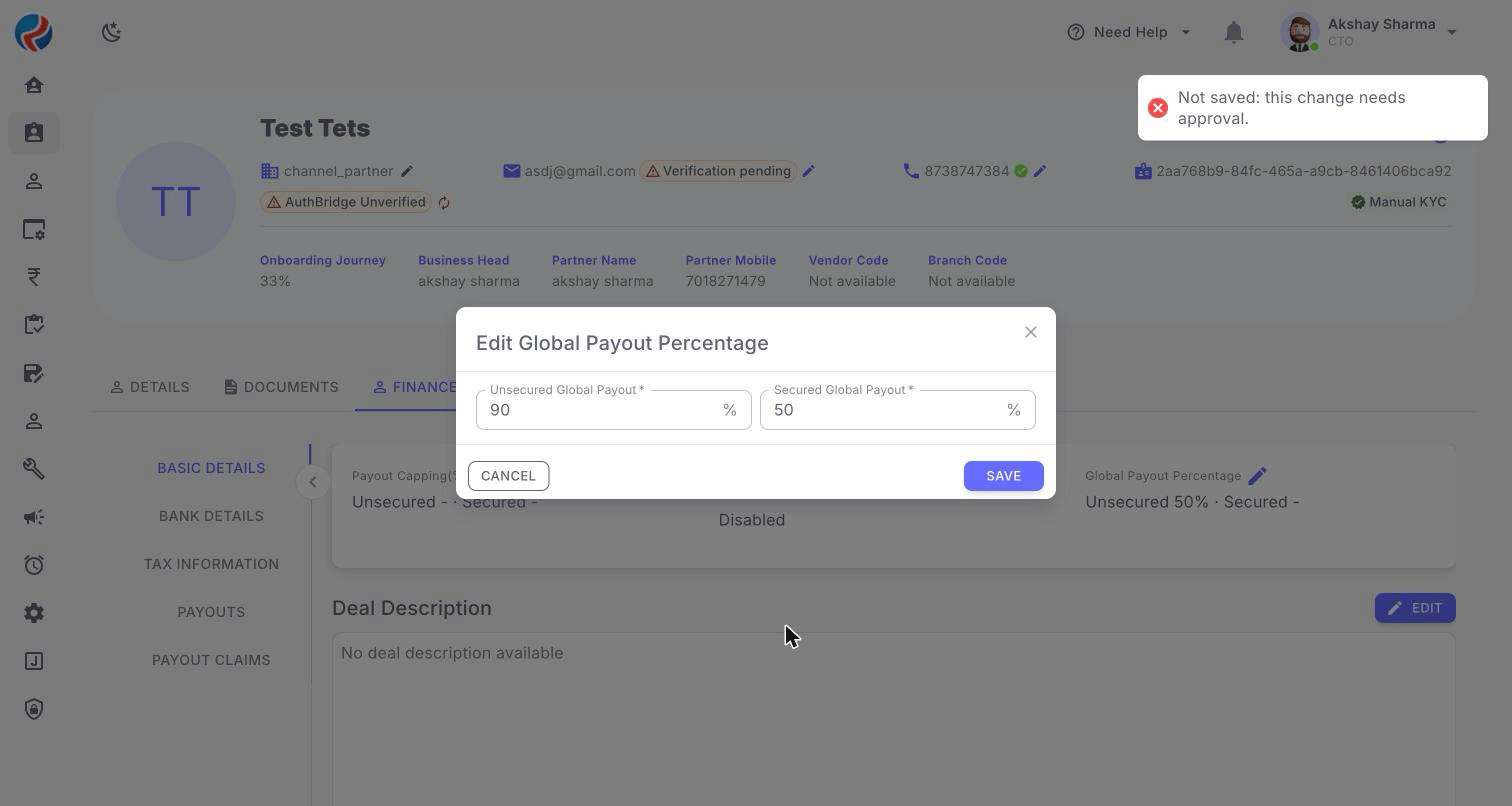
Payout ratio above 80%
The same applies to the Payout Ratio, autonomous ratio and lead payout ratio. For example, adding a payout with ratio 85: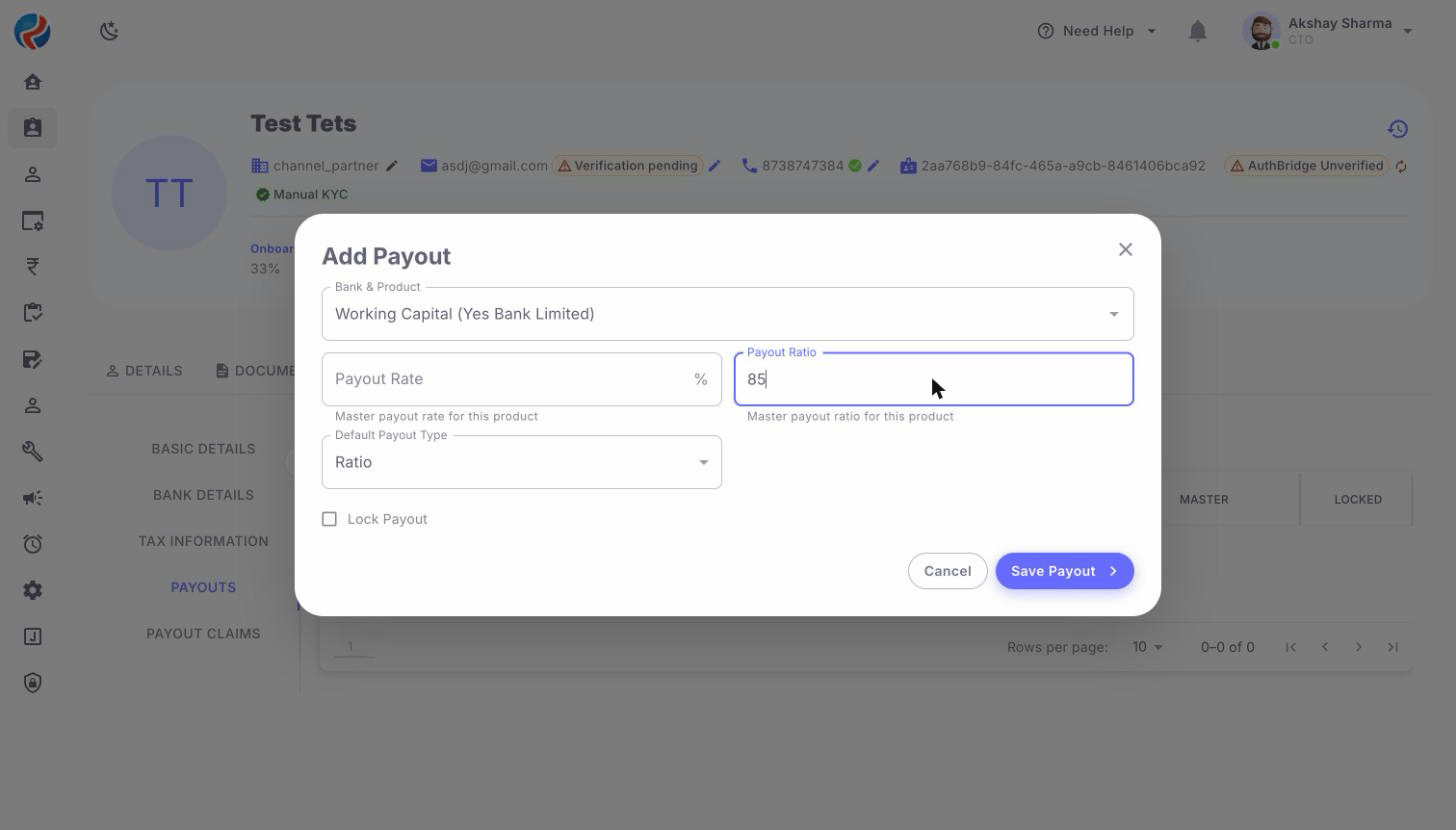
Approving a request
- The approver gets an email: “[Action Required] Approval Requested: …” with a link.
-
Open Approvals (shield icon in the left menu) → Requests For Me.
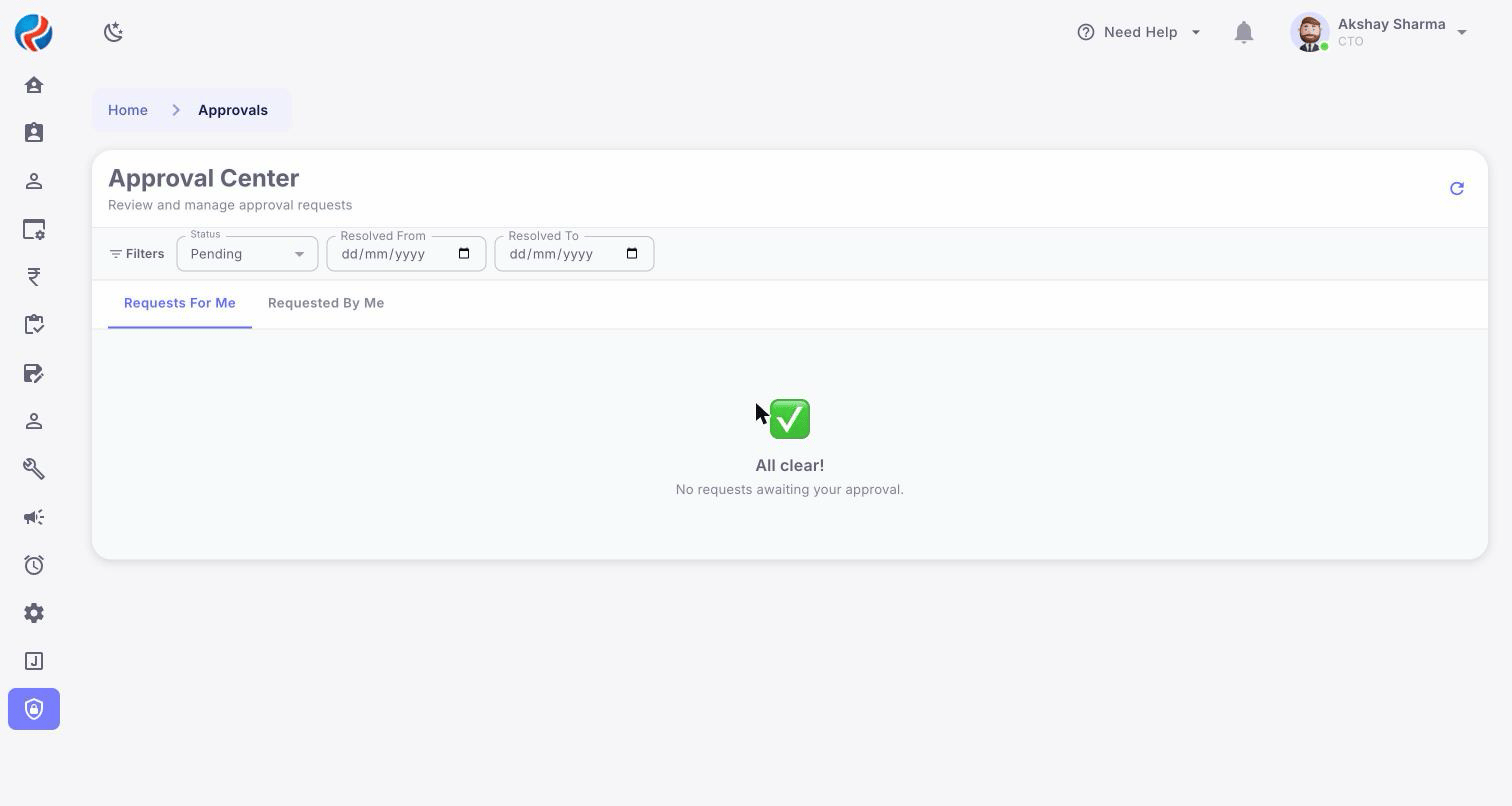
- Open the request, check the details and click Approve or Reject, with a remark.
- The requester gets an email. Approved changes are applied at 9:00 PM.
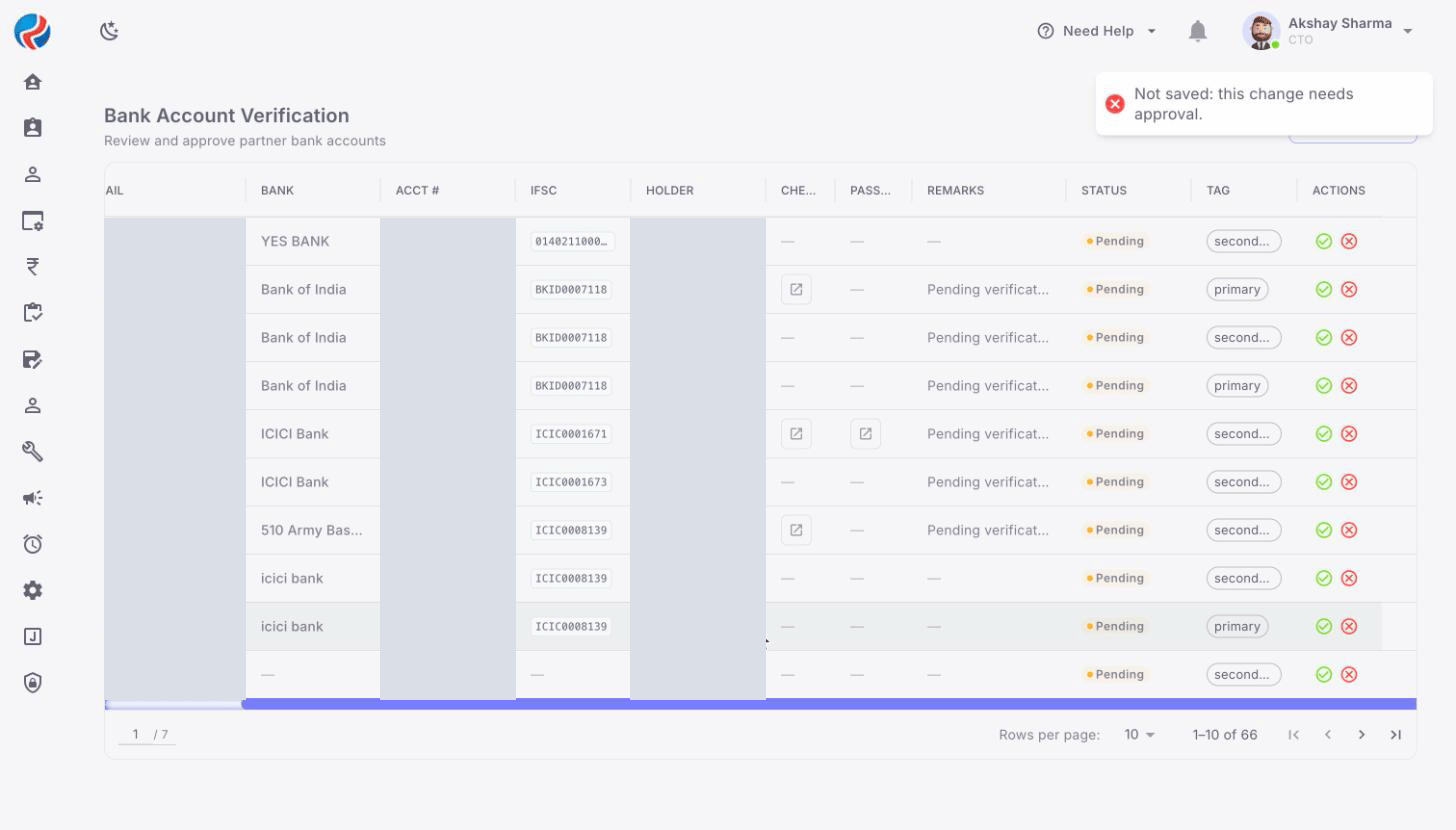
Bank Account Verification
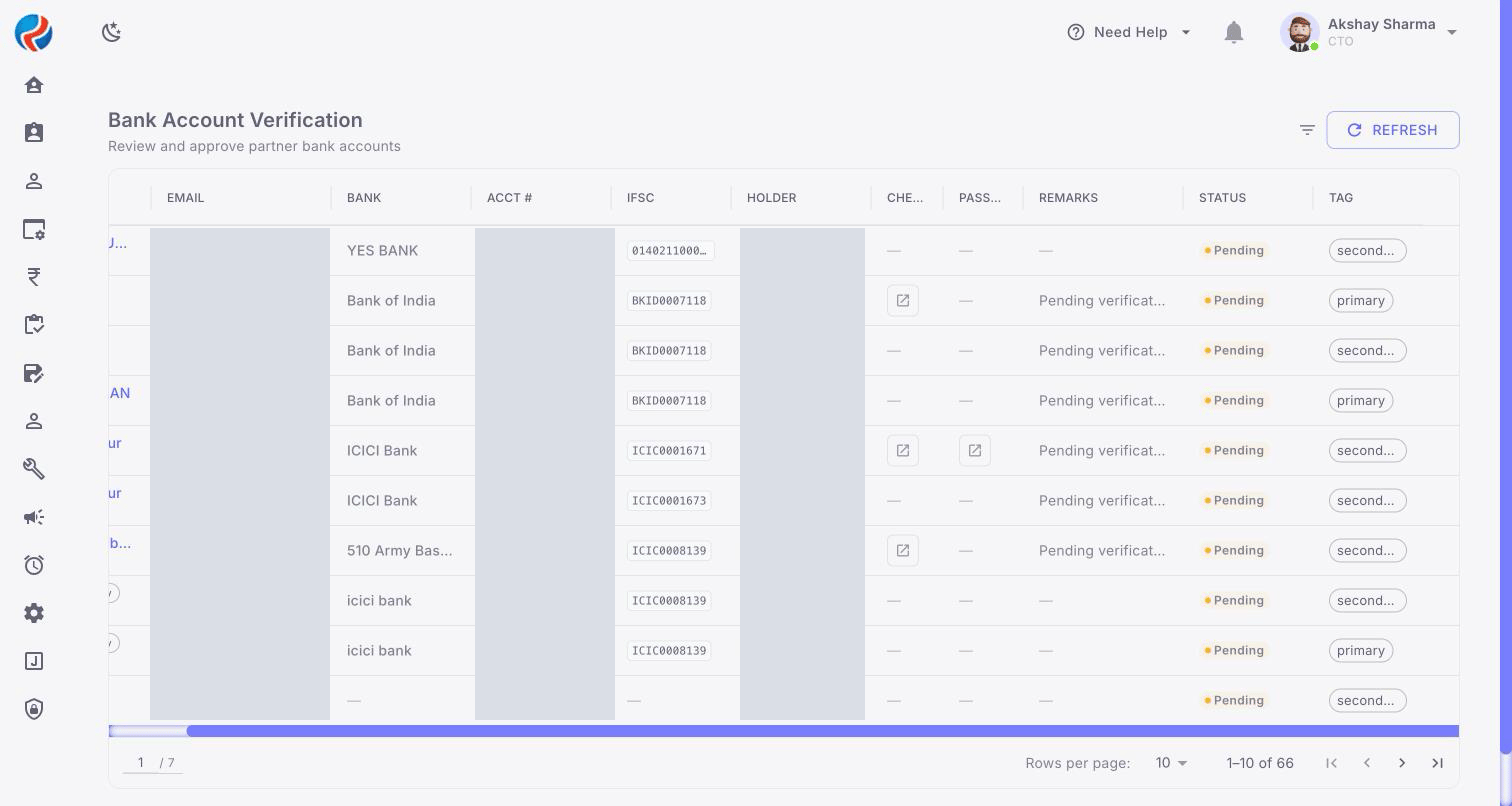
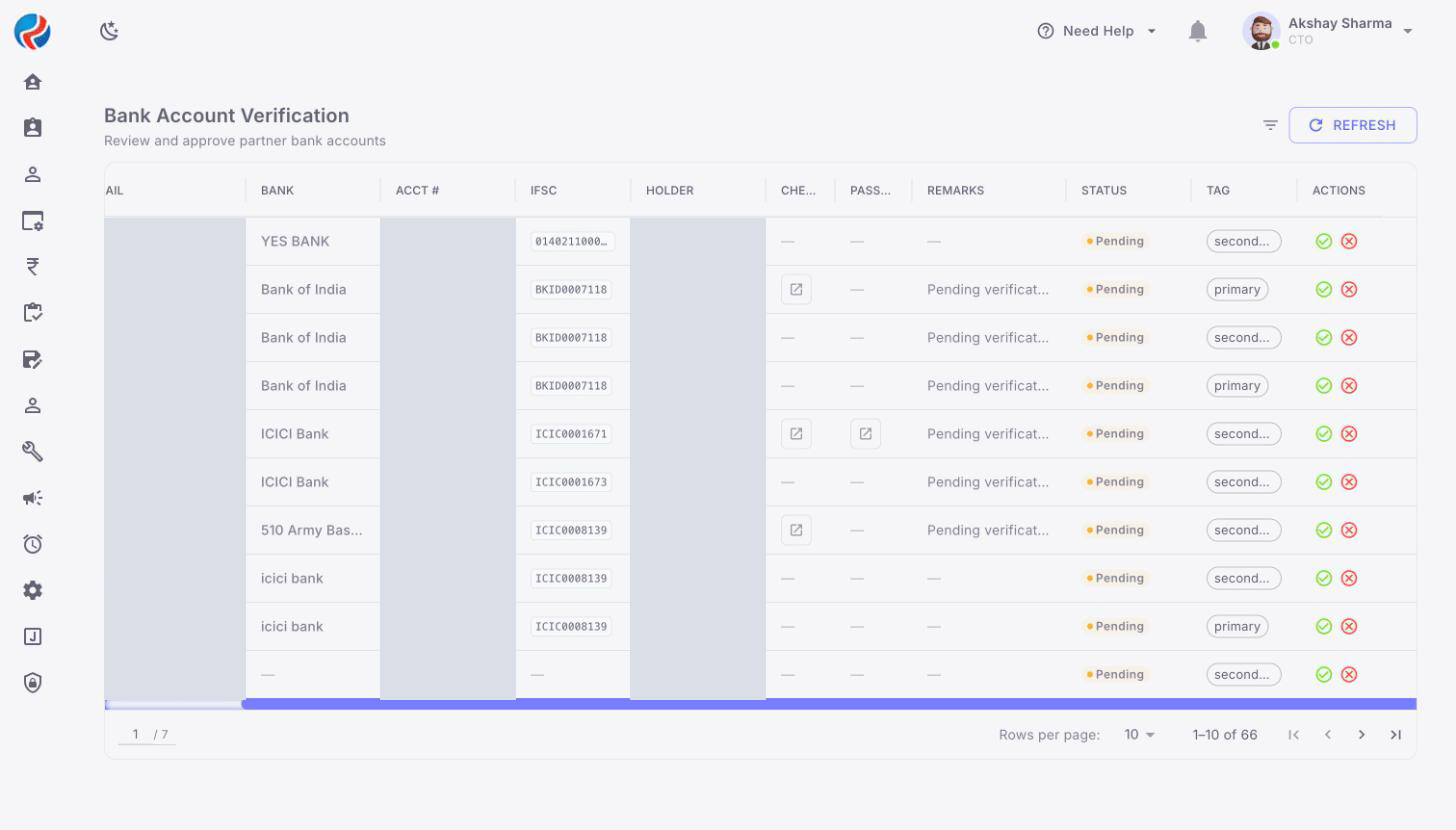
On Finance → Bank Account Verification, the ✓ / ✗ buttons in the Actions column now come from Roles management:
Before this change, the buttons were shown only to phone numbers in a Global configuration list, so many users saw none:
Troubleshooting
Screenshots are from the dev environment. Emails and account numbers are hidden.